
How to Install iOS 18 Beta on iPhone - Update iOS 17 to iOS 18

You must be drawn to the features of iOS 18 introduced at WWDC on June 10, 2024. Fortunately, Apple then released iOS 18 Beta for users registered with Apple Developer Program. To experience iOS 18 Beta, iSumsoft will guide you through installing iOS 18 Beta on your iPhone. Here we go!

- Part 1: How to Install iOS 18 Beta on Your iPhone?
- Solution 1: Get iOS 18 Beta with Apple Developer Account
- Solution 2: Install iOS 18 Beta Using iSumsoft iOS Refixer
- Part 2: Who Can Get iOS 18?
Part 1: How to Install iOS 18 Beta on Your iPhone?
Solution 1: Get iOS 18 Beta with Apple Developer Account
To experience Developer Beta, you must create an Apple Developer Account and enroll in the Program since iOS/iPadOS 16.4 Developer Beta 1, and then you can see its update from Settings. Here's how to update to iOS 18 Beta.
Considering that some users haven't joined the Program, we start with creating a developer account.
Step 1: Visit https://developer.apple.com/ and then click Account.

Step 2: Sign in with your Apple ID.
Note:
- Only your iPhone or iPad signed in with the same Apple ID you used to enroll in the Apple Developer Program can you see the Beta Version on the Software Update option.
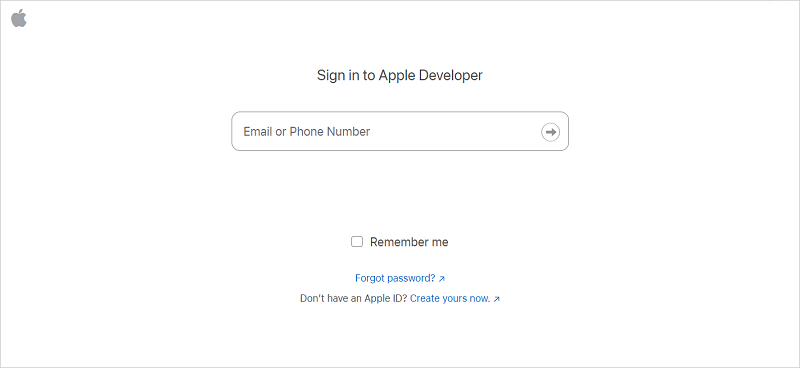
Step 3: After the successful login, click Join the Apple Developer Program and then follow the onscreen instructions to complete the enrollment.

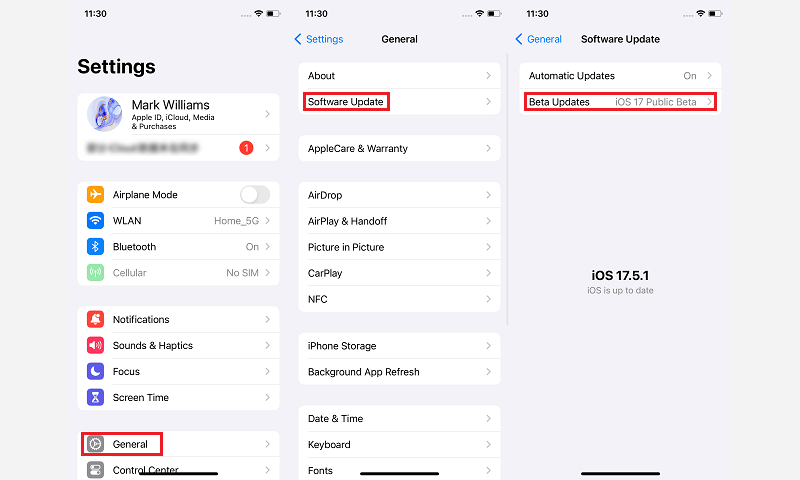
Step 4: Once created an account, tap Settings > General > Software Update > Beta Updates on your iPhone.
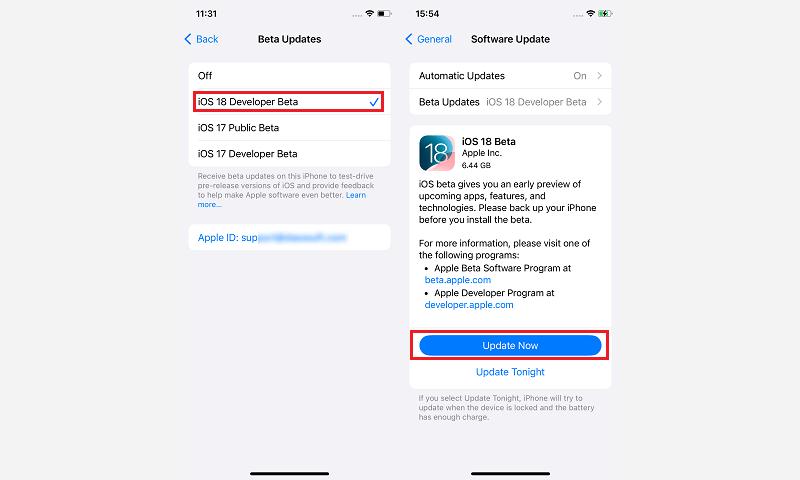
Step 5: On this page, select iOS 18 Developer Beta. Then tap Update Now and follow the onscreen prompts to update to the latest iOS Version.
Solution 2: Install iOS 18 Beta Using iSumsoft iOS Refixer
Commonly, most users do not want to join the Apple Developer Program. Therefore, in addition to enrolling in the program, how to install the iOS 18 Beta without a developer account? You can utilize iSumsoft iOS Refixer to achieve the installation of iOS 18 Beta. With the software, you can not only update to any iOS version but also downgrade your iPhone or iPad from iOS 18 to iOS 17 signed by Apple.

Learn how to use it:
Note:
- The latest version of iTunes must be installed on the computer before using the software.
Step 1: Download the software and complete its installation on your computer. Then connect your iPhone to the PC and launch the program.


Step 2: On the interface, select iOS Upgrade/Downgrade.

Step 3: Select Upgrade iOS.
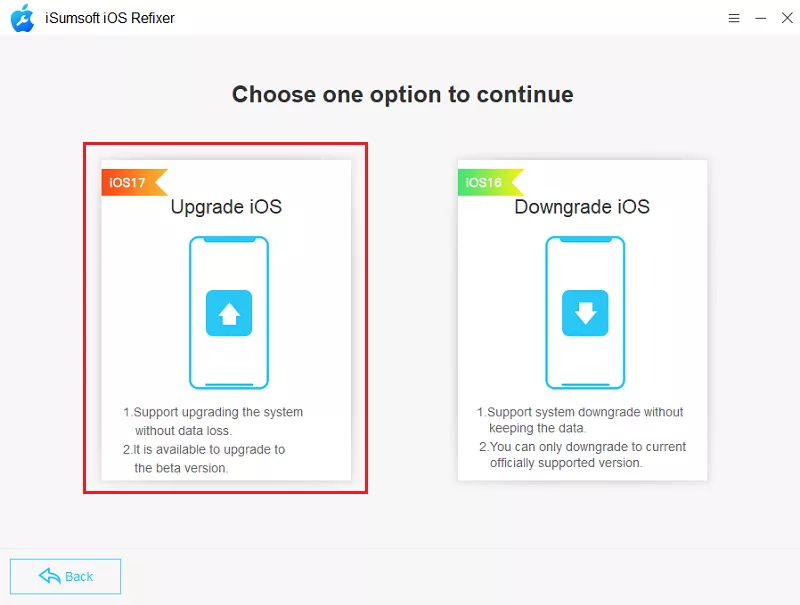
Step 4: Click Next to continue.

Step 5: Here, click on the dropdown button to select a version you want to update. Then click Download to proceed.

Step 6: After the successful download, click Start to begin installing the iOS 18 Beta.

Step 7: This process will take around 20 minutes, which depends on your network speed. Once your device is successfully upgraded, you will find “Upgrade Successfully” on the interface and your iPhone will restart automatically.

Part 2: Who Can Get iOS 18?
iOS 18 is compatible with 23 iPhone Models, including the older iPhone models: iPhone XR, iPhone XS, iPhone and iPhone XS Max, according to Apple. Here is a list, presenting all iOS 18 supported devices.

Related Articles
![Fixed: The iPhone Software Update Server Could Not Be Contacted]() Fixed:
The
iPhone Software Update Server Could Not Be Contacted
Fixed:
The
iPhone Software Update Server Could Not Be Contacted![[9 Tips] How to Fix Update Apple ID Settings Stuck 2023]() [9 Tips] How to Fix Update
Apple
ID Settings Stuck 2023
[9 Tips] How to Fix Update
Apple
ID Settings Stuck 2023![How to Fix Gmail Not Working After iPhone Update?]() How to Fix
Gmail
Not Working After iPhone Update?
How to Fix
Gmail
Not Working After iPhone Update?![3 Ways to Fix iPhone Stuck on Verifying Update]() 3 Ways to Fix
iPhone
Stuck on Verifying Update
3 Ways to Fix
iPhone
Stuck on Verifying Update![[Solved] iPhone Passcode Not Working After Update iOS 16/17]() [Solved] iPhone
Passcode
Not Working After Update iOS 16/17
[Solved] iPhone
Passcode
Not Working After Update iOS 16/17![Stop iOS Software Update Notification Reminders]() Stop iOS
Software
Update Notification Reminders
Stop iOS
Software
Update Notification Reminders
![[9 Tips] How to Fix Update Apple ID Settings Stuck 2023](../images/ios-issues/update-apple-id-settings-stuck/fix-update-apple-id-settings-stuck-s.webp)


![[Solved] iPhone Passcode Not Working After Update iOS 16/17](../images/unlock-iphone/iphone-passcode-not-working-after-update/iphone-passcode-not-working.png)
