How to Enable Do Not Disturb on Your iPhone/iPad/iPod

Use Do Not Disturb on your iPhone, you can silence calls, alerts, and notifications that you get while your device is locked. You can also schedule a time or choose who you'll allow calls from. This tutorial will show you how to enable Do Not Disturb on iPhone.
- Option 1: Turn on or off Do not Disturb on Control Center
- Option 2: Enable Do not Disturb Mode in Setting and Set a Schedule
- Option 3: Enable Do Not Disturb on Message app
Option 1: Turn on or off Do not Disturb on Control Center
To turn it on manually, swipe up from the bottom of the screen to access Control
Center. Tap moon icon . When Do Not Disturb is on, you'll see a
  in the status bar.
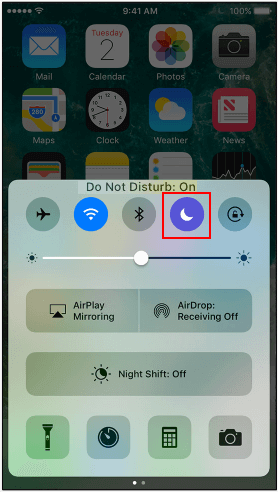
To turn Do Not Disturb off again, just follow the same steps.
Option 2: Enable Do not Disturb Mode and Set a Schedule
You can schedule a time to prevent reminders of calls, text message, and notification, then exact steps are as below:
Step 1: Open Settings app.
Step 2: Tap Do Not Disturb.
Step 3: Choose Manual to turn it on, or set a schedule.
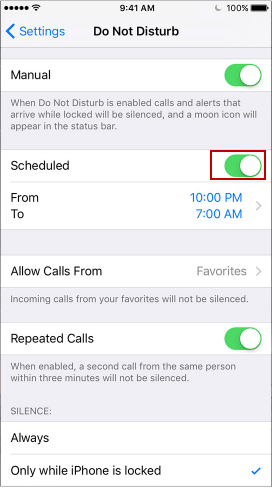
Step 4: Turn Schedule on, you can choose when you want to receive alerts, calls, and notifications.
In Silence option, choose to silence calls and notifications always or only when the device is locked.
- Always: Calls and notifications are always silent.
- Only while iPhone is locked: Calls and notifications are silent only when the iPhone is locked.
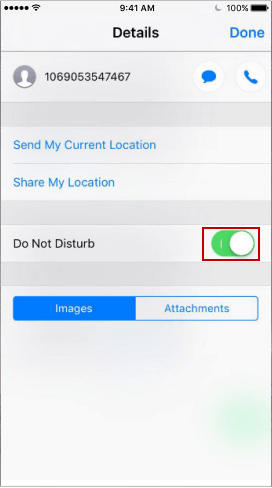
Option 3: Enable Do Not Disturb in Message app
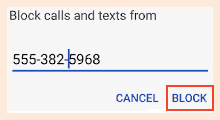
With this option, you can easily block someone from disturbing you.
Step 1: Open Message app.
Step 2: Open a conversion, then tap information icon, then tap the name or phone number.
Step 3: Then turn Do Not Disturb on.