How to Enable Optimize Storage for Photo on iPhone/iPad/Mac

Can't take the photo or video you want because of insufficient storage? There are 2 solutions to fix this problem, one is to delete anything you no longer need, the other doable way is to enable Apple's built-in storage saving feature to free up space.
This guide describes how to use optimized storage for free up space on iPhone, iPad, and Mac.
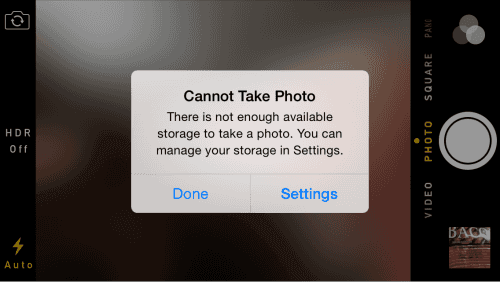
Part 1: Enable Optimize Storage on iPhone/iPad
Step 1: Go to Settings > Photos.
Step 2: Turn on iCloud Photo Library, choose Optimize iPhone Storage.
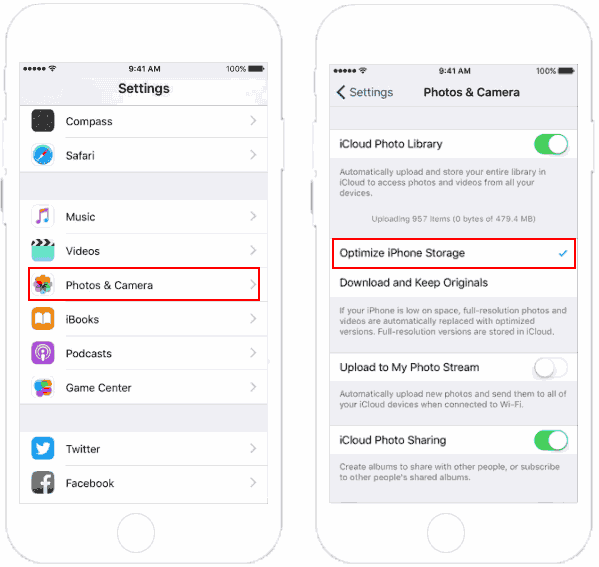
Once enabled, the full-resolution photos and videos will be replaced with the optimized version when your iPhone is out of storage space. iCloud Photo Library keeps full-resolution versions in iCloud. And you can download the original photos and videos over Wi-Fi or cellular when you need them.
Part 2: Enable Optimize Storage on your Mac
Step 1: Open the Photos app.
Step 2: Click Photos in the menu bar, chose Preferences.
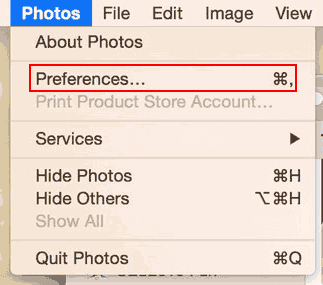
Step 3: Go to the iCloud tab and then choose Optimize Mac Storage.
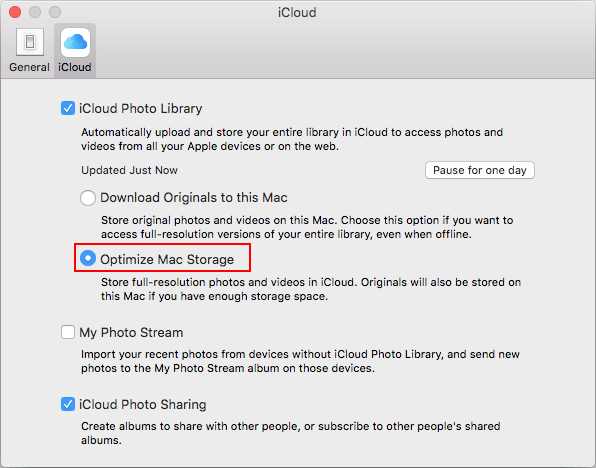
The full-sized photos and videos will be stored in iCloud, while lower-resolution previews will be left on your device. The full-sized versions will also be stored on your Mac if you have enough storage space.