
Apple's Stolen Device Protection is a brilliant security feature designed to be a formidable barrier against thieves. It adds an extra layer of security by requiring Face ID for sensitive actions, especially when your iPhone is away from a familiar location like your home or work.

But what happens when you are the legitimate owner, and you're locked out because Face ID is not working? Perhaps Face ID stopped working all of a sudden, the sensor is damaged, or you've simply changed your appearance. This security can suddenly feel like a prison of your own device.
If you're facing this frustrating scenario, you've come to the right place. This comprehensive guide will walk you through five proven methods on how to turn off Stolen Device Protection without Face ID.
Temporary software glitches may cause Face ID to stop working. A force reboot clears many transient software issues without erasing your data, which may restore Face ID functionality and let you turn off Stolen Device Protection.
1. Quickly press and release the Volume Up button.
2. Quickly press and release the Volume Down button.
3. Press and hold the Side button until the Apple logo appears, then release.
4. After rebooting, check if Face ID works gain and if you're able to turn off Stolen Device Protection.

Face ID relies on the TrueDepth camera system at the top of the screen. Dirt, oils, screen protectors, or misaligned cases can block the sensors and cause recognition, preventing you from turning off Stolen Device Protection.
1. Power of the iPhone.
2. Remove any case and any screen protector that might cover or interfere with the sensor array.
3. Use a soft, lint-free cloth (microfiber recommended) to gently wipe the front camera area — do not use liquids or abrasive materials.
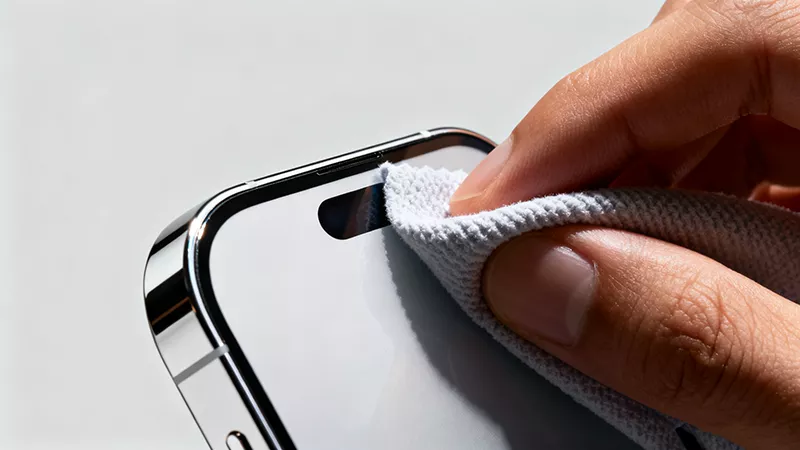
4. Power the phone back on and check if Face ID is working and if you're able to turn off Stolen Device Protection.
Outdated software can sometimes cause issues with Face ID and other system functions. Updating your iPhone ensures that you have the latest bug fixes and security improvements, which may resolve problems with Face ID and allow you to turn off Stolen Device Protection.
1. Connect your iPhone to a power source and ensure it's on a Wi-Fi network.
2. Go to Settings > General > Software Update.
3. If an update is available, tap "Download and Install." You will likely need to enter your device passcode to proceed.
4. After the update is complete and your iPhone has restarted, test Face ID and attempt to turn off Stolen Device Protection again.
If you still can't turn off Stolen Device Protection because Face ID is not working, erasing and resetting the iPhone will resolve the issue. You can quickly erase and reset your iPhone form the lock screen without needing Face ID. This will clear all data, including Face ID and Stolen Device Protection settings. Here is how:
1. On the lock screen, enter the wrong passcode several times until the phone shows "iPhone Unavailable try again in x minutes" with an option like "Erase iPhone" or "Forgot Passcode" in the bottom-right corner.
2. Tap the option that says something like "Erase iPhone" or "Forgot Passcode".
3. Tap Start iPhone Reset to confirm you want to continue.
4. Enter your Apple ID password when prompted, then tap Erase iPhone to begin.

5. Your iPhone will automatically erase all data, including Face ID and Stolen Device Protection settings.
6. After the reset, set up your iPhone again and add a new Face ID if you want to.
7. When you return to your iPhone, Stolen Device Protection is turned off, and all functions, including Face ID, should work normally without any issues.
If all else fails, iSumsoft iPhone Passcode Refixer can be an effective method to turn off Stolen Device Protection without Face ID.
1. Connect your iPhone to your computer via USB cable.
2. Press and release the Volume Up button, and press and release the Volume Down button, then press and hold the Side button until the recovery mode appears.
3. In iSumsoft iPhone Passcode Refixer, choose the Unlock Lock Screen option.

4. Click Start to confirm your choice.

5. Click Next. The software will automatically detect your iPhone.

6. Click Download to download the firmware for your iPhone.

7. Click Unlock. The software will start unlocking your iPhone.

8. Once the unlock is successful, your iPhone will restart without the lock screen.

9. Set up the iPhone again and once complete, you should find that Face ID is now functional and Stolen Device Protection has been turned off.
It's incredibly frustrating that you can't turn off Stolen Device Protection without Face ID. What's worse, Stolen Device Protection prevents you from resetting Face ID or signing out of your Apple account, creating a vicious cycle. However, as we've outlined in this article, there are multiple methods you can try to resolve the issue and regain control over your iPhone.
From simple solutions like performing a force restart or cleaning the Face ID sensor, to more advanced options such as erasing the device or using tools like iSumsoft iPhone Passcode Refixer, there are various paths to fix the problem. While none of these methods may guarantee instant success in every case, they provide a range of solutions depending on your situation.
 iPhone
Screen Keeps Dimming Even with Auto Brightness off? Why and How to Fix
iPhone
Screen Keeps Dimming Even with Auto Brightness off? Why and How to Fix
 How to Fix iPhone Apps Closing
Unexpectedly
How to Fix iPhone Apps Closing
Unexpectedly
![[Solved] 8 Ways to Fix iPhone Lagging and Freezing](../images/ios-issues/iphone-lagging-and-freezing/8-ways-to-fix-iphone-lagging-and-freezing.webp) [Solved] 8 Ways to Fix iPhone
Lagging and Freezing
[Solved] 8 Ways to Fix iPhone
Lagging and Freezing
 How to Force Reboot iPhone
 Fix
iPhone Stuck in Recovery Mode Loop after Update
Fix
iPhone Stuck in Recovery Mode Loop after Update
 How to Fix iPhone Screen
Going Black Randomly
How to Fix iPhone Screen
Going Black Randomly
 How to Fix
iPhone Stuck on Headphone Mode
How to Fix
iPhone Stuck on Headphone Mode
 Fix:
iPhone Shows White Screen with Black Apple Logo Then Turns off
Fix:
iPhone Shows White Screen with Black Apple Logo Then Turns off
 How to Unzoom iPhone
Stuck in Zoom Mode
How to Unzoom iPhone
Stuck in Zoom Mode
