
[2024 Fixes] FaceTime Screen Share Not Working

What makes it possible to share interesting experiences even when they're not together? The answer is FaceTime screen sharing. Apple's SharePlay feature allows you to share your screen with your family and friends on FaceTime whenever and wherever possible. However, if your FaceTime share screen not working, what should you do? iSumsoft will show you serveral ways to fix FaceTime screen sharing not working.

- Part 1: Why Can’t I Share My Screen on FaceTime
- Part 2: How to Fix FaceTime Screen Share Not Working
- Part 3: FAQs
Part 1: Why Can't I Share My Screen on FaceTime
You may wonder "Why is share my screen unavailable" while others do not come across this issue. Here are listed some common reasons:
1. FaceTime isn't activated. You may not enable FaceTime on your iPhone, simply open the settings to check.
2. Poor internet connection. If your internet is unstable, you may not open screen share on FaceTime.
3. An outdated iOS version. FaceTime screen share function is available on iOS 15.1 or later, if your iOS version is lower than 15.1, you can’t use it.
4. Region limitations. Some regions are limited to using screen share on FaceTime, like the United Arab Emirates, Qatar, and China.
5. Emojis are added to the contact name. Adding an emoji on the Contact name will be interpreted on FaceTime causing recognized mistakes.
6. System bugs. Your iOS system may have bugs so you can run system repair to fix them.
Part 2: How to Fix FaceTime Screen Share Not Working
Since you know the reason "why can’t I share my screen on ft", you can find the fixing methods according to the reason.
- Run system repair with iSumsoft iOS Refixer (Quick way)
- Additional Methods to Fix FaceTime Screen Share Unavailable
Run system repair with iSumsoft iOS Refixer (Quick way)
iSumsoft iOS Refixer is a safe and simple tool that can not only repair the system but also upgrade or download the iOS system. Using this iOS Refixer is a way of "kill two birds with one stone" to fix FaceTime screen share not working. You can use it to either repair the iOS system or update to the iOS version later than 15.1.

iSumsoft iOS Refixer
Powerful iOS System Repair Tool
- Fix 150+ iOS/iPadOS/tvOS system issues, two modes provided
- Repair 200+ iTunes errors and Apple USB Driver issues, no data loss
- Upgrade & Downgrade iPhone/iPad/iPod to any supported iOS version, including Beta versions
- Fix iPhone flashing Apple logo, iPhone stuck on update requested, iOS update not showing up, etc.
- Compatible with all iPhone and iPad models
Here are the steps to fix FaceTime screen share unavailable using iOS Refixer:
Steps for System Repair:
Step 1: Download and install iSumsoft iOS Refixer ;
Step 2: Select System Repair;
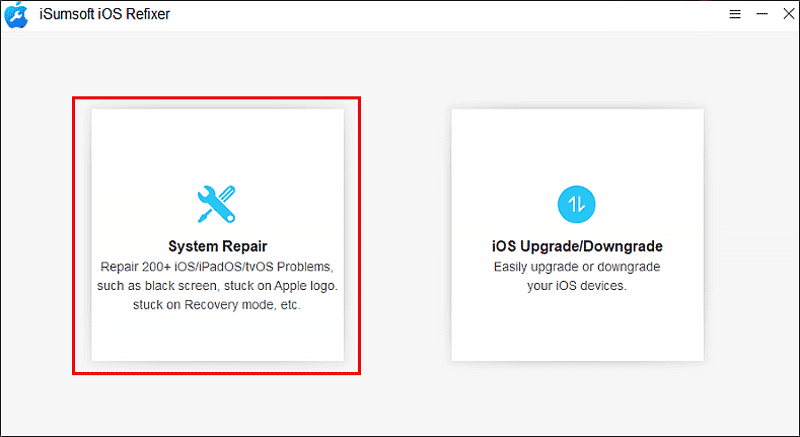
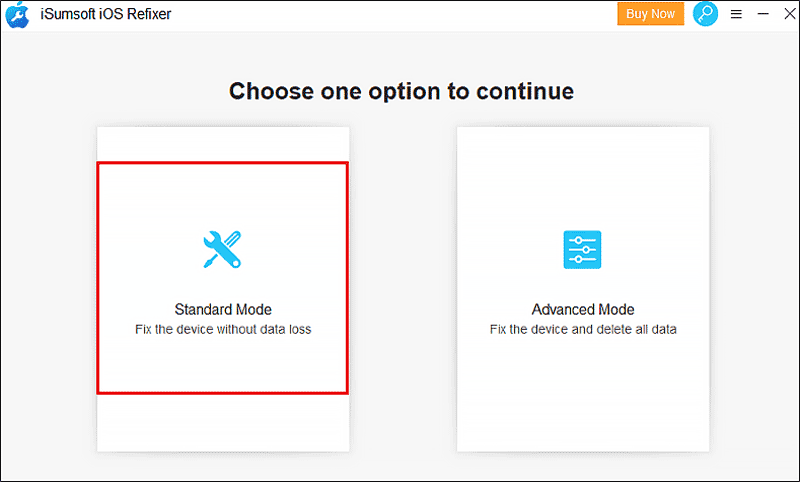
Step 3: Choose Standard Mode;
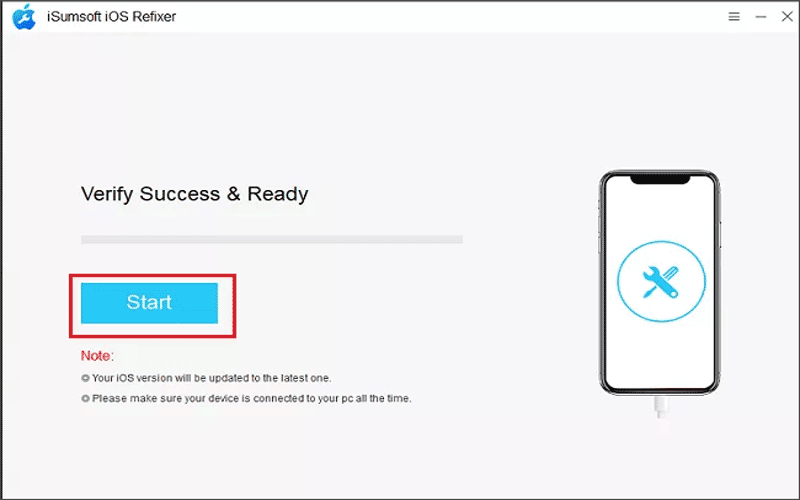
Step 4: Click Start and connect your iPhone to your computer with a USB cable;
Step 5: Download the repair firmware package;
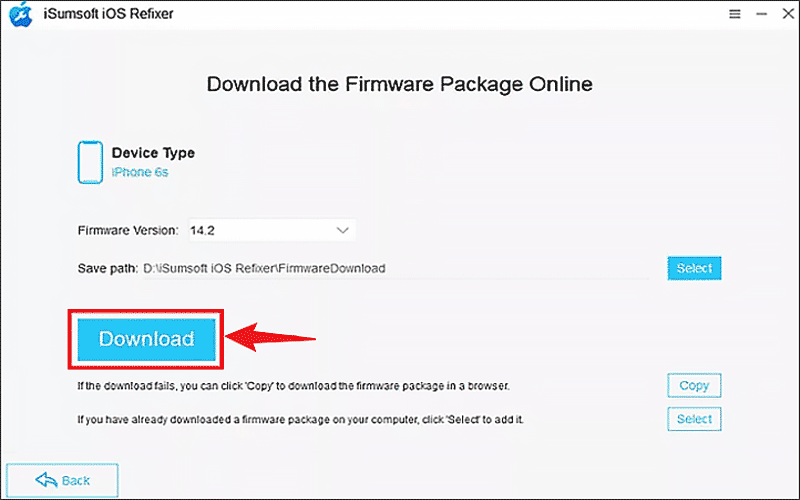
Step 6: Click Repair; When the repair process is finished, your iPhone will automatically restart and you can use FaceTime to share your screen again.
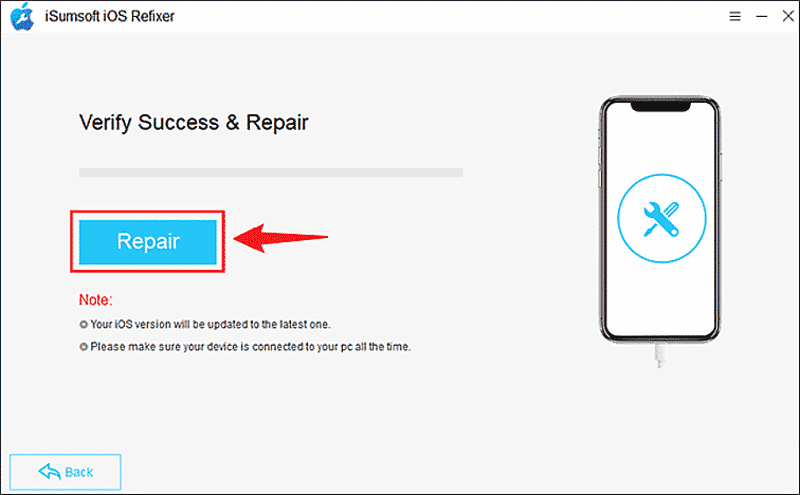
Steps for iOS Upgrade:
Step 1: Open iOS Refixer;
Step 2: Select iOS Upgrade/Downgrade;
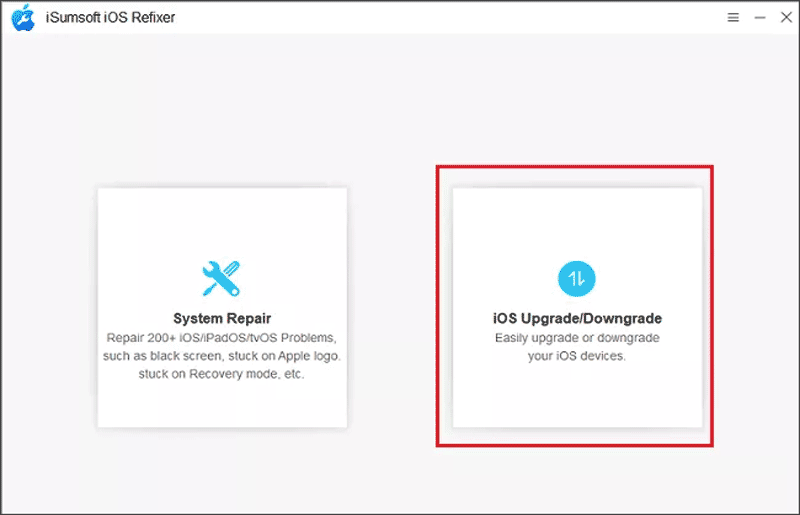
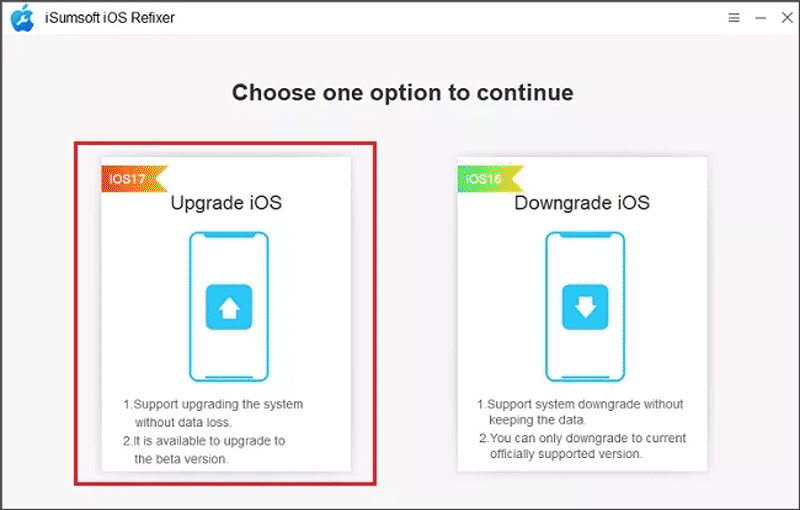
Step 3: Click Upgrade iOS and connect your iPhone to your PC with a suitable USB cable;
Step 4: Download the upgrade firmware package;
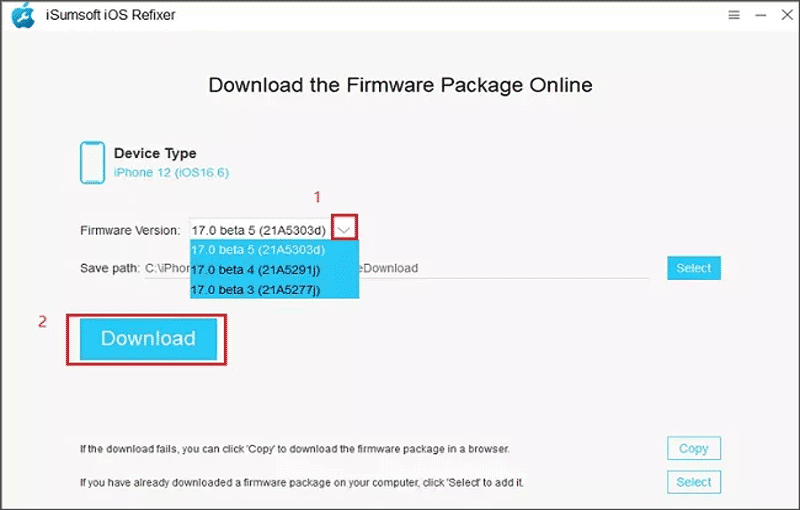
Step 5: When the download is finished, click Start to begin upgrading;
Step 6: When the Upgrade Successfully page comes out, your phone has been upgraded to the latest version, and then you can use FaceTime screen share.
Additional Methods to Fix FaceTime Screen Share Unavailable
Method 1: Check if FaceTime screen sharing is available in your country
If you are in UAE (United Arab Emirates), Qatar, and China, you are not supported to use FaceTime screen share feature.
Method 2: Upgrade the iOS version
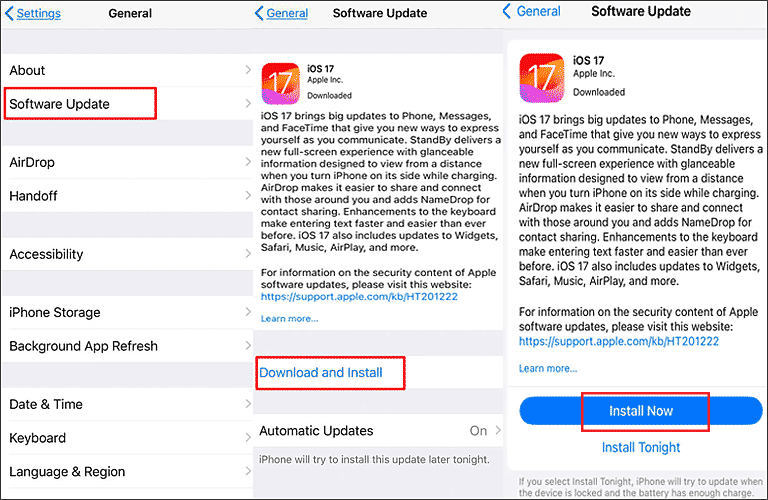
In addition to using iSumsoft iOS Refixer to update the iOS system, you can also update the iOS version manually via Settings.
Steps: Go to Settings > General > Software Update > Download and Install > Install Now;
Method 3: Enable FaceTime on iPhone
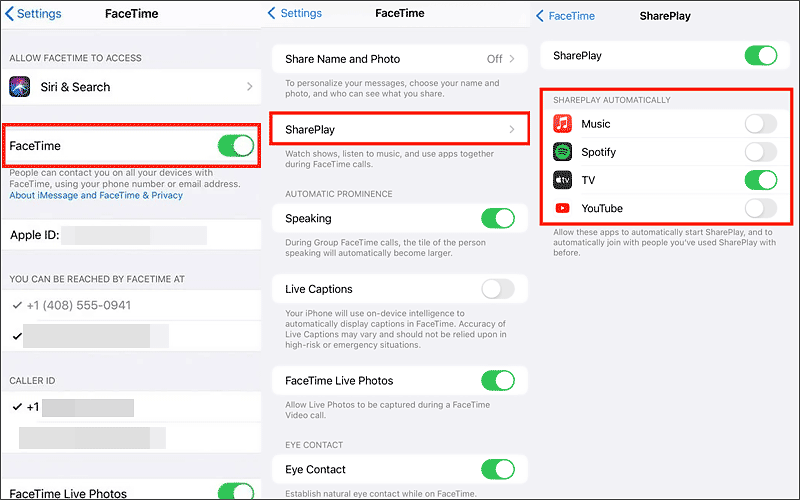
You can also check whether you have enabled FaceTime or not.
Step 1: Go to Settings > Scroll down to find FaceTime, if you haven't activated your FaceTime, you can sign in with your Apple ID to activate it.
Step 2: On the FaceTime settings page, click SharePlay and toggle it to on.
Method 4: Choose a stable Internet connection
If FaceTime screen sharing is not working due to weak internet, you can switch to a stable internet and try again to see if it works.
Method 5: Reset network settings
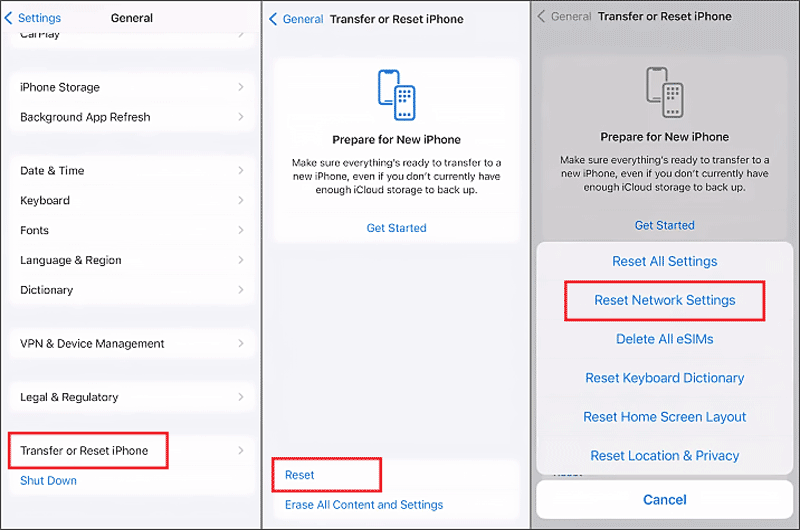
If switching to a different Internet still does not work, try resetting your network settings.
Steps: Go to Settings > General > Transfer or Reset iPhone > Reset > Reset Network Settings.
Method 6: Delete emojis on the contact name
If you have added emojis to the contact name, FaceTime might interpret the emojis and cannot detect the users. You can try to delete the emoji and call screen share again to check if FaceTime screen share not working has been fixed.
Part 3: FAQs
Q1: What is FaceTime SharePlay in iOS 15.1?
SharePlay has added some new features in iOS/iPadOS 15.1. You can watch movies or TV shows in sync with friends, listen to music together, or share your screen to view apps together. This feature works on iPhones, iPads, and Macs.
Q2: Can I share my screen in FaceTime?
To use FaceTime screen sharing, both must meet the following requirements:
• iOS/iPadOS version is 15.1 or later;
• Activate FaceTime;
• Use Apple ID to sign in to FaceTime;
Q3: How do I enable/disable FaceTime screen sharing?
To enable screen share on FaceTime
1. Start a FaceTime call with the person you want to share your screen with.
2. When the call starts, tap the Screen Share button (it looks like a rectangle with an arrow at the bottom).
3. Tap Share My Screen. There may be a brief countdown before your screen begins to be shared.
To disable FaceTime screen share
1. While your screen is being shared, tap the Screen sharing button again.
2. Select Stop sharing to end screen sharing.
3. Remember that the other person will see everything on your screen, so close all sensitive or personal information before you start sharing.
Related Articles
 How to Fix
Gmail Not Working After iPhone Update?
How to Fix
Gmail Not Working After iPhone Update? How
to Fix iPhone Is Disabled, Connect to iTunes Not Working
How
to Fix iPhone Is Disabled, Connect to iTunes Not Working![[2023 Updated] How to Fix Screen Time Passcode Not Working](../images/unlock-iphone/how-to-fix-screen-time-passcode-not-working/how-to-fix-screen-time-passcode-not-working-s.webp) [2023 Updated]
How to Fix Screen Time Passcode Not Working
[2023 Updated]
How to Fix Screen Time Passcode Not Working![[All iOS Versions] iPhone Swipe Up Not Working Solutions 2024](../images/ios-issues/iphone-swipe-up-not-working/iphone-swipe-up-not-working-s.webp) [All iOS Versions] iPhone Swipe Up
Not Working Solutions 2024
[All iOS Versions] iPhone Swipe Up
Not Working Solutions 2024 Wi-Fi
Not Working on iPhone but Working on Other Devices
Wi-Fi
Not Working on iPhone but Working on Other Devices How to Join a
Hidden Wireless Network in iPhone/iPad/Mac
How to Join a
Hidden Wireless Network in iPhone/iPad/Mac