How to Enable Require a Login Password on Wakeup

To keep the information on your Windows 10 secure when you are away from it, set your PC to require a password when it wakes from sleep. This article describes 2 ways to enable require a sign-in password when PC wake from sleep mode.
- Option 1: Enable Require Password on Wakeup via the Settings app
- Option 2: Enable Require Password on Wakeup via group policy
How to Enable Require Password on Wakeup in Settings
In previous versions of Windows, you can turn on require a password on wake up from Power Options in Control Panel. In Windows 10, this option is moved to the Settings app. Here's how:
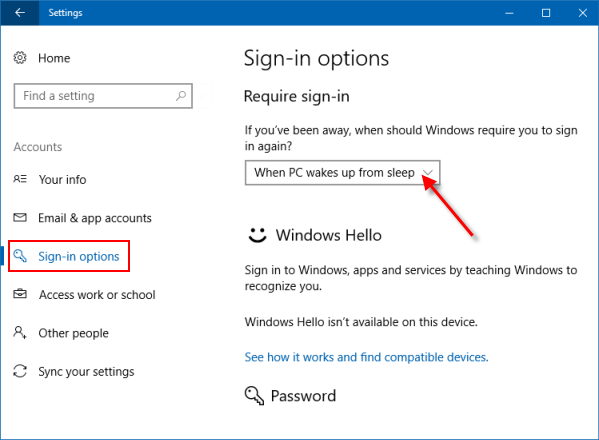
Step 1: Open Settings app. Click Accounts, and then click Sign-in options.
Step 2: On the right pane of the Sign-in tab. Click on the drop-down box under the "Require sign-in" section, set it to "When PC wakes up from sleep" if you want to enable the password login after sleep.
Option 2: Enable Require Password on Wakeup in Group Policy
To turn on require password after sleep mode in Windows 10 using Local Group Policy, here's how:
Step 1: Open the Local Group Policy Editor from the Run dialog.

Step 2: In the left pane of Local Group Policy Editor, navigate to the following path:
Computer Configuration > Administrative Templates > System > Power Management > Sleep Settings
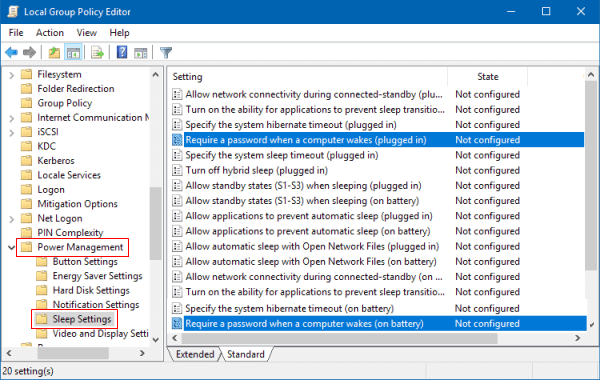
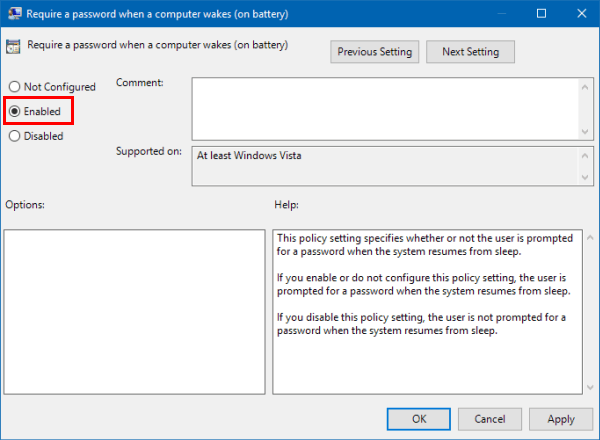
In the right pane, you'll see two policies labeled "Require a Password when the computer wakes (plugged in)"and "Require a Password when the computer wakes (on battery)". Double-click on them to modify and set the policies to Enabled.