[FIXED] Windows 11 Does Not Accept the Correct Login Password

If Windows 11 does not accept the correct login password, the problem is often not the password itself. A recent update, a keyboard layout mismatch, a delayed Microsoft account sync, or a broken sign-in component can all prevent you from getting in. This guide walks through the safest fixes to try first and leaves reset options for last.

- Why Is My Password Not Working Even Though It's Correct?
- Solution 1: Check the Keyboard and Sign-in Screen Basics
- Solution 2: Check Your Network Connection
- Solution 3: Try Another Sign-in Option or Safe Mode
- Solution 4: Use System Restore or Reset This PC as a Last Resort
- Conclusion
Why Is My Password Not Working Even Though It's Correct?
When Windows 11 rejects a password you know is correct, one of the following is usually responsible:
Keyboard mismatch: The keyboard layout may have changed, or Caps Lock/Num Lock may be affecting what you type.
Microsoft account sync delay: If you recently changed your Microsoft account password, the PC may still be trying cached credentials.
Different sign-in method: You may be entering an account password when the device expects a PIN, or vice versa.
Update-related sign-in issue: A Windows update can occasionally break the sign-in experience or cause startup instability.
System corruption: Damaged system files can interfere with startup and authentication.
Note:
- If you sign in with a Microsoft account and just changed the password on another device, connect this PC to the internet before trying again.
- If you see a PIN box instead of a password box, click Sign-in options and choose the password icon before re-entering your password.
Solution 1: Check the Keyboard and Sign-in Screen Basics
Before using recovery tools, rule out simple input problems on the sign-in screen. This takes only a minute and often fixes the issue immediately.
Step 1 Make sure Caps Lock is off and Num Lock is on if your password includes numbers typed from the keypad.
Step 2 Check the keyboard layout shown on the sign-in screen. If the wrong language or layout is selected, switch it before typing the password again.
Step 3 Click the Accessibility icon and open the On-Screen Keyboard to verify each character you type.
Step 4 If available, use the password reveal button briefly to confirm that the entered characters match what you expect.

Solution 2: Check Your Network Connection
This step matters most for Microsoft accounts. If you changed the password recently on another device, Windows 11 may still be using an older cached sign-in state until it reconnects to the internet and syncs.
Step 1 On the sign-in screen, connect the PC to a stable Wi-Fi or wired network.
Step 2 Wait a minute, then try the new Microsoft account password again.
Step 3 If the device is already online, restart it once and retry the password.
Tip: If you usually sign in with a PIN, click Sign-in options and switch between PIN and Password to make sure you are using the correct method.
Solution 3: Try Another Sign-in Option or Safe Mode
If the password is still rejected, try to confirm whether the issue is limited to the normal sign-in screen. Safe Mode can help you check whether Windows itself is loading correctly.
Step 1 If Sign-in options appears on the login screen, try another method you already set up, such as your PIN.
Step 2 If no sign-in option works, press and hold Shift while you select Power > Restart to enter the Windows Recovery Environment.

Step 3 After rebooting, select Troubleshoot > Advanced options > Startup Settings > Restart. If your device is encrypted, enter the BitLocker recovery key when prompted.
Step 4 Press F4 for Safe Mode or F5 for Safe Mode with Networking.

Step 5 If you can sign in to Safe Mode, uninstall the most recent problematic update, restart the PC, and then test the password again in normal mode.
Step 6 If Safe Mode works but normal startup does not, you can also run System Restore from Advanced options to roll the system back to a point before the problem started.
Important:
- Do not use outdated registry fixes such as deleting a GinaDll value. GINA applies to legacy Windows logon architecture and is not a standard Windows 11 repair method.
For Microsoft guidance on Windows sign-in and recovery, see changing or resetting your password in Windows and changing or resetting your PIN in Windows.
Solution 4: Use System Restore or Reset This PC as a Last Resort
If none of the fixes above work, use recovery options from Windows Recovery Environment. Start with System Restore if restore points are available. Only use Reset this PC when you have no safer option left.
Warning:
- Reset this PC can remove apps and, depending on the option you choose, your personal files as well.
- If the device uses BitLocker, keep the recovery key available before continuing.
Step 1 On the sign-in screen, press and hold Shift while selecting Power > Restart.
Step 2 Choose Troubleshoot.
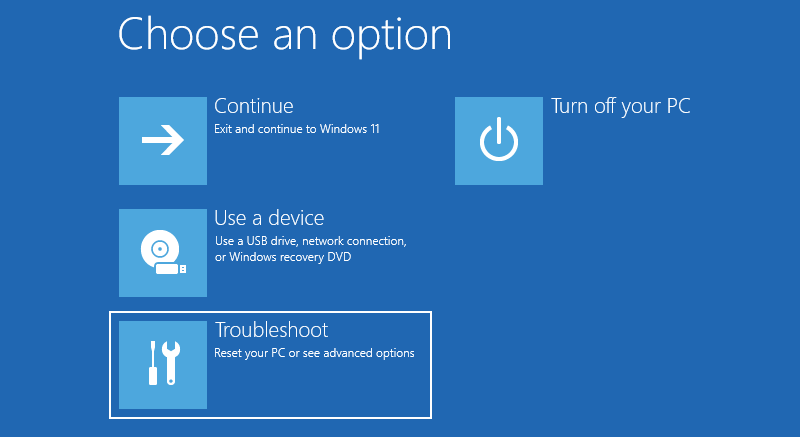
Step 3 Select Advanced options and try System Restore first. If that is not available or does not help, go back and click Reset this PC.
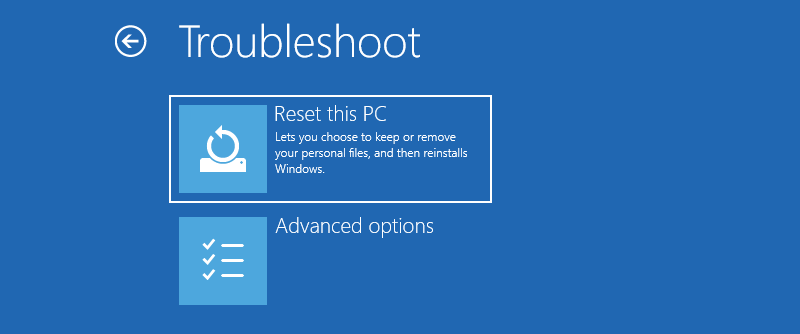
Step 4 Choose Keep my files if you want the least destructive reset possible. Choose Remove everything only if you are prepared to erase apps and data.
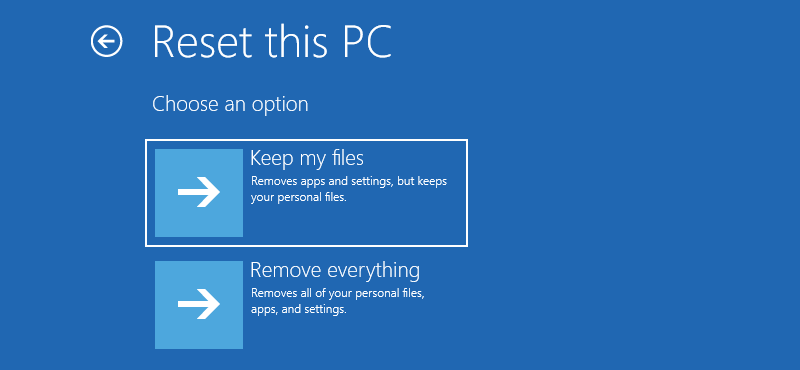
Step 5 Next, choose Cloud download or Local reinstall depending on your needs.
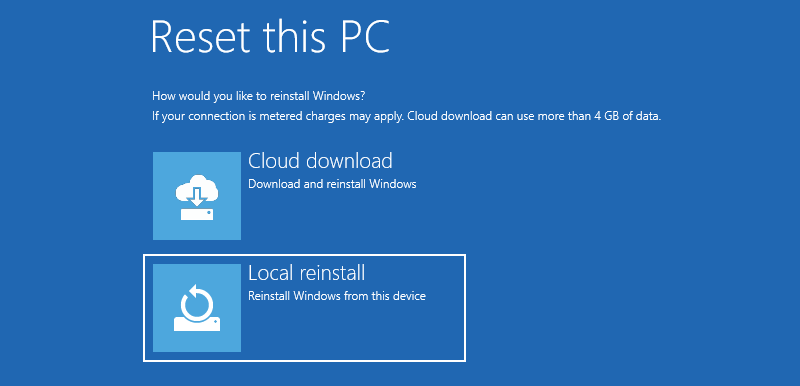
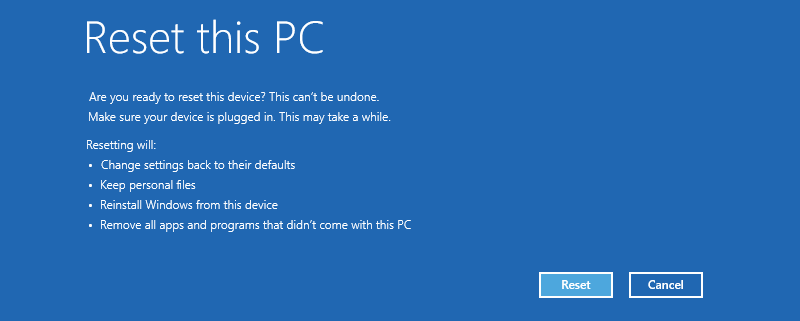
Step 6 Review the summary carefully, then click Reset to begin the process.
Conclusion
When Windows 11 does not accept the correct login password, start with the least risky checks: keyboard layout, sign-in method, and internet connectivity. If that does not help, move to Safe Mode and recovery tools. Reserve Reset this PC for the end, because it is the most disruptive option.
Related Articles
-
![forgot Windows 8 password no reset disk]() Forgot Windows 8
Password No
Reset Disk
Forgot Windows 8
Password No
Reset Disk
-
![remove Windows 7 password without login]() How to
Remove
Password in Windows 7 without Login
How to
Remove
Password in Windows 7 without Login
-
![locked out of toshiba laptop forgot Windows 7 password]() Locked
Out of
Toshiba Laptop Forgot Windows 7 Password
Locked
Out of
Toshiba Laptop Forgot Windows 7 Password
-
![bypass Windows 7 admin password and login screen]() 3 Ways
to Bypass
Windows 7 Admin Password and Login Screen
3 Ways
to Bypass
Windows 7 Admin Password and Login Screen
-
![bypass Windows 8 forgotten password]() How to
Bypass Windows
8 Password If Forgot Password
How to
Bypass Windows
8 Password If Forgot Password
-
![locked out of Windows 8.1 laptop forgot admin password]() Locked Out of Windows
8.1 Laptop
Forgot Administrator Password
Locked Out of Windows
8.1 Laptop
Forgot Administrator Password