Reset Windows 11 Password Using CMD Safely

Use Command Prompt only when you are signed in as the device owner or an authorized administrator. If you are locked out, start with Microsoft-supported recovery options instead of changing system files from the sign-in screen.
Windows 11 password recovery depends on the account type. A Microsoft account, local account, password reset disk, another administrator account, work or school device, and BitLocker-encrypted device all require different recovery paths. This guide explains the safest options first, then shows when CMD is appropriate for a local account.
Last checked on Windows 11 24H2 and current Microsoft account recovery guidance. The CMD steps below were written for local accounts where an administrator can already sign in to the PC.

Important safety note
- Use only on your own PC: Do not attempt to reset or bypass a password on a device you do not own or administer.
- Microsoft account: CMD cannot reset a Microsoft account password. Use Microsoft's online account recovery.
- Work or school device: Contact your IT administrator. Password recovery may be controlled by company policy.
- BitLocker: Windows Recovery may require a BitLocker recovery key. Without it, data can become inaccessible.
- Choose the Right Recovery Method
- Reset a Microsoft Account Password
- Reset a Local Account Password
- Use CMD While Signed in as Administrator
- If You Are Locked Out
- BitLocker and Recovery Key Warnings
- Troubleshooting CMD Password Reset Problems
- Official Microsoft Sources
- Frequently Asked Questions
Choose the Right Recovery Method
Before trying CMD, identify the type of account and recovery access you have. This prevents wasted time and avoids risky changes that may not work on your device.
Which case applies to you?
- Microsoft account: Reset the password online at Microsoft's account recovery page.
- Local account with security questions: Use the reset-password option on the Windows sign-in screen.
- Another administrator can sign in: Ask that administrator to change the local account password from Windows settings or CMD.
- Password reset disk: Use the password reset disk created earlier for that local account.
- Work or school PC: Contact IT support instead of changing recovery settings yourself.
- No supported recovery path: Use Reset this PC only after backing up what you can and saving your BitLocker recovery key.
Reset a Microsoft Account Password
If your Windows 11 sign-in uses an email address such as Outlook.com, Hotmail, Live, or another Microsoft account, do not use CMD. Reset the password through Microsoft's account recovery page, then sign in to Windows with the new password after the device is online.
Step 1 Go to Microsoft's password reset page from another device or browser.
Step 2 Verify your identity using the recovery email, phone number, authenticator app, or other method attached to the account.
Step 3 Create a new Microsoft account password, then connect your Windows 11 PC to the internet and sign in again.
Reset a Local Account Password
Local accounts are stored on the PC itself. Microsoft-supported recovery depends on whether you set up security questions, created a password reset disk, or have another administrator account on the same device.
Local account options
- Security questions: On the sign-in screen, enter an incorrect password, then use the reset-password option if Windows shows it.
- Password reset disk: Use the reset disk that was created earlier for this local account.
- Another admin account: Sign in with that admin account and change the local user's password from Settings, Computer Management, or CMD.
Use CMD While Signed in as Administrator
CMD is appropriate when you can already sign in with an administrator account and need to change a local account password. This does not reset a Microsoft account password, and it should only be used by the device owner or an authorized administrator.
Step 1 Click the Search icon on your Windows 11 taskbar. Type cmd, then click Run as administrator when Command Prompt appears.

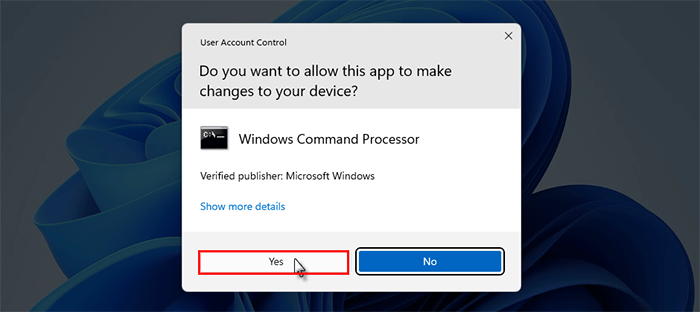
Step 2 If the User Account Control dialog appears, click Yes.
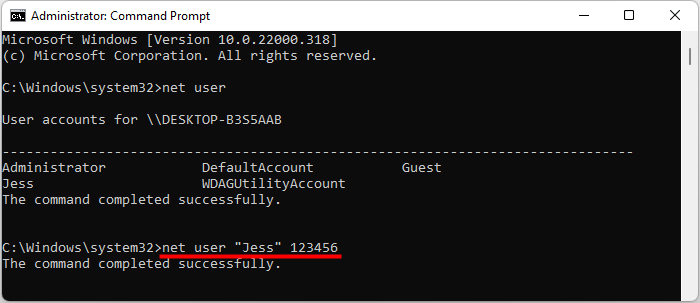
Step 3 List local user accounts so you can confirm the exact account name.
net user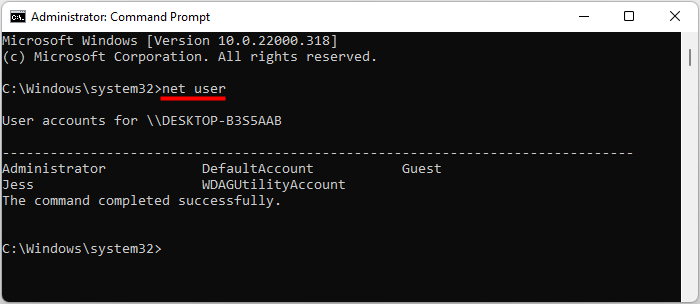
Step 4 Change the password for the local account. To avoid showing the new password on screen, use an asterisk and enter the password when prompted.
net user "username" *Replace username with the local account name. If the command completes successfully, sign in with the new local account password.
What the commands mean
- net user: Shows local user accounts on the current Windows installation.
- net user "username" *: Prompts an authorized administrator to enter a new password for that local account without displaying the password in the command line.
- Use quotes: Keep quotation marks around the username when it contains spaces.
If You Are Locked Out
If you cannot sign in to any administrator account, avoid unsupported sign-in screen workarounds that modify Windows system files. They can weaken device security, fail on BitLocker-protected systems, violate workplace policy, or make Windows harder to repair.
Safer locked-out options
- Microsoft account: Reset it online, then sign in after connecting the PC to the internet.
- Local account: Use security questions, a password reset disk, or another administrator account if available.
- Managed PC: Contact your organization's IT administrator.
- No recovery option: Use Microsoft's Reset this PC flow. Choose Keep my files only after backing up important data where possible.
BitLocker and Recovery Key Warnings
Many Windows 11 devices use device encryption or BitLocker. If Windows Recovery asks for a BitLocker recovery key, you need that key to continue. Check your Microsoft account, printed records, USB backups, or your organization's IT portal if the device is managed.
Before using recovery tools
- Find your recovery key: Without it, encrypted data may be inaccessible.
- Back up first: Recovery and reset operations can remove apps, settings, or data.
- Do not modify system files: Unsupported changes can leave the sign-in screen less secure or break accessibility tools.
Troubleshooting CMD Password Reset Problems
If the command does not work, check the message in Command Prompt before trying another recovery path. Most failures are caused by account type, permissions, or encryption.
Common problems and fixes
- Access is denied: Close Command Prompt, open it again with Run as administrator, and make sure you are signed in with an administrator account.
- The user name could not be found: Run net user again and copy the exact local account name, including spaces.
- Microsoft account shown: CMD cannot change the online Microsoft account password. Use Microsoft's password reset page instead.
- BitLocker recovery screen: Find the recovery key first. Do not reset the PC until you understand the data-loss risk.
- Work or school account: Stop and contact your organization's IT administrator. Local recovery steps may be blocked by policy.
Official Microsoft Sources
The recommendations above were checked against these Microsoft resources:
Frequently Asked Questions
Q: Can I reset a Microsoft account password with CMD?
A: No. A Microsoft account password is managed online by Microsoft. Use Microsoft's password reset page, then sign in to Windows after the device is connected to the internet.
Q: When should I use CMD to reset a Windows 11 password?
A: Use CMD only when you are already signed in as the device owner or an authorized administrator and are changing a local account password.
Q: What if I am completely locked out?
A: Use Microsoft account recovery, local account security questions, a password reset disk, another administrator account, or Reset this PC. On work or school devices, contact IT support.
Q: What if BitLocker asks for a recovery key?
A: You need the BitLocker recovery key to continue. If you cannot find it, Microsoft says you may need to reset the device, which can cause data loss.
Q: What does the net user command do in Windows 11?
A: The net user command lists local user accounts. When an authorized administrator runs Command Prompt as administrator, it can also change a local account password.
Q: What should I do if CMD says access is denied?
A: Run Command Prompt as administrator and confirm you are signed in with an administrator account. If you cannot sign in as an administrator, use Microsoft account recovery, a password reset disk, security questions, another administrator account, or your organization's IT support.
Final Words
Command Prompt can help an authorized administrator change a local Windows 11 account password, but it is not the right tool for Microsoft accounts or unmanaged locked-out scenarios. Start with Microsoft-supported recovery options, keep your BitLocker recovery key available, and use tools such as iSumsoft Windows Password Refixer only on devices you own or are authorized to repair.
Related Articles
-
![how to remove login password windows 11 with 5 ways]() How to Remove
Login Password in Windows 11
How to Remove
Login Password in Windows 11
-
![reset Windows 11 password with bootable USB]() 3 Ways to Reset Windows 11
Password with Bootable USB Drive
3 Ways to Reset Windows 11
Password with Bootable USB Drive
-
![reset Windows 11 password without logging in]() 5
Methods to Reset Windows 11 Password without Logging in
5
Methods to Reset Windows 11 Password without Logging in
-
![create Windows 11 bootable USB flash drive]() How to
Create a Windows 11 Bootable USB Flash Drive
How to
Create a Windows 11 Bootable USB Flash Drive
-
![How to Find and Delete Duplicate Files in Windows 10 Using CMD]() How
to Find and Delete Duplicate Files in Windows 10 Using CMD
How
to Find and Delete Duplicate Files in Windows 10 Using CMD
-
![upgrade to Windows 11 without TPM 2.0]() How to Upgrade Windows
10 to Windows 11 without TPM 2.0
How to Upgrade Windows
10 to Windows 11 without TPM 2.0
-
![There are currently no power options]() Fix "There are
currently no power options" in Windows 11
Fix "There are
currently no power options" in Windows 11
-
![find Windows 11 product key]() 7 Ways to Find Windows 11
Product Key on Laptop/PC
7 Ways to Find Windows 11
Product Key on Laptop/PC