Excel Removed Records: Formula Error? How to Recover Missing Formulas

You open an important Excel workbook and see a warning that Excel repaired or removed unreadable content. The file opens afterward—but some formulas are missing, totals are wrong or calculated cells appear blank. The repair log may contain a message like:
Removed Records: Formula from /xl/worksheets/sheet2.xml part
Read the affected part name carefully. A worksheet entry such as /xl/worksheets/sheet2.xml may indicate lost formula expressions. An entry for /xl/calcChain.xml concerns calculation-order metadata and does not, by itself, prove that worksheet formulas were deleted. In either case, check the formulas and results before relying on the repaired workbook.
Quick answer
- Do not overwrite the original workbook with the repaired copy. Save the recovery log, inspect the affected sheet, and check OneDrive/SharePoint Version History or other backups first. Then try Excel's Open and Repair or Extract Data on a copy. A third-party workbook repair tool is an option if the original file is still damaged, but no tool can guarantee reconstruction of a formula whose expression is no longer stored anywhere.
- What does “Removed Records: Formula” actually mean?
- Part 1: Keep the original workbook and the repair log
- Part 2: Check the repaired workbook for missing formulas
- Part 3: Restore an earlier version of the workbook
- Part 4: Try Excel's built-in Open and Repair
- Part 5: Evaluate a dedicated Excel repair tool
- Part 6: Advanced inspection of an XLSX file (read-only)
- What if the formulas are gone after Excel saved the repaired file?
- Frequently asked questions
- Conclusion
What does “Removed Records: Formula” actually mean?
Modern .xlsx files are structured packages containing XML components. An Excel worksheet is commonly represented by a part such as:
/xl/worksheets/sheet2.xml
If Excel reports that it removed formula records from that part, it encountered content it could not preserve during its repair process. Those cells may lose formulas, become blank or contain only previously cached values. The exact effect depends on the workbook and the corruption.
Sometimes you may also see a reference to:
/xl/calcChain.xml
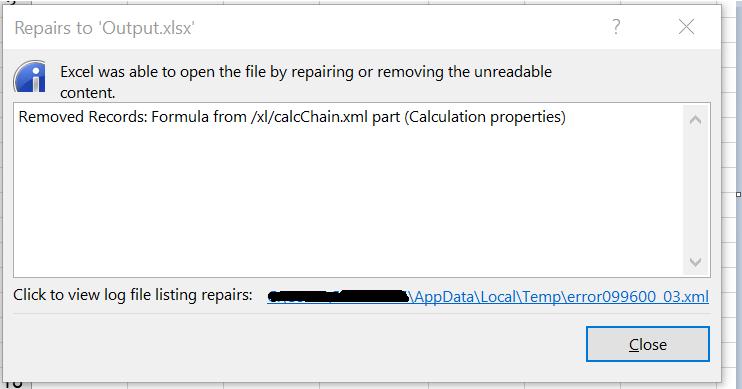
This message refers to calcChain.xml (calculation order), not a worksheet's formula expressions.
The calculation-chain component is not itself a backup of the formulas. Microsoft describes it as calculation-order information. Excel can rebuild that order for a valid workbook; a calcChain.xml message does not prove that the original formulas are recoverable.
This problem can occur after incomplete saves, damaged storage, faulty exports, synchronization conflicts or software that wrote malformed workbook XML. A repair message alone cannot identify the root cause.
Part 1: Keep the original workbook and the repair log
Before changing anything:
Step 1 Close the workbook without saving over the original.
Step 2 Make two copies of the original .xlsx or .xlsm file.
Step 3 Preserve the XML recovery log if Excel offered to show or save it.
Step 4 Record the affected worksheet references, e.g., sheet2.xml.
Step 5 Make a list of sheets, formulas, totals and named ranges that are business-critical.
If the file is on OneDrive or SharePoint, avoid making repeated edits while sync conflicts are unresolved. Saving a damaged, auto-repaired workbook over the only healthy version can remove your simplest recovery option.
Part 2: Check the repaired workbook for missing formulas
Do not judge the result only by whether Excel opens the file.
Step 1 Open a copy of the repaired workbook.
Step 2 Go to the affected worksheets identified in the recovery log.
Step 3 Select Formulas > Show Formulas (or use Ctrl + ` on supported keyboard layouts) to inspect formula expressions.
Step 4 Compare key cells, named ranges, tables and charts with an earlier version if available.
Step 5 Check totals, lookup results and any dependencies on the affected sheets.
A workbook that opens but calculates incorrect numbers is still damaged for practical purposes. A quick review of the first worksheet is not sufficient when the repair log names other sheets.
Part 3: Restore an earlier version of the workbook
If the file is stored in OneDrive or SharePoint, Version History is often the best route because it can recover actual earlier formula expressions, not merely reconstruct a damaged current copy.
Step 1 Find the workbook in OneDrive or the connected File Explorer folder.
Step 2 Right-click the workbook and choose Version history.
Step 3 Review saved versions and open or preview the most recent one from before the corruption.
Step 4 Verify that the important formulas are present.
Step 5 Save a copy or restore the chosen version, understanding that restoring may replace the current version.
For local files, check organization-managed backups, File History or other genuine previous copies. Version History availability varies by storage location and account policy.
See Microsoft: Restore a previous version of an Excel file.
Part 4: Try Excel's built-in Open and Repair
Microsoft documents a manual recovery workflow:
Step 1 Start Excel and choose File > Open > Browse.
Step 2 Select the original workbook copy, not an overwritten repaired file.
Step 3 Click the arrow beside Open.
Step 4 Select Open and Repair.
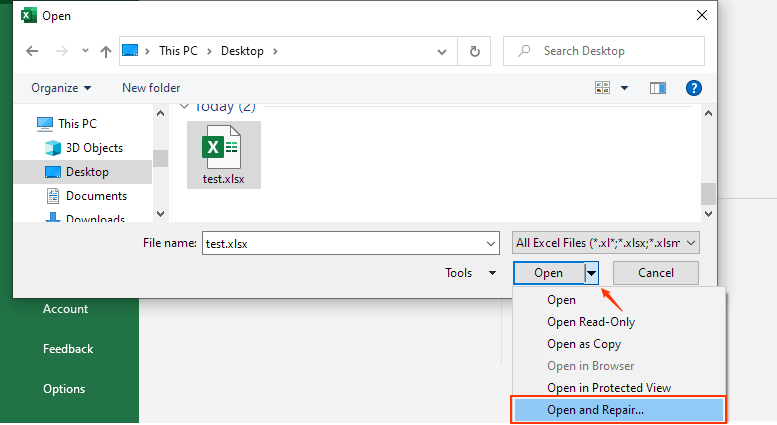
Screenshot from an earlier Excel/Windows interface; the menu action is the same, but the layout may differ.
Step 5 Choose Repair first.
Step 6 If Repair cannot recover the needed data, return to the original copy and try Extract Data, where available.
Extract Data may help extract values and formulas in some cases, but it is not a complete workbook restoration mechanism. Tables, styles, charts, macros, formulas or other components may be lost or changed. For macro-enabled workbooks, retain a copy of the original .xlsm file and review VBA separately.
Microsoft's instructions: Repair a corrupted workbook.
Part 5: Evaluate a dedicated Excel repair tool
If the original file remains damaged, iSumsoft Excel Refixer provides a workbook repair workflow. Its official guide describes adding a damaged Excel file, selecting Restore, then Save to a new location.
On an untouched copy of the source workbook:
Step 1 Launch iSumsoft Excel Refixer.
Step 2 Click Add or Select File, then select the damaged workbook copy.
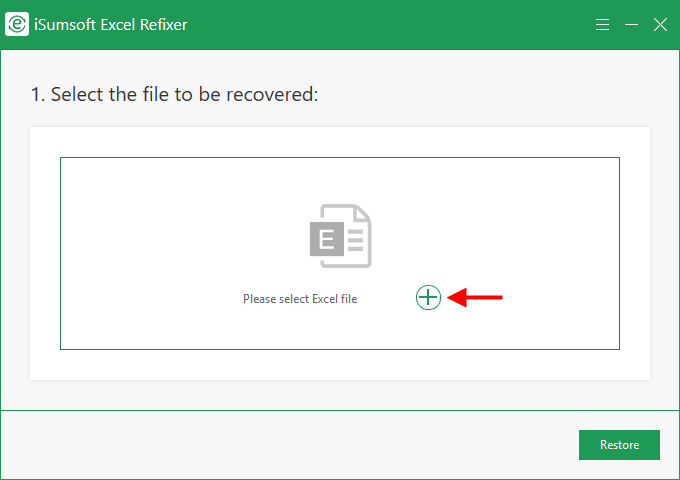
Step 3 Click Restore.
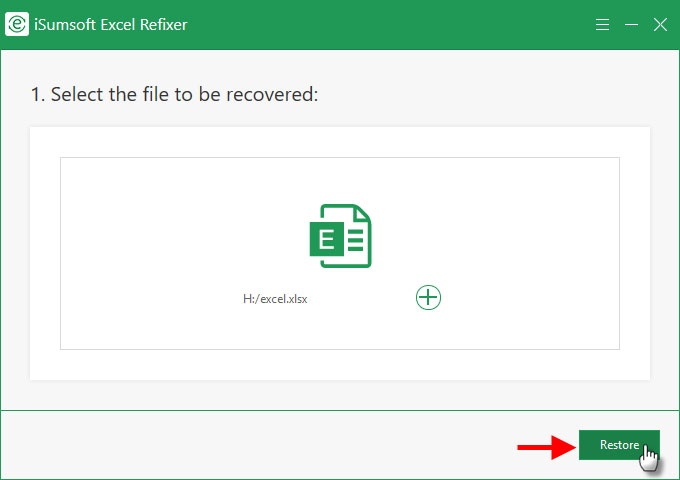
Step 4 When processing finishes, click Save and choose a new output folder.
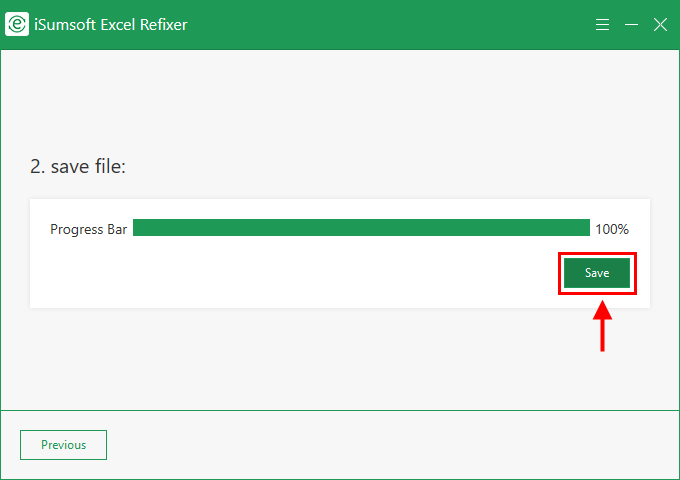
Step 5 Open the resulting file in Excel.
Step 6 Compare the formulas, calculated totals, tables and worksheets with a known healthy version.
Check the formulas, not just the repair status: The product guide documents a workbook repair workflow. Recovery of this specific formula-record error has not been verified here, and missing expressions may be unrecoverable without an earlier copy. Compare the output with a healthy workbook before using its calculations.
Part 6: Advanced inspection of an XLSX file (read-only)
An .xlsx file is a ZIP-compatible package, so an experienced editor may inspect a copy of its internal XML structure with a suitable archive viewer.
To investigate without risking additional corruption:
- Work only on a copied workbook.
- Examine the XML recovery log for affected part names.
- Confirm whether those worksheet XML parts exist.
- Compare the worksheet part against a healthy previous version, if available.
- Keep in mind that Excel's
sheet2.xmldoes not necessarily mean the visible tab named “Sheet2.” Relationships in the package determine the mapping.
Do not casually edit and rezip individual XML files in a production workbook; package relationships, shared formulas, tables, macros and namespaces can make manual repairs complex. If the workbook is business-critical, consider specialist help.
What if the formulas are gone after Excel saved the repaired file?
If the file was overwritten after repair and there is no earlier version, original formulas may no longer be available. It may still be possible to reconstruct some calculations from documentation, similar worksheets or other business records—but that is manual reconstruction, not extraction of missing original data.
If the workbook supports payroll, finance, inventory, billing or other consequential decisions, validate outputs independently before resuming use. Do not publish or rely on figures from a repaired workbook until calculations are checked.
Frequently asked questions
Does “Removed Records: Formula” mean Excel deleted all my formulas?
No. Check which XML part the log names. A worksheet entry may indicate removed formula expressions, while a calcChain.xml entry concerns calculation-order metadata. Inspect the actual cells to determine whether any formulas are missing.
Can I recover formulas that Excel already removed?
The most reliable route is an earlier healthy version or backup. Repair software may help in some cases if the original structures are still recoverable, but there is no guarantee.
Is calcChain.xml the same as the worksheet formula data?
No. It is calculation-order metadata, not the complete set of formula expressions.
Can I simply rename .xlsx to .xls?
No. Renaming the file extension does not convert the underlying workbook format or restore lost formulas.
Should I disable Excel Protected View?
Not as a standard response to formula-record corruption. Protected View is a security boundary for files from untrusted locations and is not a generic repair switch.
How can I tell whether the repaired workbook is trustworthy?
Compare formulas and results against a known healthy version; inspect affected sheets, named ranges and tables, and recalculate critical outputs.
Conclusion
When Excel displays Removed Records: Formula, the important question is what information has been lost, not merely whether the file opens. Preserve the original, recover a previous version first, try Microsoft's recovery workflow on a copy and verify every business-critical calculation before using a repaired result.