How to Activate Microsoft Office with a Product Key or Account

Quick answer: You can activate Microsoft Office by signing in with the Microsoft account that owns the license, redeeming a genuine product key, or following the Office Activation Wizard. There is no safe or legitimate "free activation" method for a paid Office license. Avoid activation scripts, KMS tools, key generators, and any website that asks you to run unknown command files as administrator.
If Office shows Unlicensed Product, Product Activation Failed, or asks you to sign in, use the method below that matches how you got Office. The steps apply to Microsoft 365, Office 2024, Office 2021, Office 2019, and Office 2016 on Windows, although older versions may now be out of support.
Before you begin:
- You need a valid Microsoft 365 subscription, a one-time Office license, or a product key from Microsoft or an authorized seller.
- Use the same Microsoft account that was used to buy, redeem, or receive the Office license.
- Keep Windows connected to the Internet while Office verifies the license.
- Check which activation method you need
- Method 1: Activate Office with a Microsoft account
- Method 2: Use the Office Activation Wizard
- Method 3: Redeem and activate Office with a product key
- What to avoid when activating Office
- Fix common Office activation problems
- Office support dates and safer alternatives
- FAQ about Office activation
Check which activation method you need
Office activation depends on how the license was delivered. Use this quick guide before changing settings or entering a key.
| Situation | Use this method |
|---|---|
| You bought Microsoft 365 or Office from Microsoft Store | Sign in with the Microsoft account used for the purchase |
| You have a 25-character product key card or online key | Redeem the key at Office.com/setup, then sign in |
| Office came preinstalled on a new PC | Start an Office app and accept the trial, buy Office, or sign in with an account that already has a license |
| Your employer or school provides Office | Sign in with the work or school account provided by your organization |
| You reinstalled Office after changing computers | Sign in first; if activation fails, check whether the license allows transfer |
Method 1: Activate Office with a Microsoft Account
This is the safest activation method for Microsoft 365 and most modern one-time Office purchases. After a license is linked to your account, you can reinstall Office later without typing the product key again.
Step 1: Open any Office application, such as Word, Excel, or PowerPoint.
Step 2: If Office asks you to sign in, click Sign In.
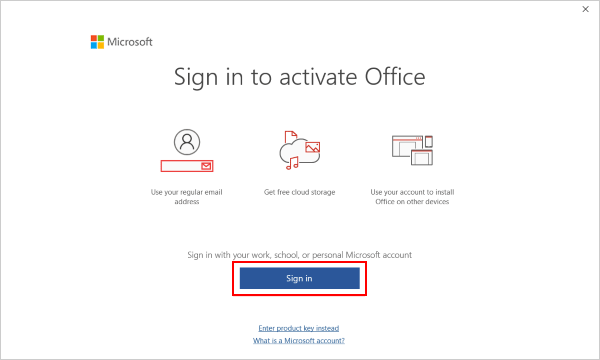
If the sign-in prompt does not appear, go to File > Account and select Sign in or Product Activation.
Step 3: Enter the Microsoft account, work account, or school account connected with the Office license.
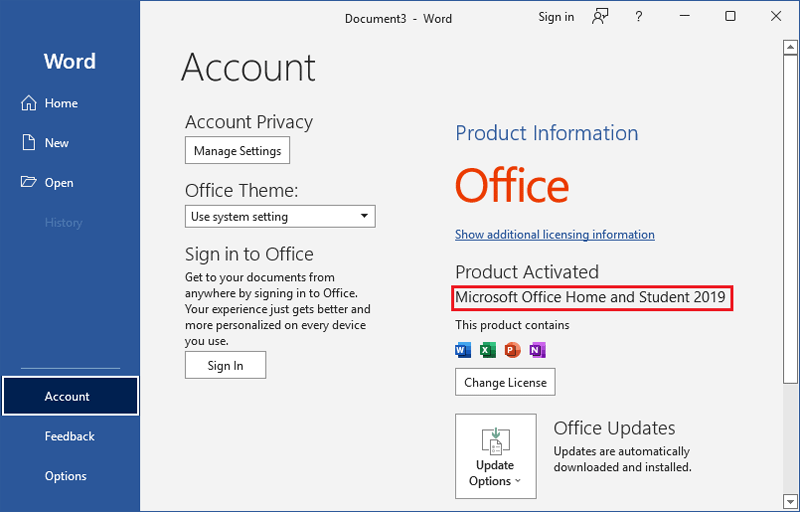
Step 4: After signing in, restart the Office app and return to File > Account. If the license is valid, the Product Information area should show Office as activated.
Method 2: Use the Office Activation Wizard
The Office Activation Wizard may appear when you open an Office app that has not been activated. It is a built-in Microsoft tool, so it is safe to use. Make sure your PC has Internet access before you continue.
Step 1: Open Word, Excel, PowerPoint, or another Office app.
Step 2: If the Activation Wizard opens, choose "I want to activate the software over the Internet" and click Next.
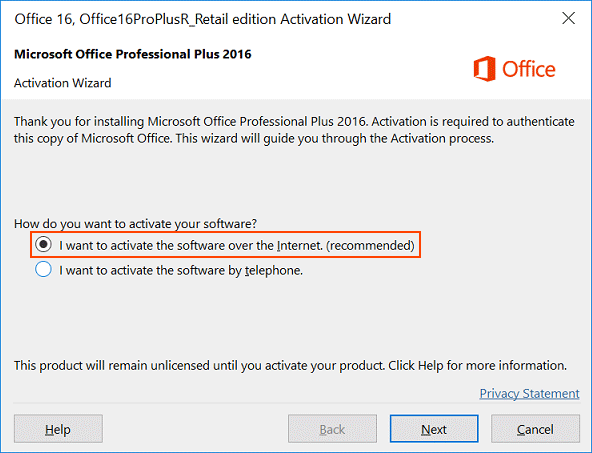
Step 3: Follow the on-screen prompts. If the wizard reports an error, write down the exact error code and use Microsoft's Office activation help page to choose the matching fix.
Step 4: When activation finishes, close and reopen the Office app.
Method 3: Redeem and Activate Office with a Product Key
If you bought a boxed copy, key card, or online product key from an authorized retailer, redeem the key through Microsoft's setup page. This connects the key with your Microsoft account and lets you download the correct Office installer.
Important:
- A genuine Office product key is 25 characters long.
- Only enter the key on Microsoft websites such as office.com/setup or microsoft365.com/setup.
- Do not post your product key in forums, chats, or support screenshots.
Step 1: Go to office.com/setup or microsoft365.com/setup, and sign in with the Microsoft account you want to use with Office.
Step 2: Enter the 25-character product key.
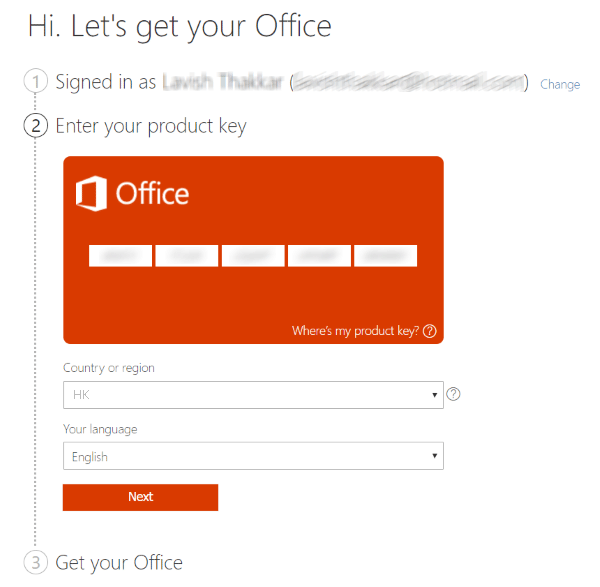
Step 3: Choose your country or region and language, then click Next.
Step 4: Open the Microsoft services and subscriptions page, find the Office product you redeemed, and click Install.
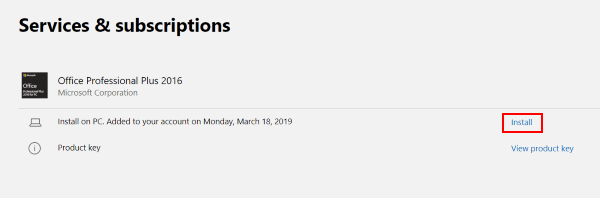
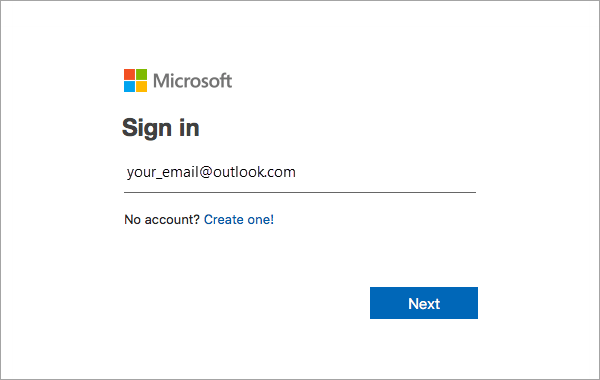
Step 5: Run the installer. When Office asks you to sign in, use the same Microsoft account that redeemed the key.
What to Avoid When Activating Office
Many search results promise to activate Office for free by running a CMD file, KMS command, registry edit, or "one-click activator". These methods should be avoided. They are not Microsoft activation methods, and they can leave Office in a non-genuine state even if the Account page temporarily shows an activated message.
Do not download activation scripts from file-sharing sites, paste unknown commands into Notepad, run batch files as administrator, or disable antivirus protection to make an activator work. An activation tool that needs administrator permission can change system settings, add scheduled tasks, install unwanted services, or expose files on the PC.
If you need Office but do not have a paid license, safer options include using the free web versions of Word, Excel, and PowerPoint with a Microsoft account, asking your school or employer whether they provide Microsoft 365, buying a supported Office license, or using another legitimate office suite. These options protect your documents and keep your computer eligible for normal security updates.
Fix Common Office Activation Problems
If Office still does not activate, check these common causes before reinstalling Windows or buying another license.
1. Check the account that owns Office
Go to account.microsoft.com/services and sign in with the Microsoft account you think owns Office. If the Office product or Microsoft 365 subscription is not listed there, try another account you may have used for the purchase.
2. Confirm the Office version matches your license
A Microsoft 365 license, Office 2024 license, Office 2021 license, and older Office 2019/2016 license are not always interchangeable. If you install a different edition from the one your account owns, activation can fail even when the account is valid.
3. Repair Office when installation or activation screens do not open
If Office apps crash, freeze, or do not show the activation page, repair Office from Windows Settings. You can also follow our guide to fix Office when it cannot be installed or removed.
4. Find a lost Office product key only from your own device or account
If you previously installed Office with a product key and need to reinstall it, first check your Microsoft account. For older local installations, these guides may help you recover your own license information: find an Office 2013 product key and recover an Office 2016 product key.
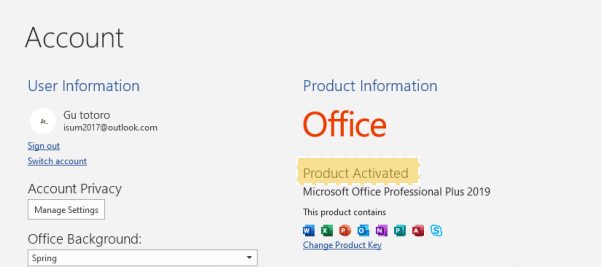
5. Verify that activation is complete
Open Word, Excel, or PowerPoint, and go to File > Account. Under Product Information, Office should show an activated product name instead of an unlicensed warning.
Office Support Dates and Safer Alternatives
Activation and support are not the same thing. An older Office version may still open or activate, but unsupported versions no longer receive security updates. For work, school, and business computers, use a supported release whenever possible.
| Office version | Microsoft support status as of June 10, 2026 |
|---|---|
| Office 2010 | Support ended on October 13, 2020 |
| Office 2013 | Support ended on April 11, 2023 |
| Office 2016 | Extended support ended on October 14, 2025 |
| Office 2019 | Extended support ended on October 14, 2025 |
| Office 2021 | Support is scheduled to retire on October 13, 2026 |
| Microsoft 365 or Office 2024 | Recommended for most users who need current security and compatibility updates |
For official dates, check Microsoft's lifecycle pages for Office 2010, Office 2013, Office 2016, Office 2019, and Office 2021.
FAQ about Office Activation
Can I activate Microsoft Office for free?
You can activate Office at no extra cost only when you already have a valid license, such as a Microsoft 365 subscription, a redeemed product key, a license from your organization, or an Office purchase included with a new device. Paid Office cannot be legally activated for free with scripts or unofficial keys.
What should I do if I do not have a product key?
Sign in with the Microsoft account that may already own Office, check the services page, or contact the seller that provided the license. If no license exists, buy Microsoft 365 or a supported one-time Office license from Microsoft or an authorized retailer.
Can I move Office to a new computer?
It depends on the license type. Microsoft 365 can usually be signed in on multiple devices within the subscription limits. Some one-time Office licenses can be transferred, while licenses preinstalled by a PC maker may be tied to the original device.
Is it safe to run an Office activation CMD file?
No. Unknown CMD, BAT, PowerShell, or KMS activation files can change licensing settings, install unwanted software, expose personal data, or leave Office in a non-genuine state. Use only Microsoft activation pages and built-in Office prompts.
Related Articles
-
![Find Office 2013 product key]() How to Find Lost Product Key for
Office 2013
How to Find Lost Product Key for
Office 2013
-
![Recover Office 2016 product key]() 3 Ways to Retrieve or Recover
Lost Office 2016 Product Key
3 Ways to Retrieve or Recover
Lost Office 2016 Product Key
-
![Fix Office installation problem]() Fix Office Application
Cannot Install or Remove
Fix Office Application
Cannot Install or Remove
-
![Check Microsoft Word version]() 3 Easy Ways to Find Out What Microsoft Word
Version You Have
3 Easy Ways to Find Out What Microsoft Word
Version You Have
-
![Start Office application in safe mode]() How to Start Office
Word/Excel/PowerPoint in Safe Mode
How to Start Office
Word/Excel/PowerPoint in Safe Mode
-
![Office automatic updates settings]() 2 Ways to Disable Automatic Updates
in Office 2016
2 Ways to Disable Automatic Updates
in Office 2016