
Office 2021 End of Support: How to Upgrade Without Losing Files

Microsoft Office 2021 reaches the end of support on October 13, 2026. If you're still using Word, Excel, PowerPoint, or Outlook from Office 2021, the apps will not necessarily stop opening overnight. After that date, Microsoft will no longer provide ongoing security fixes, bug fixes, or technical support for that version.
If you plan to switch to Office 2024 or Microsoft 365, you might wonder whether your documents, spreadsheets, presentations, and Outlook email will survive the change.
Quick answer:
- Office upgrades normally do not delete standalone documents stored in your user folders. Still, confirm where those files actually reside, make an independent backup, export locally stored Outlook data when applicable, and verify your new Office license before removing an older installation.
- When Does Office 2021 Support End?
- Part 1: Check Which Version of Office You Have
- Part 2: Choose Between Office 2024 and Microsoft 365
- Part 3: Back Up Word, Excel, and PowerPoint Files
- Part 4: Back Up Outlook Emails, Contacts, and Calendar Data
- Part 5: Install the New Office Version
- Part 6: Verify Your Documents, Outlook, and Add-ins
- Should You Create a Full Windows Backup Before Upgrading Office?
- Frequently Asked Questions
- Conclusion
- Sources
When Does Office 2021 Support End?
Microsoft's official consumer guidance states that support for Office 2021 ends October 13, 2026, without extended security updates. Office LTSC 2021, intended for organizations, also reaches its documented end-of-support date on October 13.
See Microsoft Support: End of support for Office 2021 and Microsoft Learn: Office LTSC 2021 lifecycle.
What happens if you keep using Office 2021?
- Existing Office applications may continue to run.
- After support ends, Microsoft no longer delivers new security fixes for this release.
- New bugs or compatibility problems may remain unresolved.
- Compatibility with online services and newer file-sharing workflows may change over time.
End of support does not mean that your local .docx, .xlsx, or .pptx files instantly disappear. The main reasons to upgrade are continued security maintenance, compatibility, and support.
Part 1: Check Which Version of Office You Have
Step 1 Open Word or Excel.
Step 2 Select File > Account. Some interfaces show Office Account.
Step 3 Under Product Information, read the product name and activation details.
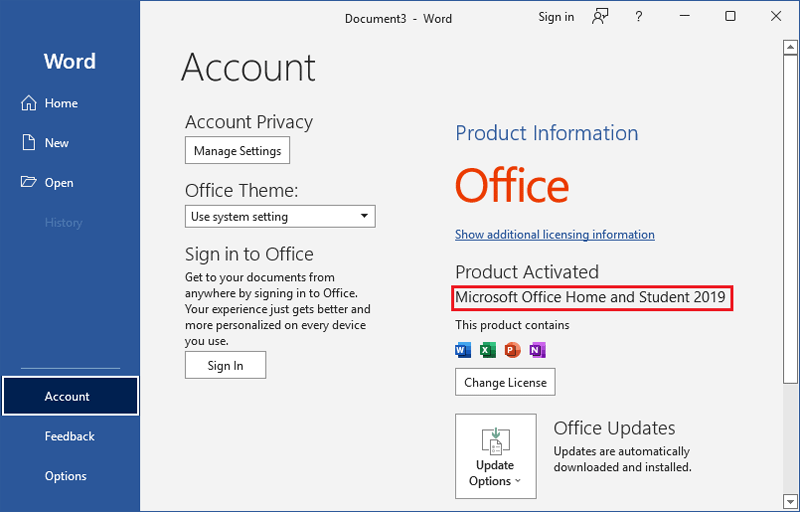
Existing iSumsoft screenshot showing Office Home and Student 2019. File > Account illustrates the version-checking action; this is not an Office 2021 test.
Step 4 Check whether it says Office 2021, Office LTSC 2021, Office 2024, or Microsoft 365.
Step 5 Write down the signed-in Microsoft account or your organization's licensing information.
For the official instructions, see About Office: What version of Office am I using?.
Part 2: Choose Between Office 2024 and Microsoft 365
There is no single correct replacement. The choice depends on how you use Office.
| Option | Payment model | Typical fit |
|---|---|---|
| Office 2024 | One payment for a device license | Core desktop apps |
| Microsoft 365 | Recurring payment | Feature updates and cloud services |
| Office LTSC 2024 | Perpetual volume license | Managed work or school devices |
Edition matters. For example, consumer Office 2024 packages differ in whether Outlook is included. Confirm the exact applications and licensing terms before purchasing.
Read Microsoft's Office 2024 FAQ.
Part 3: Back Up Word, Excel, and PowerPoint Files
The Office program and your documents are different things. A software upgrade generally replaces applications rather than intentionally deleting documents, but documents can live in several places:
- Documents, Desktop, and custom local folders.
- OneDrive or SharePoint libraries.
- External drives or NAS devices.
- Locally synced or offline-only folders.
To create a practical backup:
Step 1 Open File Explorer and locate folders containing important Office files.
Step 2 Copy documents to a separate external drive, not merely to another folder on the same SSD.
Step 3 Verify that a selection of Word, Excel, and PowerPoint files opens correctly from the backup.
Step 4 If the files live in OneDrive, check their sync state and download offline copies where necessary.
Step 5 Record any document templates, macros, add-ins, and custom dictionaries you rely on.
For business users: Check with IT before exporting organizational documents or sensitive records to personal storage.
Part 4: Back Up Outlook Emails, Contacts, and Calendar Data
If you use Outlook 2021, you may also need to preserve locally stored email archives, contacts, calendars, and account information.
In classic Outlook:
Step 1 Open Outlook.
Step 2 Select File > Open & Export > Import/Export.
Step 3 Choose Export to a file and select Next.
Step 4 Choose Outlook Data File (.pst).
Step 5 Select the mailbox or folders you want to export. Enable Include subfolders where appropriate.
Step 6 Choose a safe destination on a local drive and finish the export.
Step 7 Copy the resulting PST file to a separate backup device and verify that it exists.
Microsoft explains the procedure in Back up your Outlook email and has more detailed guidance for Outlook PST imports.
Important considerations:
- For Exchange or IMAP accounts, much of the email may already be stored on the server, but that is not the same as a verified personal backup.
- Cached Outlook data might contain only a limited period of messages. Confirm the sync range before exporting.
- A PST export does not automatically include every rule, add-in, account password, or custom profile setting.
- The new Outlook and classic Outlook have different PST features. Check the current Microsoft instructions for the version you intend to use.
Part 5: Install the New Office Version
After verifying both the license and backup, proceed with the supported installer:
Step 1 Sign in to the appropriate Microsoft account or your organization's software portal.
Step 2 Confirm you own an eligible Office 2024 license or Microsoft 365 subscription.
Step 3 Download the installer from Microsoft or the approved organization deployment source.
Step 4 Follow any prompts about removing or replacing an incompatible existing Office installation.
Step 5 Finish installation and open Word or Excel to confirm activation.
Step 6 Sign in to Outlook and verify that your existing mail account can connect.
The install path depends on your license, edition, deployment method, and 32/64-bit requirements. Do not assume Office 2021 license keys can activate Office 2024 or a Microsoft 365 subscription.
Part 6: Verify Your Documents, Outlook, and Add-ins
After installation, go through this checklist:
- Open several
.docx,.xlsx, and.pptxfiles. - Test formulas, macros, document templates, and required fonts.
- Sign into OneDrive/SharePoint and verify files are synchronized.
- Open classic Outlook if you need to import a PST file; follow Microsoft's edition-specific guidance.
- Verify email, attachments, calendar, and contact records.
- Reinstall trusted add-ins that are compatible with the new Office version.
- Preserve the external backup until everything important has been checked.
If a document was encrypted or password-protected, confirm you still have its password. An Office application upgrade does not remove document encryption automatically.
Should You Create a Full Windows Backup Before Upgrading Office?
For most ordinary document migrations, copying user files and exporting relevant Outlook data is the first priority. A whole-system backup can provide additional protection if you are performing a wider PC migration or operating-system replacement at the same time.
iSumsoft Cloner offers system/partition backup and disk-cloning functions, which may help in broader backup workflows. However, it does not transfer Microsoft Office license rights or subscriptions, and partition backups should not replace a separately verified copy of important documents.
For more general Windows backup instructions, see iSumsoft: A Comprehensive Tutorial on System Backup in Windows 11.
Frequently Asked Questions
Will my Word and Excel files be deleted when Office 2021 support ends?
No. The support deadline does not automatically delete local Office documents. However, you should upgrade away from an unsupported release for security and support reasons.
Can I upgrade from Office 2021 to Office 2024 for free?
A perpetual Office 2021 license does not normally grant a free Office 2024 license. Verify available purchase or subscription options with Microsoft or your organization.
Will Office 2024 open files created in Office 2021?
Most standard Word, Excel, and PowerPoint document formats are compatible, but macros, third-party add-ins, and complex workflows should be tested.
Is Outlook email deleted if I uninstall Office 2021?
Removing an Office application is not designed as a mailbox-deletion procedure, but some email archives are local and profiles can require reconfiguration. Export important PST data before changing installations.
Is Microsoft 365 required after Office 2021 support ends?
No. Office 2024 and certain organizational perpetual-license products are alternatives. Choose according to features, licensing, and support needs.
Conclusion
Office 2021's support deadline is a reason to plan your next version, not a reason to panic about disappearing documents. The safest sequence is simple: identify your version, verify the replacement license, back up files and Outlook data, install the new edition, and confirm that everything still works.
![[Windows 11] A Comprehensive Tutorial on System Backup](../images/backup-recovery/a-comprehensive-tutorial-on-system-backup-in-windows-11/a-comprehensive-tutorial-on-system-backup-in-windows-11-s.webp)