How to Apply Formula to Entire Columns or Rows in Excel

This is a tutorial on how to quickly apply formula to entire rows or columns in Excel.
This guide describes how to auto-fill formulas into adjacent cells by using the fill handle and fill command on Excel Ribbon. It hidden tricks will help you auto-fill cells with data that follows a pattern in a worksheet. There are several ways to copy formula into neighboring cells in any direction, here's how:
- Option 1: Drag fill handle
- Option 2: Double-click fill handle
- Option 3: Apply formula using fill command
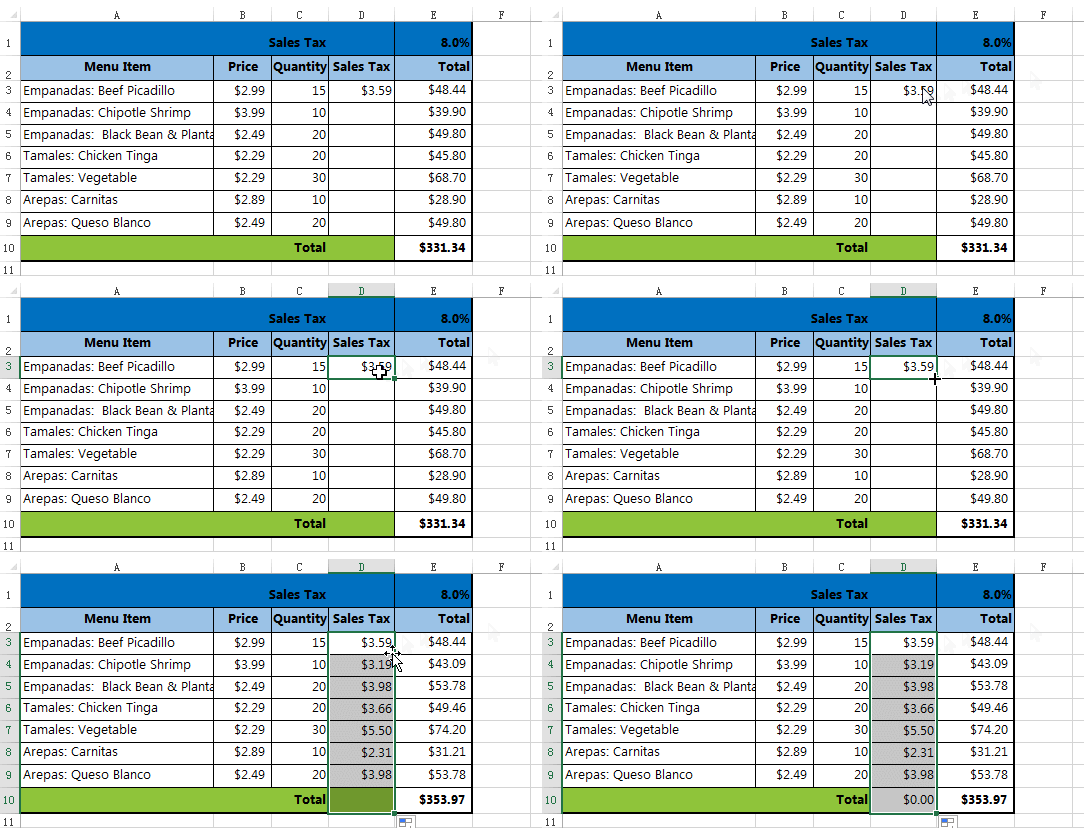
Option 1: Drag the fill handle to copy the formula
In Excel, select the cell that contains the formula you want to copy. Click, hold and drag the fill handle to copy the formula to adjacent cells.
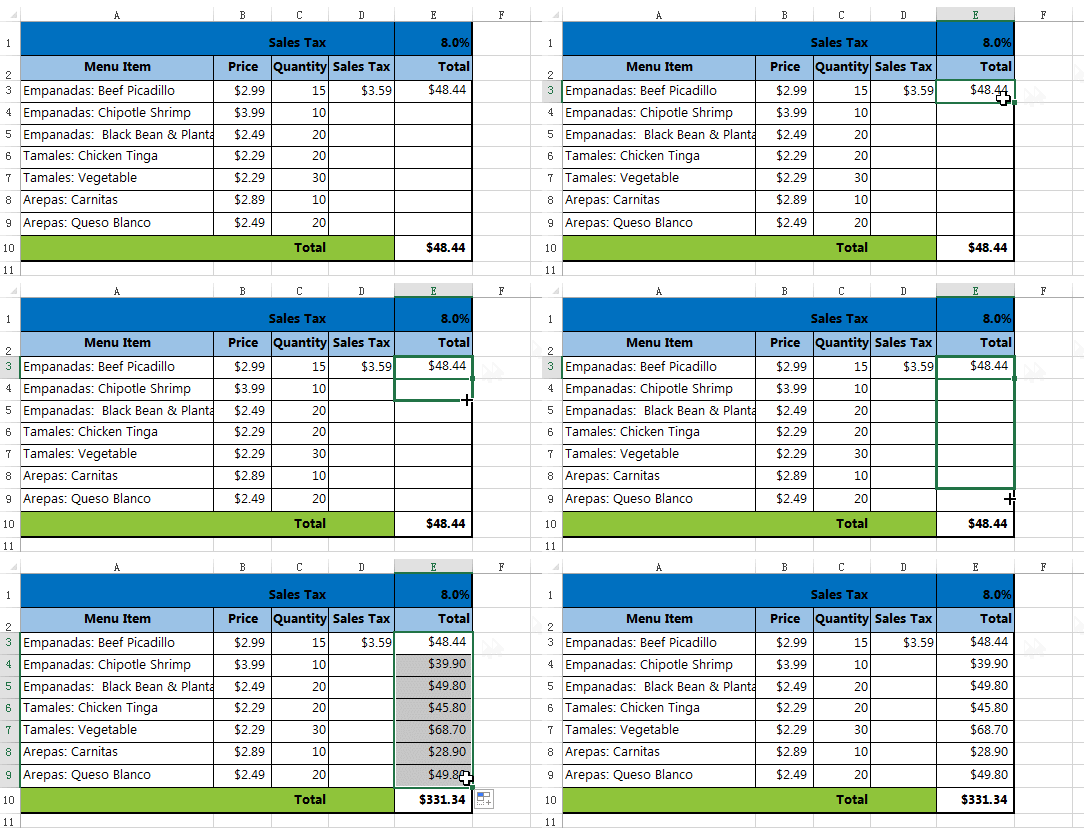
Option 2: Double-click fill handle to copy formula
Double-click on the bottom-right corner of the cell  that contains the formula you want to apply formula to
entire column.
that contains the formula you want to apply formula to
entire column.
Option 3: Copy formula using Fill command.
To apply the formula to entire column, here's how:
Step 1: Enter the formula into the first cell of that column, press Enter.
Step 2: Select the entire column, and then go to Home tab, click Fill > Down.
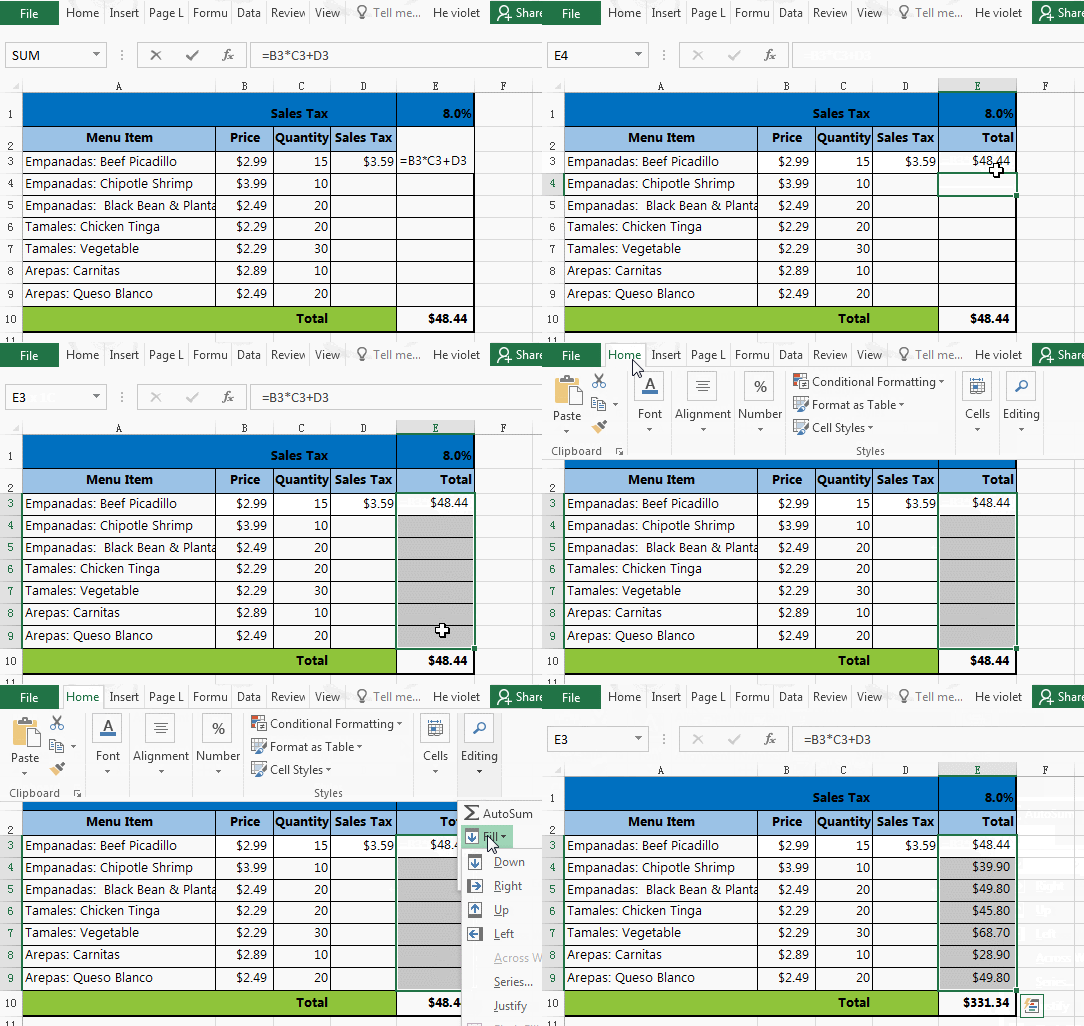
To apply formula to entire row: Click Home > Fill > Right.
Or
Ctrl+R: Continue applying formula into neighboring cells in right direction.
Ctrl+D: Continue applying formula into neighboring cells in down direction.