How to Lock iPhone with Find My iPhone Lost Mode

If your iPhone is stolen or lost, you can use the "Find My" app on another iPhone or use iCloud.com on your PC to put it in lost mode. All you need to do is log in to your iCloud account and remotely activate "Lost Mode" on your device. Here are some steps for your reference.
How to Turn on Lost Mode to Lock a Lost/Stolen iPhone
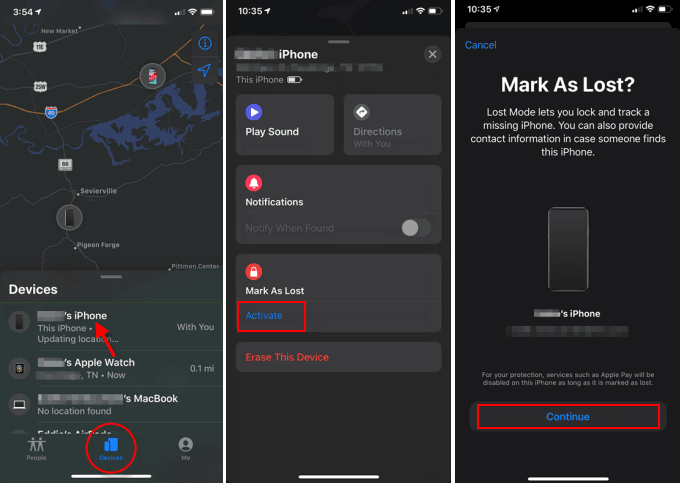
Step 1: Open the Find My app on any of your other devices and tap Devices. If you don't have a second device, you can sign in to icloud.com/#find using a desktop browser on your computer or a mobile browser on a friend's device
Step 2: You'll see a list of your devices with Find My enabled and a map with their locations.
In the Devices list, tap the lost device. Under Mark As Lost, tap Activate. Then tap Continue.
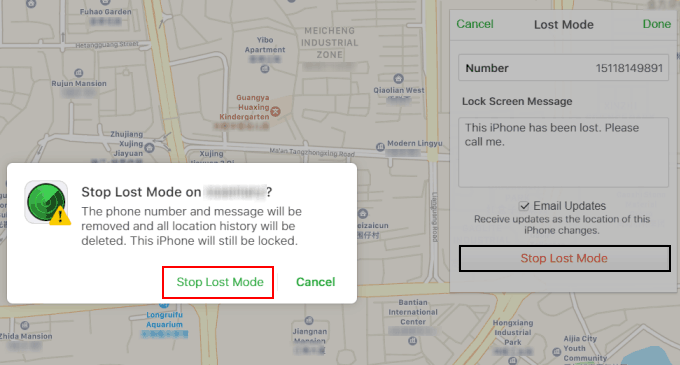
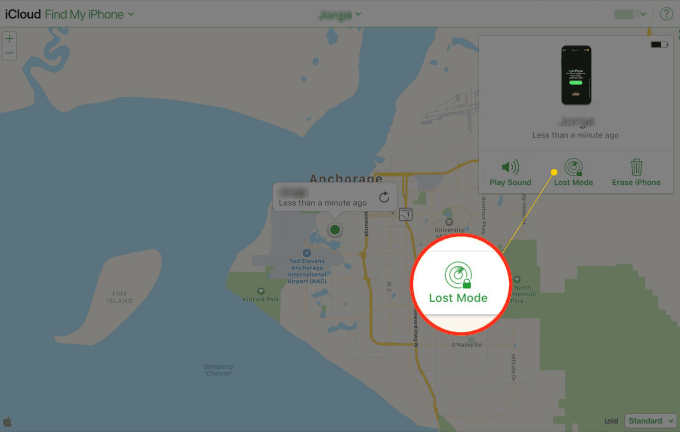
If you use a web browser on the computer, click "Lost Mode" in the box to lock this iPhone.
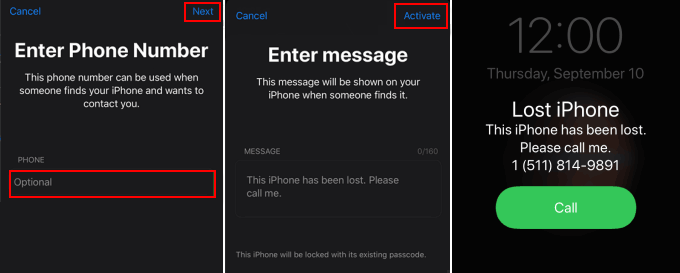
Step 3: Enter a phone number which will appear on the phone's lock screen, so if found, you can be notified. Then tap "Next."
Step 4: Enter a message that you want to appear on the lock screen — or accept the default message. Tap Activate to lock your iPhone. This lets you remotely lock your missing device with its passcode and display a message with contact information in case someone finds it.
How to unlock iPhone When you find your lost device
When you recover your lost or missing device, do either of the following to turn off Lost Mode:
- Enter your passcode on the device.
- In Find My, tap the device, tap Pending or Activated under Mark as Lost, tap Turn Off Mark As Lost, then tap Turn Off.
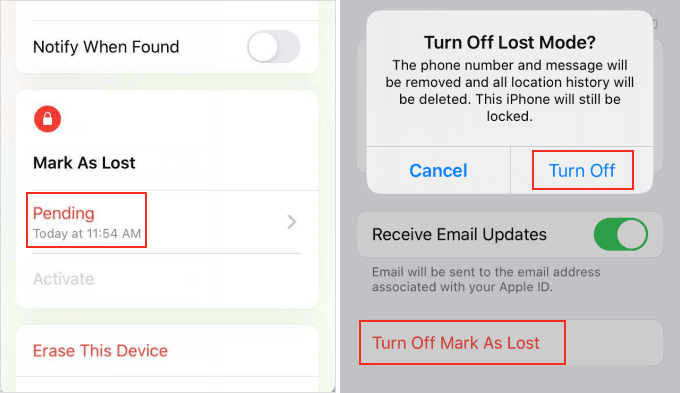
If you are in the iCloud.com web page, click "Lost Mode" and confirm by clicking "Stop Lost Mode" several more times.