
[Fixed] This Apple ID Is Not Valid or Not Supported

You may have encountered the message "This Apple ID is not valid or not supported" while setting up your Apple ID, along with the prompt "Cannot reset password", which prevents you from signing into your account for further services. This is a common problem and this article will guide you through the reasons behind it and detailed steps to resolve it.

- Part 1: Why is My Apple ID Saying Is Not Valid or Not Supported?
- Part 2: How to Fix This Apple ID Is Not Valid or Not Supported Error?
- Solution 1: Make sure the Apple ID or Email Address Is Correct
- Solution 2: Use Account Recovery When Cannot Reset Password
- Solution 3: Sign Out of the Account and Log Back Again
- Solution 4: Remove Apple ID Using iSumsoft iPhone Passcode Refixer
- Solution 5: Contact Apple Support
- Part 3: FAQs on Apple ID Not Valid or Supported
Part 1: Why is My Apple ID Saying Is Not Valid or Not Supported?
When it comes to account-related issues, "This Apple ID is either not valid or not supported" is often linked to your Apple ID security. Several factors can contribute to this issue, including:
Incorrect Apple ID or password: Double-check that you've entered your Apple ID and password correctly. A simple typo could result in this error message.
Unverified Apple ID: If you recently created an Apple ID, follow the instructions in the verification email from Apple.
Deactivated or disabled account: Your Apple ID may have been deactivated or disabled for security reasons, such as multiple failed logging attempts or suspicious activity.
Regional Restrictions: Some Apple services or features may not be available in your region, which may result in this error message.
Account Issues: There may be issues with your account, such as problems with billing information or unresolved payment issues.
Apple Server Issues: Occasionally, there may be problems with Apple servers, which may temporarily affect the validity of your Apple ID.
Old or unsupported Apple ID: If your Apple ID was created a long time ago and hasn't been used or updated, it may no longer be supported.
Part 2: How to Fix This Apple ID Is Not Valid or Not Supported Error?
To solve "Cannot reset password" issue perfectly, this section provides you with 5 effective methods. Let's take a look:
Solution 1: Make sure the Apple ID or Email Address Is Correct
It is important to ensure that you've entered the correct Apple ID or email address if you encounter the "This Apple ID is either not valid or not supported" issue. You may have inadvertently entered an incorrect account, triggering this error message. The following steps will help you verify and correct your Apple ID or email address.
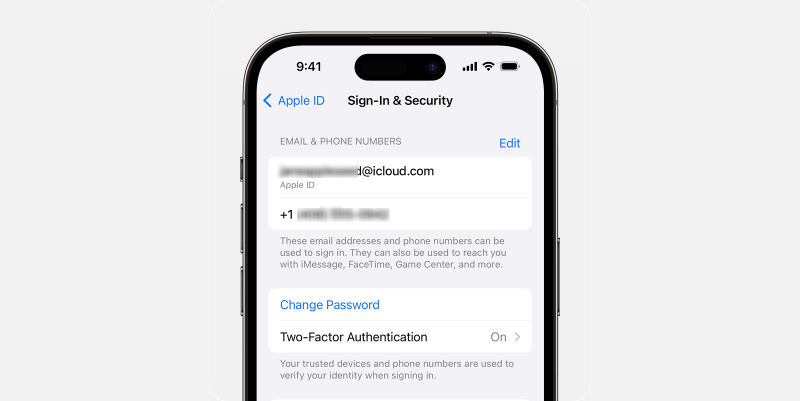
Step 1: Go to Settings > Apple ID profile > Password & Security (or Sig-In & Security).

Step 2: On this page, you can see your Apple ID and its associated phone number. After the confirmation, you can try to reset your Apple ID password again.
Solution 2: Use Account Recovery When Cannot Reset Password
This is an Apple official solution to fix the "This Apple ID is either invalid or not supported" issue, while this method requires you to wait for some time.
Step 1: Visit iforgot.apple.com. Then click Reset Password.
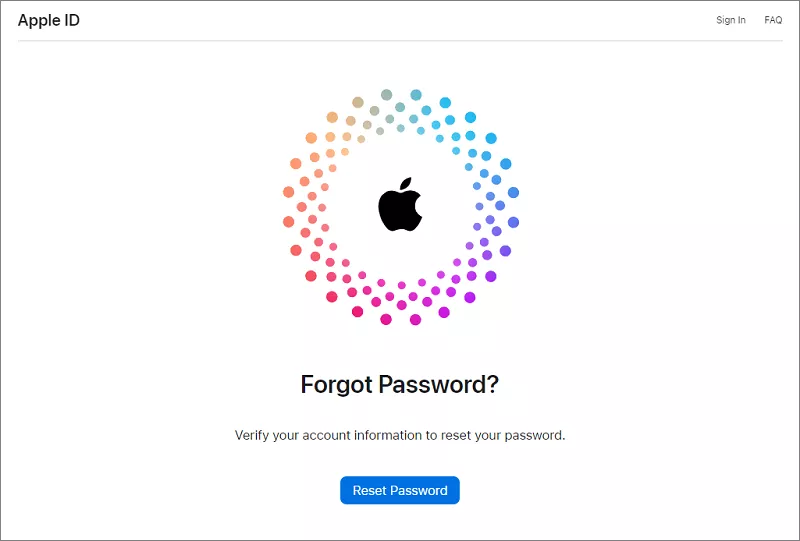
Step 2: On this page, enter your email address (or phone number) and verification code to reset your Apple ID password. Then follow the onscreen instructions to set a new password. You may need to wait for a period to recover your account. On the account is recovered, you will receive an Emial.

Solution 3: Sign Out of the Account and Log Back Again
Attempting to re-sign into your account before initiating the password reset process can sometimes resolve the issue. Follow the steps below to give it a try:
On Settings, tap Apple ID profile > Sign out. Then enter your Apple ID password and follow the onscreen prompts to sign out of the account.

Solution 4: Remove Apple ID Using iSumsoft iPhone Passcode Refixer
If all the mentioned methods do not work for you, try to use a third-party tool to directly remove your Apple ID from your iPhone. iSumsoft iPhone Passcode Refixer is a robust tool, designed to remove Apple ID and other iPhone passcodes, including Lock Screen, Screen Time, MDM, and iTunes Encryption Backup. Moreover, you are allowed to view and export all passcodes saved on your iPhone.
iSumsoft iPhone Passcode Refixer
Remove Various Passcodes on Your iPhone, iPad, and iPod Touch
- Unlock Screen Lock from locked, disabled, or unavailable lock screen
- Remove Screen Time passcode or Restrictions passcode without data loss
- Delete iCloud account without Apple ID password
- Bypass Remote Management (MDM) Screen & Remove MDM Profile
- Remove iTunes Backup Encryption with one click
- Detect, View, and Export All Passwords with iOS Password Manager
Learn how to use the program to fix "This Apple ID is not valid or not supported" issue.
Step 1: Free download the software and then install it on your computer.
Step 2: Connect your iPhone to the computer and launch the software. On the Home page of the software, select Remove Apple ID.

Step 3: Click Start and then follow the onscreen instructions to set up your iPhone.

Notes:
- If Find My iPhone is disabled on your device, the Apple ID will be removed automatically.
Step 4: Here, you're required to download a firmware package. Click Download to proceed.

Step 5: Click Remove to start the removal.

Step 6: Once the Apple ID is removed, you're prompted with "Removed Apple ID successfully", and your iPhone will start automatically.

Step 7: When accessing the iPhone and going to Settings, you will find that the Apple ID has been removed and you can set or create a new Apple ID.
Solution 5: Contact Apple Support
Reaching out to Apple Support should be considered as a final step when attempting to resolve the "This Apple ID is either not valid or not supported" issue. To ensure a successful resolution, it is crucial to provide proof of ownership for your iPhone and then seek assistance from a specialist.
Part 3: FAQs on Apple ID Not Valid or Supported
Q1: Why does Apple not accept my Apple ID and password?
Make sure you've entered the correct Apple ID and password. If you've recently changed your password, be sure to use an updated one. If the situation persists, iSumsoft iPhone Passcode Refixer may be a good choice for you.
Q2: Why is my Apple ID password not working even though it's correct?
One common reason is that if you've recently changed your Apple ID password, you may need to update your login information for the iCloud service you use. Multiple failed login attempts can also cause your Apple ID to be locked for security reasons, requiring you to reset your password at iforgot.apple.com.
In addition, if two-factor authentication is enabled for your account, you must enter a verification code sent to a device or phone number you trust along with your password.
Q3: How to reset my Apple ID password if I do not have phone number?
When creating an Apple ID, you'll need to enter an email address, which is one solution for recovering or resetting your Apple ID password without a phone number.
Related Articles
![[Solved] The Apple ID Cannot Be Used to Unlock This iPhone](../images/unlock-iphone/the-apple-id-cannot-be-used-to-unlock-this-iphone/apple-id-cannot-be-used-to-unlock-this-iphone.png) [Solved]
The Apple ID Cannot Be Used to Unlock This iPhone
[Solved]
The Apple ID Cannot Be Used to Unlock This iPhone 5 Methods to
Remove Activation Lock without Previous Owner
5 Methods to
Remove Activation Lock without Previous Owner![How to Remove Apple ID from iPad without Password [4 Ways]](../images/unlock-iphone/remove-apple-id-from-ipad-without-password/remove-apple-id-from-ipad-without-password-s.webp) How to Remove
Apple ID from iPad without Password [4 Ways]
How to Remove
Apple ID from iPad without Password [4 Ways]![How to Unlock Apple ID without Phone Number [Updated]](../images/unlock-iphone/how-to-unlock-apple-id-without-phone-number/how-to-unlock-apple-id-without-phone-number-s.webp) How to Unlock
Apple ID without Phone Number [Updated]
How to Unlock
Apple ID without Phone Number [Updated]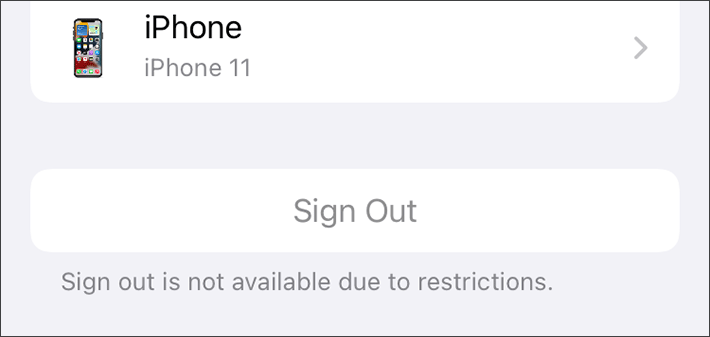 Fixed:
Apple ID Sign Out is Not Available Due to Restrictions
Fixed:
Apple ID Sign Out is Not Available Due to Restrictions Why is My Apple ID
Greyed Out on iPhone Settings? FIXES Here!
Why is My Apple ID
Greyed Out on iPhone Settings? FIXES Here!