iPhone Screen Goes Black While Using Apps? Causes and 7 Fixes

You are scrolling through Instagram, watching a TikTok or YouTube video, or playing a game when suddenly the iPhone screen goes completely black. In many cases, audio continues playing, notifications vibrate, or Siri still responds. Whether this happens in a single specific app or across multiple apps, here is how to determine the exact cause and resolve it.
Experiencing an iPhone screen goes black while using apps is a common issue that ranges from a simple video player crash to a deeper system memory exhaustion glitch. Understanding whether the problem is confined to one specific application or is system-wide is the crucial first step to getting your display working reliably again.
If your screen shuts down spontaneously without any apps open or right after unlocking, review our general guide on how to fix iPhone screen going black randomly. If your apps force-close back to the home screen instead of causing a black screen, check our walkthrough on iPhone apps closing unexpectedly. Otherwise, read on to troubleshoot app-triggered display crashes.
| Scenario | Symptoms | Root Cause & First Fix |
|---|---|---|
| Situation A: Single App Glitch | Screen only blacks out in one app (e.g. TikTok, Instagram, Camera, or a specific game); home gesture or lock button works | App-Level Bug: Memory leak or video codec crash. Force quit, update, or reinstall the app. |
| Situation B: System-Wide Display Crash | Screen goes black across multiple random apps; audio keeps playing, phone vibrates, but display is pitch black | iOS / RAM Issue: Low storage swap space, SpringBoard deadlock, or GPU thermal throttling. Force restart & repair iOS. |
- Why Does iPhone Screen Go Black When Using Apps?
- Fix 1: Force Quit the Crashing App
- Fix 2: Force Restart the iPhone
- Fix 3: Update or Reinstall the Affected App
- Fix 4: Free Up Internal iPhone Storage Space
- Fix 5: Update iOS to the Latest Version
- Fix 6: Repair iOS System Errors via iSumsoft iOS Refixer
- Fix 7: Reset All Settings
- Frequently Asked Questions
Why Does iPhone Screen Go Black When Using Apps?
When you run heavy apps on iOS, the operating system orchestrates CPU threads, GPU frame buffers, and system memory. A screen blackout during app use stems from one of the following root factors:
- App video rendering crash: Media apps (like YouTube, Netflix, Instagram Reels, and TikTok) use hardware-accelerated video decoding. If a video file has corrupted metadata or triggers an unhandled codec exception, the app's rendering layer drops to black.
- Low available RAM & storage: Modern graphic engines require virtual swap memory on internal flash storage. If your iPhone has less than 2GB–3GB of free storage, iOS cannot allocate frame buffers, resulting in an abrupt graphics driver stall.
- SpringBoard and WindowServer deadlock: SpringBoard is the core iOS daemon that manages the graphical user interface. If an app triggers an unexpected UI thread freeze, the WindowServer may stop rendering display output while audio daemons continue uninterrupted.
- Thermal throttling during intensive gaming: 3D games push the Apple A-series / M-series GPU to maximum clock speeds. High heat combined with charging can cause thermal protection to blank the screen.
Fix 1: Force Quit the Crashing App
If the black screen only occurs inside one app and you can still swipe up or press the Home button to exit, the issue is contained within that app's active process.
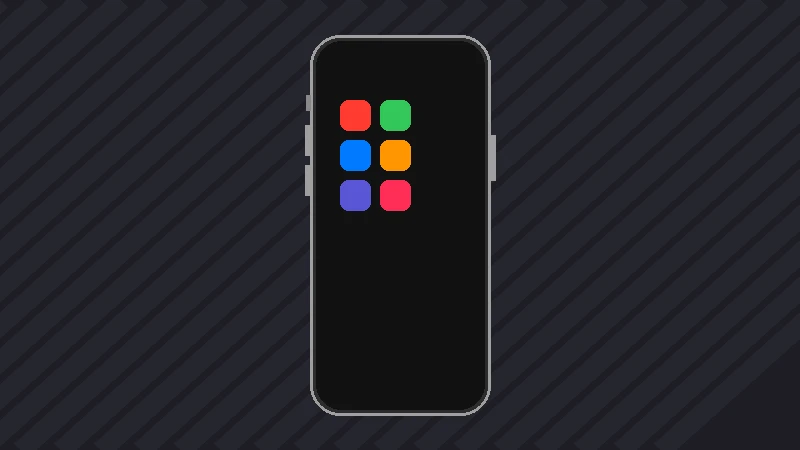
Step 1 Swipe up from the bottom edge of the screen and pause in the middle (or double-click the Home button on iPhone SE/8/earlier) to open the App Switcher.
Step 2 Locate the preview card of the blacked-out app.
Step 3 Swipe firmly upward on the app card to kill its suspended memory process.
Step 4 Relaunch the app from your Home Screen to test if it loads fresh assets normally.
Fix 2: Force Restart the iPhone
When the screen goes pitch black inside an app and neither swiping nor tapping the screen responds, the display compositor has frozen. A forced reboot cuts power to the RAM chips, wiping stalled GPU buffers and reloading system daemons from scratch without touching your personal files.
Follow the force restart procedure for your iPhone:
iPhone 8 / X / 11 / 12 / 13 / 14 / 15 / 16 Press and quickly release the Volume Up button. Press and quickly release the Volume Down button. Then press and hold the Side Power button for about 10–15 seconds until the Apple logo appears, then release.
iPhone 7 / 7 Plus Press and hold both the Power button and the Volume Down button simultaneously until you see the Apple logo.
iPhone 6s and earlier Press and hold both the Home button and the Top/Side Power button together until the Apple logo is displayed.
Fix 3: Update or Reinstall the Affected App
App developers regularly push updates to fix compatibility bugs following iOS releases. If a specific app continues to black out, updating or reinstalling it clears corrupted local cache databases.
Step 1 Open the App Store and tap your Profile icon in the upper-right corner.
Step 2 Scroll down to the Pending Updates section and tap Update All (or update the specific crashing app).
Step 3 If updating does not resolve the issue, press and hold the app icon on your Home Screen, tap Remove App > Delete App, and reinstall it clean from the App Store.
Fix 4: Free Up Internal iPhone Storage Space
Insufficient storage is one of the most underdiagnosed causes of in-app black screens. When free space drops below 3GB, iOS cannot create swap files for high-resolution video streams, game textures, or camera buffer streams.
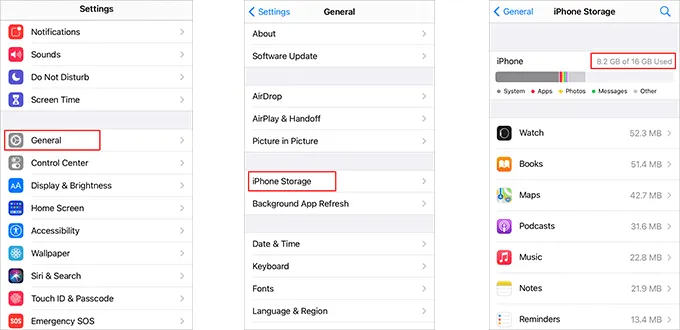
Step 1 Go to Settings > General > iPhone Storage.
Step 2 Review the storage bar. If your available storage is under 5GB, review Apple's recommendations to free up iPhone storage space.
Step 3 Delete duplicate 4K video clips, clear heavy offline downloads in streaming apps (Spotify, Netflix, YouTube), and offload rarely used apps to ensure at least 6GB–10GB of free operational buffer.
Fix 5: Update iOS to the Latest Version
If you experience black screens across multiple different apps (such as Safari, Mail, social media, and games), the underlying issue is likely a graphics driver or Metal API bug in your current iOS build.
Step 1 Go to Settings > General > Software Update.
Step 2 If a new iOS build is available, tap Update Now or Download and Install.
Step 3 Keep your phone connected to Wi-Fi and power until installation completes.
Fix 6: Repair iOS System Errors via iSumsoft iOS Refixer
When in-app display blackouts persist despite reinstalling apps and updating iOS, deep SpringBoard system file corruption or damaged firmware caches may be destabilizing the graphics compositor. Using iSumsoft iOS Refixer allows you to reconstruct broken system components without wiping your photos, chats, or downloaded apps.

iSumsoft iOS Refixer
Fix System & App Black Screen Crashes
- Fix 150+ iOS system problems including app-induced black screens, frozen UI, and boot loops
- Standard Mode repairs iOS firmware with zero risk of data loss
- Replaces corrupted graphics framework files and clears low-level system deadlocks
- Compatible with all iOS versions (including iOS 18/26) and all iPhone models
Step 1 Install and open iSumsoft iOS Refixer on your PC or Mac. Select Standard Mode.
Step 2 Connect your iPhone to your computer via USB and click Start.
Step 3 Click Download to get the verified official firmware package for your device.
Step 4 Click Repair. The software will repair system libraries and restore smooth display compositing. Your iPhone will restart automatically with all your data preserved.
Fix 7: Reset All Settings
If customized accessibility settings, display color filters, or profile configurations conflict with third-party app graphics layers, resetting all settings restores system preferences to factory defaults without erasing your personal files.
Step 1 Go to Settings > General > Transfer or Reset iPhone.
Step 2 Tap Reset > Reset All Settings.
Step 3 Enter your passcode and confirm. Your Wi-Fi networks, Bluetooth pairings, wallpaper, and display settings will reset to default, clearing configuration conflicts.
Frequently Asked Questions
Why does my screen go black specifically when opening the Camera or Instagram Story?
Camera-based black screens are often caused by the camera sensor daemon stalling or a conflict with camera permissions. If the flashlight also fails to work, consult our dedicated guide on iPhone camera black screen and flashlight not working.
Can overheating while gaming cause my iPhone screen to turn black?
Yes. Demanding 3D games put heavy loads on the GPU. If the device temperature rises past safe limits, iOS automatically lowers screen brightness or turns off the OLED panel to protect internal circuits from thermal stress.
What should I do if the screen goes black across every app and never recovers?
If a force restart and iOS system repair do not bring back display output while vibration and computer detection confirm the phone is running, the OLED screen connector may be disconnected or damaged. In this case, schedule an inspection with Apple Support.