iPhone Screen Goes Black While Charging or Overnight? Causes and 6 Fixes

You plug your iPhone into a charger or leave it charging on your nightstand overnight. Later, you find the screen completely black and unresponsive. Yet the phone may still vibrate, ring for incoming calls, or be recognized by a computer. This article explores why the display controller stalls during charging and provides 6 tested solutions.
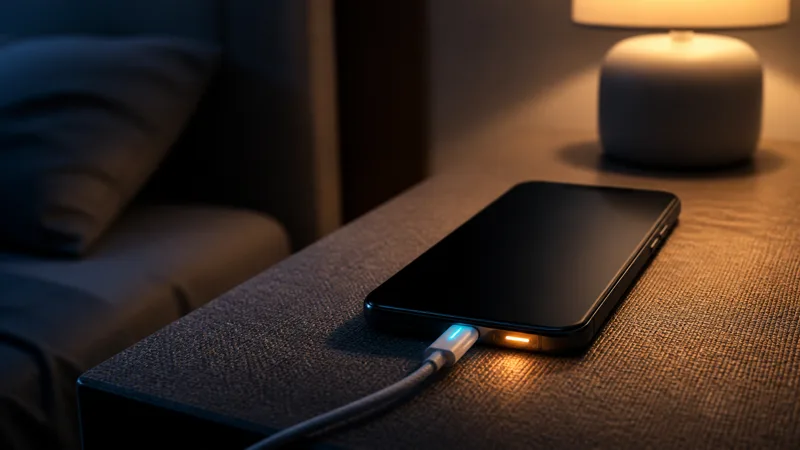
Waking up in the morning only to find your iPhone screen black after charging overnight can be alarming. Many users assume their phone's battery died or the motherboard fried. But in most instances, the iPhone is actually still alive—you can feel haptic vibrations when toggling the mute switch, alarm sounds continue to play, and Siri responds through connected headphones.
If your device experiences display shutoffs randomly throughout the day while unplugged, refer to our comprehensive guide on how to fix iPhone screen going black randomly. If the device does not vibrate, make sound, or register on a computer at all, it may be a fully drained battery or power failure covered in our iPhone won't turn on guide. If your screen goes black specifically while connected to power, follow the targeted solutions below.
| Diagnostic Test | Screen Black While Charging (This Guide) | iPhone Completely Dead (Won't Turn On) |
|---|---|---|
| Haptic & Vibration | Vibrates when connecting cable or flipping switch | No vibration or haptic response |
| Siri & Alarms | "Hey Siri" answers; alarms ring on schedule | Completely silent and unresponsive |
| Computer Connection | Detected by Mac/PC via USB | Not detected in USB bus / Apple Devices |
| Primary Cause | Thermal protection, StandBy bug, or display crash | Dead battery, faulty adapter, or power IC failure |
- Why Does iPhone Screen Go Black While Charging or Overnight?
- Fix 1: Disconnect Power and Let the iPhone Cool Down
- Fix 2: Force Restart the iPhone While Connected to Power
- Fix 3: Inspect Charging Accessories and Clean the Port
- Fix 4: Check StandBy Mode and Always-On Display Settings
- Fix 5: Repair iOS Charging Crash via iSumsoft iOS Refixer
- Fix 6: Restore via Computer or Check Display Hardware
- Frequently Asked Questions
Why Does iPhone Screen Go Black While Charging or Overnight?
Connecting your iPhone to power initiates high-current battery charging, power management handshakes, and intensive background system tasks. Several factors can cause the screen to go pitch black during this process:
- Thermal throttling & protection: High-speed 20W+ USB-PD charging and MagSafe wireless charging produce heat. If the iPhone becomes excessively hot, iOS automatically turns off the OLED display panel to reduce internal temperature and preserve battery health.
- StandBy mode night bug: On iOS 17 and later, StandBy mode activates when charging horizontally. If ambient lighting in your bedroom drops, StandBy can glitch into an un-wakeable sleep state instead of showing the dim red clock. Learn more about fixing iOS StandBy mode issues.
- Overnight iOS update kernel panic: If "Install iOS Updates Automatically" is enabled, iOS downloads and attempts to install updates in the early morning hours. An interrupted firmware verification can leave the display controller stalled on a black screen.
- Voltage fluctuations: Substandard, non-MFi certified charging adapters or frayed cables can cause voltage sags, crashing the display driver IC.
- Display backlight or PMIC hardware fault: Physical burnout of the OLED driver or power management IC (PMIC) under charging voltage.
Fix 1: Disconnect Power and Let the iPhone Cool Down
If your iPhone feels noticeably warm or hot to the touch when you pick it up from the charger, iOS thermal throttling is the most likely culprit. Apple devices have built-in safety mechanisms that shut off the display to dissipate heat.
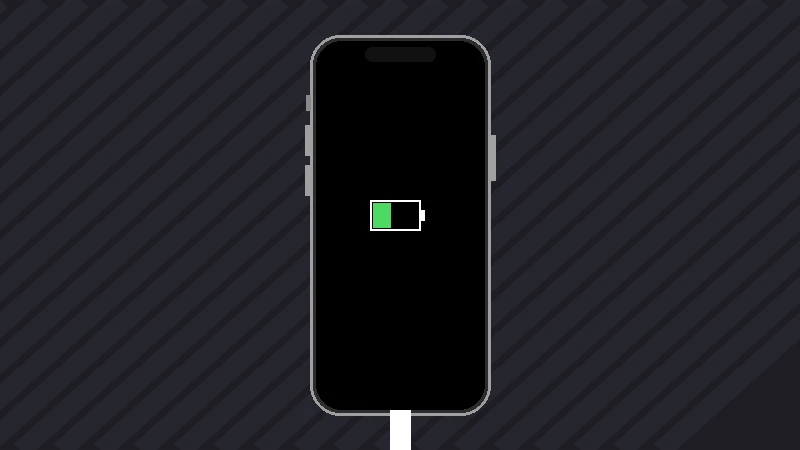
Step 1 Unplug the charging cable or remove the phone from the MagSafe / Qi charging pad immediately.
Step 2 Remove any thick silicone, leather, or rugged protective cases that trap heat around the rear glass.
Step 3 Place the iPhone in a cool, well-ventilated room away from direct sunlight for 15–20 minutes. Do NOT place it in a refrigerator or freezer, as condensation will cause internal liquid damage.
Step 4 Once the chassis has returned to room temperature, press the Side button to see if the screen illuminates.
Fix 2: Force Restart the iPhone While Connected to Power
If the iPhone is cool but the display controller is stuck in a sleep-state deadlock, a force restart is the fastest way to revive it. Performing a force restart while the phone is plugged into a genuine wall charger ensures sufficient voltage to reboot the display controller.
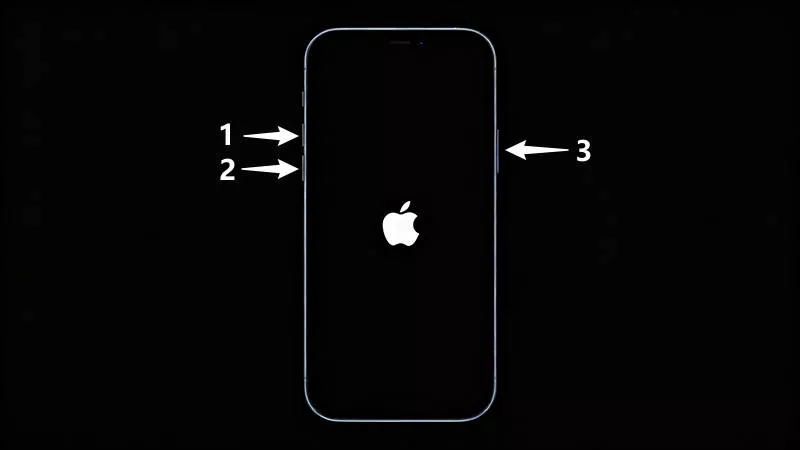
Follow the iPhone force restart instructions matching your device:
iPhone 8 / X / XR / 11 / 12 / 13 / 14 / 15 / 16 Press and immediately release the Volume Up button. Press and immediately release the Volume Down button. Then press and hold the Side Power button for 15–20 seconds until the Apple logo appears on the screen.
iPhone 7 / 7 Plus Press and hold both the Volume Down button and the Sleep/Wake Power button simultaneously until the Apple logo is visible.
iPhone 6s / SE (1st gen) Hold both the Home button and the Top/Side Power button together until the Apple logo appears.
Fix 3: Inspect Charging Accessories and Clean the Port
Faulty chargers often deliver unstable voltage that tricks the iPhone power management chips into shutting down display lines.
- Switch to official or MFi-certified hardware: Test with an original Apple 20W USB-C power adapter and an authentic Apple cable. Avoid cheap gas station chargers or unbranded multi-port charging hubs.
- Inspect the Lightning / USB-C port: Pocket lint, dirt, and pet hair frequently pack into the charging port. When the cable is inserted, the lint prevents pins from making full contact. Inspect the port with a flashlight and gently extract compacted debris using a dry wooden or plastic toothpick.
- Test MagSafe vs Wired: If the issue only happens on wireless MagSafe pucks, switch to a wired USB-C / Lightning cable to isolate whether the wireless charging coil is causing electromagnetic interference.
Fix 4: Check StandBy Mode and Always-On Display Settings
If your screen consistently goes black overnight when mounted horizontally, iOS StandBy mode or Sleep Focus settings may be shutting down the display panel.
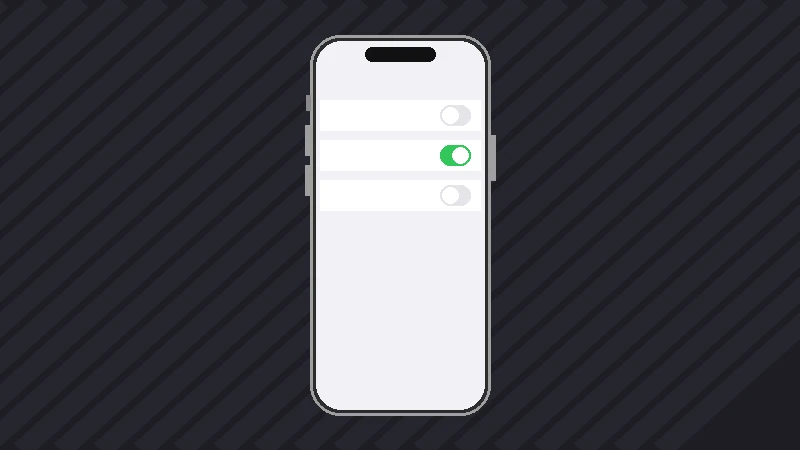
Step 1 Open Settings and tap StandBy.
Step 2 If StandBy is enabled, tap Display and change the turn-off behavior from Automatically to Never (on supported Pro models), or toggle Night Mode off to test if the dark room sensor is malfunctioning.
Step 3 If you have an iPhone 14 Pro, 15 Pro, or 16 Pro, navigate to Settings > Display & Brightness > Always On Display. Confirm that Sleep Focus is not disabling the lock screen unexpectedly during your wake hours.
Fix 5: Repair iOS Charging Crash via iSumsoft iOS Refixer
When the screen goes black while charging due to an interrupted overnight iOS update, corrupted battery daemon caches, or crashed kernel drivers, simple restarts may only fix the problem temporarily. iSumsoft iOS Refixer provides a non-destructive way to reinstall clean iOS firmware and repair core system bugs without erasing your data.

iSumsoft iOS Refixer
Fix iOS Charging & Black Screen Glitches Safely
- Fix 150+ iOS issues including charging black screen, frozen display, and update failures
- Standard Mode repairs system files with 100% data preservation
- Resolves overnight update crashes, battery charging daemon stalls, and boot loops
- Full compatibility with iOS 18/26 and all iPhone 16/15/14/13/12/11/X models
Step 1 Download and launch iSumsoft iOS Refixer on your PC or Mac.
Step 2 Select Standard Mode and click Start.
Step 3 Connect your iPhone to the computer with a reliable USB cable. If the screen is black, the software will guide you into Recovery Mode with simple on-screen prompts.
Step 4 Click Download to retrieve the official Apple firmware package for your specific iPhone model.
Step 5 Click Repair. The utility will replace corrupt system modules, refresh the display driver stack, and reboot your iPhone normally with all your data untouched.
Fix 6: Restore via Computer or Check Display Hardware
If you prefer not to use third-party software and have an up-to-date backup, you can restore your iPhone to factory settings using Finder on Mac or the Apple Devices app / iTunes on Windows.
Step 1 Connect your iPhone to your computer and put the iPhone into recovery mode.
Step 2 A popup will appear on your computer stating that there is a problem with the iPhone. Click Update first to preserve data. If that fails, click Restore (which erases the device).
Step 3 If the restore completes but the screen remains completely pitch black while sounds and vibrations continue, the issue is hardware-related (such as a blown display backlight circuit, detached OLED flex cable, or damaged charging IC). Contact Apple Support or visit an authorized service center for display replacement.
Frequently Asked Questions
Why does my iPhone get hot and the screen turns black while fast charging?
Fast charging generates elevated temperatures inside the battery cell and logic board. When internal thermal sensors cross safety thresholds, iOS initiates thermal throttling, disabling the OLED display to prevent permanent battery degradation. Allowing the phone to cool down will restore normal brightness.
Will overnight charging damage my iPhone screen or battery?
No. Modern iPhones feature Optimized Battery Charging and hardware charge-limiting controllers that prevent overcharging. However, charging overnight under a pillow or in a poorly ventilated case can cause heat buildup that triggers display blackouts.
Can an interrupted automatic iOS update cause a black screen overnight?
Yes. If your iPhone attempts an automatic update overnight and loses power, encounters a firmware checksum mismatch, or experiences a storage shortfall, it can freeze on a black screen or spinning wheel. A force restart or iOS system repair will resolve it.