Why Does My iPhone Screen Go Black During Calls? Causes and 7 Fixes

When you make or answer a phone call, your iPhone screen turns off to prevent accidental cheek taps. But what if you pull the phone away to check your keypad, switch to speaker, or hang up, and the screen stays pitch black and unresponsive? This problem is caused by a blocked proximity sensor, a faulty screen protector, or an iOS system glitch. Here is how to diagnose and fix it quickly.

Few things are more frustrating than being on an automated helpline or an important business call and discovering that your iPhone screen goes black during calls and refuses to light back up. You cannot tap menu options on the dial pad, cannot unmute yourself, and cannot even press the red End Call button until the other person hangs up or you force restart your device.
If your screen shuts down at random times outside of phone calls as well, you may want to check our broader troubleshooting guide on why an iPhone screen goes black randomly. But if the blackout happens specifically during cellular phone calls, WhatsApp calls, or FaceTime audio calls, the issue is almost always tied to your proximity sensor system or call daemon.
| Scenario | What Happens | Status & Cause |
|---|---|---|
| Phone against ear | Screen goes black automatically | Normal Behavior: Proximity sensor prevents accidental cheek inputs. |
| Phone pulled away | Screen stays black & unresponsive | Abnormal Glitch: Blocked sensor cutout, dirty receiver, or case lip obstruction. |
| Call finishes / ends | Screen remains black until power button pressed | Software Bug: InCallService process crash or sensor state lockup in iOS. |
| Recent screen repair / drop | Black screen on every outgoing call | Hardware Fault: Loose proximity sensor flex cable or faulty third-party display. |
- Why Does iPhone Screen Stay Black During or After Calls?
- Fix 1: Remove Protective Case and Screen Protector
- Fix 2: Clean the Top Speaker and Proximity Sensor Area
- Fix 3: Force Restart the iPhone
- Fix 4: Adjust Call and Display Settings
- Fix 5: Update iOS to the Latest Version
- Fix 6: Repair iOS System Bugs via iSumsoft iOS Refixer
- Fix 7: Test Sensor with Voice Memos & Contact Apple Support
- Frequently Asked Questions
Why Does iPhone Screen Stay Black During or After Calls?
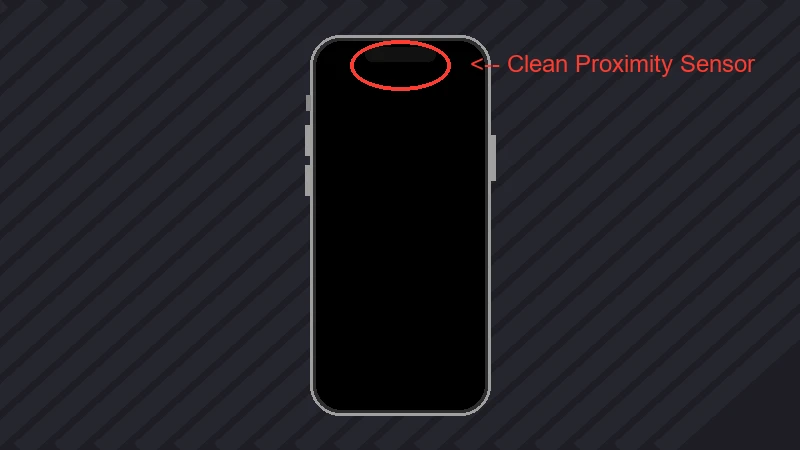
Every modern iPhone (from models with the classic notch to Dynamic Island models like iPhone 14 Pro, 15, and 16 series) houses an infrared proximity sensor at the top edge of the front glass. During an active call, this sensor continuously sends out invisible infrared pulses.
When the sensor detects your face or ear nearby, iOS commands the OLED/LCD display controller to turn off the backlight and disable touch recognition. The moment you move the phone a few inches away, the sensor detects ambient light and the absence of reflection, instantly waking the screen.
If your screen stays black when you pull the phone away, one of the following issues has occurred:
- Physical obstruction: Dust, makeup residue, ear oil, or pocket lint has coated the top speaker receiver grill.
- Screen protector reflection: Thick, improperly cut, or misaligned tempered glass bounces infrared light straight back into the sensor, falsely signaling that the phone is still pressed against your ear.
- Bulky phone case: Thick case bezels can overhang the upper sensor cluster on newer bezel-less iPhones.
- iOS InCallService freeze: The software module handling call UI states has crashed or failed to receive the sensor wake event.
- Hardware damage: The upper sensor flex cable was damaged during a drop or improperly transferred during a third-party screen replacement.
Fix 1: Remove Protective Case and Screen Protector
Over 60% of call-related black screen complaints are solved simply by examining external accessories. Even if your screen protector looks clean, minor microscopic scratches or adhesive bubbles directly over the proximity sensor can scatter infrared light.
Step 1 Take off your protective phone case completely, especially heavy-duty rugged cases with thick top lips.
Step 2 Make a test call to voicemail or a friend. Move your hand over the top notch or Dynamic Island and pull it away. If the screen wakes normally, your case was the culprit.
Step 3 If the screen still refuses to wake up, peel off the tempered glass screen protector and test again. Always replace it with an edge-to-edge protector engineered specifically with precise sensor cutouts.
Fix 2: Clean the Top Speaker and Proximity Sensor Area
Because the earpiece speaker sits right next to your ear during daily phone calls, facial oils, makeup, skin flakes, and sweat naturally collect inside the speaker mesh. This grime can form an opaque film over the infrared emitter.
Step 1 Turn off your iPhone before cleaning.
Step 2 Use a dry, clean microfiber cloth (such as a lens cloth) to buff the upper display glass and Dynamic Island/notch area.
Step 3 Take a soft-bristled, completely dry toothbrush or anti-static brush and gently sweep away any compacted lint from the speaker receiver cutout.
Caution:
- Never insert metal needles, toothpicks, or compressed air cans directly into the speaker mesh, as this can puncture the waterproof acoustic membrane or dislodge internal sensor diodes.
Fix 3: Force Restart the iPhone
If the sensor is clean and unobstructed, the issue is often a temporary deadlock in the iOS sensor background daemon. A simple soft restart may not clear low-level cache buffers, but a forced restart (hard reboot) cuts hardware power briefly and forces the iOS kernel to reload all sensor drivers.
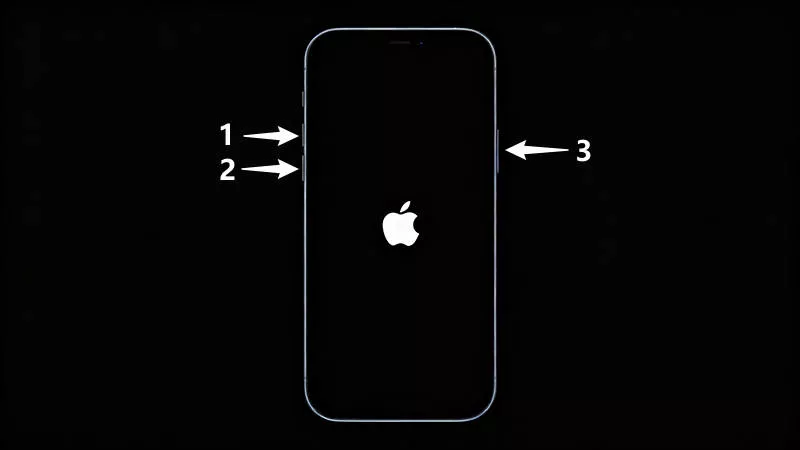
To force restart your iPhone without losing any photos, messages, or apps, follow the button sequence for your model:
iPhone 8 / X / 11 / 12 / 13 / 14 / 15 / 16 Quickly press and release the Volume Up button. Quickly press and release the Volume Down button. Then press and hold the Side (Power) button for about 10–15 seconds until the Apple logo appears, then release.
iPhone 7 / 7 Plus Press and hold both the Power button and the Volume Down button simultaneously until you see the Apple logo.
iPhone 6s and earlier Press and hold both the Home button and the Top/Side Power button together until the Apple logo appears.
Fix 4: Adjust Call and Display Settings
A helpful accessibility setting in iOS allows you to control how the Side button behaves during calls. Enabling this feature ensures you can always wake or sleep your display manually during a call without accidentally terminating the connection.
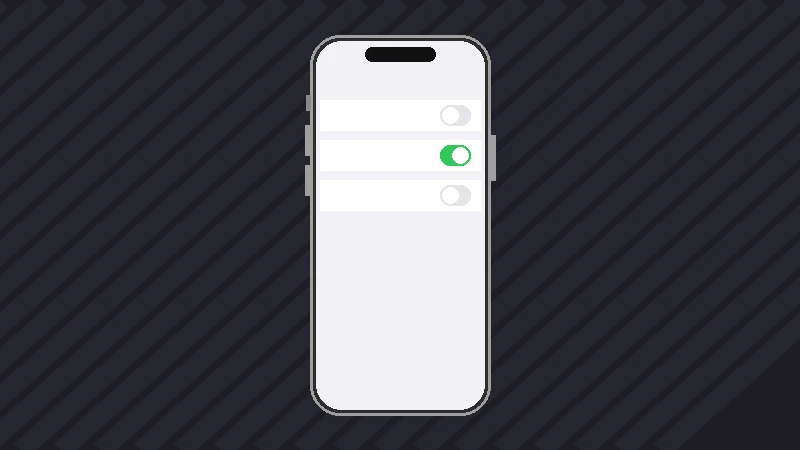
Step 1 Open Settings on your iPhone and tap Accessibility.
Step 2 Tap Touch and scroll down to locate Prevent Lock to End Call. Toggle the switch to ON. Now, if the screen goes black during a call, pressing the Side button will turn the screen back on rather than hanging up on the caller.
Step 3 Next, go to Settings > Display & Brightness. Turn Raise to Wake off and then back on. This resets the motion coprocessor and ambient light calibration pipelines.
If your screen does not go completely black but dims to a barely visible level during use, refer to our specific troubleshooting guide for iPhone screen keeps dimming even with auto-brightness off.
Fix 5: Update iOS to the Latest Version
Apple frequently releases maintenance updates to resolve known bugs in audio-routing, FaceTime, and sensor responsiveness across different iPhone hardware revisions. If you are running an outdated version of iOS, updating can permanently patch the issue.
Step 1 Connect your iPhone to Wi-Fi and plug it into a power outlet.
Step 2 Go to Settings > General > Software Update.
Step 3 If an update is available, tap Update Now or Download and Install. Allow the iPhone to finish installing and reboot.
Fix 6: Repair iOS System Bugs via iSumsoft iOS Refixer
If your proximity sensor continues to malfunction despite clean hardware and standard restarts, deep system file corruption within iOS or damaged firmware caches may be stalling the display driver. You can resolve these core system errors without erasing any of your personal data by using a dedicated repair utility like iSumsoft iOS Refixer.

iSumsoft iOS Refixer
Professional iOS System Repair Tool
- Fix 150+ iOS/iPadOS system issues, including call black screen, screen freezing, and boot loops
- Standard Mode repairs system errors safely with zero data loss
- Compatible with all iOS versions (including iOS 18/26) and all iPhone models
- Resolves deep sensor driver conflicts, iTunes restore errors, and firmware stalls
Step 1 Download and install iSumsoft iOS Refixer on your Windows PC or Mac. Launch the software and choose Standard Mode on the main screen.
Step 2 Connect your iPhone to your computer using a certified USB-to-Lightning or USB-C cable, then click Start.
Step 3 The software will automatically detect your iPhone model and present the latest matching firmware package. Click Download to download the clean firmware file.
Step 4 Once the download is complete, click Repair. Keep your iPhone connected while iOS Refixer reconstructs damaged system files and firmware daemons.
Step 5 When the process completes, your iPhone will reboot automatically with all photos, contacts, messages, and settings intact.
Fix 7: Test Sensor with Voice Memos & Contact Apple Support
How can you be 100% sure whether the problem is software or hardware? You can perform a quick diagnostic test right on your device using Apple's built-in Voice Memos app:
- Open the Voice Memos app and record a short 10-second audio clip.
- Tap the recorded memo, tap the blue speaker icon in the top right corner to switch output from speakerphone to ear receiver, and press Play.
- Hold the iPhone to your ear. The screen should turn off. Move it away from your ear into an illuminated room. If the screen fails to turn back on and stays completely black during voice playback, the proximity sensor hardware is likely disconnected or damaged.
If you recently dropped your iPhone or had the screen replaced at an unauthorized third-party repair shop, the front sensor assembly flex cable or ambient light sensor alignment may be damaged. In this case, schedule an appointment at an Apple Store or Apple Authorized Service Provider for hardware inspection.
Frequently Asked Questions
Why does my iPhone screen go black when calling but stays on during speakerphone?
When you switch a call to speakerphone or connect a Bluetooth headset/AirPods, iOS automatically disables the proximity sensor because you do not need to hold the phone against your ear. If the screen behaves normally on speakerphone but goes permanently black in standard earpiece mode, the proximity sensor or its physical cutout is blocked or faulty.
Can a corrupted WhatsApp or FaceTime app cause the call screen to stay black?
Yes. Third-party VOIP calling apps like WhatsApp, Messenger, and Zoom interact with Apple's CallKit API. If an app has a memory leak or outdated code, it can freeze the call interface. Always ensure third-party communication apps are updated via the App Store.
Will resetting all settings fix the proximity sensor black screen?
Resetting all settings (Settings > General > Transfer or Reset iPhone > Reset > Reset All Settings) resets display calibrations, network profiles, and accessibility toggles to factory defaults without erasing your personal data. It can help if a customized setting or profile is corrupting call behaviors.