How to Disable Gemini in Chrome and Uninstall Gemini App

Want to know how to disable Gemini in Google Chrome or uninstall the Gemini app from your browser? If you find the AI prompts, address bar shortcuts, or side panels intrusive, this guide provides five simple methods to completely turn off or remove Gemini AI features on both Windows and macOS.

Google's Gemini AI integration in Google Chrome brings powerful artificial intelligence capabilities directly to your browser's address bar, side panels, and text fields. While features like Glic, "Help me write", and the "@gemini" search shortcut are highly useful for many, others find them distracting, intrusive, or heavy on system memory.
Depending on your preferences, you may want to completely deactivate Gemini features, turn off the experimental AI settings, clean up your address bar, or uninstall the Gemini Progressive Web App (PWA). This comprehensive tutorial walks you through five different ways to disable and remove Gemini in Chrome.
- Method 1: Turn Off Experimental AI Innovations
- Method 2: Remove the @gemini Address Bar Shortcut
- Method 3: Uninstall the Gemini Progressive Web App (PWA)
- Method 4: Hide or Unpin the Gemini Toolbar Button
- Method 5: Disable Gemini Side Panel via Local State (Advanced)
- Frequently Asked Questions
Method 1: Turn Off Experimental AI Innovations
Google Chrome includes several generative AI features under its "Experimental AI" or "AI Innovations" settings. These include automated tools like "Help me write" (text generation), "Tab organizer" (grouping tabs), and "History search with AI". Toggling these off is the simplest way to disable Gemini's automatic behaviors in your daily browsing.
Steps:
Step 1 Open Google Chrome. Click the three vertical dots (menu icon) in the top-right corner and select Settings.
Step 2 In the left-hand navigation panel, click on Experimental AI or AI Innovations.
Step 3 On the right side, you will see toggles for individual AI features. Switch them Off one by one.
Step 4 Restart Google Chrome to apply the changes fully.

Method 2: Remove the @gemini Address Bar Shortcut
Google Chrome features a search shortcut that allows you to chat with Gemini directly from the Omnibox (address bar). If you type @gemini followed by a prompt, it automatically forwards your query to the Gemini web interface. If you find yourself triggering this shortcut accidentally, you can deactivate or delete it.
Steps:
Step 1 Click the three dots in Chrome and select Settings.
Step 2 Select Search engine from the left panel, and then click Manage search engines and site search (or directly navigate to chrome://settings/searchEngines in your address bar).
Step 3 Scroll down to the Site search section, which lists all active search keywords.
Step 4 Find Gemini in the list. Click the three vertical dots next to it (Actions) and choose Delete (or click Deactivate first, then click Delete).

Once deleted, typing `@gemini` in the address bar will be treated as a standard web search query rather than triggering the Gemini AI prompt tool.
Method 3: Uninstall the Gemini Progressive Web App (PWA)
If you previously pinned Gemini to your taskbar or desktop as a standalone app, you likely installed the Gemini Progressive Web App (PWA). This app runs in a dedicated browser instance. Uninstalling it removes the shortcut and its associated local storage.
Steps:
Step 1 In the Chrome address bar, type chrome://apps/ and press Enter. This page displays all installed web applications.
Step 2 Locate the Gemini app icon.
Step 3 Right-click the Gemini icon and click Remove from Chrome...
Step 4 A confirmation pop-up will appear. Optionally check the box that says "Also clear data from Chrome" to remove temporary files and cached credentials, then click Remove.

Method 4: Hide or Unpin the Gemini Toolbar Button
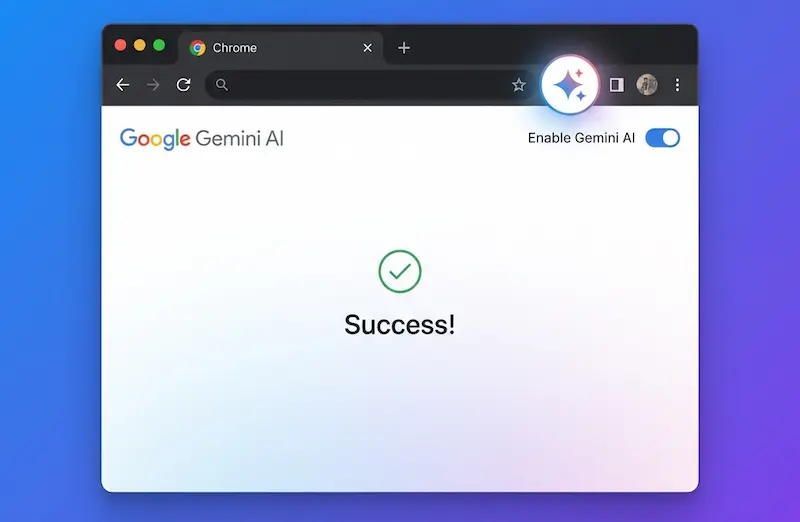
Google Chrome sometimes adds a dedicated Gemini sparkle button or a Side Panel shortcut to the toolbar for quick access. If you want to reclaim your screen space, you can easily hide it.
Steps:
Step 1 Find the Gemini sparkle icon on the toolbar to the right of your address bar.
Step 2 Right-click the icon and click Unpin (or select Hide from Toolbar).
Step 3 If it is part of the Side Panel hub, click the Side Panel icon, click the dropdown menu inside the panel, and uncheck or close Gemini to prevent it from displaying automatically.
Method 5: Disable Gemini Side Panel via Local State (Advanced)
For users who manually enabled eligibility for advanced AI side panels (like Glic or regional Gemini tools) by editing Chrome's configuration, you can completely block or revert these features by editing the Local State file.
Prerequisite: You MUST completely close Google Chrome before editing this file. On Windows, check Task Manager (Ctrl + Shift + Esc) to ensure no background chrome.exe tasks are running. On macOS, press Cmd + Q to quit the browser fully.
For Windows Users:
Step 1 Press Win + R to open the Run dialog, paste the following path, and press Enter:
%LOCALAPPDATA%\Google\Chrome\User Data\Step 2 Locate the file named Local State. Copy and paste it to create a backup file named Local State.bak.
Step 3 Right-click the original Local State file and open it with Notepad.
Step 4 Press Ctrl + F and find the parameter "is_glic_eligible". Change its value from true to false:
"is_glic_eligible": falseStep 5 Find the parameter "variations_country" and change the value from "us" back to "cn" (or another unsupported region) to completely deactivate the feature eligibility:
"variations_country":"cn"Step 6 Save the file (Ctrl + S) and close Notepad. Restart Google Chrome.
For macOS Users:
Step 1 Open Terminal (Applications → Utilities → Terminal).
Step 2 Copy, paste, and run the following commands sequentially to back up the configuration and set eligibility flags to false:
1. Backup the Local State configuration file
cp ~/Library/Application\ Support/Google/Chrome/Local\ State ~/Library/Application\ Support/Google/Chrome/Local\ State.bak2. Set Glic eligibility to false
sed -i '' 's/"is_glic_eligible":[[:space:]]*true/"is_glic_eligible":false/g' ~/Library/Application\ Support/Google/Chrome/Local\ State3. Reset the country variations code to CN (disabled region)
sed -i '' 's/"variations_country":"us"/"variations_country":"cn"/g' ~/Library/Application\ Support/Google/Chrome/Local\ StateStep 3 Restart Google Chrome to verify that all advanced AI panels are now fully deactivated.
Frequently Asked Questions
Q: Can I re-enable Gemini features in the future?
A: Yes. You can turn them back on anytime. For the settings, simply toggle them back on in Chrome Settings. For the address bar shortcut, you can add it back under site search. For the Local State modification, you can simply rename your Local State.bak file to Local State.
Q: Does disabling Gemini in Chrome delete my chat history?
A: No. Disabling local browser features does not delete your Google Account's Gemini history. If you wish to delete past chats, you must visit gemini.google.com, click on the Activity tab in the sidebar, and delete your history from there.
Q: Will disabling Gemini features speed up my Google Chrome browser?
A: Yes, it can. Toggling off generative AI integrations and uninstalling background PWAs reduces background processes and saves RAM, which is particularly beneficial for older computers or systems with limited memory.
Related Articles
-
![How to enable Gemini AI in Google Chrome]() How to Enable Gemini in Chrome on Windows and Mac
How to Enable Gemini in Chrome on Windows and Mac
-
![How to change Google region]() How to Check or Change Your Google Account
Region
How to Check or Change Your Google Account
Region
-
![Firefox AI Link Preview]() How to Enable Firefox AI Link
Preview
How to Enable Firefox AI Link
Preview
-
![Gemini 2.0 Flash Deprecation]() Gemini 2.0 Flash & Flash Lite
Deprecation: What You Need to Know
Gemini 2.0 Flash & Flash Lite
Deprecation: What You Need to Know
-
![Chrome Autofill Not Working]() How to Fix Google Chrome Autofill Not Working
How to Fix Google Chrome Autofill Not Working
-
![Set Chrome as Default Browser]() How to Set Chrome as Default Web
Browser in Windows 10
How to Set Chrome as Default Web
Browser in Windows 10