
Are you experiencing login loops or loading errors on a specific website, but don't want to clear all your browser cookies and get logged out everywhere? Google Chrome allows you to delete cookies and site data for individual websites. Here is the complete guide on how to clear cookies for a specific website in Chrome on Windows, Mac, and mobile.
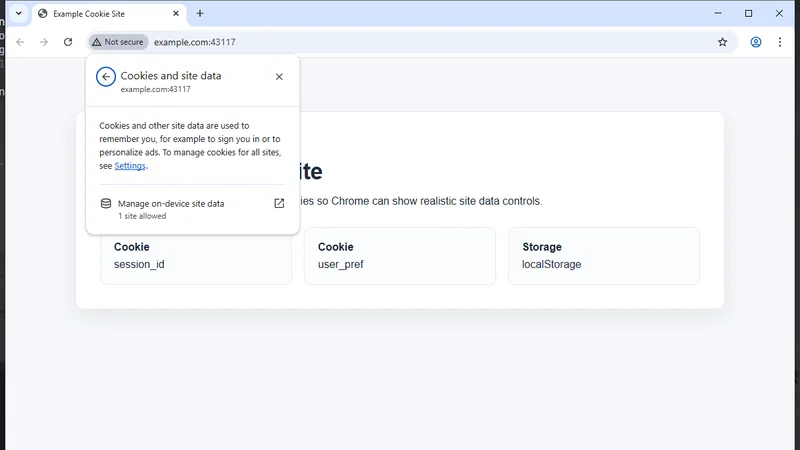
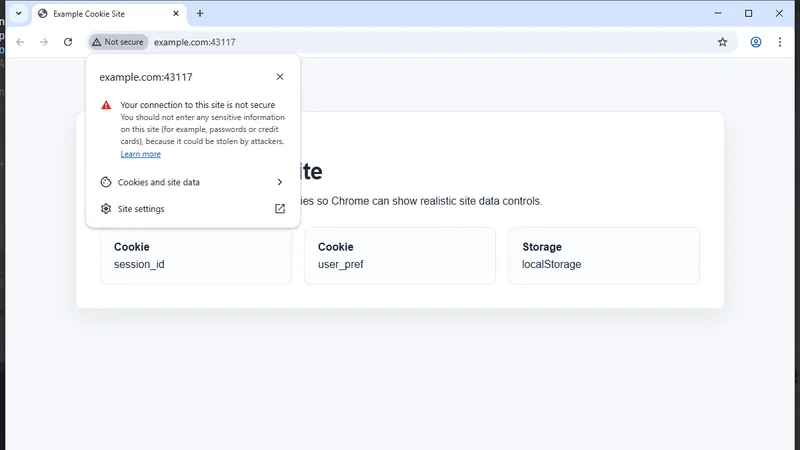
The fastest way to clear cookies for the website you are currently visiting is directly through the Chrome address bar. Simply click the "View site information" icon (it looks like two horizontal sliders or a padlock) located to the left of the URL. From the dropdown menu, select "Cookies and site data", then click on "Manage on-device site data". You can then click the trash can icon next to the site's cookies to delete them instantly. Refresh the page for the changes to take effect.
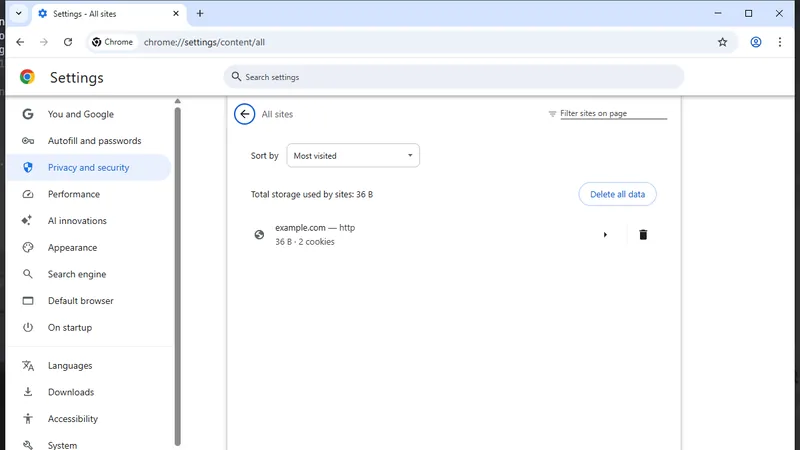
If you want to clear cookies for a website you are not currently visiting, you can do so through Chrome's settings. Click the three-dot menu icon in the top right corner and select "Settings". Navigate to "Privacy and security" on the left panel, then click "Third-party cookies" (or "Site settings" -> "View permissions and data stored across sites"). Search for the specific website in the search bar, click on it, and then click the "Clear data" button to remove all stored cookies for that domain.
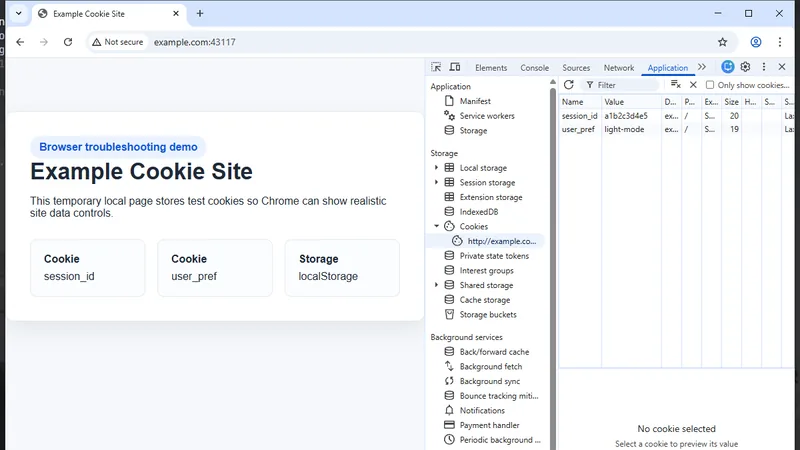
For advanced users or web developers, you can selectively delete individual cookies using Chrome's Developer Tools. Right-click anywhere on the webpage and select "Inspect" or press F12. Go to the "Application" tab (you might need to click the >> icon if it's hidden). In the left pane, expand the "Cookies" section under "Storage" and select the website's domain. You will see a list of all cookies. You can right-click a specific cookie and select "Delete", or click the "Clear all" icon to remove all cookies for that site.
To clear cookies for a specific site on your mobile device, open the Chrome app, tap the three dots, and select "Settings". Go to "Site settings" -> "All sites". Find the website you want to clear data for, tap on it, and select "Clear & reset". This works on both Android and iOS devices.
Clearing cookies for a specific website is a highly effective troubleshooting step that saves you the hassle of re-entering passwords on all your other accounts. Whether you use the quick address bar method or dig into Chrome's settings, you now have the tools to fix site-specific issues easily. If problems persist after clearing cookies, you may also need to clear the specific site's cache.
