5 Ways to Open Power Options in Windows 10

The Power Options feature in Windows 10 Control Panel allows users to configure power plans and settings according to their preferences. In this article, we'll explore multiple methods to access the Power Options control panel applet on a Windows 10 PC.
- Method 1: Using the Search Box
- Method 2: Via the Run Dialog
- Method 3: Through the Power Icon
- Method 4: Using the WinX Menu
- Method 5: Accessing via Control Panel
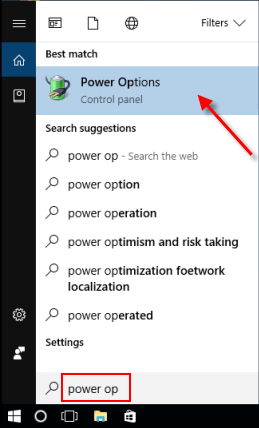
1. Open Power Options from the Search Box
Type power options in the taskbar search box and select Power Options from the search results.
2. Open Power Options via the Run Dialog
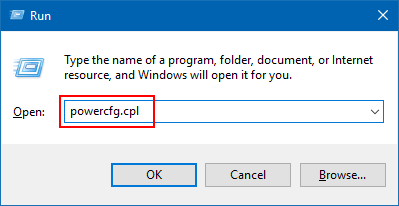
Step 1: Press Win+R to open the Run dialog.
Step 2: Type powercfg.cpl and press Enter.
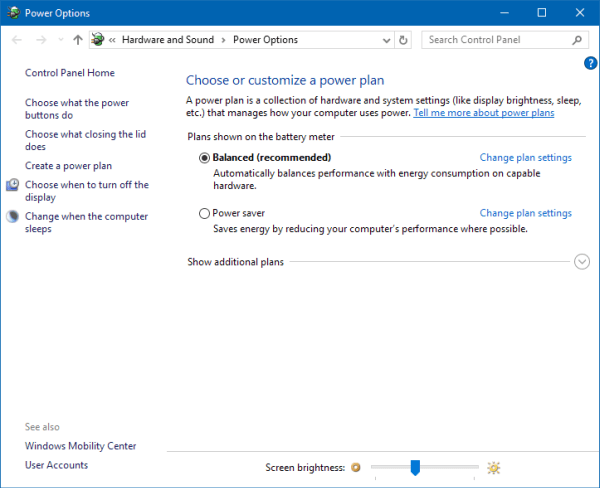
The Power Options window will appear.
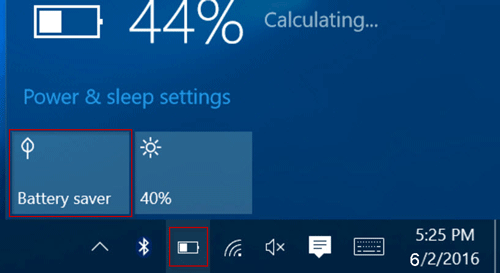
3. Access Power Options through the Power Icon
This method is particularly useful for laptop and tablet users.
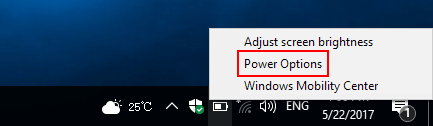
Step 1: Right-click or press and hold the Power icon in the system tray.
Step 2: Select Power Options from the context menu.
4. Open Power Options Using the WinX Menu
For users with a simplified Windows 10 version, the WinX menu provides quick access.
Press Win+X and select Power Options (or press O).

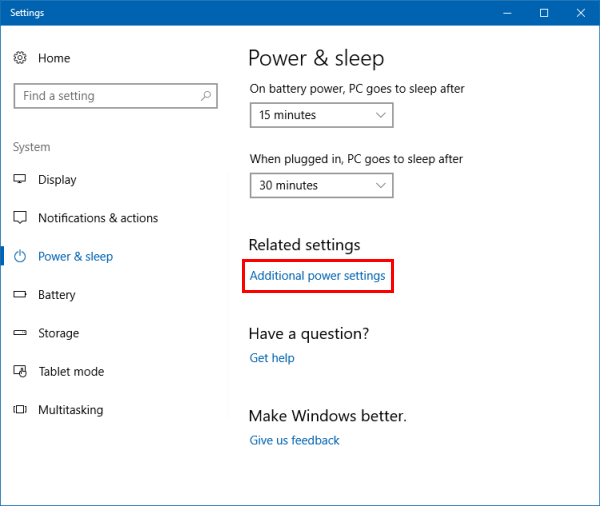
For Windows 10 Creators Update and later, Power Options in the WinX menu opens Settings by default. Click on Additional power settings on the right side of the Power & Sleep tab.
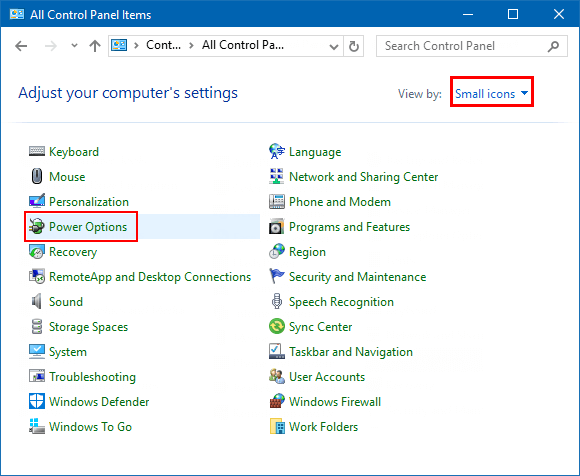
5. Access Power Options via Control Panel
Open Control Panel in small icon view and click on Power Options.