How to Convert Presentation to Video with PowerPoint 2016-2010

Would like to convert your PowerPoint presentation to a video file? Here is a tutorial on how to convert PowerPoint file (PPT/PPTX) into AVI, MPEG, MPG video which can be played back on any media player, just in several minutes without any software! So you have 3 options for converting your presentation into a video that's ready to view.
- Option 1: Export your presentation to a video file format (.mp4 or .wmv)
- Option 2: Save your presentation as a PowerPoint Show (.ppsx) file
- Option 3: Convert presentation to video online
Option 1: Export Your Presentation to a video file in PowerPoint
Microsoft PowerPoint has a feature that allows users to export and save PowerPoint as a WMV or MP4 format video.
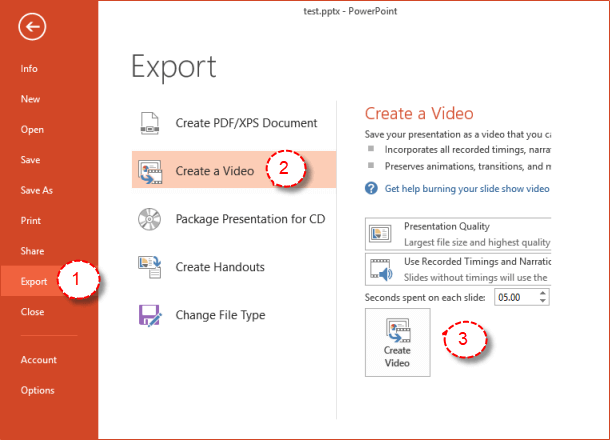
Step 1: Open your PPTX file in PowerPoint. Choose File > Export, then click Create a Video.
Step 2: In the File name box, enter a file name for the video, and then click Save.
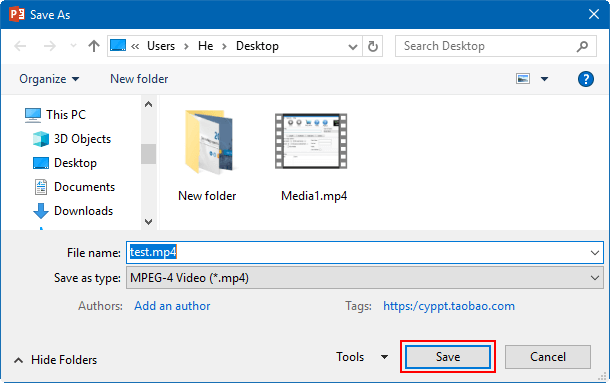
That's it. To play your newly-created video, go to the designated folder location, and then double-click the file.
Option 2: Save Your PowerPoint Presentation as a PowerPoint Show
Save as PPSX format, and when someone opens the file, it is displayed in full screen on the slide for immediate viewing.
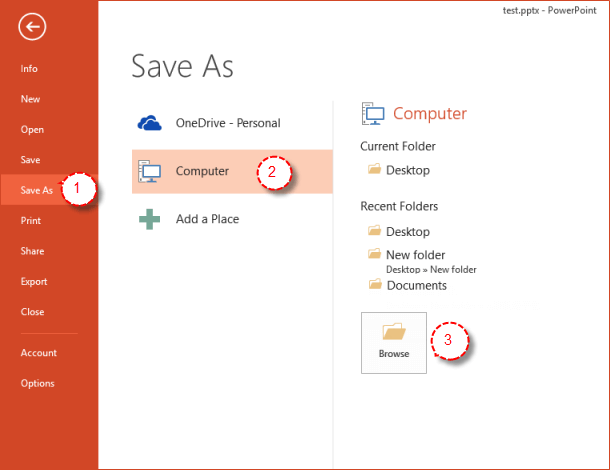
Step 1: On the File menu, select Save As.
Step 2: Choose the folder location where you want to store your PowerPoint Show file.
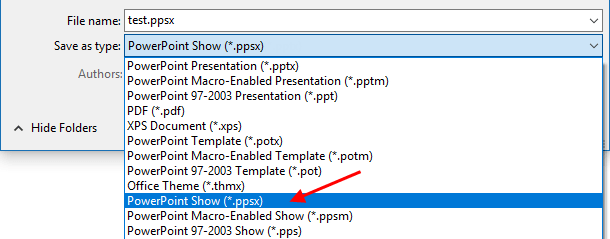
Step 3: In the Save as type box, choose PowerPoint Show (*.ppsx).
Option 3: Convert PPTX to MP4 Online
If your computer does not have Microsoft PowerPoint installed, you can use a PPTX to MP4 converter to convert PPTX to MP4 online for free.
Step 1: Open this free online PPTX to video converter page.
Step 2: Click the Select a file button to browse and add source PPTX file.
Step 3: After adding source PPTX file, you could view the PPTX file size and name. Set output video quality under the Quality, select output video format(.mp4) and determine the video size(resolution) on the right.
Step 4: After settings, click the "Convert" button on this page.

Step 5: After converting, you could download the converted PPTX files (now in MP4 format) to your computer.
Related Articles
![Repair Corrupted MP4 File Using VLC [Step-by-Step Guide]](../images/backup-recovery/repair-corrupted-mp4-file-using-vlc/repair-corrupted-mp4-files-using-vlc.webp) Repair Corrupted MP4
File Using VLC [Step-by-Step Guide]
Repair Corrupted MP4
File Using VLC [Step-by-Step Guide]
-
![export contents from powerpoint to word document]() How to Export Contents from
PowerPoint to Word Document
How to Export Contents from
PowerPoint to Word Document
-
![export powerpoint contents to a pdf]() How to Export PowerPoint Contents to
a PDF File
How to Export PowerPoint Contents to
a PDF File
-
![crack password to open pptx file]() How to Recover Forgotten
Password to Open PowerPoint PPTX/PPT File
How to Recover Forgotten
Password to Open PowerPoint PPTX/PPT File
-
![open password protected powerpoint file]() How to Open a
Password-protected PowerPoint File without Password
How to Open a
Password-protected PowerPoint File without Password
-
![remove password from powerpoint]() How to
Remove Password Protection from PowerPoint 2016-2007 File
How to
Remove Password Protection from PowerPoint 2016-2007 File