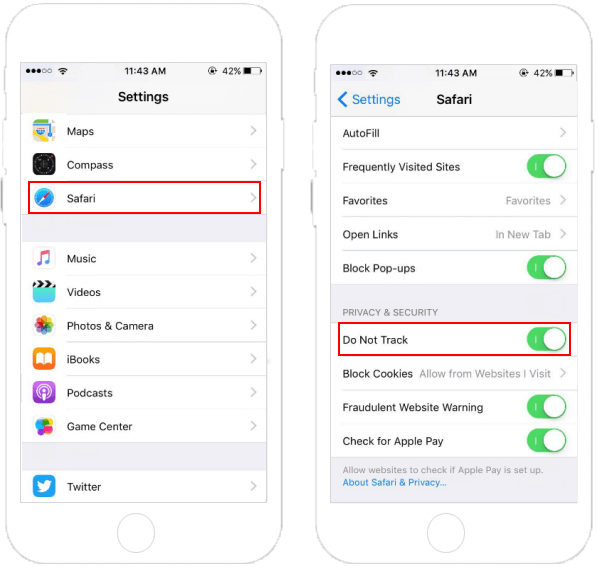
Shake-based ads use the iPhone accelerometer to detect a shake gesture so advertisers can confirm engagement, collect feedback, or trigger full-screen experiences. The problem is that walking, gaming, or simply picking up your phone can look like a shake, so the same ad overlay keeps popping up even though you never meant to trigger it.
This user guide will show you how to stop accidental shake gestures, restrict apps that read motion data, and harden Safari so intrusive ads and support pop-ups stay out of your way.
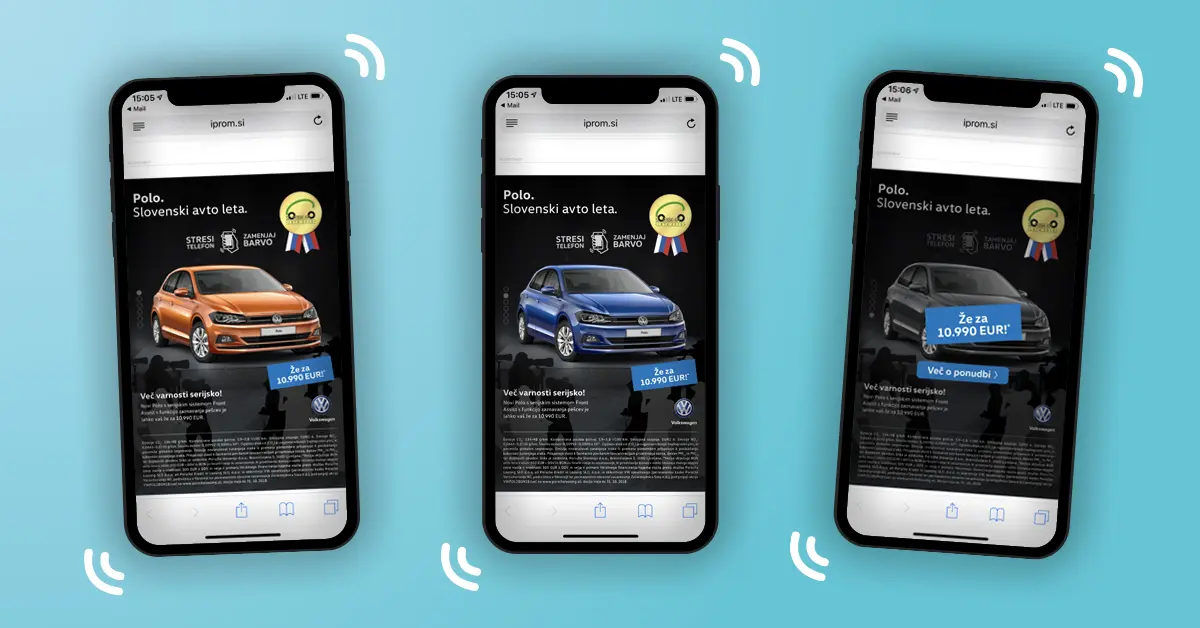
Motion-based ads monitor the accelerometer for UIEventSubtypeMotionShake. Ad SDKs such as Meta Audience Network or Unity Ads interpret that shake as intent and immediately open a survey, rewarded video, or “Shake to report” card. Because the sensitivity is high, casual motion is enough to trip the gesture.
Shake-driven prompts usually appear in three situations:
• Shake-to-report overlays built into social apps and games that let you file a problem with the ad you just saw.
• Rewarded or interstitial ads that launch when the app thinks you shook to accept a bonus.
• Browser-based banners that listen for motion data and reload the tab with a full-screen ad.
The techniques below remove the gesture at the system level, then restrict motion permissions per app so you are not constantly interrupted.
A quick way to cut off shake detection for every app is to turn off the global Shake-to-Undo shortcut. Most ad SDKs piggyback on this switch, so once it is disabled your iPhone ignores casual motion.
Step 1 Open Settings > Accessibility > Touch.
Step 2 Scroll down and toggle Shake to Undo to off.
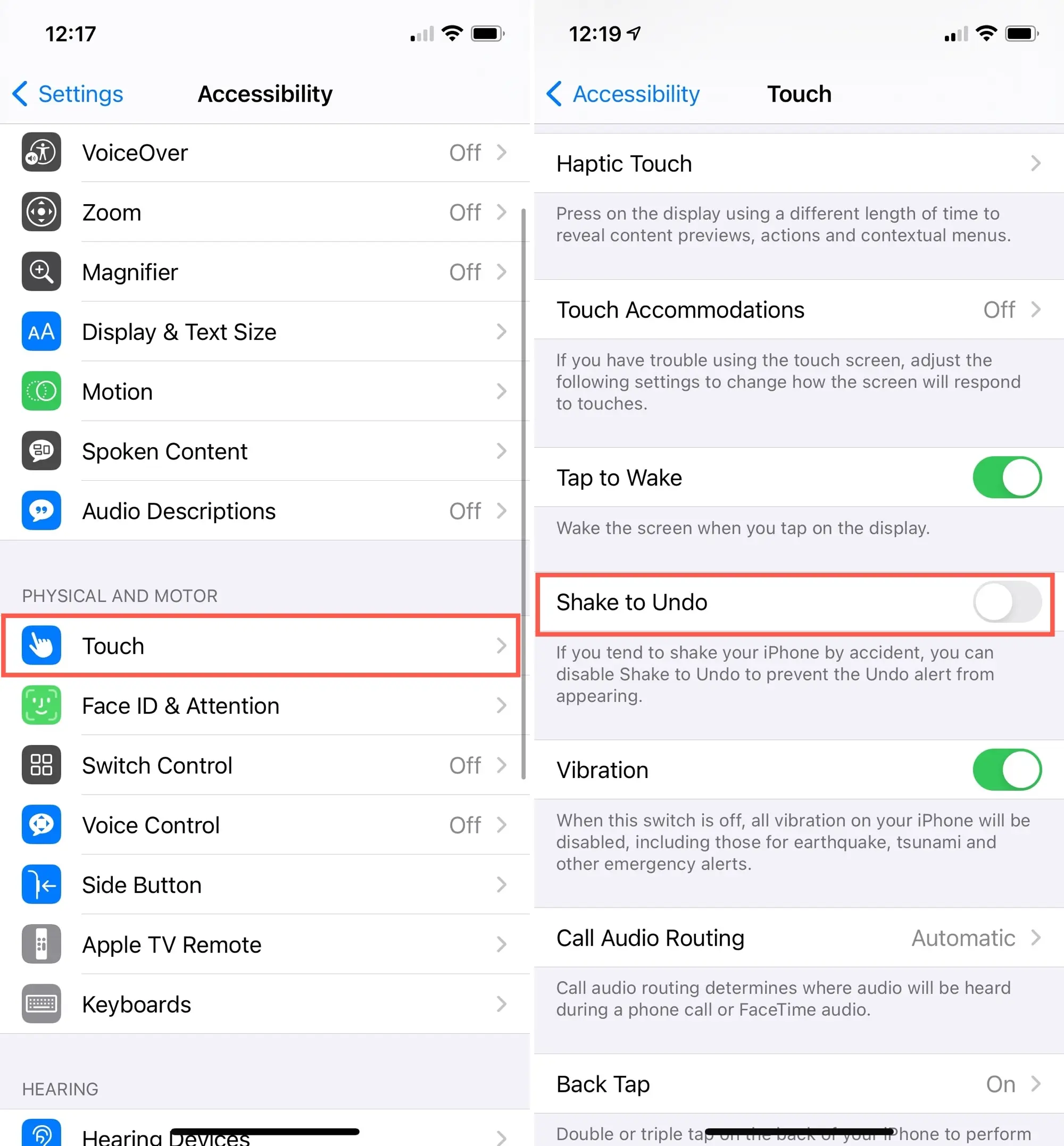
Step 3 Reopen the troublesome app and test. You can still undo text edits with the on-screen shortcuts or the three-finger tap, but motion gestures stay disabled.
Tips:
Some apps request Motion & Fitness access so they can listen to the gyroscope even when Shake-to-Undo is off. Revoke that permission for ad-heavy titles and they will lose the signal they need to spawn shake ads.
Step 1 Go to Settings > Privacy & Security > Motion & Fitness.
Step 2 Turn off Fitness Tracking to block all apps at once, or leave it on and disable the toggle next to the specific game or social app that keeps launching shake ads.
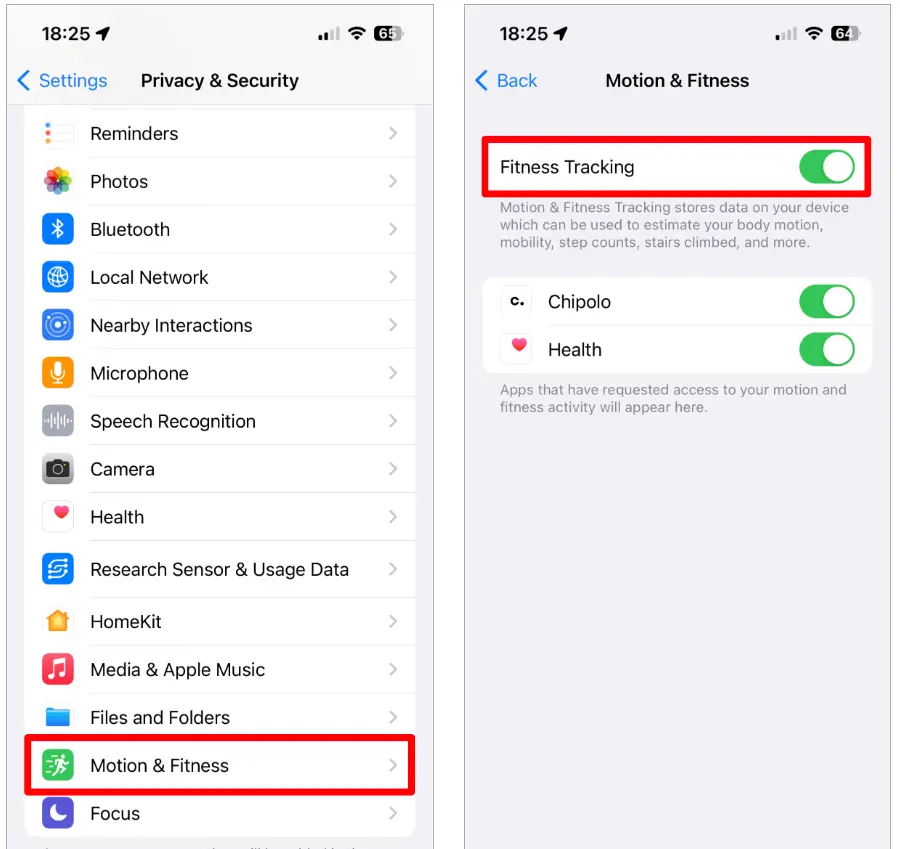
Step 3 Force-quit the app (swipe up from the bottom, pause, and swipe the preview away) so it relaunches without the permission.
If you use an Apple Watch or rely on Fitness tracking, keep the system toggle on and only revoke problem apps. That keeps health data intact while silencing rogue ad SDKs.
After trimming system-level gestures, tackle the apps and browsers that still surface shake prompts.
Method 1 Turn off shake controls in the app. Many social apps hide the option under Settings > Help or Settings > Feedback. Look for switches labeled “Shake to report,” “Shake for support,” or “Shake gestures” and disable them.
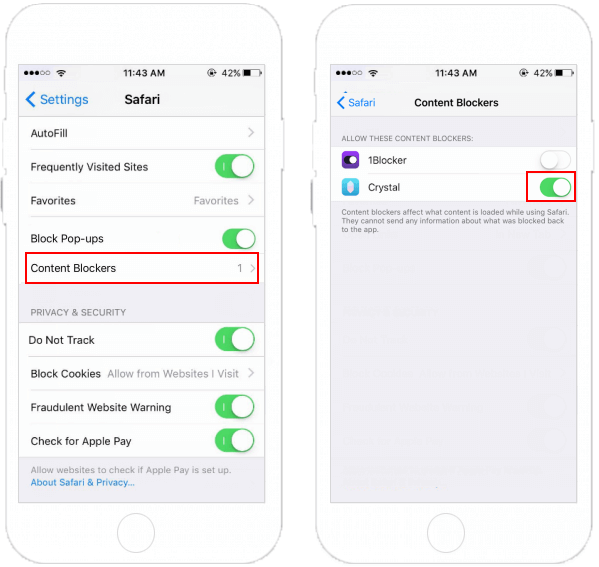
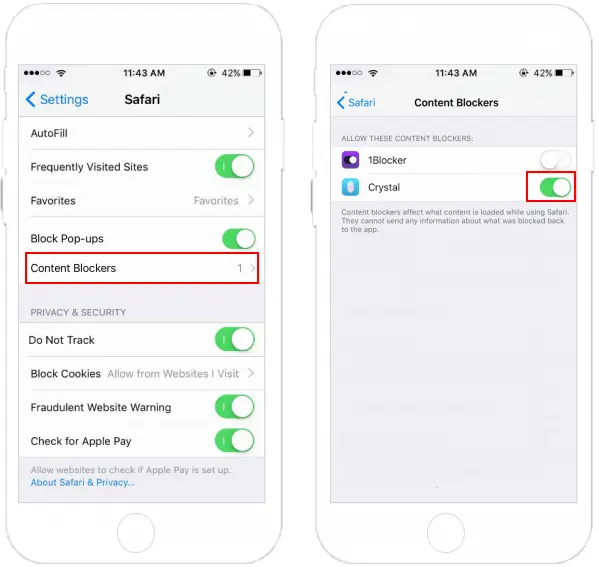
Method 2 Add a Safari content blocker. Install a trusted blocker from the App Store, then navigate to Settings > Safari > Extensions > Content Blockers (iOS 17+) or Settings > Safari > Content Blockers on earlier versions. Enable the blocker so motion-listening ad scripts are filtered before they load.
Method 3 Clear cache or reinstall. If a single game keeps looping shake prompts, delete its cached data via Settings > General > iPhone Storage > [App] > Offload Appor remove it entirely and download the latest build that includes the developer’s fix.
Combine the following safeguards to prevent shake ads from returning:
• Use Screen Time > App Limits to limit how long kids can stay in ad-heavy games that push shake prompts.
• Enable Settings > Accessibility > Motion > Reduce Motion so iOS dampens parallax effects that can mimic a shake.
• Update iOS and the affected apps; developers often patch aggressive ad SDK behavior in release notes.
• Reset Location & Privacy (Settings > General > Transfer or Reset iPhone > Reset) if a corrupted permission set keeps re-enabling motion access.
• Report the ad through the App Store’s Report a Problem page or the developer’s support form so the offending campaign can be suspended.
Q1: Will disabling Shake-to-Undo break other undo shortcuts?
No. Gesture-based undo (three-finger swipe or double-tap) and the on-screen toolbar in apps like Notes still work. Only the physical shake motion is blocked.
Q2: Are shake ads a sign of malware?
They are usually aggressive ad network settings rather than malware. Still, if the prompts appear even when no apps are open, delete the last few sideloaded profiles or VPN apps and run a security scan with a trusted utility.
Q3: How do I keep Safari from listening to motion data?
Besides using a content blocker, visit Settings > Safari > Advanced > Motion & Orientation Access and turn it off. Sites will no longer read accelerometer data, so shaking the phone will not reload ad-heavy pages.