How to Convert HEIC to JPG on Windows 10/11 for Free

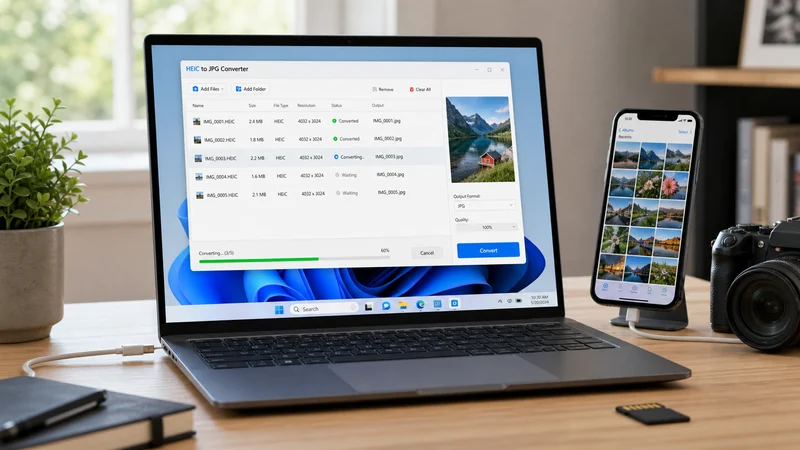
Transferred iPhone HEIC photos to your Windows PC but can't open, edit, upload, or print them? This guide shows you how to convert HEIC to JPG on Windows 10/11 for free, including a no-install browser method, the Windows Photos app, Paint, and a batch conversion option for many images.
Quick answer:
- To convert HEIC to JPG on Windows without installing software, use the free iSumsoft HEIC Converter in your browser. For a single photo, the Windows Photos app can save a JPG copy after you install Microsoft's HEIF extension. For a full iPhone photo folder, use a batch HEIC to JPG converter so you do not have to open every file manually.
- Keep HEIC originals if you want smaller file sizes and better long-term quality.
- Use JPG copies for sharing, uploading, editing, printing, or compatibility with older Windows apps.
- For batch conversion, test one or two photos first so the JPG quality and file size look right.
- What Is a HEIC File
- Best Way to Convert HEIC to JPG on Windows
- Method 1: Convert HEIC to JPG Free Without Software
- Method 2: Convert HEIC to JPG with Windows Photos
- Method 3: Convert HEIC to JPG with Paint
- Method 4: Batch Convert HEIC to JPG on Windows
- Method 5: Extract Multiple Images from a HEIC File with Command Line
- How to Save Future iPhone Photos as JPG
- Conclusion
What Is a HEIC File
HEIC (High Efficiency Image Container) is the photo format used by modern iPhones when the camera is set to High Efficiency. It is based on the HEIF standard and can keep image quality high while using less storage space than JPG.
The problem appears after you move iPhone photos to a Windows PC. Some Windows 10/11 systems can open HEIC files after installing Microsoft's extensions, but many apps, websites, printers, and older programs still expect JPG. That is why converting iPhone HEIC photos to JPG is often the fastest compatibility fix.
Best Way to Convert HEIC to JPG on Windows
The best HEIC to JPG method depends on how many photos you need to convert and whether you want to install anything on the PC.
- No software installation: Use a browser-based HEIC converter for quick and private conversion, including HEIC files that contain multiple images or frames.
- One or two photos: Use Windows Photos after installing the HEIF Image Extensions.
- Several or hundreds of photos: Use batch conversion so every HEIC file becomes a JPG copy in one run.
- Advanced workflow: Use ImageMagick if you are comfortable with Command Prompt or PowerShell.
- Multi-image HEIC file: Extract every image from the HEIC container before choosing which JPG files to keep.
Method 1: Convert HEIC to JPG Free Without Software
If you want to convert HEIC to JPG on Windows without software, use the free iSumsoft HEIC Converter. It runs in your browser, supports JPG and PNG output, and is suitable for iPhone photos that you want to upload, email, print, or edit on Windows. It can also handle HEIC files that include multiple images or frames and export them as separate JPG files.
Step 1 Open your browser and go to the iSumsoft HEIC Converter tool page.
Step 2 Click the upload area or drag and drop your HEIC files into the converter. You can add one photo or multiple HEIC files for batch conversion.
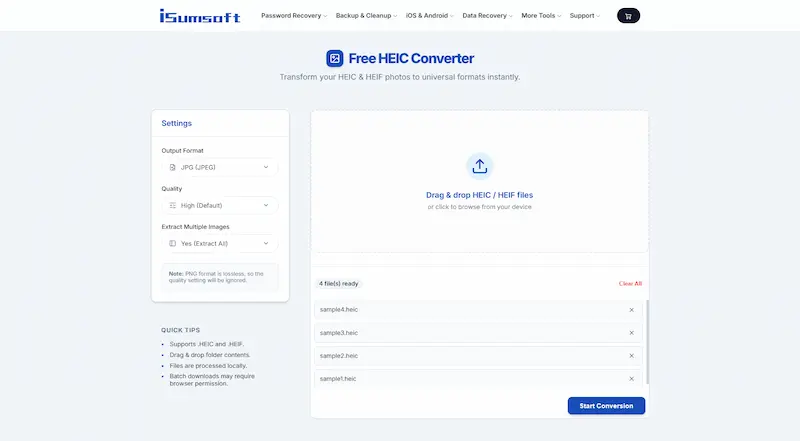
Step 3 Select JPG as the output format and adjust the quality setting if needed. If the HEIC file contains more than one image, keep the option to export all images enabled.
Step 4 Click Convert and wait for the conversion to complete.
Step 5 Download the converted JPG files to your computer.
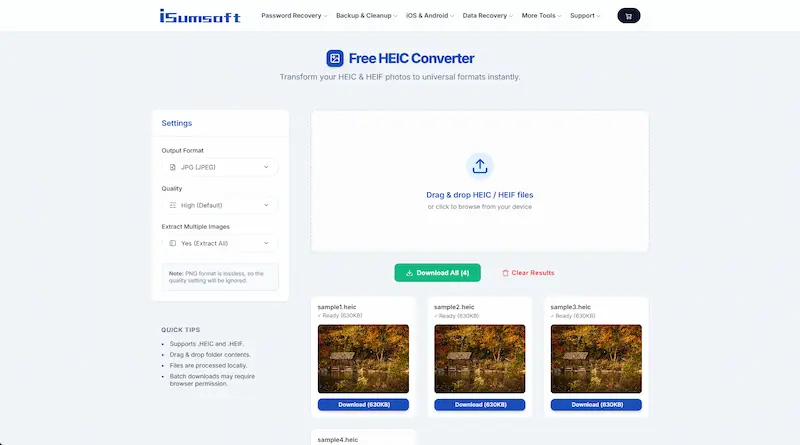
If one HEIC file contains several images or frames, the converter will output separate JPG files so you can save each image individually instead of only keeping the default frame.
Note:
- The iSumsoft HEIC Converter processes files locally in your browser. Your photos are not uploaded to a server, so this method is a good choice for personal iPhone photos.
Method 2: Convert HEIC to JPG with Windows Photos
Windows Photos is convenient when you only need to open and convert a small number of HEIC files. It may require Microsoft Store extensions before Windows can read the HEIC format.
Step 1 Open the Microsoft Store app on your Windows PC.
Step 2 Search for "HEIF Image Extensions" and install the free extension by Microsoft.

Step 3 If Windows asks for the HEVC Video Extensions, install them as prompted. Availability and pricing can vary by region.
Step 4 After installation, double-click any HEIC file to open it in the Photos app.
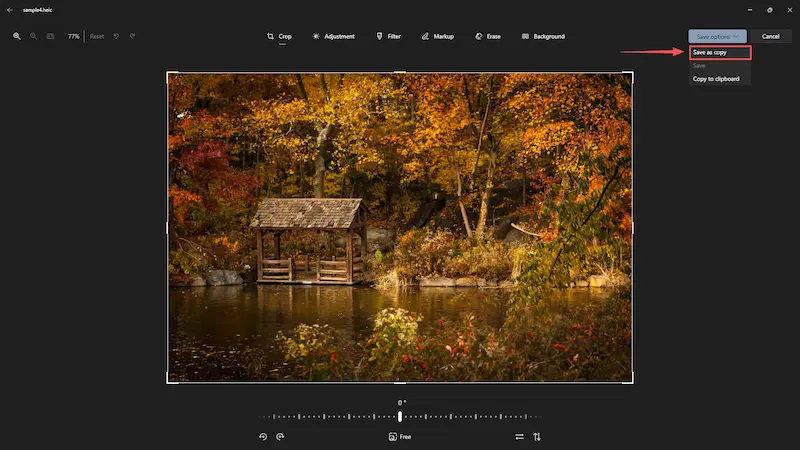
Step 5 Click the ... menu, choose Save as or Save a copy, and save the image as a JPG file.
Method 3: Convert HEIC to JPG with Paint
Paint or Paint 3D can also save a HEIC image as JPG after Windows has the required HEIC support installed. This method is simple, but it is still a manual one-file-at-a-time workflow.
Step 1 Right-click the HEIC file and select Open with > Paint or Paint 3D.
Step 2 Once the image opens, click File or Menu, then choose Save as.
Step 3 Select JPEG picture or JPEG as the output format.
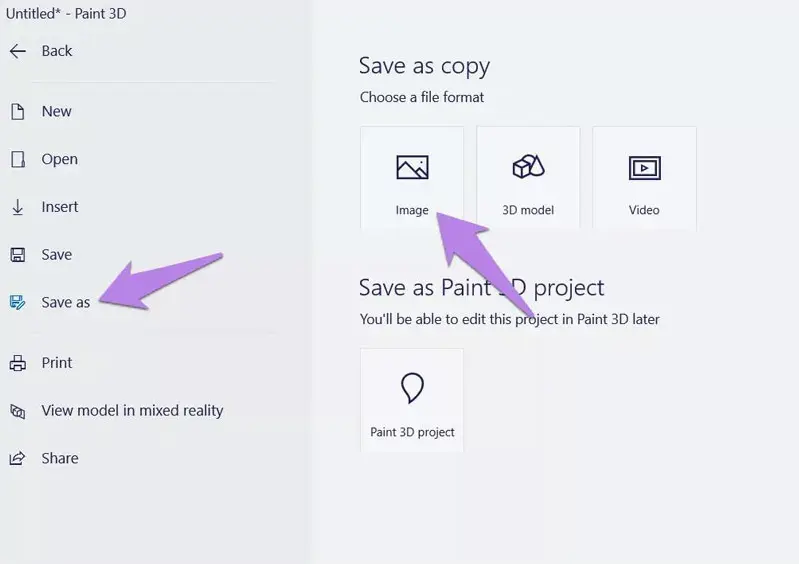
Step 4 Choose a save location and click Save.
Method 4: Batch Convert HEIC to JPG on Windows
When you have a full folder of iPhone HEIC photos, batch conversion saves the most time. You can use the browser converter for a small batch, or use ImageMagick if you want a command-line workflow.

To batch convert HEIC files with ImageMagick:
Step 1 Download and install ImageMagick from the official website.
Step 2 Open Command Prompt or PowerShell in the folder containing your HEIC files.
Step 3 Run the following command to convert a single file:
magick convert input.heic output.jpgStep 4 To convert all HEIC files in the current folder:
magick mogrify -format jpg *.heic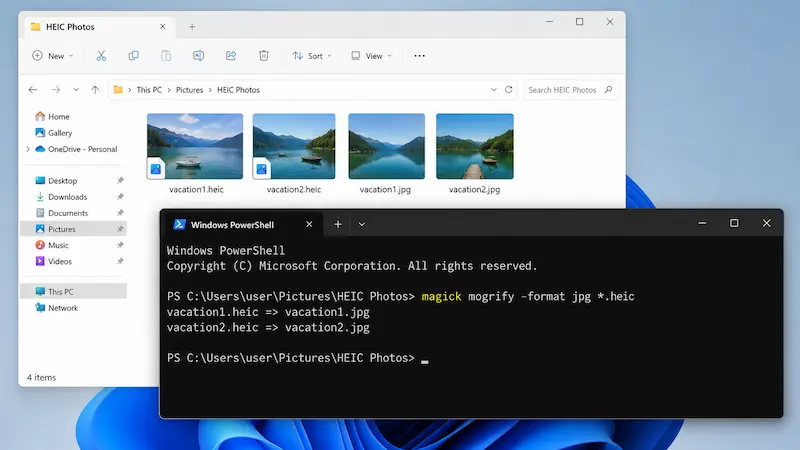
This command creates JPG versions in the same folder. Keep the original HEIC files until you have checked the converted JPG images.
Method 5: Extract Multiple Images from a HEIC File with Command Line
A HEIC file is a container, so it can store more than a single still image. Depending on how the photo was created, one HEIC file may include a main image, depth data, thumbnails, bursts, image sequences, or several frames. If you only convert the default frame, you may miss other pictures stored inside the file.
The easiest way is to use Method 1 and let iSumsoft HEIC Converter export all images from the HEIC file. If you prefer an offline command-line method, you can also use ImageMagick to extract each image first and then save the exported files as JPG.
Step 1 Put the HEIC file in a separate folder so the extracted images are easy to find.
Step 2 Open Command Prompt or PowerShell in that folder.
Step 3 Run this command to export each image inside the HEIC file as a separate JPG file:
magick input.heic extracted-%03d.jpg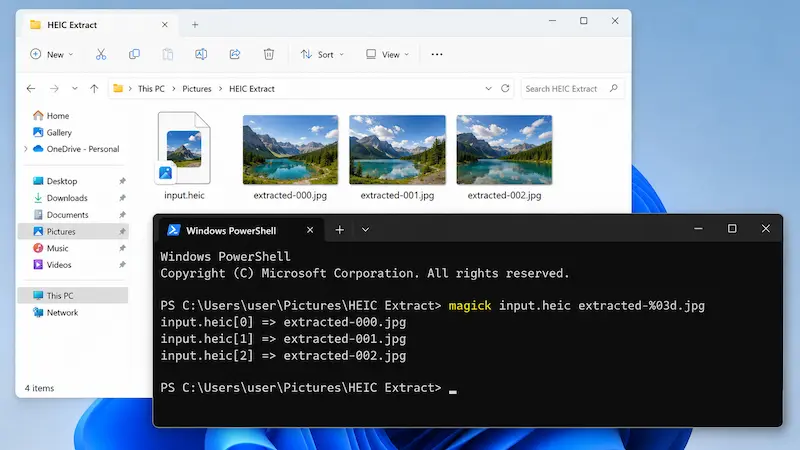
Step 4 Check the exported JPG files. If the HEIC file contains more than one image, you will see files such as extracted-000.jpg, extracted-001.jpg, and extracted-002.jpg.
Tip: Some HEIC files contain only one photo. In that case, the command exports only one JPG file, which is normal.
How to Save Future iPhone Photos as JPG
If you do not want to keep converting HEIC files on Windows, you can change your iPhone camera format so new photos are saved as JPG instead.
- On your iPhone, open Settings.
- Tap Camera > Formats.
- Select Most Compatible.
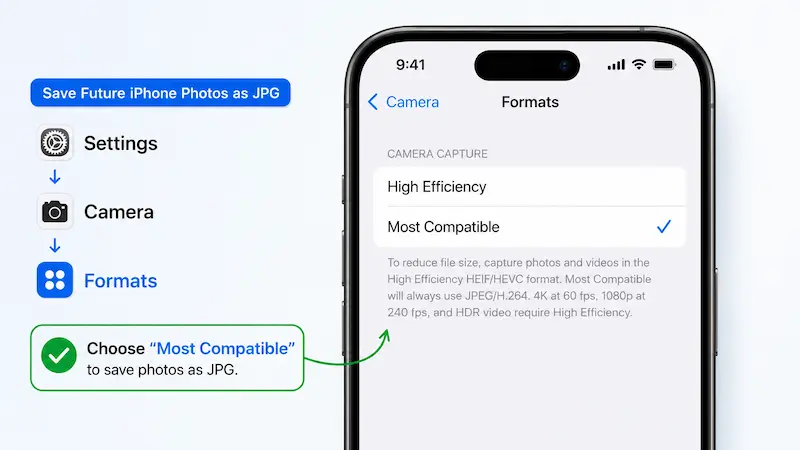
After that, new photos are saved in JPG format. Existing HEIC photos will not change automatically, so you still need to convert the photos already stored on your iPhone or Windows PC.
Conclusion
Converting HEIC to JPG on Windows is easy once you choose the right method. For a free no-install option, use iSumsoft HEIC Converter. For one or two photos, Windows Photos or Paint is enough after the HEIC extensions are installed. For a large iPhone photo folder, use batch conversion so you can turn many HEIC images into JPG files at once. If a HEIC file contains multiple images or frames, extract all images first so you do not lose anything stored inside the container.