
How to Fix iPhone Stuck on Home Critical Alerts

If your iPhone is stuck on the screen that says “Home Would Like to Send You Critical Alerts”, you’re not alone. Many users have reported that their device freezes on this alert, and no matter how many times they tap Allow or Don’t Allow, the screen won’t go away. This makes the iPhone unresponsive, leaving you unable to access your apps, settings, or even the home screen.

This issue usually happens due to a temporary iOS glitch, a Home app notification problem, or a failed permission prompt. The good news is that you can start with fixes that do not erase data, then move to repair or restore options only if the iPhone remains frozen.
Quick answer
- Try first: Force restart the iPhone. This does not erase data.
- If the phone works after restart: Check Home app notifications and update iOS to reduce the chance of the alert freezing again.
- If the phone stays stuck: Use a system repair tool or use Finder/iTunes recovery mode. Back up first whenever possible.
- Data-loss risk: Finder/iTunes Restore erases the iPhone. Choose Update first if that option is available.
Last checked on iPhone models that use the Volume Up, Volume Down, and Side button force-restart sequence, and against current Apple guidance for notifications, iOS updates, backups, and computer restores.
- What Does “Home Would Like to Send You Critical Alerts” Mean?
- Which Fix Should You Try First?
- Method 1: Force Restart Your iPhone
- Method 2: Check Home App Notifications and Update iOS
- Method 3: Fix with iSumsoft iOS Refixer
- Method 4: Restore Your iPhone with Finder or iTunes
- Official Apple Sources
- Frequently Asked Questions
What Does “Home Would Like to Send You Critical Alerts” Mean?
When your iPhone shows the message “Home Would Like to Send You Critical Alerts”, it is a permission request from the Apple Home app (HomeKit).
Critical Alerts are special notifications that can override your iPhone’s Silent Mode and Do Not Disturb settings. They are designed for urgent events, such as:
• Smoke or carbon monoxide alarms
• Security alerts from cameras or motion sensors
• Door lock or entry notifications
Normally, you can simply tap Allow or Don’t Allow, and the message disappears. However, if your iPhone freezes on this screen, it indicates a system glitch, iOS bug, or app malfunction that prevents the pop-up from closing.
In short, this alert means the Home app is asking for permission to send high-priority notifications, but when the process fails, your iPhone may get stuck on the screen.
Which Fix Should You Try First?
Start with the least risky fix and move down only if the iPhone is still frozen. This order protects your data and avoids unnecessary restores.
| Method | Data-loss risk | Best for |
|---|---|---|
| Force restart | None | Frozen screen or unresponsive alert |
| Check Home notifications and update iOS | None | Preventing the alert from coming back |
| iSumsoft iOS Refixer Standard Mode | Low | Persistent software glitches when the iPhone can connect to a computer |
| Finder/iTunes Restore | Erases data | Last resort when other repair options fail |
Method 1: Force Restart Your iPhone
When your iPhone gets stuck, restarting is often the quickest way to fix it. But if your device is stuck on the “Home Would Like to Send You Critical Alerts” screen, you might find that a normal shutdown doesn’t work. In this situation, a force restart is the best option. It refreshes the system, clears minor glitches, and can often unfreeze your iPhone without erasing any data.
1. Quickly press and release the Volume Up button.
2. Quickly press and release the Volume Down button.
3. Press and hold the Side button until you see the Apple logo.
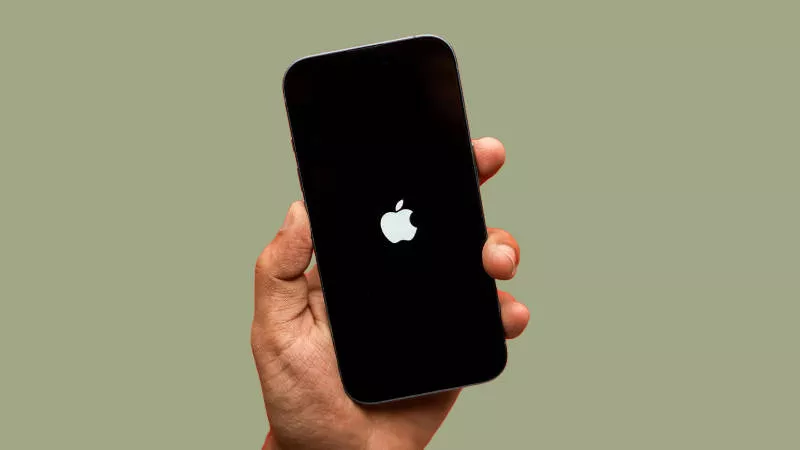
Once your iPhone restarts, check if the “Home Would Like to Send You Critical Alerts” message is gone. For many users, this quick fix is enough.
Method 2: Check Home App Notifications and Update iOS
If your iPhone works after the force restart, check the settings that triggered the alert. Apple notes that iPhone apps can ask how you want to receive notifications, and you can change notification settings later. For this issue, check the Home app first.
Step 1 Open Settings and tap Notifications.
Step 2 Tap Home, then review whether notifications, Time Sensitive notifications, or Critical Alerts are enabled for your Home accessories.
Step 3 Open the Home app and check whether a specific accessory, Home hub, or automation is repeatedly sending alerts.
Step 4 Update iOS from Settings > General > Software Update. Apple recommends backing up before installing updates.
When to contact Apple Support
- The alert returns immediately after every restart.
- The Home app crashes or cannot open after the iPhone becomes responsive.
- A HomeKit smoke alarm, lock, camera, or security accessory may be involved.
- The iPhone cannot update, restore, or stay powered on normally.
Method 3: Fix with iSumsoft iOS Refixer
If your iPhone is still stuck on the Home Critical Alerts screen, another effective solution is to use a third-party repair tool like iSumsoft iOS Refixer. This software is designed to fix a wide range of iOS system issues without causing data loss. Whether your device is stuck on the Apple logo, recovery mode, or the Home Critical Alerts screen, iSumsoft iOS Refixer can help restore your iPhone to normal quickly and safely.
Step 1 Download and install iSumsoft iOS Refixer on your Windows or Mac computer, then launch the program.
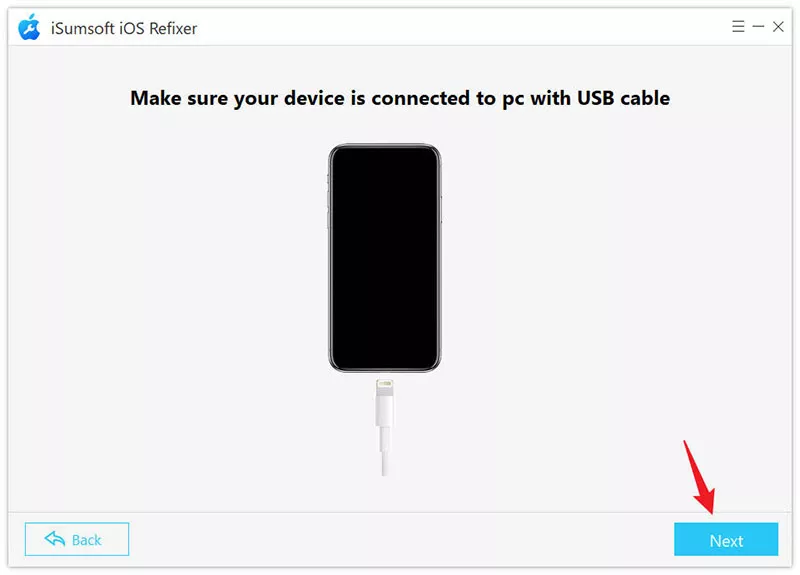
Step 2 Connect your iPhone to the computer using a USB cable, and make sure your device is detected.
Step 3 Select the System Repair option from the software’s main interface.
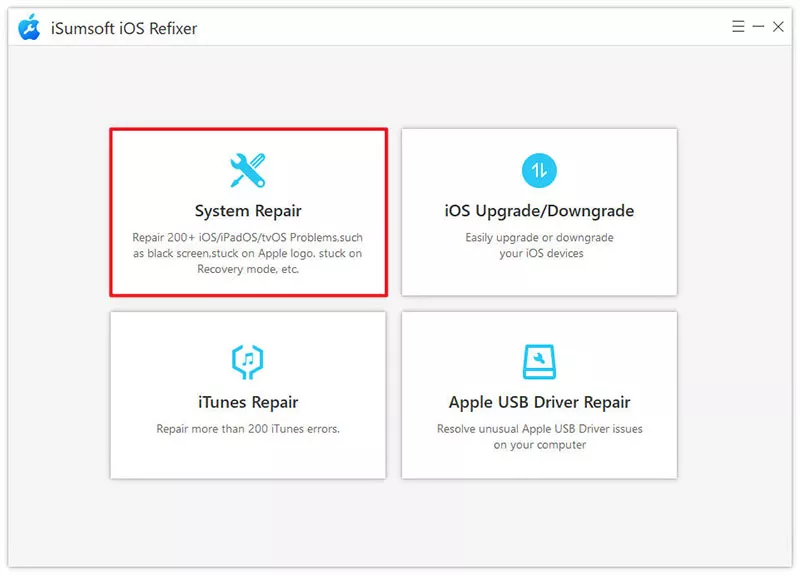
Step 4 Choose Standard Mode to fix the issue without losing data. (If Standard Mode doesn’t work, you can later try Advanced Mode, but note that it will erase data.)
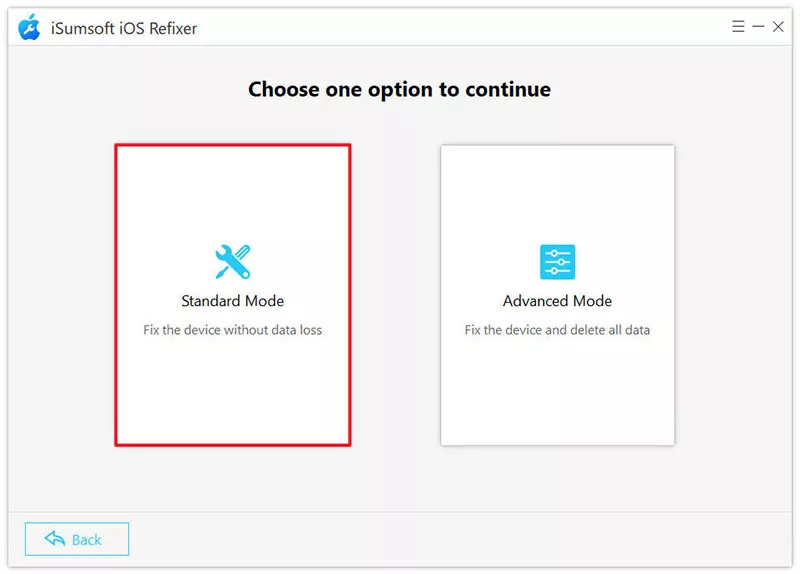
Step 5 Click Start to confirm your choice, then click Next to let the software detect your connected iPhone.
Step 6 Click Download to download the firmware for your iPhone.

Step 7 Click Repair to start repairing your iPhone.

Step 8 Once the repair is complete, your iPhone will restart automatically. The “Home Would Like to Send You Critical Alerts” message should be gone, allowing you to use your device normally without any further issues.

Method 4: Restore Your iPhone with Finder or iTunes
If you prefer not to use a third-party solution, a factory restore can fix an iPhone stuck on the Home Critical Alerts screen. This method erases your data and reinstalls iOS, fixing software glitches that may cause your device to get stuck.
Before you restore
- Back up first: Use iCloud, Finder, or iTunes if the iPhone can still be backed up.
- Try Update first: If Finder or iTunes offers Update and Restore, choose Update first because it attempts to reinstall iOS without erasing data.
- Restore erases data: Use Restore only when Update is not available or does not fix the issue.
Step 1 Connect your iPhone to your computer using a USB cable.
Step 2 Boot your iPhone into recovery mode:
• Quickly press and release the Volume Up button.
• Quickly press and release the Volume Down button.
• Press and hold the Side button until you see the recovery mode.

Step 3 Open iTunes on your computer. If you’re using a Mac, open Finder instead.
Step 4 When iTunes or Finder detects your iPhone and gives you the option to Update or Restore, choose Restore and follow the on-screen instructions.

Step 5 When the restore is complete, set up your iPhone as new, and the stuck Home Critical Alerts will be gone.
Official Apple Sources
The recommendations above were checked against these Apple Support resources:
Frequently Asked Questions
Q: What does “Home Would Like to Send You Critical Alerts” mean?
A: It means the Apple Home app is asking for permission to send high-priority notifications, such as safety or security alerts from HomeKit accessories. If the prompt freezes, the issue is usually an iOS or Home app glitch.
Q: Will a force restart erase my iPhone?
A: No. A force restart only restarts an unresponsive iPhone. It does not erase your photos, apps, settings, or other data.
Q: Should I choose Update or Restore in Finder or iTunes?
A: Choose Update first if it is available, because it attempts to reinstall iOS without erasing data. Choose Restore only as a last resort because it erases the iPhone.
Conclusion
Seeing your iPhone stuck on the Home Would Like to Send You Critical Alerts screen can be frustrating, but it’s usually a fixable problem. Start with a force restart, and if that doesn’t work, check Home notifications and update iOS. If the alert still will not clear, use iSumsoft iOS Refixer to repair the system or restore the iPhone with Finder/iTunes as a final option.
For long-term stability, keep your iOS updated and ensure the Home app is working properly. By following these methods, you’ll get your iPhone back to normal and avoid being stuck on the Home Critical Alerts screen again.
Related Articles
![[Fixed] Green Screen of Death iPhone XS/11/12/13/14/15? 8 Ways!](../images/ios-issues/iphone-green-screen-of-death-issue-how-to-fix/how-to-fix-iphone-x-green-screen-of-death.webp) [Fixed] Green
Screen of Death
iPhone XS/11/12/13/14/15? 8 Ways!
[Fixed] Green
Screen of Death
iPhone XS/11/12/13/14/15? 8 Ways!
-
 How to Fix iPhone Blue Screen of
Death
How to Fix iPhone Blue Screen of
Death
-
 Fixed:
iPhone
Shows White Screen with Apple Logo Then Turns Off
Fixed:
iPhone
Shows White Screen with Apple Logo Then Turns Off
![[9 Ways] How to Fix Pink Line on iPhone Screen Problems](../images/ios-issues/fix-pink-vertical-line-on-iphone-screen/how-to-fix-pink-lines-on-iphone-screen.png) [9 Ways] How to Fix
Pink Line on
iPhone Screen Problems
[9 Ways] How to Fix
Pink Line on
iPhone Screen Problems
![[10 Ways] How to Fix Green Lines on iPhone X/XR/XS/11/12/13/14 Screen](../images/ios-issues/how-to-fix-green-lines-on-iphone-screen/fix-green-lines-on-iphone-screen.webp) [10 Ways] How to Fix
Green Lines on
iPhone Screen
[10 Ways] How to Fix
Green Lines on
iPhone Screen
 How to Fix iOS 17
Update Stuck
on Apple Logo
How to Fix iOS 17
Update Stuck
on Apple Logo