
Apple Account Cannot Be Created at This Time? 11 Fixes

If you’ve been trying to create an Apple Account (formerly called an Apple ID) and encountered the frustrating message “Your account cannot be created at this time”, the problem is usually related to Apple's account-creation checks, verification, network reputation, or the signup path you are using. This guide explains the most likely causes and walks you through practical fixes, starting with the fastest Apple-supported options before moving to device-level troubleshooting.
Quick answer:
- First, try creating the account from the App Store, iCloud.com, or Apple Music instead of the Settings app.
- If that fails, switch to another trusted network, use a different email address, and choose text message verification.
- If Apple keeps rejecting the same email, phone number, or location, contact Apple Support because the block may be account-side rather than device-side.
How this guide was reviewed: We checked the signup paths currently exposed by Apple's account pages and support flow, then organized the fixes by risk and likelihood: web/App Store signup, network and verification changes, Apple Support escalation, and finally iOS repair only when the iPhone also shows system-level issues.

Why is Apple saying your account cannot be created at this time?
Apple does not publish one single cause for this message, so the right fix depends on where the account-creation flow is failing. In most cases, the error fits one of these situations:
- Apple service or regional restriction: Account creation may be temporarily limited by Apple's server-side checks, availability, or local signup rules. Check Apple System Status if multiple Apple services are failing at the same time.
- Network or IP reputation issue: Public Wi-Fi, VPNs, proxy networks, or unstable mobile data can interrupt verification or trigger extra checks.
- Email, phone, or verification mismatch: The email address, phone number, birthday, region, or verification method may not pass Apple's account checks.
- Too many attempts: Repeated failed submissions can make Apple's system temporarily reject additional account-creation attempts.
- Device software problem: If Settings, App Store, iCloud, or other Apple services are also freezing, crashing, or failing to sign in, outdated or damaged iOS files may be involved.
How to Fix Apple Account Cannot Be Created At This Time
The methods below are ordered from low-risk account and network checks to deeper device repair. If one method fails, move to the next. For official signup and support paths, use Apple's own pages, including Apple Account, iCloud, and Apple Support.
- Method 1: Force Reboot Your iPhone
- Method 2: Create Apple Account using the App Store
- Method 3: Create Apple ID on a Different Network
- Method 4: Create Apple ID using iCloud.com
- Method 5: Create Apple ID through Apple Music
- Method 6: Try a Different Email Account
- Method 7: Contact Apple Support via Live Chat
- Method 8: Change from Phone Call to Text Message
- Method 9: Create Apple ID with a Random Password
- Method 10: Update your iPhone
- Method 11: Repair iOS If Your iPhone Has System Issues
Method 1: Force Reboot Your iPhone
If you’re encountering the “Apple ID cannot be created at this time” error, sometimes a simple force restart of your device can resolve the issue. A force reboot can help clear any minor glitches or temporary software issues that might be preventing the creation of your Apple ID. By forcing your iPhone to restart, you can refresh the system and eliminate any background processes that might be causing the problem.
Step 1 Press the Volume Up button and release it immediately.
Step 2 Press the Volume Down button and release it right after.
Step 3 Then, press and hold the Side button until the Apple logo appears on the screen, then release the button.
Step 4 Your iPhone will restart and once it’s back on, try to create your Apple ID again.
Method 2: Create Apple Account using the App Store
If you get the “Your account cannot be created at this time” error when trying to create an Apple ID via your iPhone’s Settings, try creating it in App Store.
Step 1 Open the App Store and tap the My Account button.
Step 2 Tap Create New Apple Account.
Step 3 Follow the on-screen steps to create an Apple account by providing the required details such as email, phone, and password.
Method 3: Create Apple ID on a Different Network
If the “Apple ID cannot be created at this time” error persists, consider a network issue. Whether you’re using Wi-Fi or mobile data, a weak or unstable connection can cause errors during account creation. By switching to a more reliable network, you may be able to bypass these problems and successfully create your Apple ID.
Step 1 If you are using Wi-Fi, try connecting to a different Wi-Fi network. Alternatively, if you’re on mobile data, try switching to Wi-Fi if available, or vice versa.
Step 2 Once connected to the new network, open the Settings app (or another Apple service like the App Store) and attempt to create your Apple ID again.
Method 4: Create Apple ID using iCloud.com
If you still get the “Your account cannot be created at this time” error, try creating your Apple ID through iCloud.com. This lets you use Apple's web signup flow instead of the Settings app, which can help when the issue is tied to a specific app session on your iPhone.
Step 1 On any of your available devices like computer or tablet, open your browser and visit iCloud.com.
Step 2 On the iCloud homepage, click on Sign in, then select Create Apple Account.

Step 3 Then, fill in the required details including your name, region, birthday, email, password, and phone number to create an Apple account.
If that’s what you used and you still cannot create an Apple ID, try https://appleid.apple.com/. If neither works, then go to another method.
Method 5: Create the Apple ID through Apple Music
Creating an Apple ID through Apple Music is another route worth trying when Settings and iCloud do not work. It uses a different Apple service entry point, so it may complete the signup when another path keeps returning the same error.
Step 1 Download the Apple Music app on your PC or Android phone and open it. Or, you can visit the Apple Music website in your browser.
Step 2 Click Sign in and select Create New Apple Account.
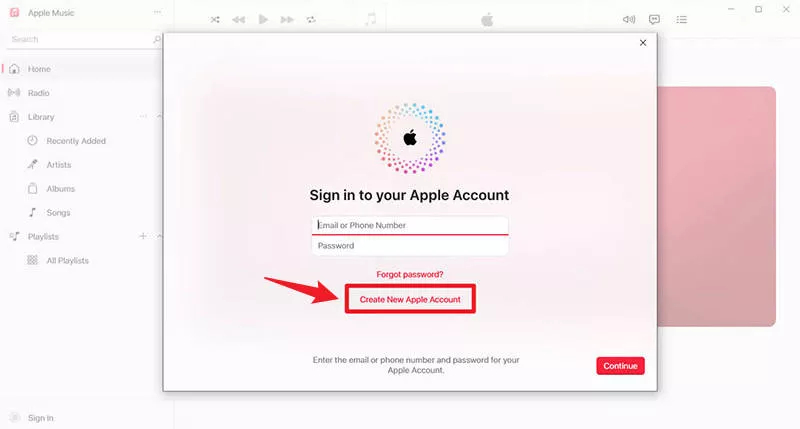
Step 3 Then, follow the on-screen instructions to fill in the necessary details to create a new Apple account.
Method 6: Try a Different Email Account
If you’re prompted that the Apple ID cannot be created at this time, the email address may be part of the problem. For example, the address may have been used in too many failed attempts, may not receive verification email correctly, or may be rejected by Apple's account checks. Try a different email provider, such as Outlook, Yahoo, or another Gmail address that has not been used in previous failed attempts.

Method 7: Contact Apple Support via Live Chat
If none of the previous methods have worked, contact Apple Support directly. This is especially important if the same email, phone number, region, or device keeps failing across several signup paths. In that situation, the restriction may be on Apple's side, and only Apple Support can review or clear it.
Step 1 Open the https://getsupport.apple.com/ page, then type your problem in the input box, such as “Apple ID cannot be created at this time”, and press Enter.

Step 2 Scroll down the page and click on the Chat option at the bottom.

Step 3 Fill in your name and email and click Continue.

Step 4 A chat window will automatically open showing that you are connected to the advisor, and you can then send messages explaining that you are experiencing the “Apple ID cannot be created at this time” issue.

Step 5 The advisor may ask for the name, email address, phone number, region, and device you are using. Provide only the details requested in the official Apple Support chat.
Step 6 If Apple Support confirms that an account-side restriction was reviewed or changed, refresh the page where you're attempting to create your Apple ID.
Step 7 After refreshing, attempt to create your Apple ID again.
Method 8: Change from Phone Call to Text Message
Sometimes, the issue occurs during the verification process when Apple tries to confirm your phone number. If you use a phone call to send the verification code, switching to a text message can sometimes resolve this problem. Here’s how to do it:
Step 1 Go to the "Apple ID" creation page.
Step 2 Enter your phone number.
Step 3 When asked to choose between phone call or text message, select "Text Message."
Step 4 Check your phone for the verification code, enter it, and proceed with the setup.
Method 9: Create Apple ID with a Random Password
If you’re facing the “Apple ID cannot be created at this time” error, it could be related to the password you’re trying to set. Apple may reject weak, reused, or easy-to-guess passwords during account creation. To reduce that risk, try a password that is not based on your name, email address, birthday, phone number, or a common phrase.
Use a password manager or another secure method to generate and store a strong password before you submit the form again.
Method 10: Update your iPhone
In some cases, if the iPhone’s software is outdated, this could be causing issues with creating a new Apple ID. Make sure your iPhone is running the latest version of iOS.
Step 1 Go to "Settings" > "General" > "Software Update".
Step 2 If an update is available, download and install it.
Step 3 After the update, try creating your Apple ID again.
Method 11: Repair iOS If Your iPhone Has System Issues
If the error appears only during Apple account creation, contact Apple Support before using any repair tool. However, if your iPhone also has device-level symptoms such as failed iOS updates, repeated Apple service errors, app crashes, or recovery-mode problems, the account-creation issue may be related to the iOS system state.
In that case, you can use iSumsoft iOS Refixer to repair common iOS system problems in Standard Mode, then try creating your Apple ID again.
Before you repair iOS:
- Back up your iPhone first, especially if the device contains important data.
- Use this method only after simpler account, network, and Apple Support checks have failed.
- iOS repair cannot remove an Apple-side account restriction, email block, or regional signup rule.
Step 1 Download and install iSumsoft iOS Refixer on your computer, and once installed, launch the program.
Step 2 Connect your iPhone to your computer via the USB cable, then unlock your iPhone and tap Trust if prompted.
Step 3 In iSumsoft iOS Refixer, choose the System Repair option.

Step 4 Select Standard Mode to repair common iOS issues while keeping your data whenever possible.

Step 5 Click Start to confirm your selection, then click Next to let the software detect your iPhone.

Step 6 Click Download to download the necessary firmware for your iPhone.

Step 7 Click Repair to begin the repair process. Wait until the process is complete before disconnecting your iPhone.

Step 8 When the repair is complete, unlock your iPhone, connect to a trusted network, and attempt to create your Apple ID again.

Conclusion
When Apple says your account cannot be created at this time, start with the lowest-risk fixes: use a different Apple signup path, switch to a trusted network, try another email address, and choose text message verification. These steps solve the most common account-flow and verification problems without changing your iPhone.
If the same information fails across App Store, iCloud.com, Apple Music, and Apple Account, contact Apple Support. If your iPhone also has update, crash, or Apple service problems, repair iOS after backing up your device, then try the signup flow again.
Related Articles
![[Fixed] Green Screen of Death iPhone XS/11/12/13/14/15? 8 Ways!](../images/ios-issues/iphone-green-screen-of-death-issue-how-to-fix/how-to-fix-iphone-x-green-screen-of-death.webp) [Fixed] Green
Screen of Death
iPhone XS/11/12/13/14/15? 8 Ways!
[Fixed] Green
Screen of Death
iPhone XS/11/12/13/14/15? 8 Ways!
-
 How to Fix iPhone Blue Screen of
Death
How to Fix iPhone Blue Screen of
Death
-
 Fixed:
iPhone
Shows White Screen with Apple Logo Then Turns Off
Fixed:
iPhone
Shows White Screen with Apple Logo Then Turns Off
![[9 Ways] How to Fix Pink Line on iPhone Screen Problems](../images/ios-issues/fix-pink-vertical-line-on-iphone-screen/how-to-fix-pink-lines-on-iphone-screen.png) [9 Ways] How to Fix
Pink Line on
iPhone Screen Problems
[9 Ways] How to Fix
Pink Line on
iPhone Screen Problems
![[10 Ways] How to Fix Green Lines on iPhone X/XR/XS/11/12/13/14 Screen](../images/ios-issues/how-to-fix-green-lines-on-iphone-screen/fix-green-lines-on-iphone-screen.webp) [10 Ways] How to Fix
Green Lines on
iPhone Screen
[10 Ways] How to Fix
Green Lines on
iPhone Screen
 How to Fix iOS 17
Update Stuck
on Apple Logo
How to Fix iOS 17
Update Stuck
on Apple Logo