Microsoft officially released Windows 11 version 26H2 on September 29, 2026. Although this update is designed to install quickly on eligible Windows 11 devices, some users may encounter problems when downloading or installing it.
For example, the Windows 11 26H2 update might get stuck at 0%, 25%, or 100%, fail with an installation error, or repeatedly roll back to the previous version after restarting.
If you're experiencing any of these problems, don't worry. In this guide, we'll explain why Windows 11 26H2 may fail to install and walk you through practical ways to fix it without immediately reinstalling Windows from scratch.
Quick Answer:
Windows 11 26H2 is different from some previous major Windows upgrades.
According to Microsoft, version 26H2 is delivered as a lightweight enablement package to eligible devices running Windows 11 24H2 or 25H2.
Because these versions share the same servicing foundation, many of the required components are already installed through earlier Windows updates. In normal circumstances, upgrading to 26H2 requires only a small download and a restart.
However, the installation can still fail for several reasons:
It's also important to distinguish an installation failure from an update that simply hasn't been offered yet. Microsoft is rolling out Windows 11 26H2 gradually, so not every eligible device receives it at the same time.
You can check Microsoft's Windows 11 26H2 release health page for the latest availability information and known issues.
Before attempting advanced troubleshooting, check whether Windows 11 26H2 is already installed.
Step 1 Press Windows + R to open the Run dialog.
Step 2 Type winver and press Enter.
Step 3 In the About Windows window, check the Version field.
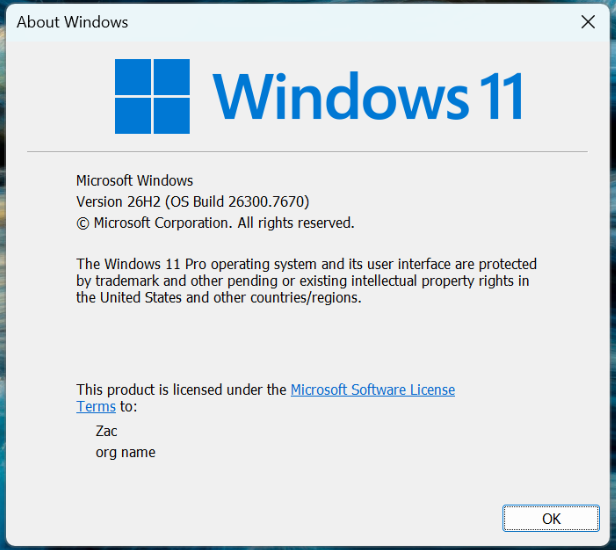
If it displays Version 26H2, the feature update has already been installed. If Windows Update still shows an error, the failing update might be a separate cumulative or optional update rather than the 26H2 upgrade itself.
If your PC is still running version 24H2 or 25H2, open Settings > Windows Update and check whether Windows 11 26H2 is available.
Most of the troubleshooting methods below are designed to preserve your personal files. However, creating a backup is still recommended before performing system repairs or an in-place upgrade.
You can copy important documents to an external drive or cloud storage.
If you also want to back up your Windows system, iSumsoft Cloner provides system backup, partition backup, and disk cloning features.
To create a system partition backup using iSumsoft Cloner:
Step 1 Connect an external drive with sufficient available storage.
Step 2 Install and launch iSumsoft Cloner.
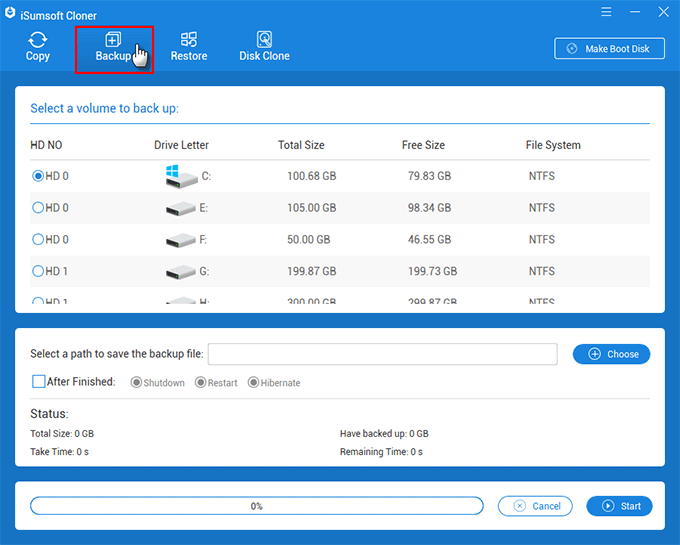
Step 3 Select the Backup option.
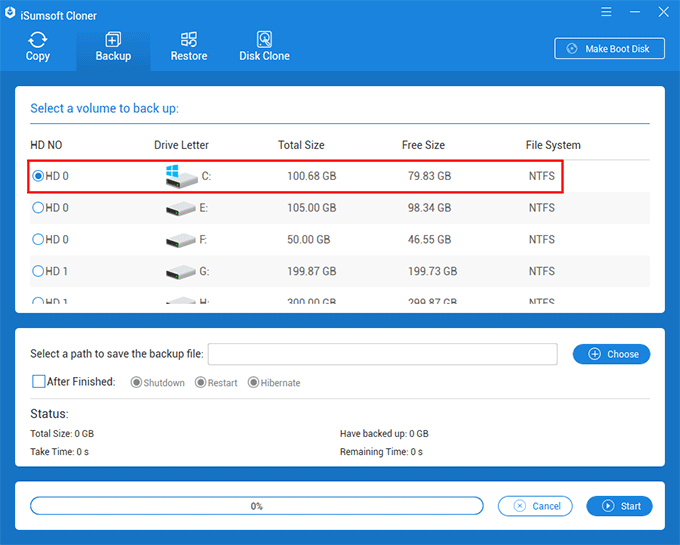
Step 4 Choose the Windows system partition as the source.
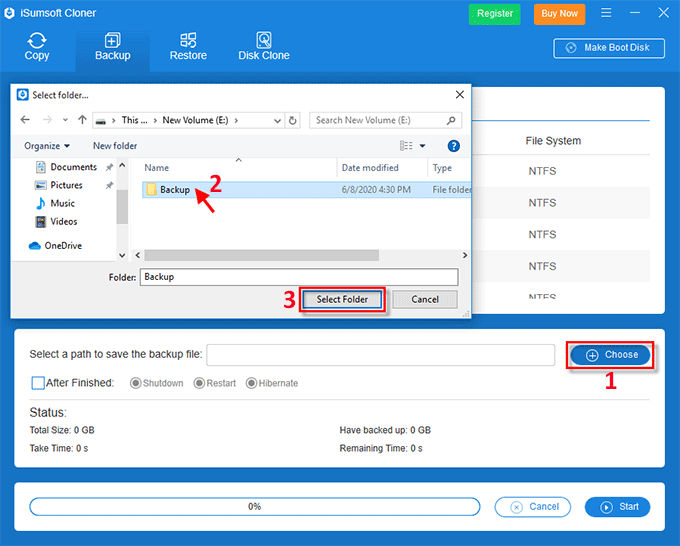
Step 5 Click Choose, select a folder on your external drive to save the backup image, and click Select Folder.
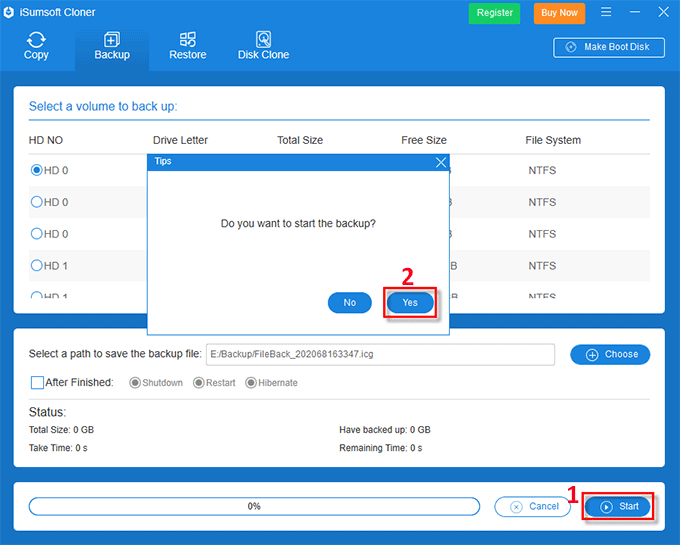
Step 6 Click Start, confirm with Yes, and wait for the backup to finish.
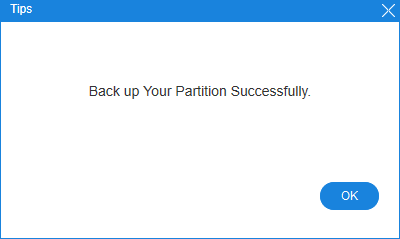
Check that the backup file has been created successfully before proceeding. Note that backing up only the system partition does not necessarily include personal files stored on other partitions.
For detailed instructions, see the iSumsoft Cloner User Guide.
If Windows 11 26H2 is stuck at a certain percentage, start with the simplest troubleshooting steps.
Sometimes, a pending restart or another installation process can prevent Windows Update from completing.
If you can still access the Windows desktop, save your work and select Start > Power > Restart.
After restarting, return to Settings > Windows Update and try installing 26H2 again.
Important:
A weak or interrupted connection can cause Windows Update downloads to fail.
Try the following:
After checking your connection, return to Windows Update and retry the download.
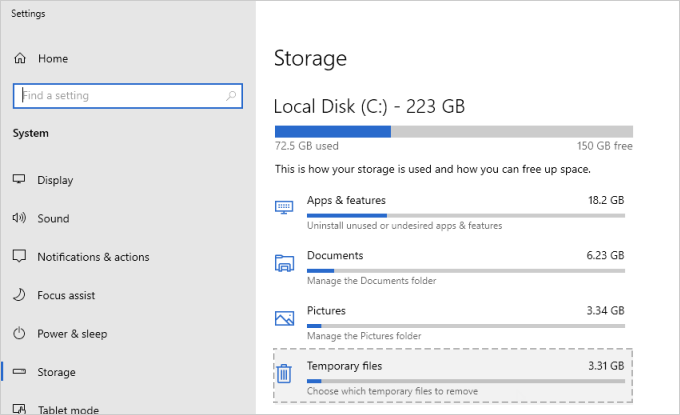
Although 26H2 uses an enablement package on eligible devices, Windows may still need additional storage for updates and repair operations.
To check available storage:
Step 1 Press Windows + I to open Settings.
Step 2 Go to System > Storage.
Step 3 Check the available space on your Windows drive.
Step 4 Remove unnecessary temporary files if your drive is nearly full.
You can use Windows Storage Sense or Temporary files cleanup to free up space. For more cleanup options, see Windows Update Cleanup.
Avoid manually deleting files from Windows system folders unless a trusted troubleshooting procedure specifically instructs you to do so.
Temporarily unplug nonessential USB devices, such as external storage drives, printers, and docking stations. Keep your keyboard, mouse, and any devices required for normal operation connected.
Then try installing the update again.
If the update still fails, continue with the next method.
Windows 11 includes a built-in troubleshooter that can detect and repair some common Windows Update problems.
Step 1 Press Windows + I to open Settings.
Step 2 Navigate to System > Troubleshoot > Other troubleshooters.
Step 3 Find Windows Update and click Run.
Step 4 Follow the on-screen instructions and allow the troubleshooter to complete its checks.
Step 5 Restart your computer if prompted.
Finally, go to Settings > Windows Update and check whether Windows 11 26H2 installs successfully.
On some Windows 11 builds, the troubleshooting process opens the Get Help app to perform additional diagnostics.
If Windows reports an error code, write it down before moving on. The code can help identify whether the problem involves download files, system components, permissions, or another cause.
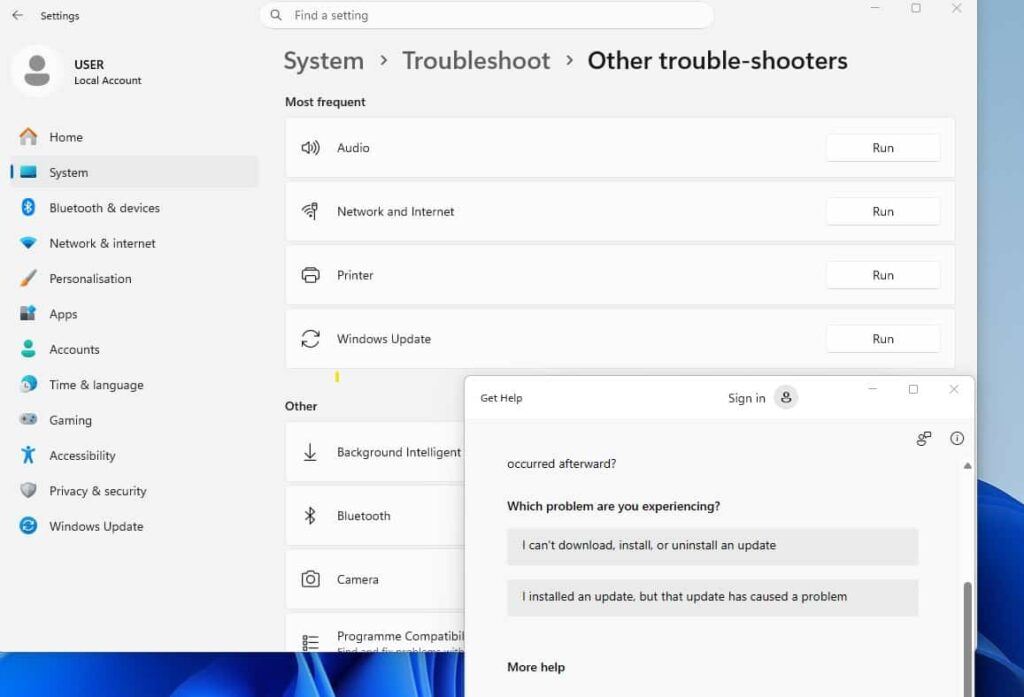
The troubleshooter may open Get Help; labels can vary between Windows builds.
Corrupted Windows system files can interfere with feature updates, including Windows 11 26H2.
Fortunately, Windows provides two built-in command-line repair tools:
For the best results, run DISM before SFC. See our SFC repair guide for additional details.
Click the Start button, type cmd, then select Run as administrator.
Click Yes if User Account Control asks for permission.
Enter the following command:
DISM /Online /Cleanup-Image /RestoreHealthPress Enter and wait for the operation to finish.
DISM may use Windows Update as a repair source, so keep your computer connected to the internet.
After DISM finishes, type:
sfc /scannowPress Enter.
Windows will scan protected system files and attempt to repair any problems it finds.
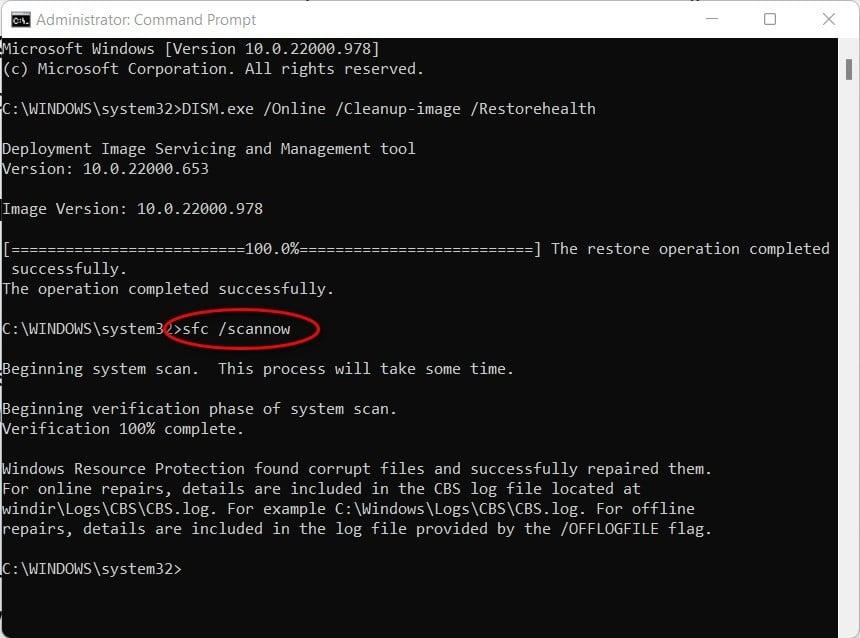
Example from an earlier Windows 11 build: use the same DISM and SFC commands on your current version.
Once the scan is complete:
Close Command Prompt, restart your computer, open Settings > Windows Update, and try installing Windows 11 26H2 again.
If SFC or DISM reports that it cannot complete the repair, investigate that error before repeating the installation. An unsuccessful repair does not mean the underlying problem has been resolved.
If Windows 11 26H2 repeatedly gets stuck during downloading or installing, the problem may be related to corrupted Windows Update cache files.
Windows temporarily stores downloaded updates in the SoftwareDistribution folder. Resetting the update cache forces Windows to download fresh update files.
Press Windows + R, type services.msc, and press Enter. In Services, find Windows Update, right-click it, and select Stop.
If Windows is actively installing updates or completing a restart, finish that process before resetting the cache.
Open File Explorer and navigate to:
C:\Windows\SoftwareDistribution
Select the files and folders inside this directory and delete them.
Note:
Return to the Services window.
Right-click Windows Update and select Start.
Restart your PC, then navigate to Settings > Windows Update > Check for updates.
If 26H2 is offered, download and install it again.
This method is useful when corrupted downloads are responsible for the failure. However, it will not resolve an installation blocked by hardware compatibility or organizational update policies.
If Windows 11 26H2 downloads successfully but fails during installation or after restarting, a software or driver conflict may be involved.
Start by checking the following.
Visit your computer manufacturer's official support website and check for compatible driver or firmware updates.
Pay particular attention to storage, chipset, and other system-level drivers.
Do not install drivers from unfamiliar websites or update your BIOS solely because a Windows feature update failed. Firmware updates should only be performed when the manufacturer recommends them for your device or issue.
Some third-party antivirus or endpoint security products can interfere with Windows installation processes.
If you suspect a conflict:
Step 1 Check whether the security software has an available update.
Step 2 Install the latest compatible version.
Step 3 Follow the vendor's documented troubleshooting procedure.
Step 4 Retry Windows Update.
As a last resort, you may temporarily disable a conflicting third-party antivirus during a controlled installation attempt, provided that doing so is permitted on your device.
Restore protection immediately afterward. Do not disable security controls on a work-managed computer without IT approval.
If the installation still fails, move to the Windows repair options below.
Windows 11 includes a repair option called Fix problems using Windows Update.
Unlike a clean installation, this feature reinstalls your current version of Windows to repair system files and components while preserving your installed applications, personal files, and settings.
This can be particularly useful when Windows 11 26H2 keeps failing because of problems in the existing Windows installation.
Press Windows + I and navigate to:
System > Recovery
Under Fix problems using Windows Update, click Reinstall now.
Read the instructions in the confirmation window.
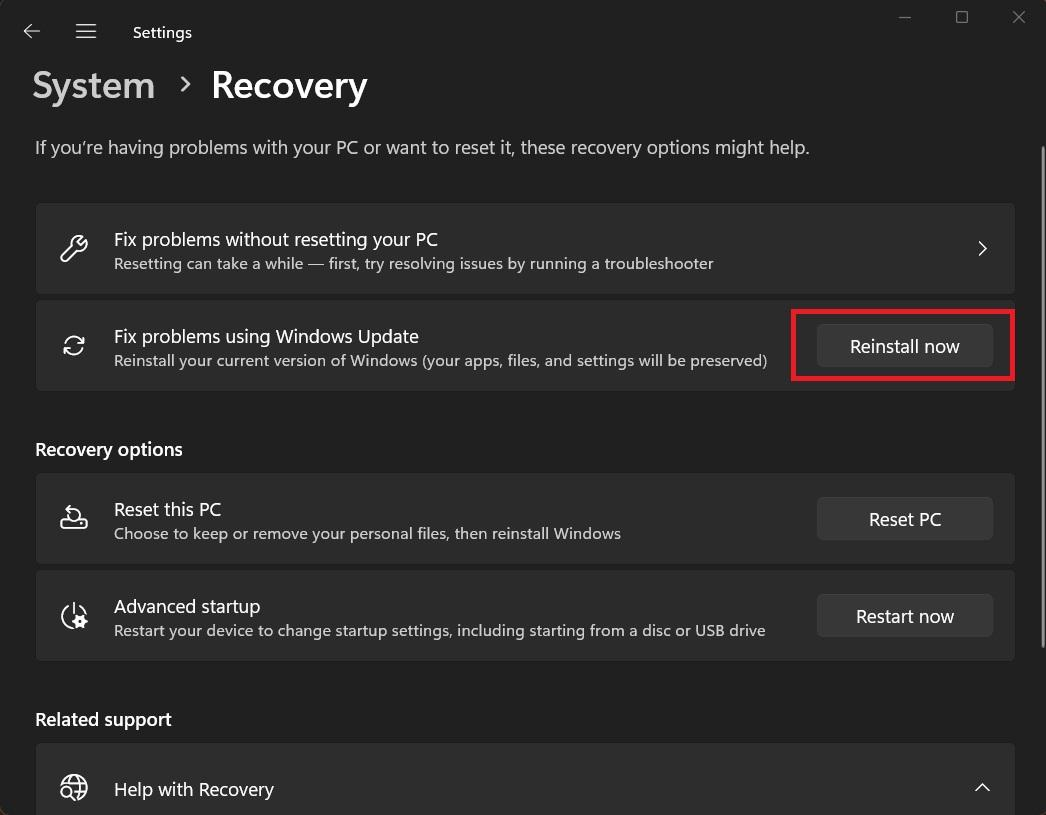
Follow the on-screen prompts.
Keep your computer connected to the internet and a reliable power source throughout the process.
Windows will download and reinstall a repair version of your current operating system.
After the repair finishes, restart the computer if required.
Then:
Go to Settings > Windows Update, check for available updates, and install Windows 11 26H2 if it is offered.
Important:
The feature may also be unavailable on some work- or school-managed computers, or devices that do not meet Microsoft's requirements for this recovery option.
If you cannot find Reinstall now, continue to the next method.
If Windows Update continues to fail, you can consider performing an in-place upgrade with the official Windows 11 installation ISO.
An in-place upgrade can replace Windows installation files while allowing you to retain personal files and installed applications, provided the appropriate option is available and selected.
Before proceeding:
Visit Microsoft's official download page:
As of October 2026, Microsoft lists Windows 11 version 26H2 as the current release.
Scroll to Download Windows 11 Disk Image (ISO).
Select the appropriate edition and language for your computer, then download the ISO file.
Make sure you select the correct architecture for your device.
Once the download finishes:
Open File Explorer, locate the downloaded ISO file, right-click it, and select Mount.
Windows will create a virtual DVD drive containing the installation files.
Open the newly mounted virtual drive.
Double-click setup.exe.
Follow the Windows Setup instructions.
Before installation begins, review the Ready to install screen.
Make sure Keep personal files and apps is selected if you want to retain your existing files and installed software.
If that option is unavailable, do not continue until you understand why.
A mismatch in installation language, edition, or upgrade compatibility can affect the available choices.
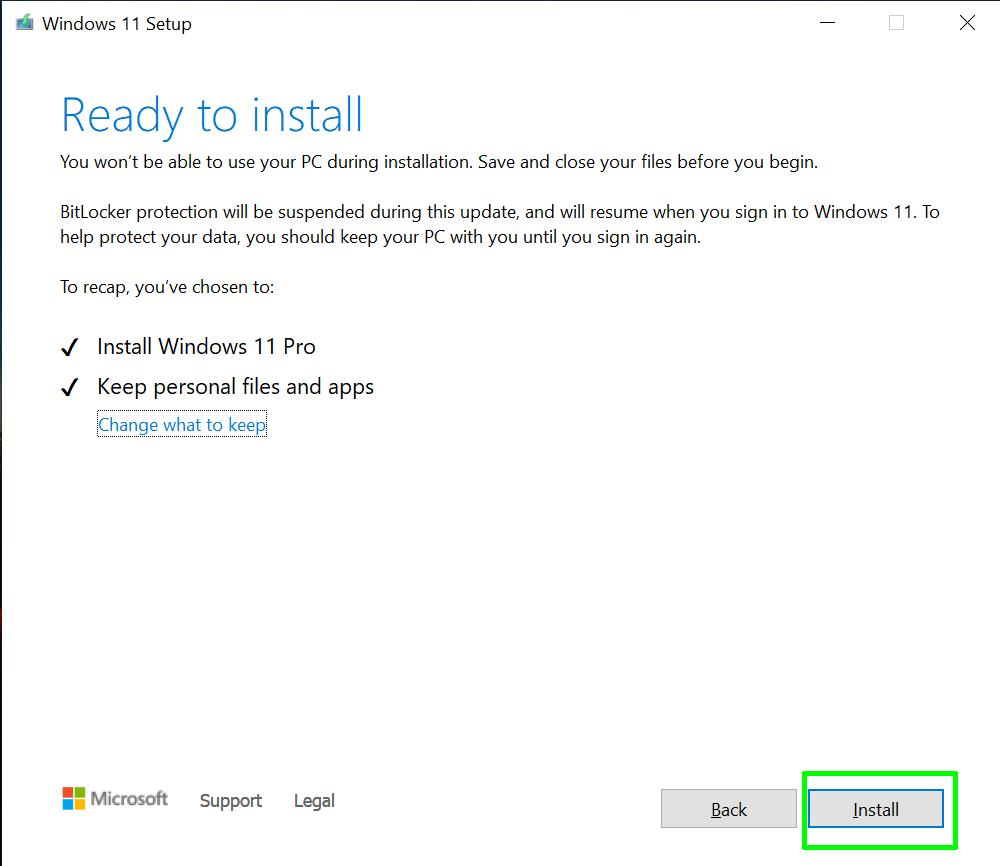
Example Windows Setup screen. Confirm the edition and Keep personal files and apps option on your own PC.
Click Install and follow the on-screen instructions.
Your computer may restart several times.
Keep it connected to power and avoid interrupting the installation.
Important:
If none of the previous methods work, avoid repeatedly forcing the update without investigating the underlying error.
Instead, use Windows Update history and Microsoft's diagnostic resources to narrow down the cause.
Go to:
Settings > Windows Update > Update history
Look for the failed update and note its error code.
Common Windows Update errors include:
| Error code | Possible meaning | What to check |
|---|---|---|
| 0x800706be | A remote procedure call-related failure that may occur during updating | System components, logs, and repair options |
| 0x80070070 | Insufficient disk space | Available storage on the system drive |
| 0x8007000d | Invalid or corrupted update data | Windows Update cache and system files |
| 0x80070005 | Access denied or insufficient permissions | Permissions and security software |
These errors are not exclusive to Windows 11 26H2, and an error code alone may not identify the exact cause.
If the update fails repeatedly, use the Windows Get Help app or contact Microsoft Support with the error code and details about your device.
Microsoft uses safeguard holds to prevent certain devices from installing a feature update when a known compatibility issue could cause problems.
If Windows 11 26H2 is not being offered on your PC, the rollout may not have reached your device, or a safeguard hold may apply.
In this situation, waiting for an official compatibility fix may be safer than forcing the installation.
After completing the installation, verify that Windows is running the expected version.
Step 1 Press Windows + R.
Step 2 Type winver and press Enter.
Step 3 Check the version information.
If the About Windows window displays Windows 11 Version 26H2, the feature update has been installed.
You can also open Settings > System > About to check the Windows specifications.
After upgrading, check Windows Update for available cumulative updates and verify that your important applications and devices work properly.
Windows Update may appear stuck at 100% while it finishes processing downloaded files or prepares the installation. If it eventually reports an error or repeatedly fails, possible causes include corrupted update files, insufficient storage, or system component problems.
Restarting Windows from the desktop, running the troubleshooter, and resetting the Windows Update cache are reasonable first steps.
A failure after restarting may involve installation conflicts, damaged Windows components, or compatibility problems.
Check the error code in Update history, run DISM and SFC, and use Microsoft's repair reinstall option if necessary.
Yes, supported update and in-place upgrade methods are designed to retain personal files. When using Windows Setup, confirm that Keep personal files and apps is selected before proceeding.
However, no operating system upgrade is completely risk-free. Back up important data beforehand.
Microsoft is releasing Windows 11 26H2 gradually. Even if your PC meets the requirements, the update may not be immediately available.
On eligible Windows 11 24H2 or 25H2 devices, you can enable Get the latest updates as soon as they're available under Windows Update.
Do not bypass a known compatibility safeguard simply to install the update earlier.
Not for most eligible devices running Windows 11 24H2 or 25H2.
Microsoft delivers version 26H2 through an enablement package that activates features already included through previous updates.
However, an ISO-based installation or repair procedure can involve a more extensive Windows setup process.
Not necessarily. First identify whether the problem is caused by the feature update, a separate cumulative update, an application, or a device driver.
Check Microsoft's release health information and look for an official fix.
If Windows provides an applicable recovery or rollback option, follow the instructions carefully and back up important files before making significant system changes.
If Windows 11 26H2 is stuck or not installing, there's usually no need to start with a clean Windows installation.
Begin by checking your connection, storage, and Windows Update status. Then use the built-in troubleshooter, repair system files with DISM and SFC, or reset the update cache.
If the update continues to fail, Microsoft's Fix problems using Windows Update feature and an official ISO-based in-place upgrade provide additional repair options.
Before attempting more advanced changes, remember to protect your data. Tools such as iSumsoft Cloner can help you create a system backup so that you have a recovery option if something goes wrong during the update.
For further reading:


![[Fixed] Windows 11 Start Menu Not Working after Update](../images/windows-tips/windows-11-start-menu-not-working-after-update/fix-windows-11-start-menu-not-working-after-update.webp)