How to Turn on or Off Windows Firewall in Windows 10

Windows Firewall is also called Windows Defender Firewall, it helps prevent hackers or malicious software from gaining access to your PC through the Internet or a network. In order to install or activate some application successfully, you may need to temporarily disable the Windows firewall. This guide will show you 2 ways to turn on or off Windows Firewall protection on Windows 10 PC.
Turn on or off Windows Firewall in Windows Defender Security Center
To turn on or off Windows Defender Antivirus in Windows Defender Security Center app. Here is how:
Step 1: Open Windows Defender Security Center app.
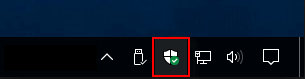
You can quickly open it by clicking the shield icon in the taskbar.
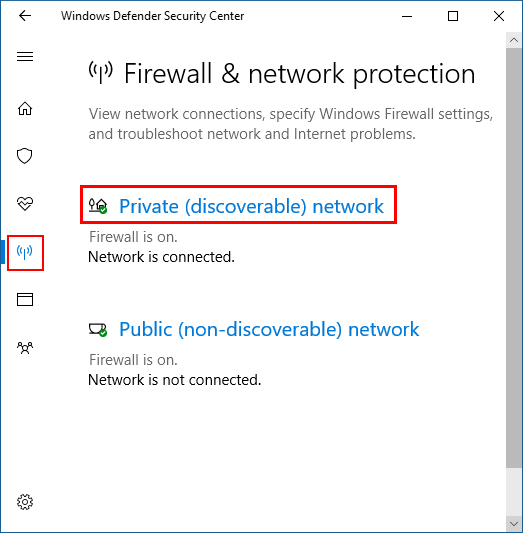
Step 2: Click/tap on Firewall & network protection tile on the left menu bar. Choose a network profile under Windows Firewall.
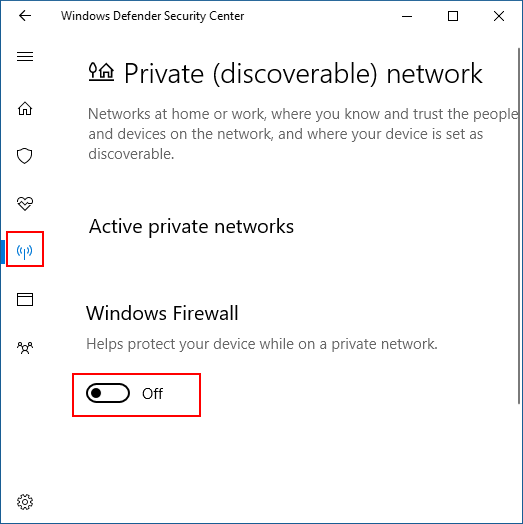
Step 3: Toggle the Windows Firewall switch to On or Off for what you want to set.
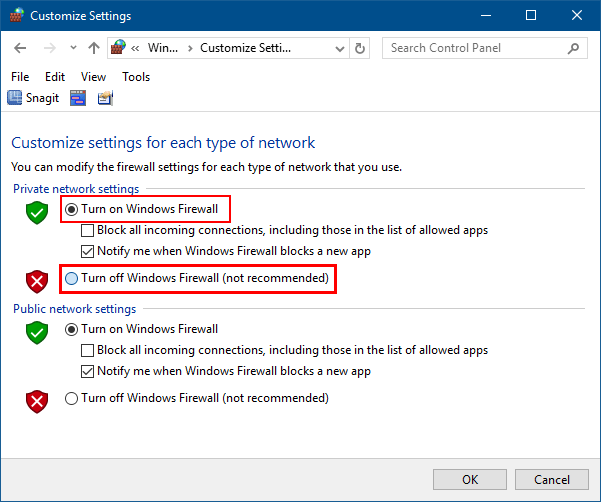
Turn Windows Firewall On or Off in Control Panel
It's easy to turn Windows Firewall On or Off in Control Panel, here's how:
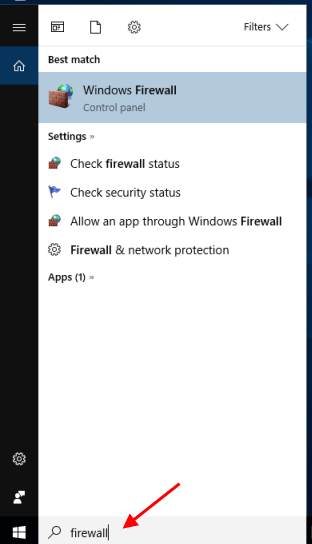
Step 1: Go to Start, then type in firewall, then press Enter.
Step 2: Click/tap on the Turn Windows Firewall on or off link on the left side.
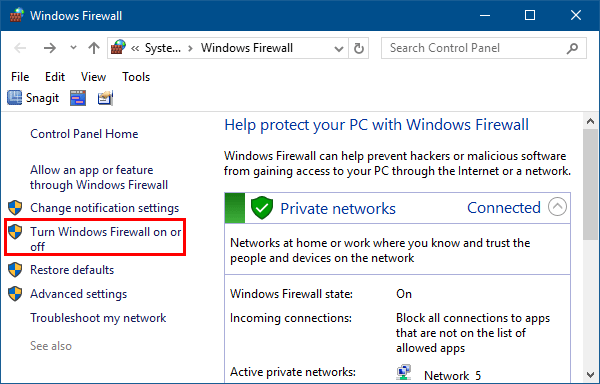
Step 3: Select Turn on or off Windows Firewall for each network profile.
Related Articles
-
![turn on or off Windows Defender real-time protection]() Turn On
or Off Windows Defender Real-Time Protection
Turn On
or Off Windows Defender Real-Time Protection
-
![fix unable to activate Windows Firewall]() Fix:
Unable to Activate Windows Defender Firewall on Windows 10
Fix:
Unable to Activate Windows Defender Firewall on Windows 10
-
![hide windows defender icon]() How
to Hide Windows Defender Security Center Icon from Taskbar
How
to Hide Windows Defender Security Center Icon from Taskbar
-
![run scan with windows defender]() Run a
Scan With Windows Defender Security Center in Windows 10
Run a
Scan With Windows Defender Security Center in Windows 10
-
![change Windows Defender smartscreen settings]() Change
Windows Defender SmartScreen Settings in Windows 10
Change
Windows Defender SmartScreen Settings in Windows 10
-
![create Windows Defender Security shortcut]() Create a
Windows Defender Antivirus Shortcut
Create a
Windows Defender Antivirus Shortcut