Have you ever been working on something important, only to be distracted by that annoying orange flashing icon in your Windows taskbar? You're not alone. Taskbar flashing is designed to grab your attention when an app needs it, but for many users, it's more of a nuisance than a helpful feature.
Whether you're in the middle of a presentation, deep in focus mode, or just find the constant blinking irritating, the good news is that you can turn it off or reduce it in Windows 10 and Windows 11. In this guide, we'll show you three effective methods to disable or minimize taskbar flashing.

Taskbar flashing (also called taskbar blinking) is a Windows feature designed to alert you when an application in the background needs your attention. When an app can't come to the foreground automatically, Windows makes its taskbar icon flash orange to catch your eye.
Common scenarios that trigger taskbar flashing include:
While useful in some cases, constant flashing can be distracting, especially if you have many apps running or work in a multi-monitor setup.
The most effective way to completely stop taskbar flashing is to modify the Windows Registry. This method works on both Windows 10 and Windows 11.
Warning:
Step 1: Press Win + R to open the Run dialog. Type regedit and press Enter to open the Registry Editor.
Step 2: Navigate to the following path:
HKEY_CURRENT_USER\Control Panel\Desktop
Step 3: Look for a value called ForegroundFlashCount on the right side. If it doesn't exist, you'll need to create it:
Step 4: Double-click on ForegroundFlashCount and set its value to:
Step 5: Click OK and close Registry Editor. Restart your computer for the changes to take effect.
If you don't want to completely disable taskbar flashing but just want to reduce how many times the icon flashes, you can adjust the ForegroundFlashCount value to a lower number.
Step 1: Open Registry Editor (Win + R, type regedit, press Enter).
Step 2: Navigate to:
HKEY_CURRENT_USER\Control Panel\DesktopStep 3: Double-click ForegroundFlashCount and change the value data to:
Step 4: Click OK and restart your computer.
This way, you'll still get a notification that an app needs attention, but it won't keep flashing repeatedly.
If you prefer a quicker method without manually editing the registry, you can use PowerShell to make the same change with a single command.
Step 1: Press Win + X and select Windows Terminal (Admin) or PowerShell (Admin).
Step 2: To completely disable taskbar flashing, run the following command:
Set-ItemProperty -Path "HKCU:\Control Panel\Desktop" -Name "ForegroundFlashCount" -Value
                            0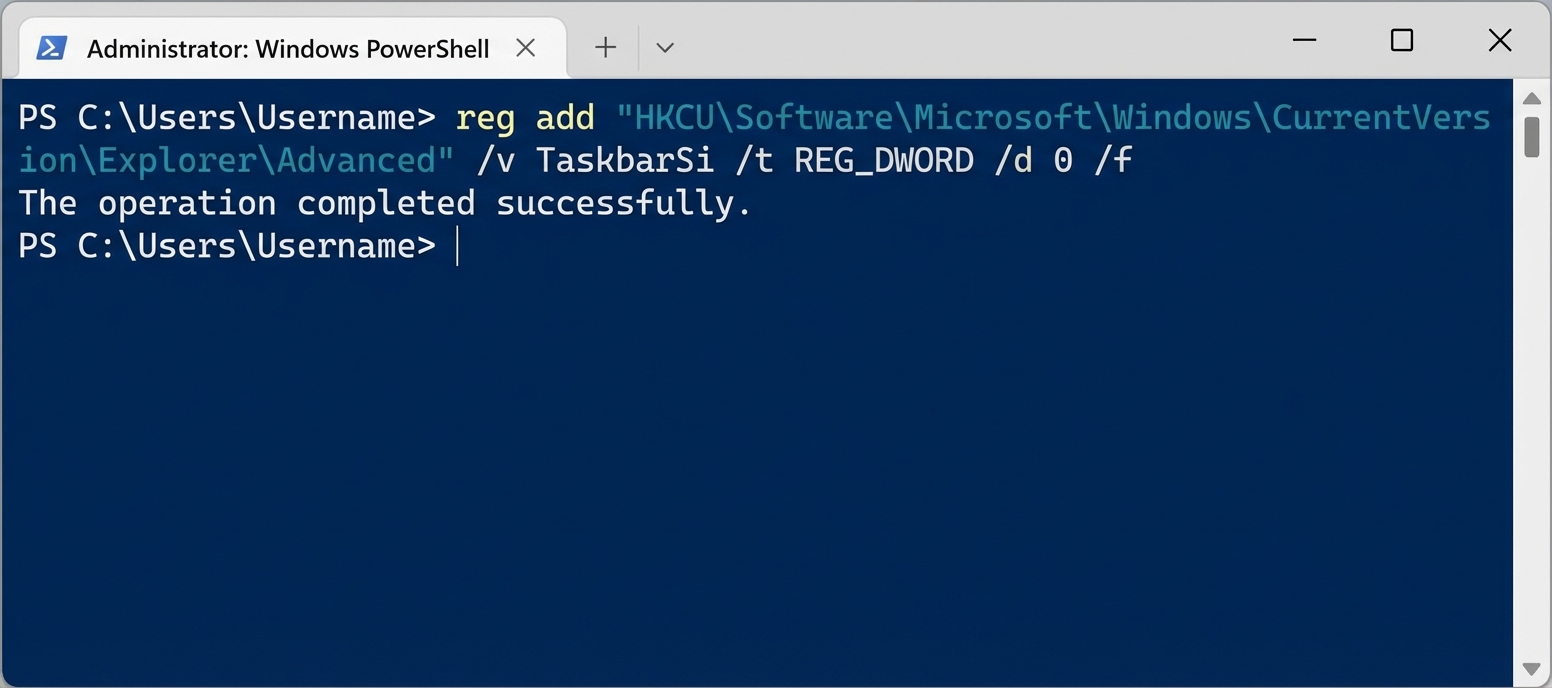
Step 3: To set a specific flash count (e.g., 2 times), use:
Set-ItemProperty -Path "HKCU:\Control Panel\Desktop" -Name "ForegroundFlashCount" -Value
                            2
Step 4: Restart your computer for the changes to take effect.
While the above methods control taskbar flashing at the system level, Windows 10 and 11 also offer Focus Assist (formerly called Quiet Hours) to help minimize distractions.
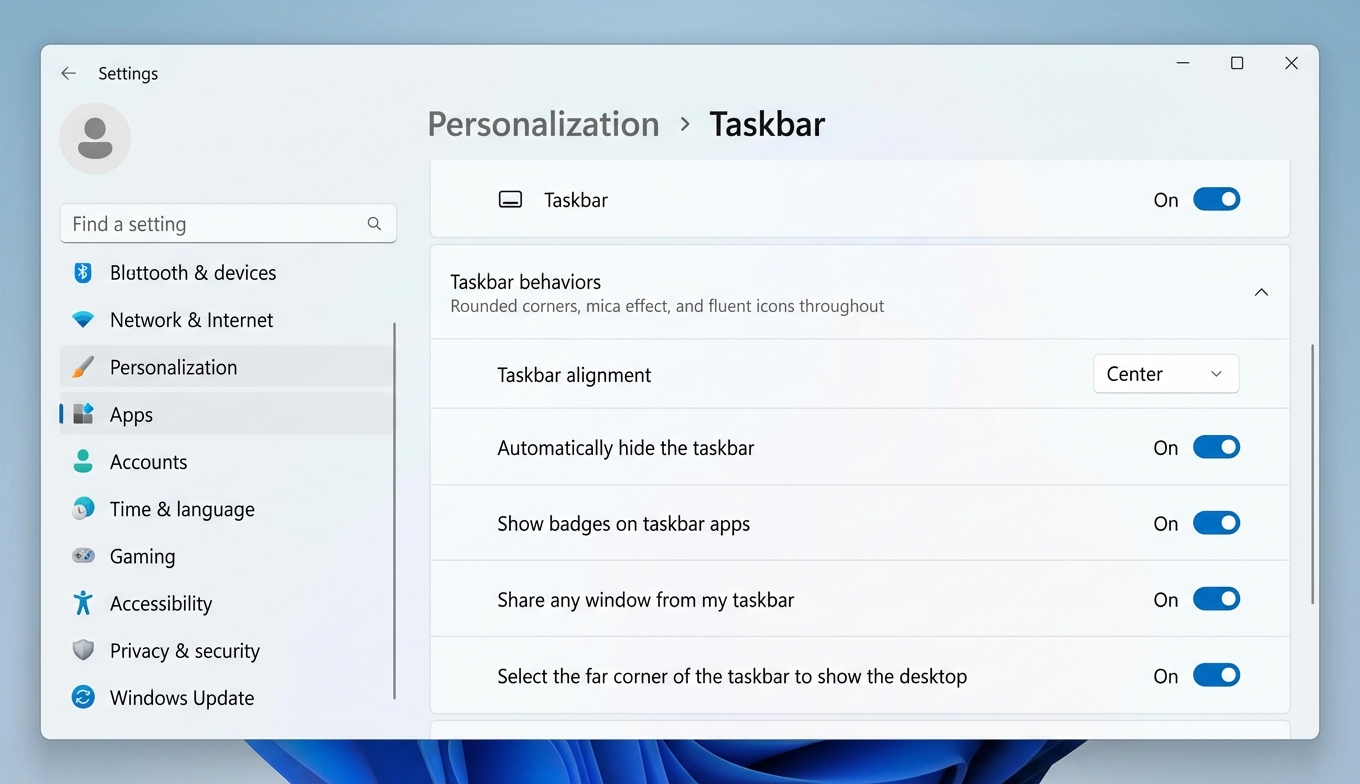
Step 1: Open Settings (Win + I).
Step 2: Go to System > Focus assist (Windows 10) or System > Focus (Windows 11).
Step 3: Choose your preferred mode:
Focus Assist won't stop taskbar flashing entirely, but it will reduce the number of notifications and alerts you receive, making your computing experience more peaceful.
Yes, as long as you follow the instructions carefully and only change the specified values. However, it's always a good practice to create a system restore point before making any registry changes.
No, disabling taskbar flashing only affects the visual notification. Apps will still function normally; you just won't see the orange blinking animation. The app icon may still show a badge or highlight, depending on the application.
Yes, the registry setting affects all applications that use the standard Windows API for taskbar flashing. However, some third-party apps may have their own notification methods that aren't controlled by this setting.
To restore the default behavior, set the ForegroundFlashCount value back to 7 (or delete the registry key you created).
Make sure you've restarted your computer after making the registry changes. If the issue persists, double-check that you've edited the correct registry path and value.
Taskbar flashing is a well-intentioned Windows feature, but it's not for everyone. Whether you choose to disable it completely, reduce the flash count, or use Focus Assist, you now have the tools to take back control of your Windows experience.
If you found this guide helpful, consider bookmarking it for future reference. Have any other Windows annoyances you'd like us to address? Check out our Windows tips for more helpful guides.