Find Out Which Edition of Windows 10 You are Running

Edition information tells you which edition of Windows 10 you're using—Home, Professional, Enterprise, or Education. The version number gives you the best information on what version of Windows 10 you're running. The number is based on the date of the most recent large build release.
This article will show how to view Windows 10 edition and Version on your PC.
How to view edition and Version of Windows 10
Edition and version information can be important if you're trying to determine whether Windows 10 has received a specific update, whether you have access to a feature available only in certain editions.
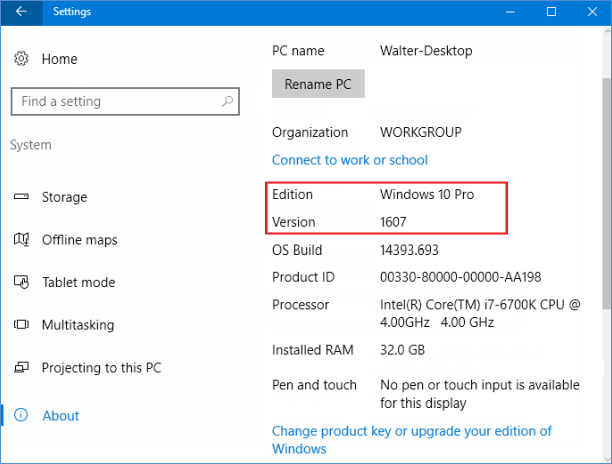
Way 1: View Windows Edition and Version in Settings
Step 1: Open Settings app, and then click on the System icon.
Step 2: Select About on the left side.
Look under PC for Edition to find out which version and edition of Windows that your PC is running.
Way 2: Find Out Windows Edition and Version in Winver Dialog
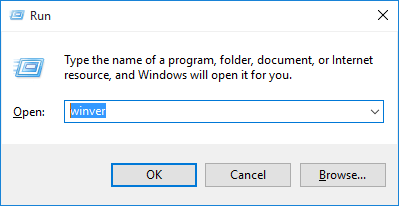
Step 1: Press the Win + R keys to open Run dialog, type winver into the box, and click on OK.
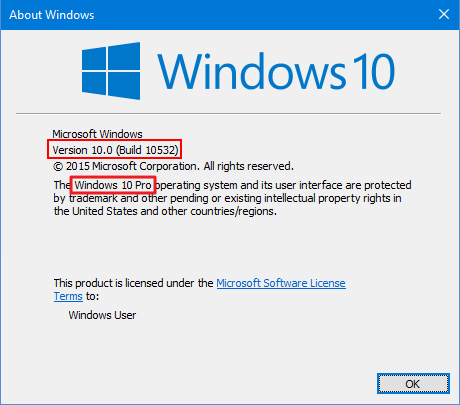
Step 2: Once the "About Windows" opens, you can see what your Windows edition is.
Way 3: Find Out Windows Edition in Command Prompt
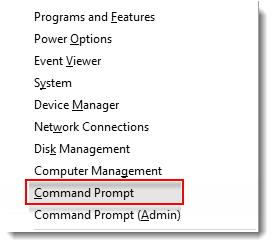
Step 1: Open a command prompt by pressing Win + X shortcut keys, then click it from the result menu.
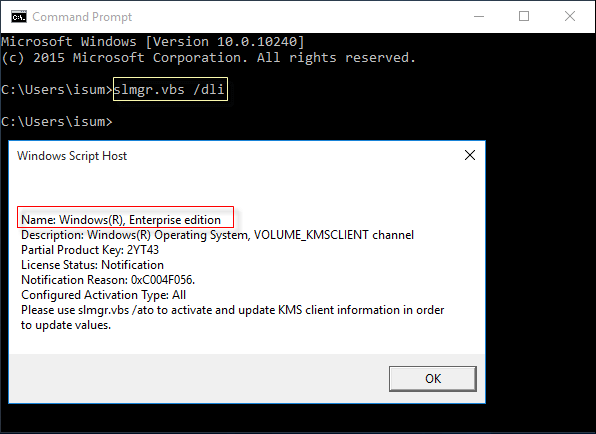
Step 2: To find out the Windows edition, execute the command: slmgr.vbs /dli, then hit Enter.
Step 3: To see Windows edition and version, execute the command: Systeminfo, then hit Enter.
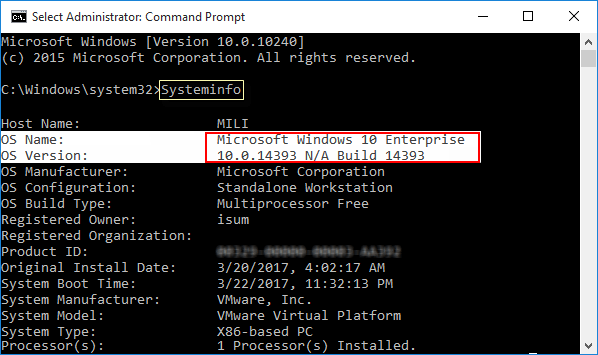
How to view edition of Windows 10 you're using
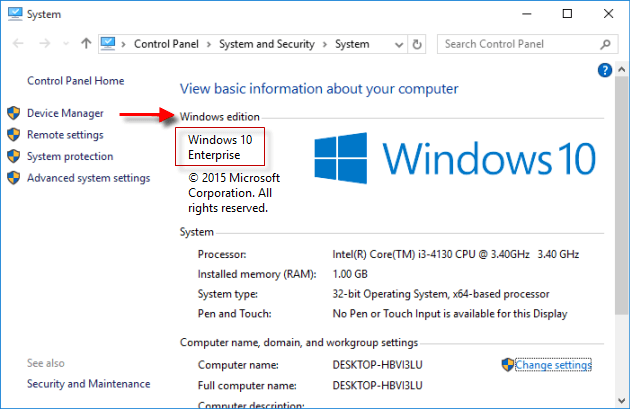
Way 1: View Windows Edition in System
Use shortcut key: Windows logo key+Pause Break key to open Windows System.
Way 2: Find Out Windows Edition in System Information
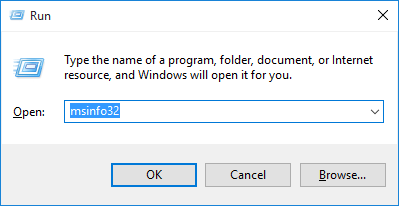
Step 1: Press the Win + R keys to open the Run dialog, type msinfo32 in the search box, and hit Enter.
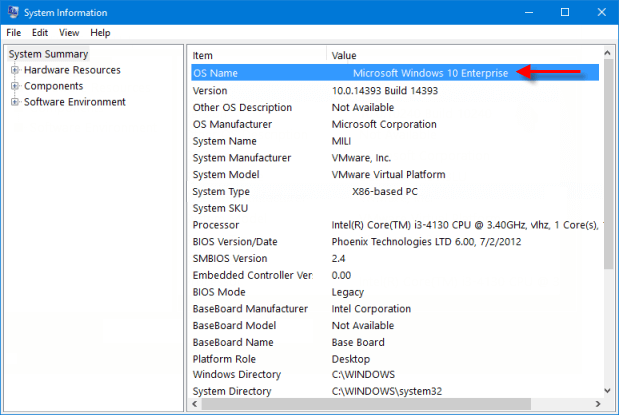
Step 2: In System Summary, you can see what edition you are using on the right side of the OS Name.
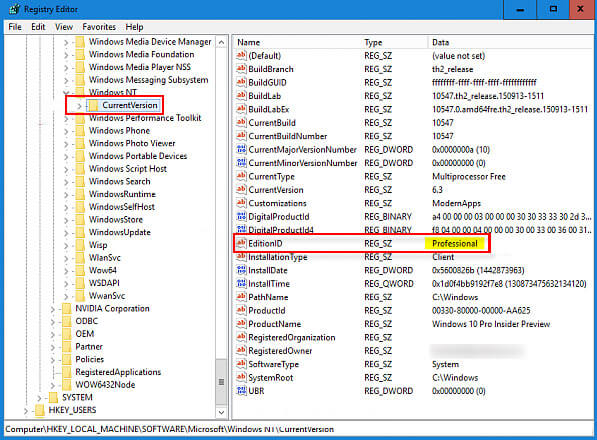
Way 3: Find Out Windows Edition in Registry Editor
Step 1: Access Windows 10 Registry Editor.
Pressing Win+R keys to open Run dialog, type regedit, and click on OK to open Registry Editor.
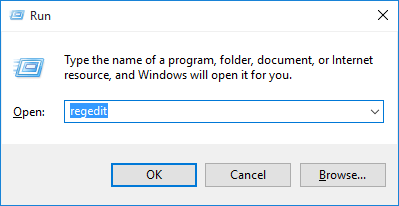
Step 2: In the left pane of Registry Editor, browse to the key below.
HKEY_LOCAL_MACHINE\SOFTWARE\Microsoft\Windows NT\CurrentVersion
Step 3: On the right pane of the CurrentVersion key, to see what the data shows for the EditionID string value.