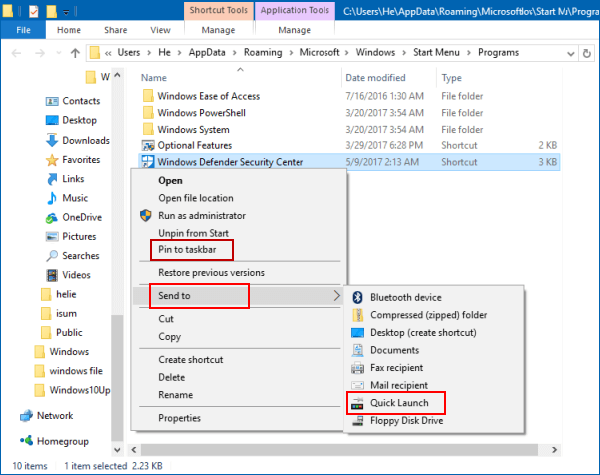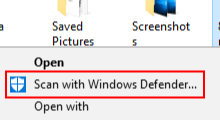
Learn how to create a Windows Defender Security Center shortcut on your Windows 10 PC with this step-by-step guide.
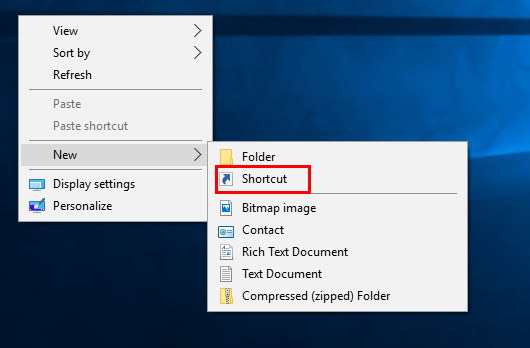
Step 1: Right-click on an empty area of your Windows 10 desktop, then select New > Shortcut from the context menu.
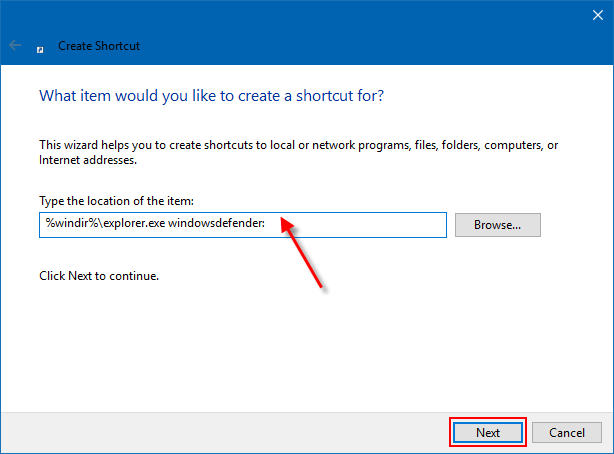
Step 2: Copy and paste %windir%\explorer.exe windowsdefender: into the location field, then click Next.
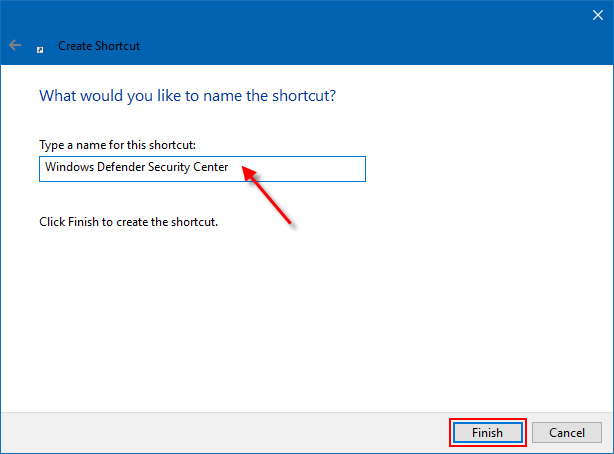
Step 3: Enter Windows Defender Security Center as the shortcut name, then click Finish. The shortcut will now appear on your desktop.
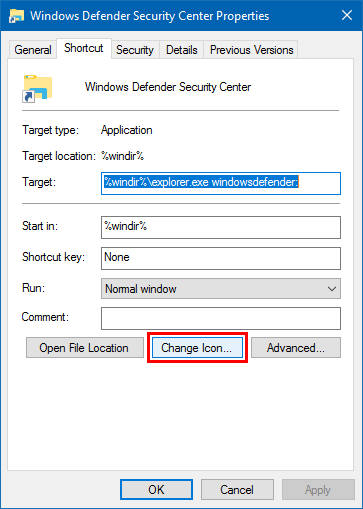
Step 4: Right-click the new Windows Defender Security Center shortcut and select Properties. On the Shortcut tab, click the Change Icon button.
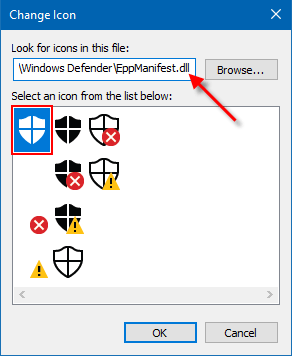
Step 5: Copy and paste %ProgramFiles%\Windows Defender\EppManifest.dll into the file path field, then press Enter. Select the Windows Defender icon and click OK.
Click Apply and OK to save the changes. You can now Pin to Taskbar, Pin to Start, add to Quick Launch, or move the shortcut as needed.