How to Change Desktop Icon Size in Windows 11 and 10

This guide provides step-by-step instructions on how to adjust the size of desktop icons, modify the Desktop view layout using keyboard shortcuts, and change the taskbar button size where the Windows version supports that option.
- Method 1: Resize Desktop Icons with Mouse Scroll Wheel
- Method 2: Adjust Desktop Icon Size via Context Menu
- Method 3: Change Desktop View Layout with Keyboard Shortcuts
- Adjusting Taskbar Icon Size in Taskbar Settings
Method 1: Resize Desktop Icons with Mouse Scroll Wheel
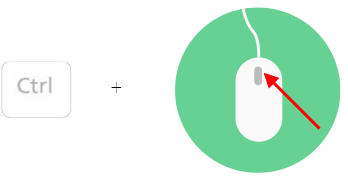
To resize desktop icons using your mouse's scroll wheel, follow these steps:
On your desktop, press and hold the Ctrl key while scrolling the wheel to adjust the icon size.
Method 2: Adjust Desktop Icon Size via Context Menu
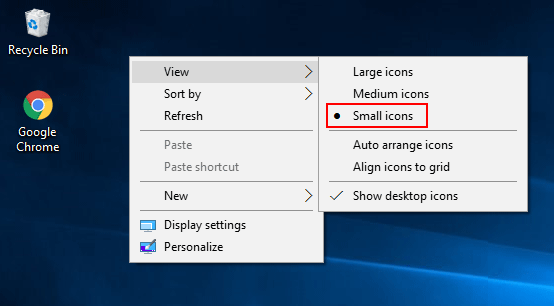
To change the desktop icon size via the context menu, here's what you need to do:
Right-click on the desktop, hover over View, and then select Large icons, Medium icons, or Small icons as desired.
Method 3: Change Desktop View Layout with Keyboard Shortcuts
To modify the Desktop view layout using your keyboard, follow these steps:
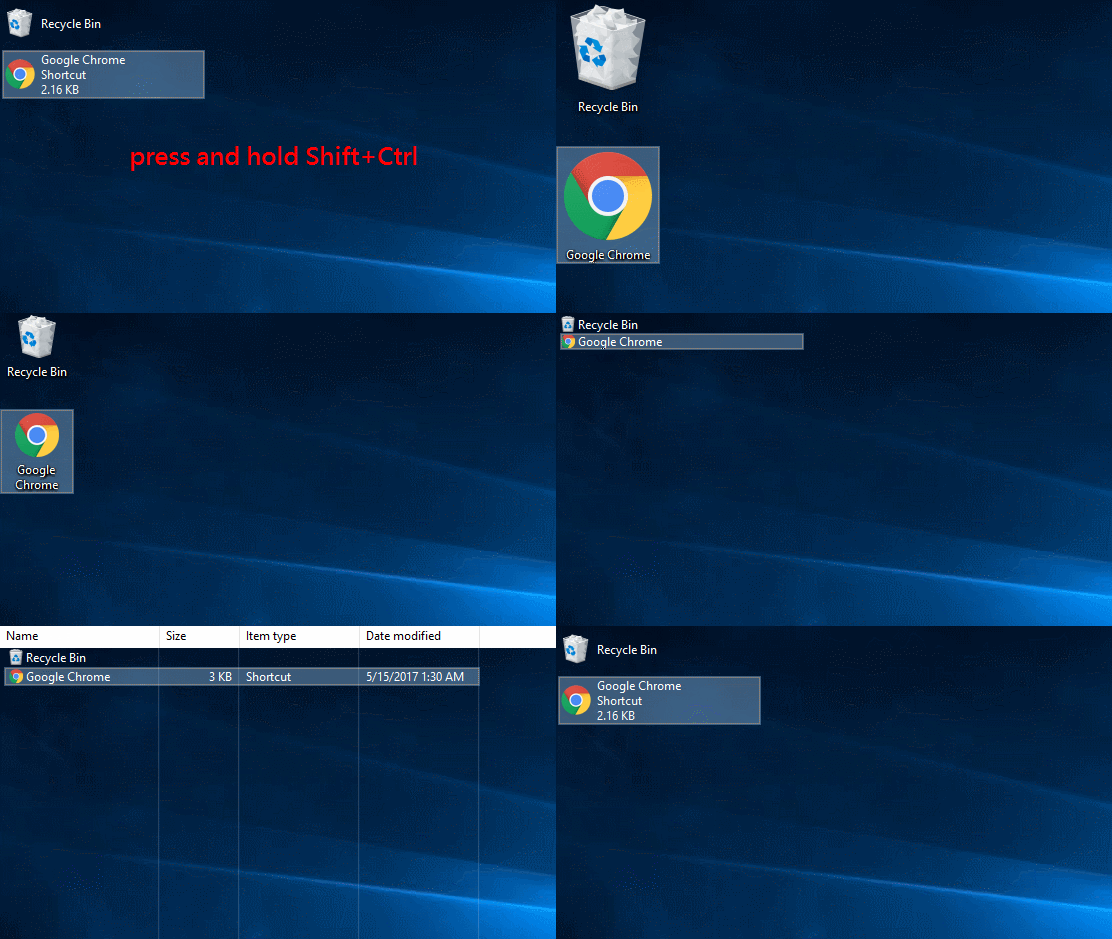
While on the Desktop, press and hold Shift + Ctrl, then press a number key from 1 to 8 until you achieve your desired layout. Release Shift and Ctrl once done.

Adjusting Taskbar Icon Size in Taskbar Settings
If the taskbar icons appear too small, you can adjust their size.
To change the taskbar icon size in Windows 10, follow these steps:
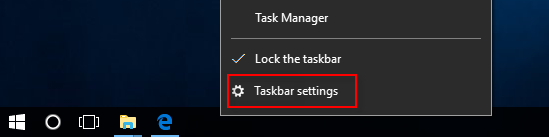
Step 1 Right-click on an empty area of the taskbar and select Taskbar Settings.
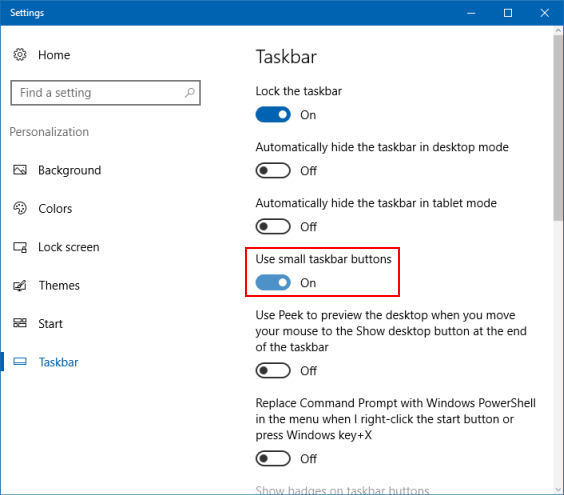
Step 2 In the Settings window, toggle the Use small taskbar buttons option.
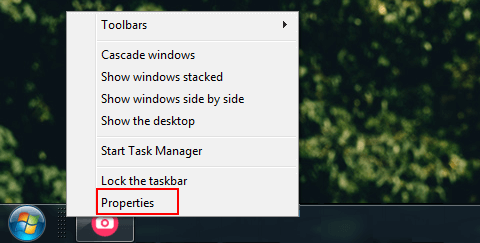
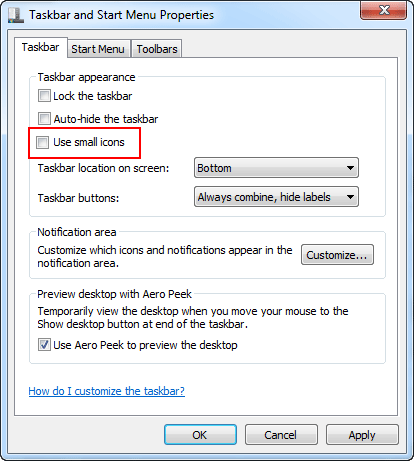
For Windows 7, to change the taskbar icon size:
Step 3 Right-click on an empty taskbar area and select Properties.
Step 4 On the Taskbar tab, uncheck Use small taskbar buttons and click OK.
Related Articles
-
![Removing suggested apps from Start menu]() 2 Ways to Remove
Suggested Apps from Start in Windows 10
2 Ways to Remove
Suggested Apps from Start in Windows 10
-
![Customizing font style on Windows 11]() 2 Ways to
Customize Font Style on Windows 11
2 Ways to
Customize Font Style on Windows 11
-
![Showing or hiding Recycle Bin icon]() How to Show or
Hide Recycle Bin Icon from the Desktop
How to Show or
Hide Recycle Bin Icon from the Desktop
-
![Changing desktop shortcut icon]() How to Change Icon
for Any Desktop Shortcut in Windows 10
How to Change Icon
for Any Desktop Shortcut in Windows 10
-
![Removing shortcut arrow from desktop icon]() How to Remove Shortcut
Arrow on Desktop Icon in Windows 10
How to Remove Shortcut
Arrow on Desktop Icon in Windows 10
-
![Removing double blue arrows from icons]() 2 Ways to Remove
Blue Arrows Icon on File and Folder in Windows 10
2 Ways to Remove
Blue Arrows Icon on File and Folder in Windows 10