How to Show or Hide Recycle Bin Icon from the Desktop

This tutorial will show you how to show or hide Recycle Bin icon from your Desktop on Windows 10 PC.
2 Ways to Show or Hide Recycle Bin icon in the Desktop
To show or hide Recycle Bin icon in Windows 10 Desktop, Here's how:
Way 1: via Desktop icon settings
Step 1: Open the Settings app.
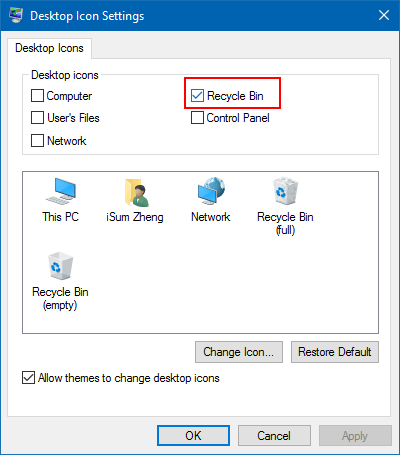
Step 2: Select Personalization, select the Themes tab, click on Desktop icon settings.
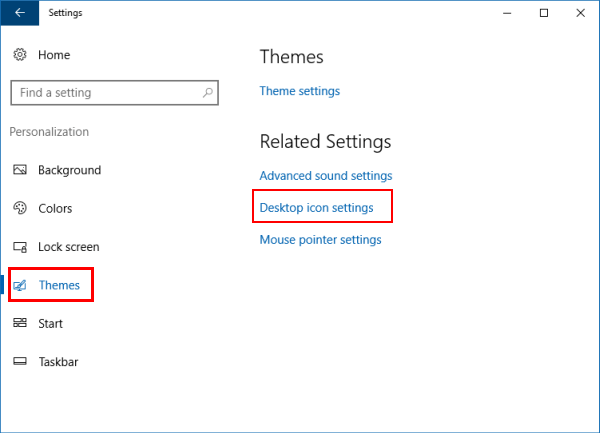
Step 3: Select the Recycle Bin checkbox or clear this box, then click on Apply.
Way 2: via Show Desktop icons feature
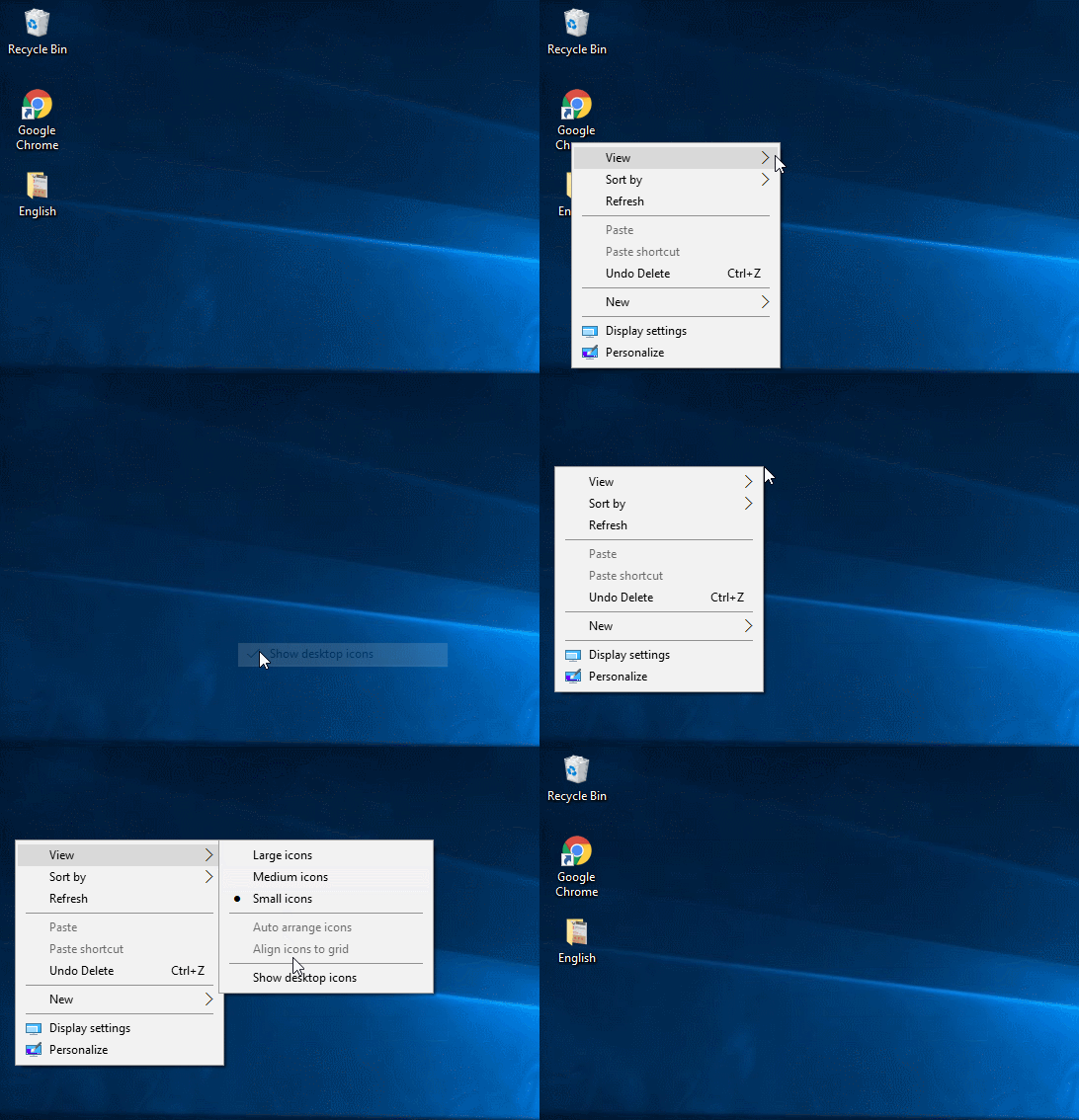
Step 1: Right-click on Desktop, or press Shift+F10 on keyboard.
Step 2: Click on View, and click on Show desktop icons to uncheck it.
To hide all Desktop icon, including Recycle Bin icon, click on Show desktop icons to check it.
If the Recycle Bin icon has been set to hide in Desktop icon settings, you cannot find it on Windows 10 Desktop. Use steps in way 1 to get it back on your Desktop.
Related Articles
-
![open recycle bin if it not on desktop]() How to Open
Recycle Bin If It's Not on Desktop in Windows 10
How to Open
Recycle Bin If It's Not on Desktop in Windows 10
-
![empty recycle bin]() 5 Ways to Empty
Recycle Bin in Windows 10
5 Ways to Empty
Recycle Bin in Windows 10
-
![bypass recycle bin when deleting]() 3 Ways to
Bypass Recycle Bin When Deleting Files
3 Ways to
Bypass Recycle Bin When Deleting Files
-
![can't empty Recycle Bin]() Can't Empty Recycle Bin in Windows
10? Here Are 5 Solutions
Can't Empty Recycle Bin in Windows
10? Here Are 5 Solutions
-
![add desktop toolbar to Windows 10 taskbar]() How to Add Desktop Toolbar to
Taskbar in Windows 10
How to Add Desktop Toolbar to
Taskbar in Windows 10
-
![show or hide recycle bin in navigation pane]() 3 Ways to Show or
Hide Recycle Bin in Navigation Pane
3 Ways to Show or
Hide Recycle Bin in Navigation Pane