
How to Remove Shortcut Arrow on Desktop Icon in Windows 10

A shortcut is a link to an item, such as a file, folder, or app on your PC. By default, Windows places a small arrow in the bottom left corner of the desktop shortcut icon to indicate that icon is a shortcut link. If you don't like shortcut arrow, you can hide or remove it completely.
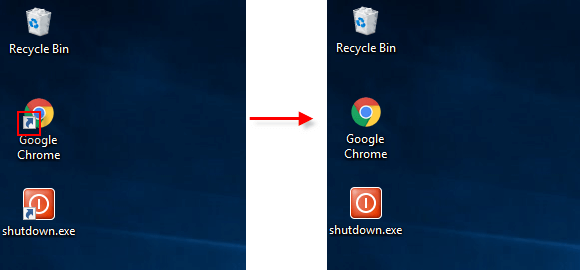
How to Remove Shortcut Arrow on Desktop Icon via Registry Editor
Use the steps below, you can easily remove shortcut arrow on desktop icon in Windows 10/8/7.
Step 1: Open Registry Editor.
Press Win+R keys to bring up the Run dialog, type in regedit and then hit Enter key.
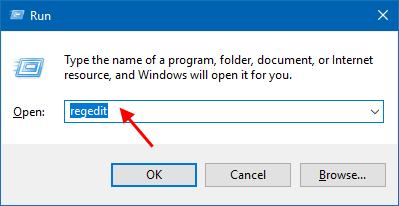
Step 2: In the registry editor, go to the following path:
HKEY_LOCAL_MACHINE\SOFTWARE\Microsoft\Windows\ CurrentVersion\Explorer
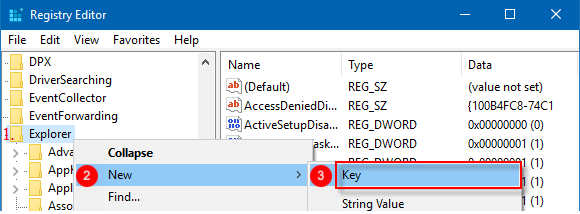
Step 3: Create a new subkey named Shell Icons.
Right-click on Explorer, select New > Key, then give it a name Shell Icons.
Step 4: Under the Shell Icons subkey, create a new string value and name it 29.
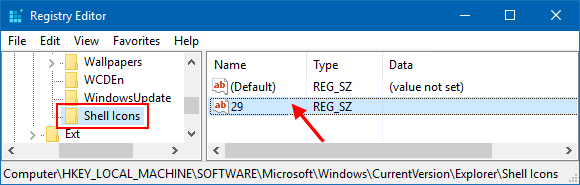
Step 5: Double-click on 29 string value. In the Value Data field, copy and paste the following:
"%windir%\System32\shell32.dll,-50"
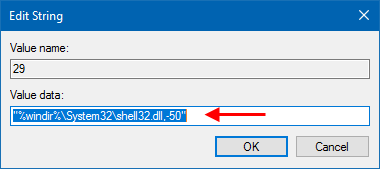
When done, restart Windows Explorer. Shortcut arrows should be gone from your desktop icons.
Tips: If there is a black Square on the low left side of the shortcut icon when viewing in Medium or Large icons, you may want to remove the black square, do as the follows:
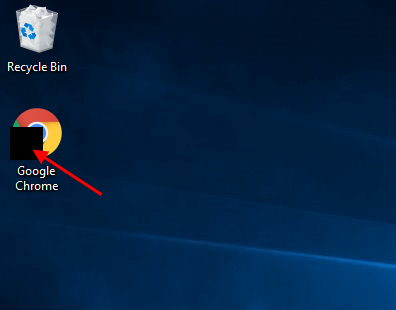
To do: Open the Registry Editor and navigate to:
KEY_LOCAL_MACHINE\SOFTWARE\Microsoft\Windows\CurrentVersion\Explorer\Shell Icons
Double-click the 29 entry in the right pane, leave Value Data empty and click OK.
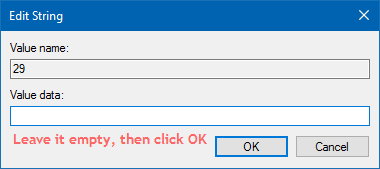
After you restart Windows Explorer, the black square should be gone from your desktop icons.


