Completely Uninstall Office Application and Clean out Residual Trash

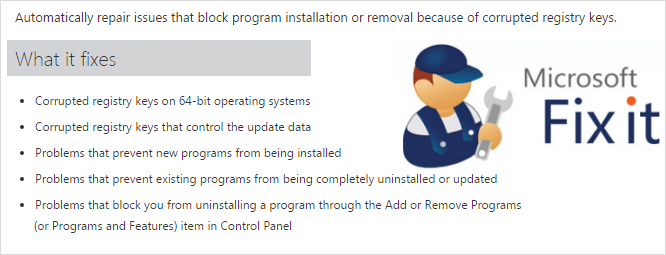
I have tried to install the Microsoft Office program, while a strange problem prevents the installation. The error prompted that Office couldn't be installed that time I have no choice but to restart the operating system. In the end, I resolve this error by using the Microsoft Fixit tool. This article will show you how to work around this installation errors.
- Part 1: To install the first preview version of Office program
- Part 2: Use Microsoft Fix it tool to repair installation blocked
Part 1: To install the First Preview Version of Office Program
You might also meet this installation errors when you upgrade to office 2013 or Office 2016, how to solve?
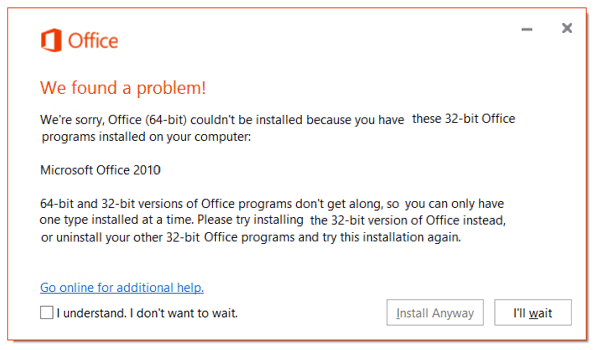
There's no doubt that you have to uninstall the older version of Office program if you have not to remove it.
Step 1: Go from Start > Control Panel > Programs > Program and Features.
Step 2: Search for the Office program that you want to install, then right-click and select Uninstall.
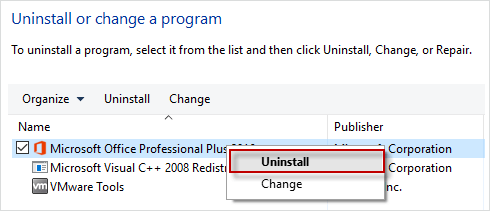
Step 3: Repeat if there are multiple Office products in the list that you want to uninstall.
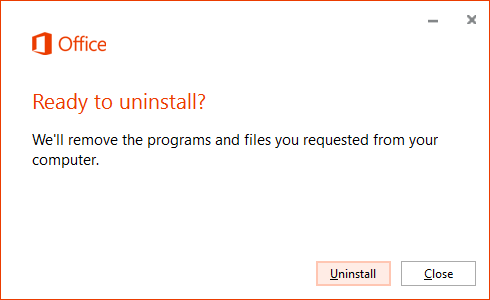
Part 2: Use Microsoft Fix it tool to repair installation blocked
In fact, this issue occurs when the older version of Office is not installed cleanly. When you start to install the new one, it often gets wrong. To repair this error, please do like this:
Step 1: Go to download Microsoft Fixit tool. Click on Run now.
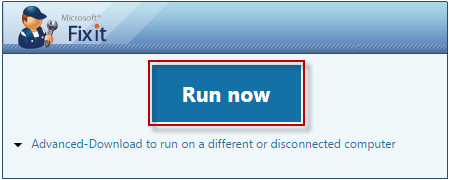
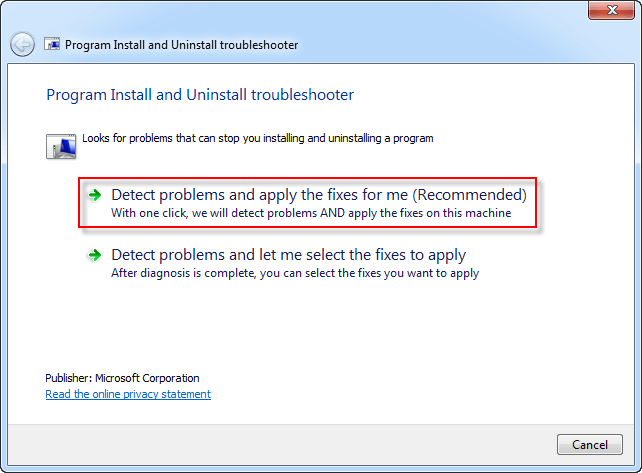
Step 2: Click to install this tool, and then accept this diagnostic tool. Then select Detect problems and apply the fixes for me option.
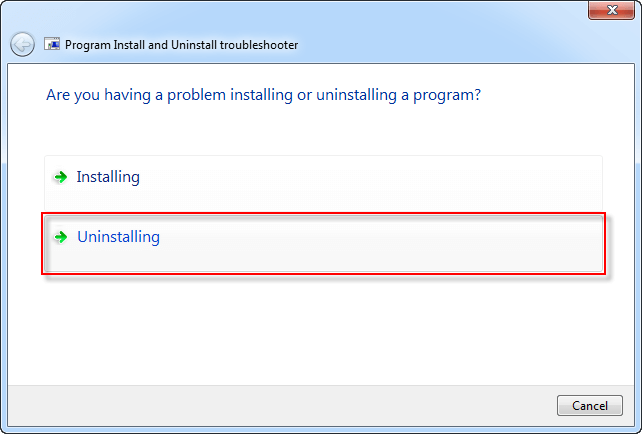
Step 3: Select Uninstall troubleshooter.
Step 4: Select the program that you want to uninstall from the list, then click Next.
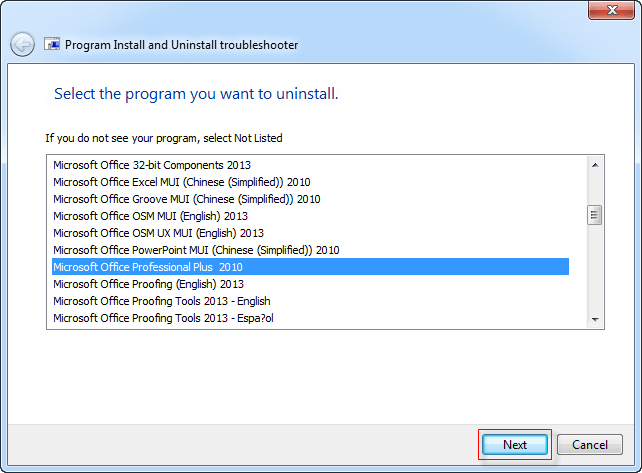
Step 5: It'll start repairing, after troubleshooting completely, click Next.
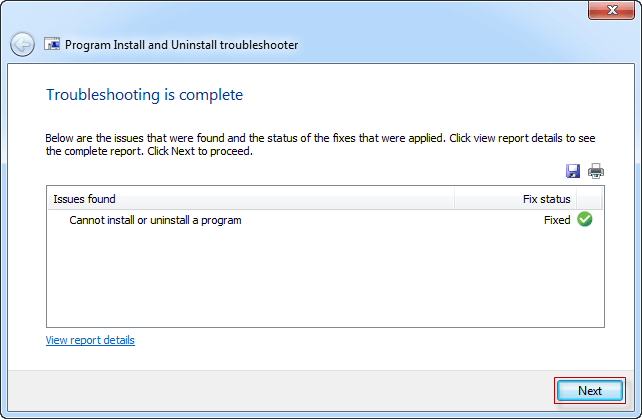
Tips: You can use the Microsoft Fixit Tool to diagnose problematic installing and uninstalling issues. The issues like Corrupted registry keys or problems that block you from installing or removing a program.