When a long document opens at page 1, you usually do not need to scroll back manually. The quickest way to return to where you left off in Word is to press Shift + F5 as soon as the file opens. If you want a more reliable marker for a specific place, create a bookmark before closing the document.
| Situation | Best method | Why it helps |
|---|---|---|
| You edited the document recently and just reopened it. | Press Shift + F5 immediately. | Microsoft lists this shortcut for moving to the last revision made before the document was closed. |
| Word shows a small bookmark or "pick up where you left off" prompt. | Click the prompt. | It can return you to a remembered reading position when the feature is available for the file and Word version. |
| You need Word to remember an exact page, paragraph, or review point. | Create a manual bookmark. | A bookmark stays in the document and can be opened again from the Bookmark dialog box. |
Shift + F5 is the fastest option when you want to continue editing a document. In Microsoft's Word keyboard shortcuts, Shift + F5 is listed for moving to the previous revision location and, immediately after opening a document, to the last revision made before the file was closed.
Step 1: Open the Word document you were editing.
Step 2: Before clicking around the file, press Shift + F5.
Step 3: If needed, press Shift + F5 again to cycle through recent edit locations in the document.

Note: Shift + F5 works best for edit or revision locations. If you only read the document without changing it, Word may not have a recent edit point to return to.
Some Word versions show a small bookmark prompt near the right side of the document window after you reopen a file. When you see it, click the prompt to pick up near the place Word remembered.
Step 1: Open the document from your computer, OneDrive, or another synced location.
Step 2: Look near the right side of the document for a bookmark icon or a message that lets you pick up where you left off.
Step 3: Click the prompt to jump to the remembered position.
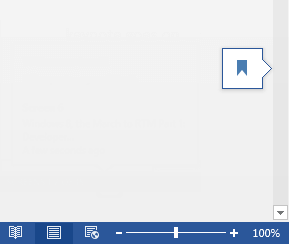
This prompt is convenient, but do not rely on it as your only marker for important work. It can vary by Word version, account sign-in state, document storage location, and whether the file was opened on another device.
A manual bookmark is the most dependable method when you need Word to remember a specific section. Microsoft's bookmark instructions for Word describe the same basic flow: select a location, add a bookmark name, and use the Bookmark dialog box later to return to it.
Step 1: Click the exact place in the document where you want to return later.
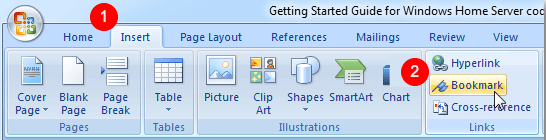
Step 2: Go to Insert > Bookmark.
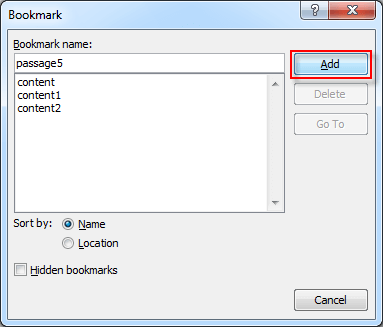
Step 3: Type a bookmark name. Start with a letter, avoid spaces, and use a clear name such as ResumeHere or ReviewPoint1.
Step 4: Click Add, and then save the document.
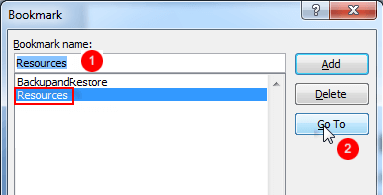
Step 5: The next time you open the document, go to Insert > Bookmark, select the bookmark, and click Go To.
| Problem | What to try |
|---|---|
| Shift + F5 does nothing. | Click inside the document body first, then press Shift + F5 again. If your keyboard uses media keys by default, try Fn + Shift + F5. |
| The shortcut jumps to the wrong place. | Word is returning to a recent edit point, not necessarily your last reading position. Use a bookmark for a fixed location. |
| The resume reading prompt does not appear. | Use Shift + F5 or create a bookmark. Also make sure the document is saved and, for cross-device use, that it is stored in a synced location while signed in. |
| The bookmark is not listed later. | Confirm you clicked Add and saved the file after creating the bookmark. Avoid deleting the bookmarked text if the marker should remain available. |
Open the document and press Shift + F5 immediately. This is the fastest method when Word has a recent edit location saved for that document.
Shift + F5 tracks recent edit or revision locations. It may not help if you only read the file, opened it in a limited editor, changed it on another device without syncing, or clicked elsewhere before using the shortcut.
Word does not need a special setting for this. Add a bookmark at that paragraph, save the document, and use Insert > Bookmark > Go To whenever you reopen the file.
Bookmarks are the safest option for older Word versions because the feature has existed for many years and is stored in the document. Shift + F5 is best for modern Word desktop versions where the shortcut is supported.