There are a few different ways to get rid of the empty page. This guide describes 3 easy ways to delete blank pages in a Word document. No matter that blank page is due to some extra paragraphs or stray manual page breaks, these practical ways may quickly remove it.
If your unwanted blank page is at the end of your document, go to the end of the document by pressing Ctrl+End and pressing Backspace.
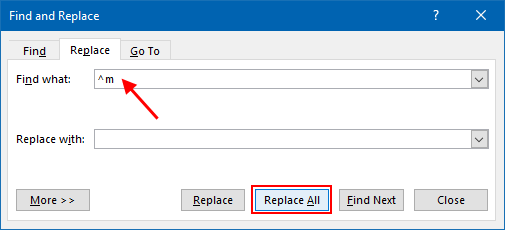
To remove empty pages in the middle of a document using ^m code. Here's how:
1. In Word, press Ctrl+H to open Find and Replace dialog window.
2. In the Find what filed, type in ^m. Then click Replace All button.
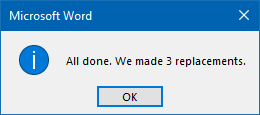
When done, empty pages were removed.
In MS Word, Paragraph marks can help you find blank pages.
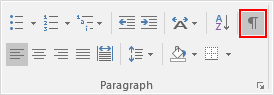
Step 1: Show Paragraph Mark.
Go to Home tab, in Paragraph group, click on Show/Hide Editing Marks.
Step 2: Delete blank pages.
Put the cursor at the start of the page break line and press Delete.

Blank page and the page breaks should be invisible.
If the break separates a cover or table of contents from the main document, do not delete a section break that controls formatting. Instead, learn how to start page numbering from a specific page in Word.