Check for System Memory Problems with Diagnostic Tool

Memory problems can cause your computer to lose information or stop working. If your computer is unstable, there may be a problem with its RAM. This article describes how to use the Windows Memory Diagnostic Tool to check for computer's memory problems in Windows 10.
How to Use the Windows Memory Diagnostic Tool
Windows Memory Diagnostic is a very useful tool that can help you discover problems with your computer's RAM. Here is how to run the Diagnostics tool to check your system for memory problems.
Step 1: Run Windows Memory Diagnostic tool.
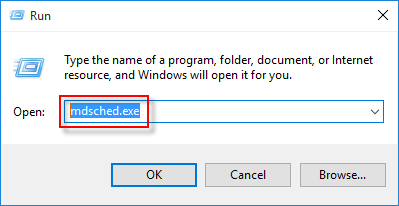
Press Win+R keys to open Run dialog, then type mdsched.exe into the Run dialog and press Enter.
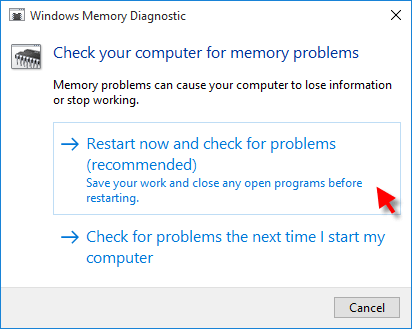
Step 2: To agree run this tool, click Restart now and check for problems (recommended).
Step 3: Windows Memory Diagnostics runs automatically after the computer restarts and performs a standard memory test automatically.
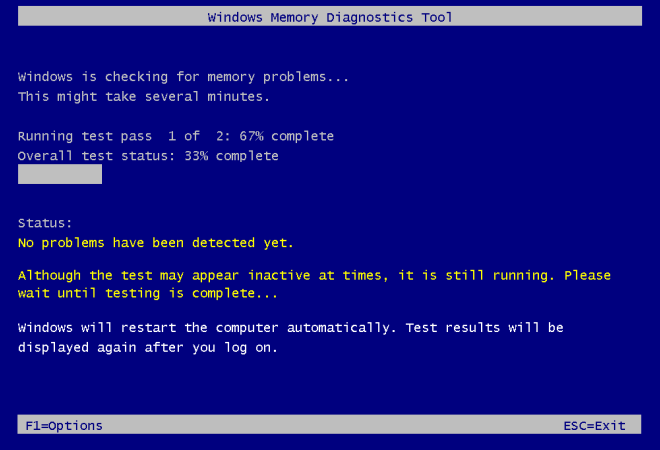
Tips: If you want to perform fewer or more tests, press F1, use the Up and Down arrow keys to set the Test Mix as Basic, Standard, or Extended, and then press F10 to apply the desired settings and resume testing.
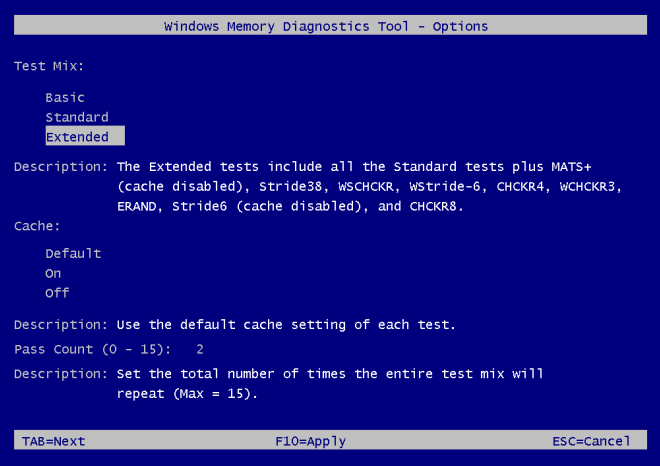
- Test mix. Choose what type of test you want to run: Basic, Standard, or Extended. The choices are described in the tool.
- Cache. Choose the cache setting you want for each test: Default, On, or Off.
- Pass count. Type the number of times you want to repeat the test.
Step 4: Wait until Windows check your disk for errors. After the checking action is done, you can find detailed results of ram testing in Event Viewer. Learn more see how to find the Event Viewer Logs for Memory Diagnostic.
Related Articles
-
![read event viewer logs in Windows 10]() Read the
Event Viewer Logs for Check Disk in Windows 10
Read the
Event Viewer Logs for Check Disk in Windows 10
-
![repair system files with tool]() Use the System
File Checker tool to Repair System Files
Use the System
File Checker tool to Repair System Files
-
![check and repair bad sectors in usb drive]() Check and Repair
Bad Sectors in USB Flash Drive
Check and Repair
Bad Sectors in USB Flash Drive
-
![check and fix drive errors in Windows 10]() Check and Fix Disk Errors with Check
Disk Tool
Check and Fix Disk Errors with Check
Disk Tool
-
![difference between computer memory and storage]() Difference
Between Computer Memory and Storage
Difference
Between Computer Memory and Storage
-
![check if hard drive is ssd or hdd]() How to Check If Your Hard Drive Is SSD or
HDD in Windows 10
How to Check If Your Hard Drive Is SSD or
HDD in Windows 10