How to Find a Windows 8.1 Product Key: 4 Practical Ways

If you need to reinstall or activate Windows 8.1, the first thing to know is where the original product key came from. A Windows 8.1 product key finder can help if the key is still stored on the current PC, but it is not the only place to check. This guide explains the safest places to look first, when the key can be recovered, and how to use iSumsoft Product Key Finder if you need a software method.
Before you start:
- Windows 8.1 reached end of support on January 10, 2023, so use it carefully and avoid exposing unsupported systems to unnecessary security risk.
- A product key finder can only recover keys that are still available from the current Windows installation, firmware, or installed software records. It cannot create a new valid license.
- Can a Windows 8.1 Product Key Be Recovered?
- Way 1: Check the Original Purchase Source
- Way 2: Check for an OEM or Firmware Key
- Way 3: Try Command Prompt or PowerShell
- Way 4: Use iSumsoft Product Key Finder
- Summary
| Method | Best for | Limit |
|---|---|---|
| Purchase email or retail package | Retail Windows 8.1 licenses | You need access to the original order or box |
| OEM firmware command | PCs that came with Windows 8.1 preinstalled | May show blank if no key is stored in firmware |
| Built-in Windows checks | Still-bootable Windows installations | Not all installations expose the full key |
| iSumsoft Product Key Finder | Recovering keys from the current PC | The trial shows only the first 5 characters of long keys |
Can a Windows 8.1 Product Key Be Recovered?
In many cases, yes. Microsoft notes that Windows can be activated with either a product key or a digital license, depending on how the copy of Windows was obtained. For Windows 8.1, the product key may be printed on the retail package, included in a purchase confirmation email, stored in the BIOS or UEFI firmware on an OEM device, or stored in the installed system.
If Windows 8.1 was preinstalled by the manufacturer, the key is often embedded in the device firmware. If you bought a retail copy, the key is usually in the packaging or purchase email. If the system has been reinstalled many times or upgraded to a later Windows version, a key finder may not always recover the original retail key.
For Microsoft's activation guidance, see Product activation for Windows and Windows 8.1 end of support.
Way 1: Check the Original Purchase Source
Start with the source of the license. This is the most reliable method because it gives you the official key that came with your copy of Windows 8.1.
Step 1 If you bought Windows 8.1 online, search your email for terms such as Windows 8.1 product key, Microsoft, order confirmation, or the store name where you purchased it.
Step 2 If you bought a physical retail copy, check the box, card, label, or Certificate of Authenticity that came with the package.
Step 3 If the PC came with Windows 8.1 preinstalled, check the documents from the manufacturer. Many Windows 8.1 OEM devices store the key in firmware instead of printing it on a sticker.
Way 2: Check for an OEM or Firmware Key
On many Windows 8.1 laptops and branded desktops, the product key is embedded in BIOS or UEFI firmware. You can try to read it with Command Prompt if Windows is still bootable.
Step 1 Press Win + X and select Command Prompt (Admin) or Windows PowerShell (Admin).
Step 2 Type the following command and press Enter.
wmic path softwarelicensingservice get OA3xOriginalProductKeyStep 3 If a 25-character key appears, write it down and keep it in a safe place. If the result is blank, your device may not have an embedded key, or Windows may not be able to read it from the current installation.
Way 3: Try Command Prompt or PowerShell
If the firmware command does not show a key, you can still check the installed system record. This method is not guaranteed, but it may help on some Windows 8.1 installations.
Step 1 Open Command Prompt or Windows PowerShell as administrator.
Step 2 Run the firmware command above first. If it does not work, try the broader Windows product-key methods in How to Find Lost Windows Product Key without Software.
Step 3 If the built-in methods fail, move to a product key finder tool while the original Windows 8.1 installation is still accessible.
Way 4: Use iSumsoft Product Key Finder
If you cannot find the key from your purchase records or built-in Windows methods, iSumsoft Product Key Finder can scan the current computer for Windows and software product keys. This is useful when Windows 8.1 is still installed and running, but the key is no longer available in your email, packaging, or device documents.
Step 1 Download and install iSumsoft Product Key Finder on the Windows 8.1 computer.
Step 2 Launch the program, and then click the Start Recovery button.
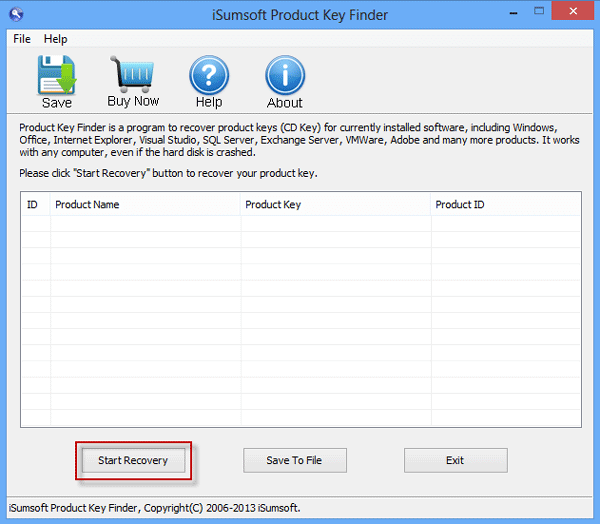
Step 3 The program scans the computer and displays available Windows and software product keys in the result list.
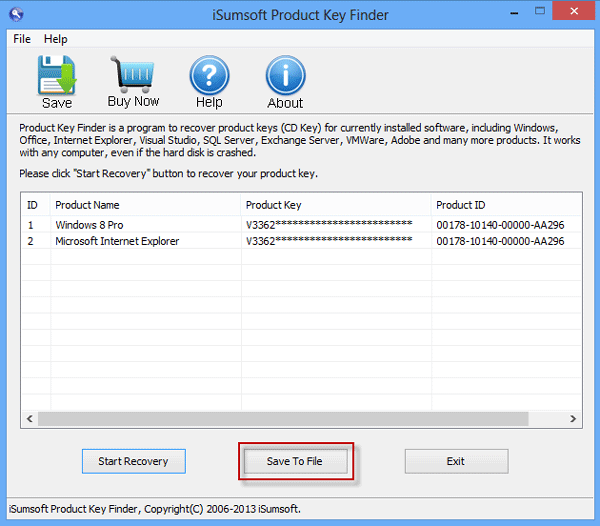
Step 4 After the Windows 8.1 product key is found, click Save to File or Save on the toolbar. Choose a folder and save the recovered key as a text file.
You can then use the recovered key for Windows 8.1 activation or reinstalling, as long as the key matches the license type and edition of Windows you are using.
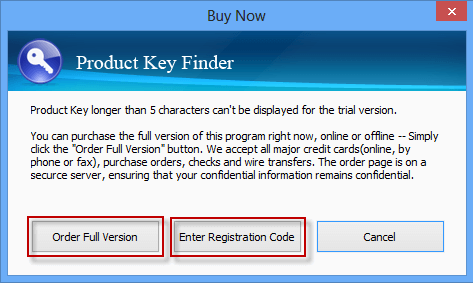
Trial note: A Windows 8.1 product key has 25 characters. The free trial version of iSumsoft Product Key Finder displays only the first 5 characters of longer product keys. To view and save the full key, register the full version.
Summary
The best way to find a Windows 8.1 product key depends on how you got Windows. Check the purchase email or retail package first. For OEM devices, try reading the firmware key. If Windows 8.1 is still installed and the built-in methods do not show the key, iSumsoft Product Key Finder can help recover keys available from the current computer.
After you recover the key, store it somewhere secure, such as an encrypted password manager or an offline backup location. Do not post it online or share it with others.
Related Articles
-
![find windows10 product key]() How to Find
Product Key for Windows 10 after Upgrading/Installing
How to Find
Product Key for Windows 10 after Upgrading/Installing
-
![find adobe cs6 serial number]() How to Find
Adobe CS6 Serial Number in Registry
How to Find
Adobe CS6 Serial Number in Registry
-
![find windows product key without software]() How to Find
Lost Windows Product Key without Software
How to Find
Lost Windows Product Key without Software
-
![find serial number for adobe]() How
to Find Serial Number for Adobe Acrobat on Your Computer
How
to Find Serial Number for Adobe Acrobat on Your Computer
-
![Find Product Key for SQL Server 2008 R2]() How to Find
Product Key for SQL Server 2008 R2
How to Find
Product Key for SQL Server 2008 R2
-
![find Office 2013 product key]() How to Find Product Key for
Office 2013
How to Find Product Key for
Office 2013