How to Use Win + R as an App Launcher on Windows

Want a faster way to open your favorite Windows apps without installing a third-party launcher? You can turn the built-in Win + R Run box into a simple app launcher by creating a custom Shortcuts folder and adding it to the Windows Path.
- Why Win + R can work like an app launcher
- Create a Shortcuts folder and add it to Path
- Add app shortcuts, folders, websites, and scripts
- Conclusion
Many Windows users install launchers to open apps quickly. However, if your goal is simply to start a few common apps, project folders, websites, or command-line tools, Windows already has a lightweight option: the Run dialog. After a small setup, you can press Win + R, type a keyword such as zed, chrome, blog, or codex, and launch the target immediately.
Why Win + R can work like an app launcher
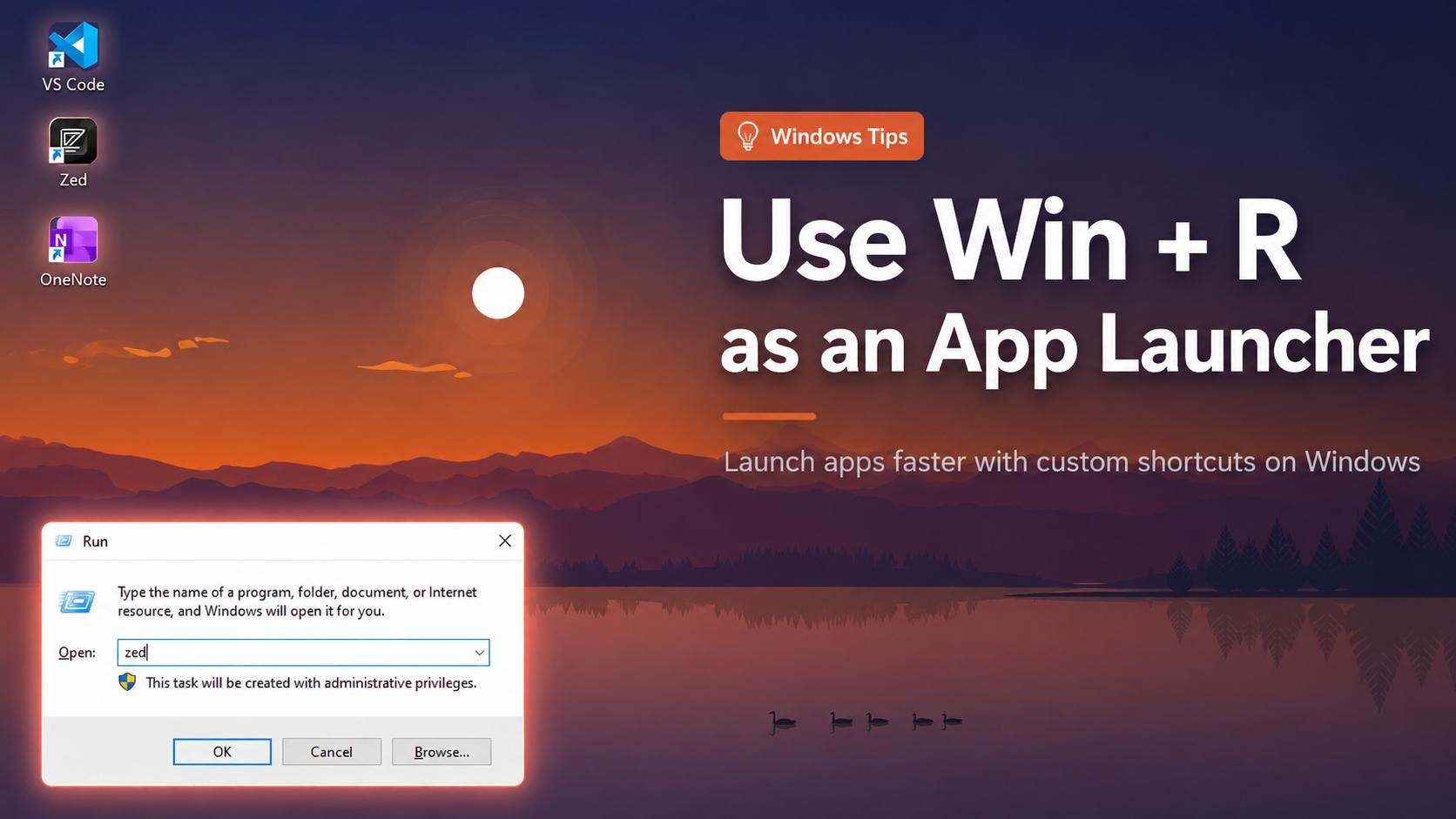
The Run dialog can open commands, executable files, shortcuts, and scripts that Windows can locate. The key idea is to make a dedicated folder for your custom launch shortcuts and add that folder to the Path environment variable. Once the folder is in Path, Windows can find items inside it when you type their names in the Run box.
For example, if you place a shortcut named zed.lnk in your custom folder, you can press Win + R, type zed, and press Enter to open Zed. The same idea can be used for Chrome, Windows Terminal, a project folder, or a batch script that starts a tool.
Create a Shortcuts folder and add it to Path
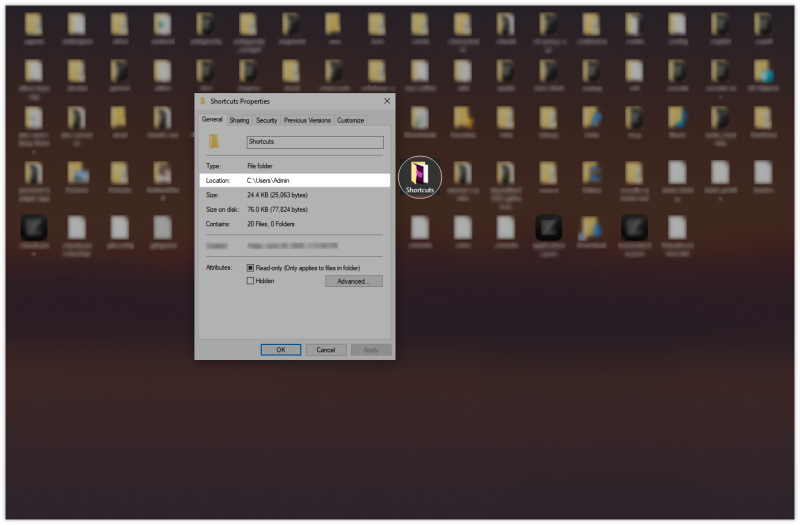
First, create a folder where you will store all your launcher shortcuts. A simple location is:
C:\Users\YourName\ShortcutsIf your Windows account name is Admin, the folder path may look like this:
C:\Users\Admin\ShortcutsAfter creating the folder, add it to your user Path:
1. Open System Properties
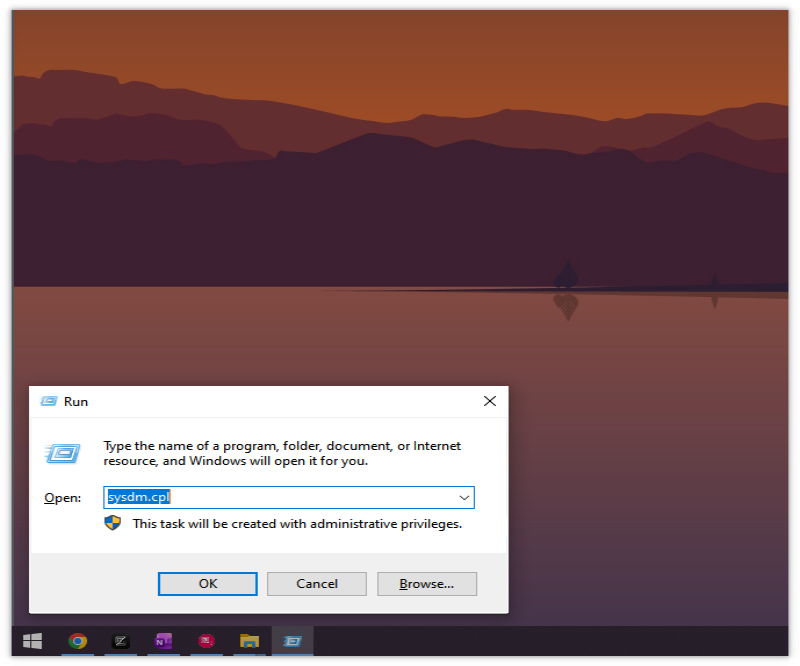
Press Win + R, type the following command, and press Enter:
sysdm.cpl2. Open Environment Variables
In the System Properties window, go to Advanced and click Environment Variables.
3. Edit the user Path variable
Under User variables, select Path, click Edit, then click New. Paste your Shortcuts folder path, such as:
C:\Users\Admin\Shortcuts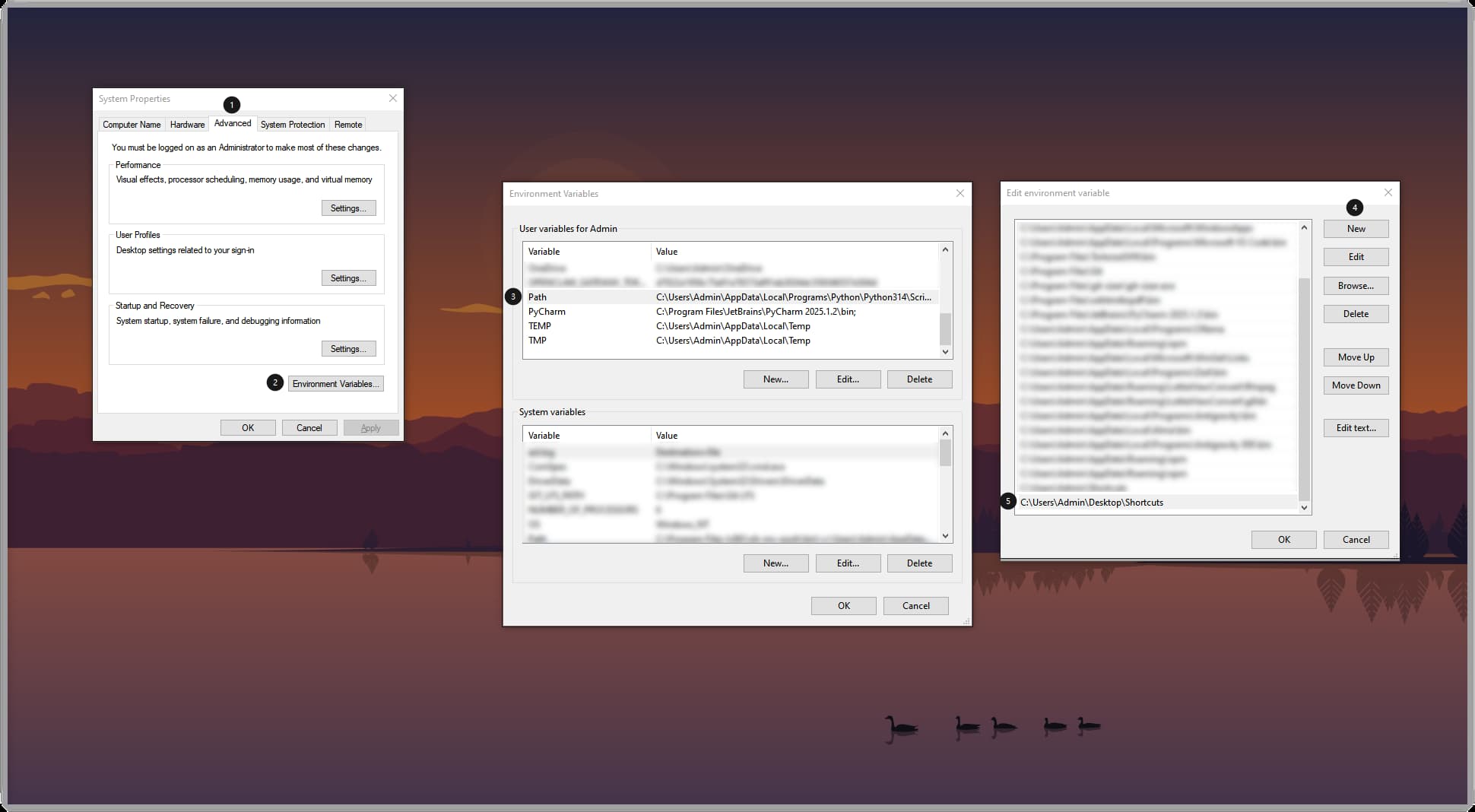
Click OK to save the changes. Do not create a new variable named Shortcuts unless you also add that variable to Path. For most users, adding the full folder path directly to the existing Path variable is the clearest method.
Add app shortcuts, folders, websites, and scripts
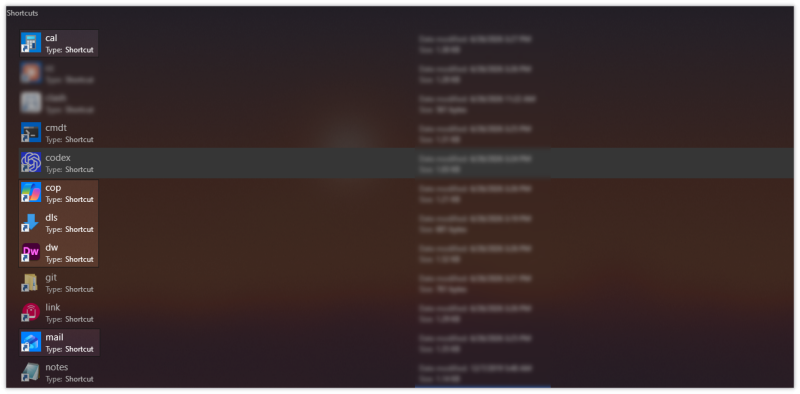
Now copy shortcuts into your custom folder and rename them to short keywords. Keep the names simple and easy to remember. Avoid spaces if possible.
| Target | Shortcut or script name | Run command |
|---|---|---|
| Zed editor | zed.lnk | Win + R → zed |
| Google Chrome | chrome.lnk | Win + R → chrome |
| Windows Terminal | term.lnk | Win + R → term |
| Project folder | blog.lnk | Win + R → blog |
| Codex CLI script | codex.bat | Win + R → codex |
Create a shortcut for an app
You can usually find app shortcuts from the desktop, the Start menu, or the Apps folder. To open the Apps folder, press Win + R and run:
shell:AppsFolderThen create or copy the shortcut, move it into your Shortcuts folder, and rename it to a keyword such as obs, ps, term, or code.
Create a shortcut for a folder
Right-click a folder, choose Create shortcut, move the shortcut into your Shortcuts folder, and rename it. For example, a project folder shortcut named blog.lnk lets you open it by running blog.
Create a shortcut for a website
For a website, the most reliable method is to create a small batch file. For example, create a file named site.bat inside your Shortcuts folder and add:
@echo off
start https://www.example.com
After that, press Win + R, type site, and press Enter.
Create a script launcher for a command-line tool
If you use command-line tools, you can create batch files that open Windows Terminal or PowerShell and run the command. For example, to start Codex CLI in Windows Terminal, create codex.bat:
@echo off
wt powershell -NoExit -Command "codex"
If wt is not available, use PowerShell directly:
@echo off
start powershell -NoExit -Command "codex"
Troubleshooting tips
If a keyword does not work immediately, close and reopen the Run dialog. If it still does not work, restart File Explorer or restart Windows so the updated Path is loaded. Also make sure you added your folder to the existing Path variable, not to a separate variable that Windows does not search by default.
Conclusion
Win + R can be more than a simple Run box. With a custom Shortcuts folder added to the Windows Path, it becomes a clean, keyboard-driven launcher for apps, folders, websites, and scripts. You do not need a separate launcher if you only want a fast way to open your most-used tools with short keywords.
Related Articles
-
![Perfectly Solved: Win + L Shortcut not Working]() Perfectly Solved: Win + L Shortcut Not Working
Perfectly Solved: Win + L Shortcut Not Working
-
![Windows keyboard shortcuts]() Save Time with New Keyboard Shortcuts in Windows 10
Save Time with New Keyboard Shortcuts in Windows 10
-
![Jump to any registry key via the address bar]() Quick Access to Any Registry Key using Address Bar
Quick Access to Any Registry Key using Address Bar
-
![What is Dev Home and how to use it]() What Is Dev Home and How to Use It in Windows 11?
What Is Dev Home and How to Use It in Windows 11?
-
![Schedule PC to turn on automatically in Windows 10]() How to Schedule PC to Turn on Automatically in Windows 10
How to Schedule PC to Turn on Automatically in Windows 10
-
![Windows 11 Phone Link deeper integration]() Windows 11 Could Get Deeper Phone Link Integration and a New Messages App
Windows 11 Could Get Deeper Phone Link Integration and a New Messages App