Remove Command Window Here (Administrator) from Context Menu in Windows 10

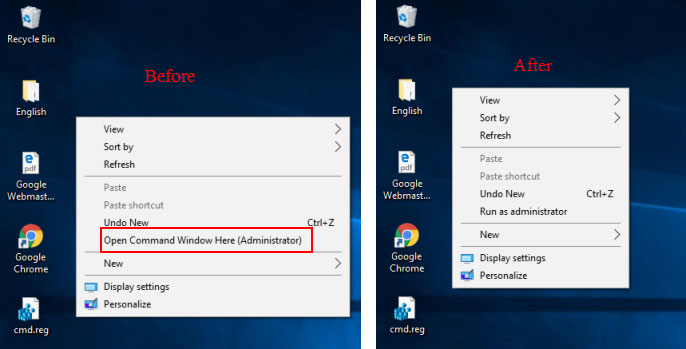
If you're looking for a way to remove items from right-click menu for files, folders, and the desktop, you can do it yourself with a little bit of registry hacking. This article will show you how to remove items from the right-click context menu on Desktop, file, and folder. We'll take remove "Open Command Prompt as Administrator" from the context menu as an example.
- Option 1: Remove items from the context menu on the folder
- Option 2: Remove items from the context menu on Desktop
Remove Items from File Right-Click Context Menu on File/Folder
Important Note: Make sure to back up your registry in case something gets messed up.
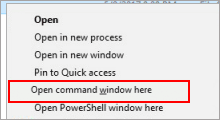
To remove the Open Command Window Here (Administrator) option from the context menu for file and folder. Here's how:
Step 1: Open the Registry Editor.
Press Win+R keys to bring up the Run dialog, input regedit and then hit Enter key.
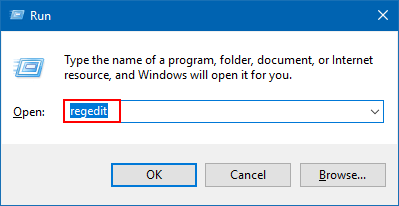
Step 2: In the Registry Editor, go to the following registry keys:
HKEY_CLASSES_ROOT\Directory\shell\runas
HKEY_CLASSES_ROOT\Directory\shell\runas\command
Step 3: Remove the entire key for that particular program by right-clicking and choosing Delete.
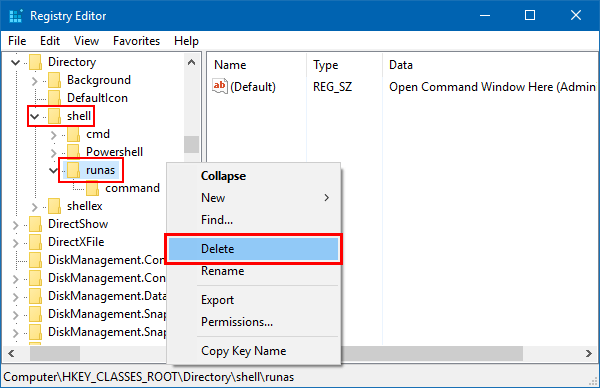
Remove Command Prompt (Administrator) from Context Menu for Desktop
You can follow the same steps as shown above for Desktop, but this time it uses a different registry path. To remove Command Prompt(Admin) for right-clicking on Desktop, go to the following registry keys:
HKEY_CLASSES_ROOT\directory\Background\Shell\runas
HKEY_CLASSES_ROOT\directory\Background\Shell\runas\command
Remove the entire key for that particular program by right-clicking and choosing Delete.
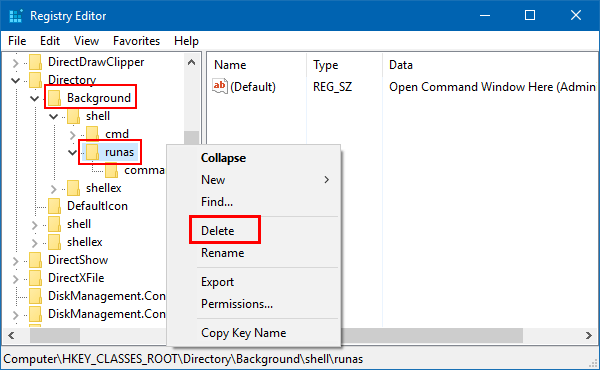
Test it by right-clicking on the file. Make sure "Open Command Prompt (Administrator)" is removed.