How to Fix Screen Flickering on Windows 10

Screen flickering/flashing in Windows 10 is usually caused by outdated PC display drivers, incompatible app or loose or damaged wires. To determine whether a display driver, app or wire is causing the problem, check to see if the screen is damaged and check to see if Task Manager flickers. Then, based on that information, you'll need to update, or uninstall your display driver or update or uninstall the app. In this guide, we are going to find out all the different ways you can fix this problem.
- Way 1: Change the display refresh rate
- Way 2: Uninstall display driver
- Way 3: Remove incompatible apps
- Way 4: Disable Windows error reporting services
- Way 5: Create a new Windows user profile
Check to see if the screen is damaged
If the computer screen is broken or has cracks, it may flicker or flash. The best way to figure this out is to connect your computer to an external monitor. If everything looks clear on the external monitor, then it is an issue with your laptop's screen, and not the motherboard or other hardware. If you are encountering the same issues externally, then you may need to take it to a repair shop to get your computer back on track.
Check to see if Task Manager flickers
We will use the Task Manager app to establish what might be causing the flickering screen. Press Ctrl + Alt + Delete (or Ctrl + Shift + Esc) to open Task Manager.
- If Task Manager flickers along with everything else on the screen, a display driver is probably causing the problem. In this scenario, see the Way 2.
- If Task Manager doesn't flicker while the rest of the screen is flickering, an incompatible app is probably causing the problem. In this scenario, see the Way 3.
5 Ways to Fix Screen Flickering on Windows 10
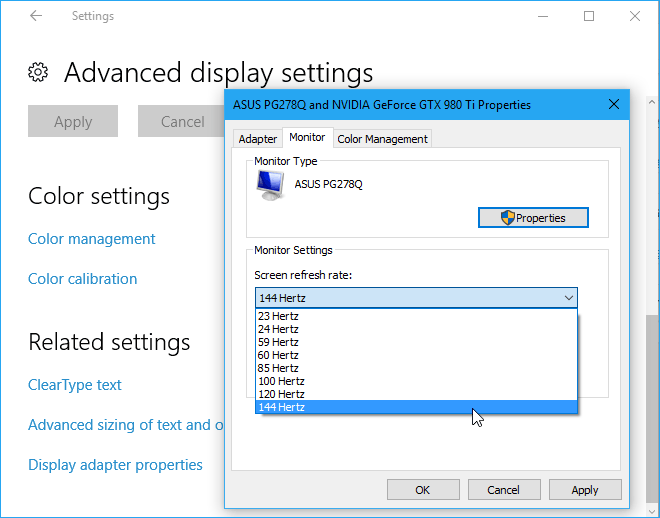
Way 1: Change your display refresh rate
Check to see if your have the correct refresh rate for your computer screen. If you're finding that your screen flicker only occurs when you've linked your PC to an external monitor, the problem may be the refresh rates. A laggy refresh rate can look like flicker, try changing the refresh rate to fix this problem.
Step 1: Select the Start button, then select Settings > System > Display > Advanced display settings.
Step 2: Under Refresh rate, select the rate you want. If the screen flickering stops, this may have been the solution you needed. But, if it doesn't stop, something else is causing the problem.
Way 2: Uninstall or update your display driver
If Windows Update recently made updates to your device, try updating or uninstalling your display driver to fix the flickering or scrambling problem.
1. In the search box on the taskbar, type device manager, and then select it from the list of results.
2. Select the arrow to expand Display adapters.
3. Under Display Adapters, right-click the adapter, then select Uninstall device.
4. You will get a warning that reminds you that you are about to remove the graphics card software. Click this box that says, Delete the driver software for this device. And then click Uninstall.
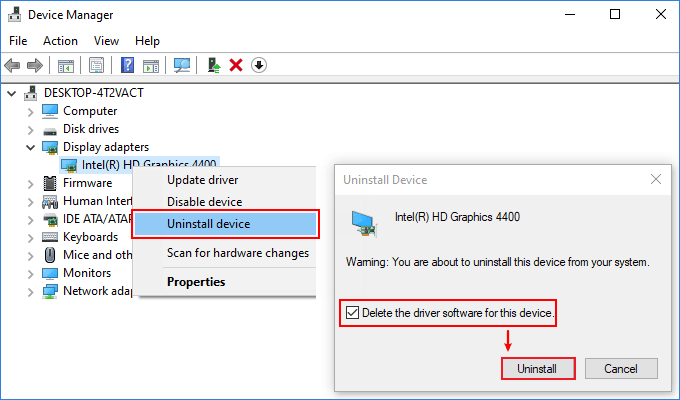
5. Restart your device and Windows will attempt to reinstall the driver.
Wondering if your PC is due for an update? Check the status of your Windows 10 operating system in five easy steps.
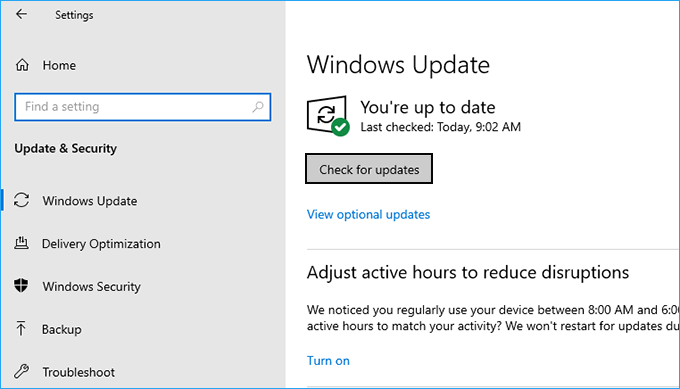
Step 1. Press the Windows + I to access your PC settings.
Step 2: Select Update & Security tab.
Step 3. Under the Windows Update tab, select Check for updates to download and install the most up-to-date display driver.
Way 3: Remove incompatible apps
Some apps may not be compatible with Windows 10 and can cause a flickering or scrambled screen. Some of them are Norton Antivirus, iCloud and IDT Audio. Try uninstalling the app, here's how:
1. Select the Start button, then select Settings > Apps > Apps & features. It'll take a moment for your apps to appear.
2. If you know the application that is causing the problem, you can remove it from this list. Select the app, and then select Uninstall > Uninstall. If you're asked to confirm your choice, select Yes.
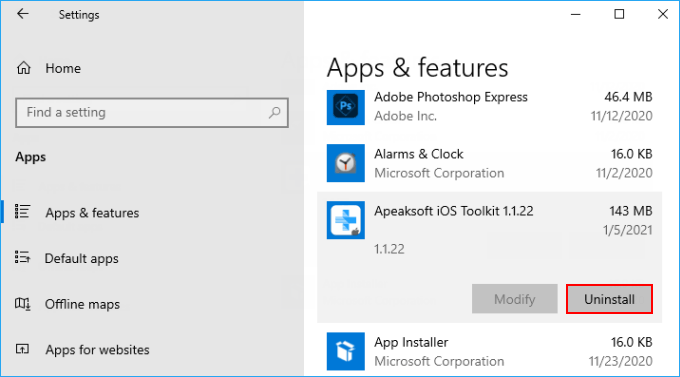
3. After you uninstall the first app, restart your device and check if the screen flickering or scrambled issue is resolved or not. If it's not, uninstall each app one by one until the issue is resolved.
Alternatively, you can use Control Panel to uninstall a shady desktop application. Here's how to use the Control Panel to uninstall an application.
Way 4: Disable Windows error reporting services
1. Press the Win+R to open the Run box. Then type services.msc and press Enter.
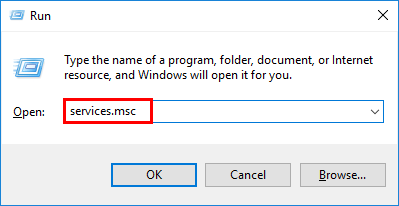
3. Scroll down to Windows Error Reporting Service, right-click on it and then select Stop.
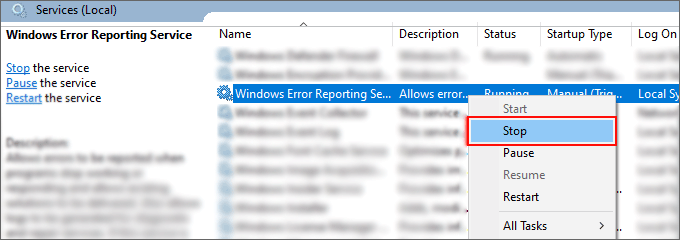
3. Restart the computer and check if the screen flickers and the problem is resolved.
Way 5: Create a new Windows user profile
A new Windows user profile may help troubleshoot some of the annoying Windows 10 issues.
To do so, press Windows Key + I and go to Accounts > Family & other people > Add someone else to this PC and follow the wizard.
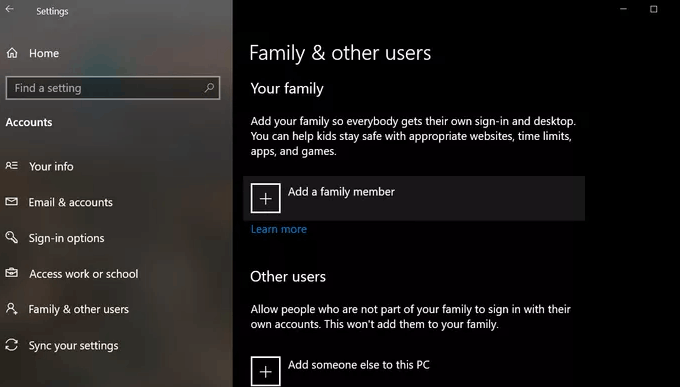
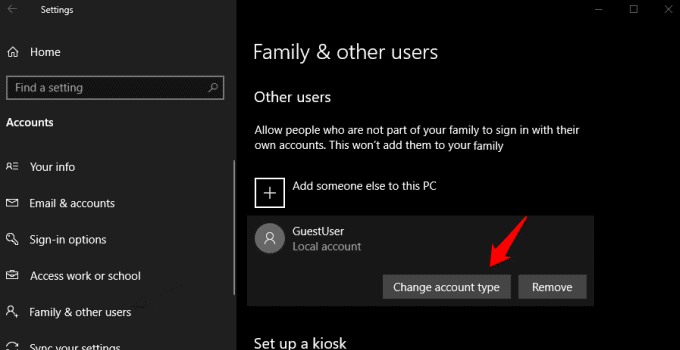
When done, come back to the above screen and click on the newly created user account to give it Admin rights from the drop-down menu in the next screen.
Related Articles
-
![fix startup problem]() 3 Ways to Run a
Startup Repair to Fix Windows Startup Problem
3 Ways to Run a
Startup Repair to Fix Windows Startup Problem
-
![System restore]() Do
a System Restore on Windows 10 if Computer Fails to Boot
Do
a System Restore on Windows 10 if Computer Fails to Boot
-
![Fix Windows 10 stuck on restarting screen]() 6
Ways to Fix Windows 10 Gets Stuck on Restarting Screen Issue
6
Ways to Fix Windows 10 Gets Stuck on Restarting Screen Issue
-
![Fix Windows 10 slow boot after update]() How to Fix Windows 10
Slow Boot after Update
How to Fix Windows 10
Slow Boot after Update
-
![Plugged In Not Charging]() Fix: Plugged In Not
Charging on HP, Lenovo, Dell, Asus, Acer
Fix: Plugged In Not
Charging on HP, Lenovo, Dell, Asus, Acer
-
![change font size Windows 10]() How
to Change Font Size in Windows 10
How
to Change Font Size in Windows 10