How to Find Physical Address in Windows 10

Physical Address, also called MAC address(media access control address) is a memory address that is represented in the form of a binary number on the address bus circuitry in order to enable the data bus to access a particular storage cell of main memory.
This article will show you how to find the physical address on your Windows 10 PC.
- Option 1: Find MAC Address of Ethernet Adapter in Settings
- Option 2: Find Mac Address in Command Prompt
- Option 3: Find MAC Address in PowerShell
- Option 4: Find MAC Address in Network Connections
Option 1: To Find Physical Address in Settings
There is a bit different to find your PC's MAC address in Settings.
To find the physical address of Wi-Fi adapter
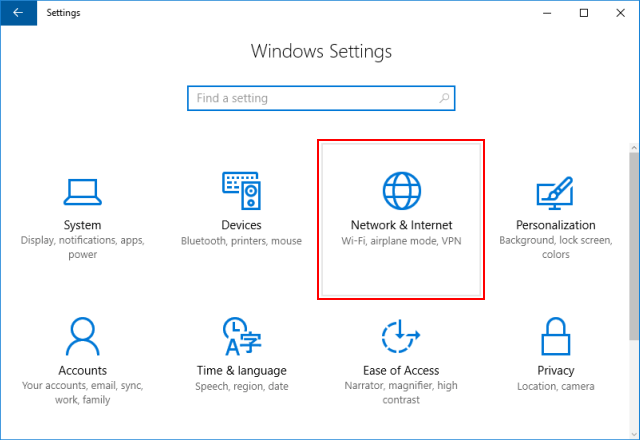
Step 1: Click on the Start menu, click Settings, and click on the Network & Internet icon.
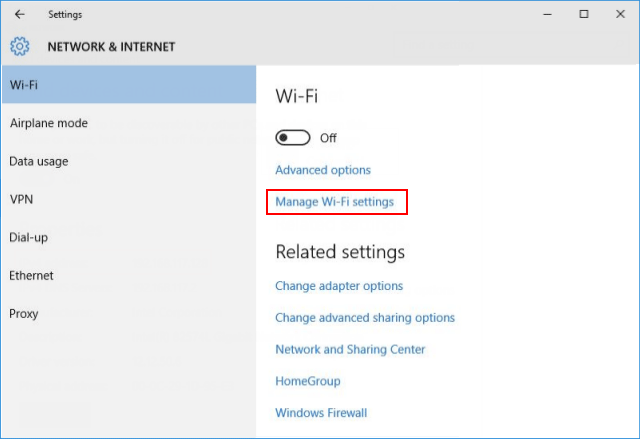
Step 2: Click on Wi-Fi on the left side, then click Manage known networks link on the left side.
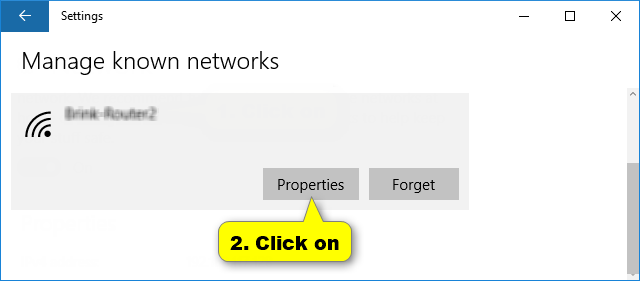
Step 3: Then scroll down to click on the Properties button.
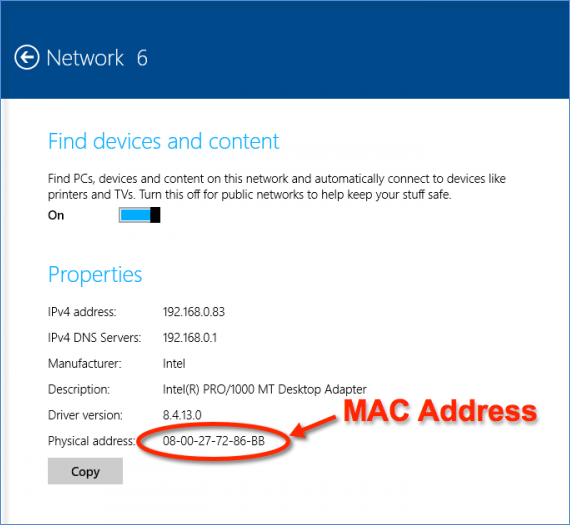
Then you can see the MAC address of the device.
To find the physical address of Ethernet adapter
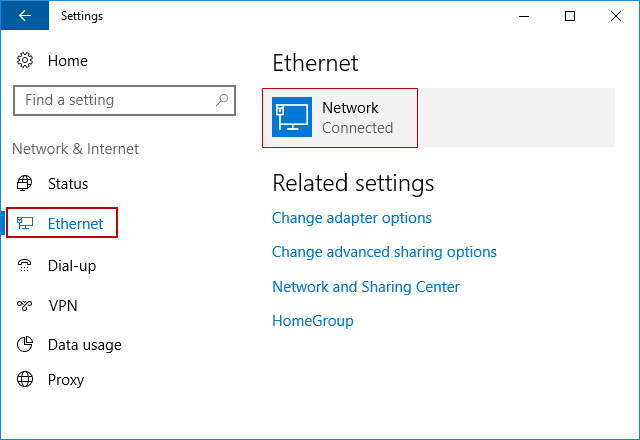
Step 1: Go to Settings > Network & Internet.
Step 2: Click on Ethernet on the left side, and then click Network Connected on the right side.
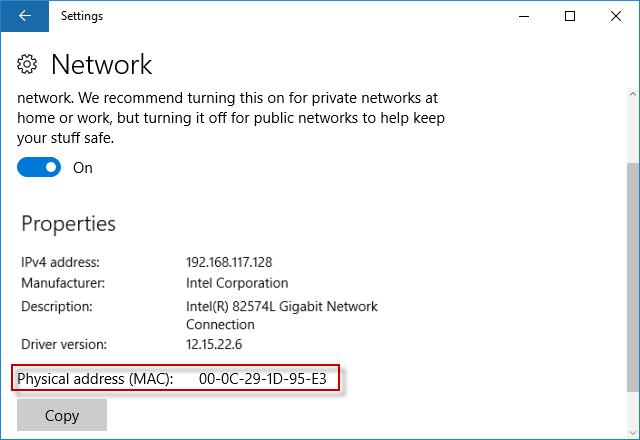
Step 3: You will now see the IPv4 address, which is your PC's IP address.
Option 2: To Find Physical Address in PowerShell
You can view your PC's physical address by using Get-NetAdapter command in PowerShell.
Step 1: Type PowerShell in the search box, then select it from the result list.
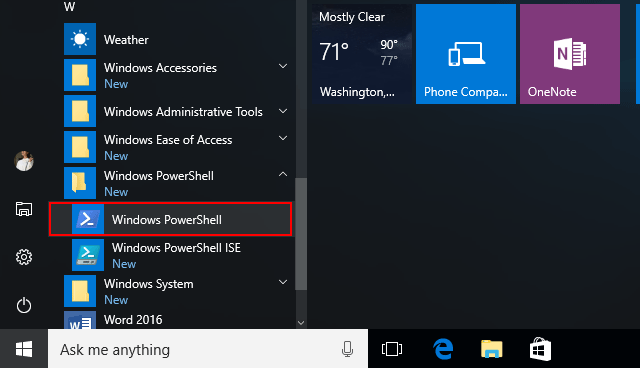
Tips: You can replace Command Prompt with PowerShell in the Quick Access menu.
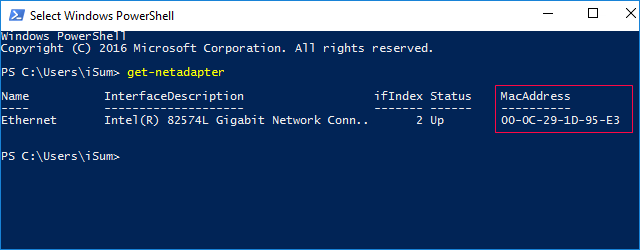
Step 2: Type get-netadapter in the PowerShell window, hit Enter key. You can see Mac Address of your device.
Option 3: To Find IP Address in Command Prompt
There are two commands you can use to find the Mac Address in Command Prompt.
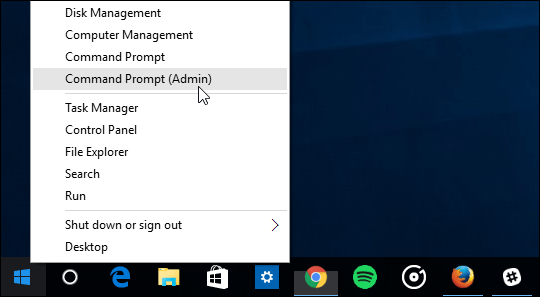
Step 1: Press Win + X shortcuts, click Command Prompt in the Quick Access menu.
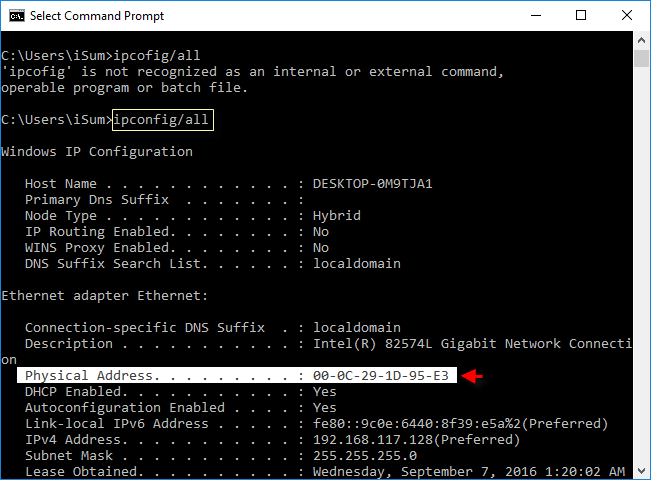
Step 2: Type ipconfig/all into the command prompt, hit Enter key. Then it'll show all IP address.
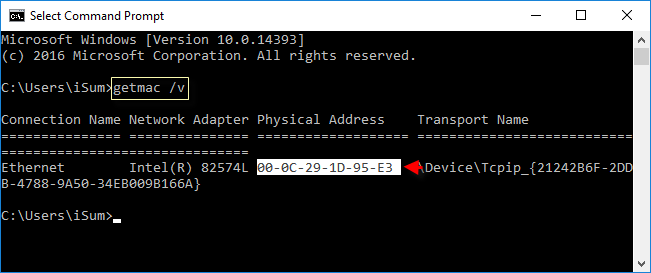
Or you can use getmac /v command, it can also show you the physical address of your PC.
Option 4: To Find IP Address in Network Connections
You can find your IP address in Network Connection, no matter which Windows system you are running.
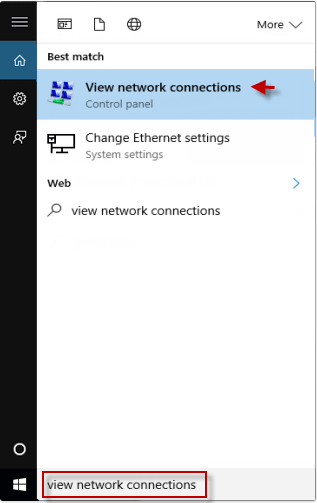
Step 1: Type View network connections in the search box, and then select it in the list.
Step 2: Select an active network connection, double-click on your current network connection.
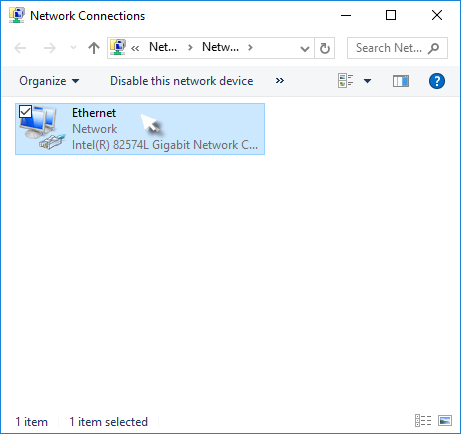
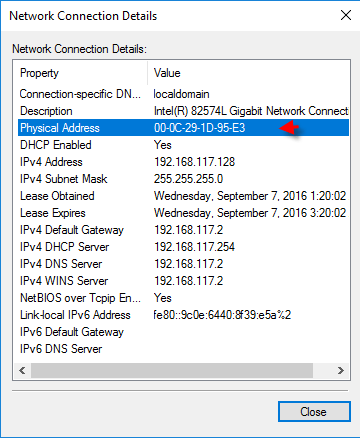
Step 3: Click the detail button to view the IP.
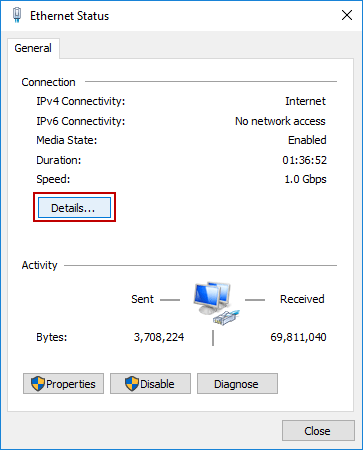
You can see the Physical Address.