Fix: Cannot Open WinX Menu in Windows 10

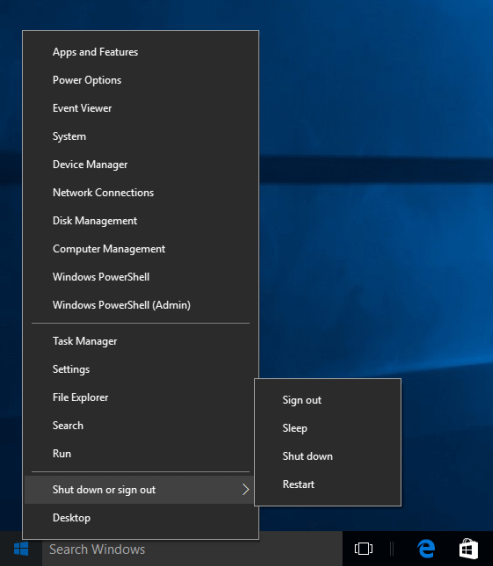
WinX Menu, also called Power User Tasks Menu, gives the user access to a subset of advanced Windows features. If you cannot open WinX Menu neither by right-clicking on Start Menu button, nor pressing Windows + X combination keys. This tutorial will guide you easy ways to restore the WinX menu for your account.
For helping fix the WinX menu does not open issue, try these steps below:
To fix this issue, you have to go to WinX folder in the Default user directory and copy group1, 2, 3 folders from there, then go to the same path for a current user and paste the folders in there. Here's how:
Step 1: Open Default user WinX folder.
1. Press Windows Key + R to open the Run box, type in the following path, and then press Enter.
C:\Users\Default\AppData\Local\Microsoft\Windows\WinX
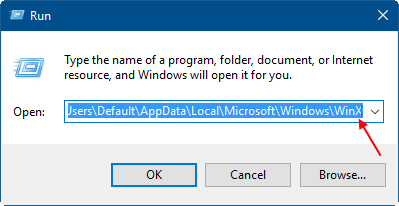
2. Copy group 1,2,3 folder.
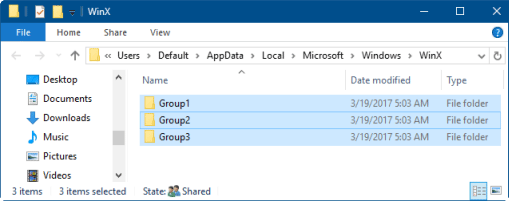
Step 2: Open current user WinX folder.
1. In the Windows Explorer address bar, type in C:\Users\%username%\AppData\Local\Microsoft\Windows\WinX
Hit Enter key. Then, paste that group 1,2,3 folder to WinX folder in the current user directory.
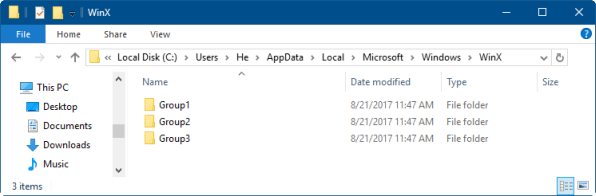
2. Restart Explorer or restart your PC. You will find WinX Menu comes back in the bottom-left corner of the screen.
Related Articles
-
![Winx keyboard shortcuts]() Save Time with
Win+X Keyboard Shortcuts in Windows 10
Save Time with
Win+X Keyboard Shortcuts in Windows 10
-
![disable Win+ keyboard shortcuts]() How to
Disable Win + Keyboard Shortcuts in Windows 10
How to
Disable Win + Keyboard Shortcuts in Windows 10
-
![can't sign into microsoft account]() Fix: Cannot Sign into
Microsoft Account Problem
Fix: Cannot Sign into
Microsoft Account Problem
-
![Windows 10 store app not working]() Fix: Cannot
open Windows Store Problem
Fix: Cannot
open Windows Store Problem
-
![Windows 10 photos app not working]() Fix: Windows 10 Photos App
Not Working
Fix: Windows 10 Photos App
Not Working
-
![create a password reset disk missing or not working]() Fix:
Create a Password Reset Disk Missing or Not Working in Windows 10
Fix:
Create a Password Reset Disk Missing or Not Working in Windows 10