How to Change Weather App Temperature to Celsius in Windows 10

By default, the Windows 10 Weather app displays temperature in Fahrenheit. This guide will show you how to change the Weather app settings to display temperature in Celsius for your Windows 10 account.
3 Ways to Change Weather App Temperature from Fahrenheit to Celsius
You can use the following methods to easily switch the Weather app temperature display from Fahrenheit to Celsius.
2 Options to Open the Weather App
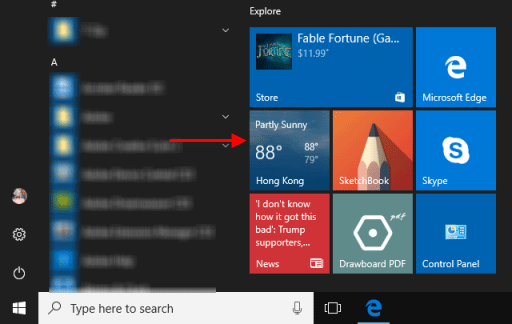
Option 1: Open Weather App from Start Menu Live Tile
Press the Windows key on your keyboard, then click on the Weather Live Tile.
Option 2: Access Weather App from Start Menu App List
If the Weather app is not pinned to the Live Tile menu, you can access it through the alphabetical app list.
Step 1: Open the Start Menu and select any letter from the alphabetical list.
Step 2: In the alphabet screen, click on W, then select the Weather app under the W list.
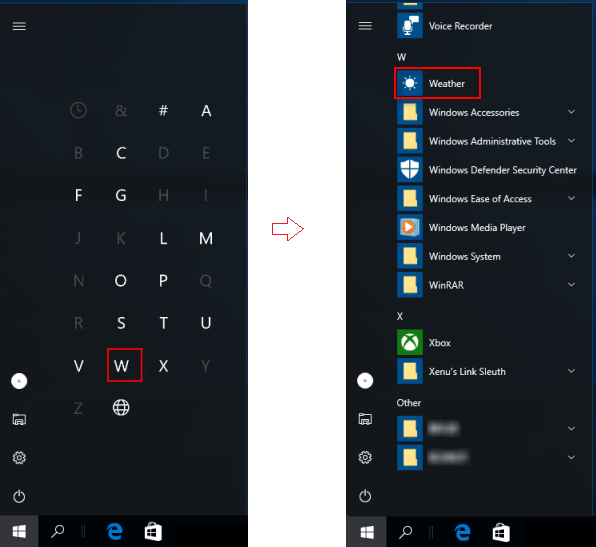
Once the Weather app is open, use one of the following methods to change the temperature display to Celsius.
Method 1: Keyboard Shortcut
Press the Alt + Enter keys on your keyboard to toggle between Fahrenheit and Celsius.
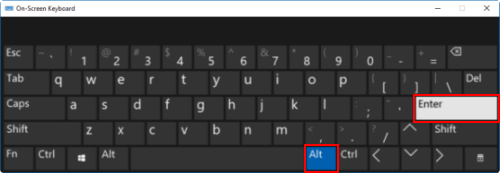
Method 2: Click Temperature Unit
Click on the F (Fahrenheit) or C (Celsius) letter next to the temperature to switch between the two units.
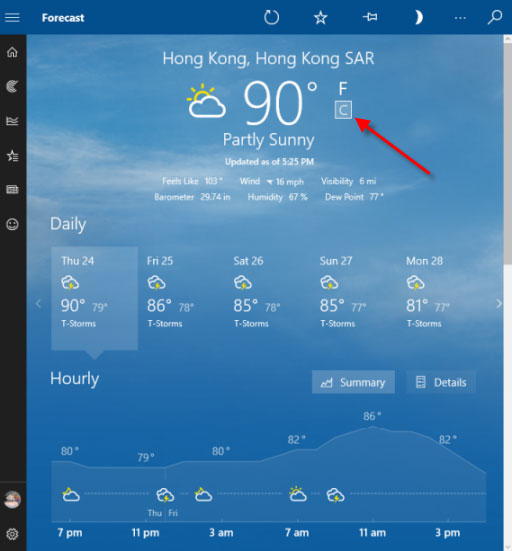
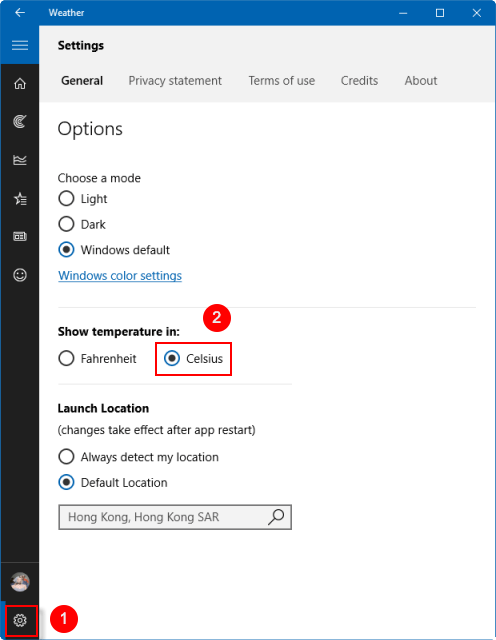
Method 3: Weather App Settings
1. In the Weather app, click on the Settings icon.
2. Then, select Fahrenheit or Celsius under the 'Show temperature in' option.