3 Ways to Add Run to Start Menu in Windows 10

How many methods you have learned to add Run to Start menu in Windows 10 computer? We are so willing to tell you about their operations. The article specially shows three different methods to add Run to Start menu in Windows 10 computer for your better reference.
- Way 1: Add Run to Start menu by searching
- Way 2: Add Run to Start menu using Cortana icon
- Way 3: Add Run to Start menu through right-clicking the Run shortcut
Way 1: Add Run to Start menu by searching
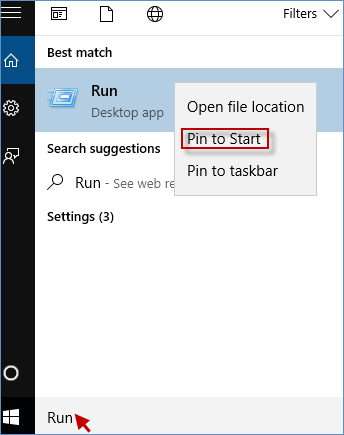
Just type Run in the search field. You will see the Run command displays in the search result. Meanwhile, you need to right-click it to choose Pin to Start in the pop-up menu.
Way 2: Add Run to Start menu using Cortana icon
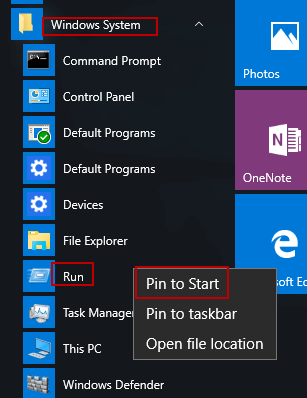
Click the Start button to choose ALL apps and navigate to Windows System. You will see the Run command under the Windows System. Then right-click Run to pick Pin to Start from the context menu.
Way 3: Add Run to Start menu through right-clicking the Run shortcut
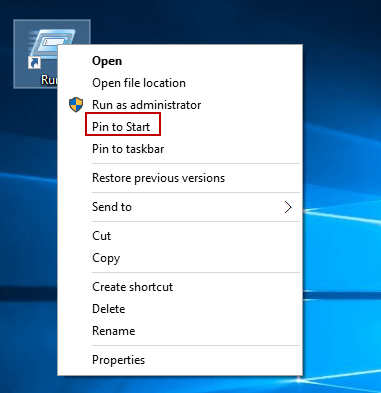
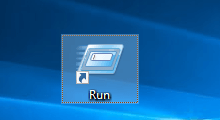
To add Run to Start menu in Windows 10 computer, first of all, you need to create a shortcut for the Run command on Windows 10 desktop. When you finished it, you can right-click the Run shortcut to select Pin to Start immediately.