Change Storage Location for New Content in Windows 10

To resolve low storage issues, transfer personal folders like Documents from the default system drive to another drive. This guide explains how to change the default save location for various file types in Windows 10.
Change Default Save Location for New Content in Windows 10
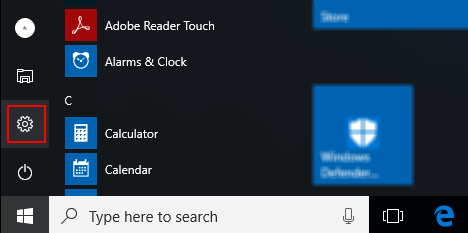
Step 1: Open the Settings app from the Start menu.
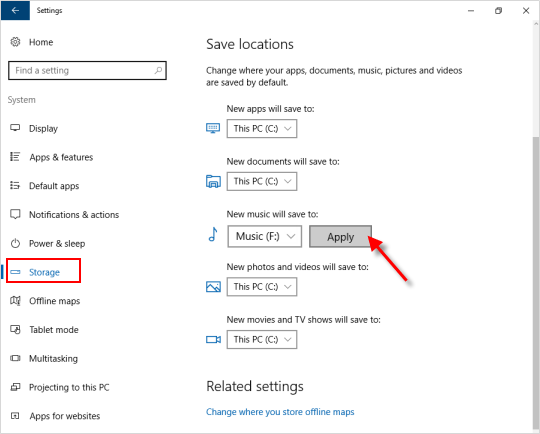
Step 2: Navigate to System and click on Storage.
Step 3: Under the Save locations section, choose the desired location for Documents, Music, Pictures, and Videos.
For Windows 10 Creators Update v1703, follow these steps:
Step 1: Launch the Settings app and click on System.
Step 2: Select Storage and click the Change where new content is saved link under More storage settings.
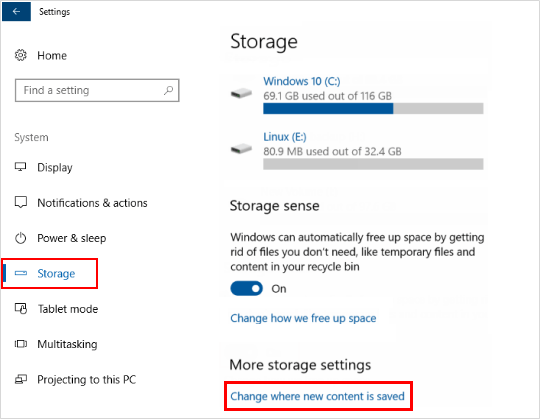
Step 3: Choose the drive for saving apps, documents, music, photos and videos, movies and TV shows, and offline maps, then click Apply.
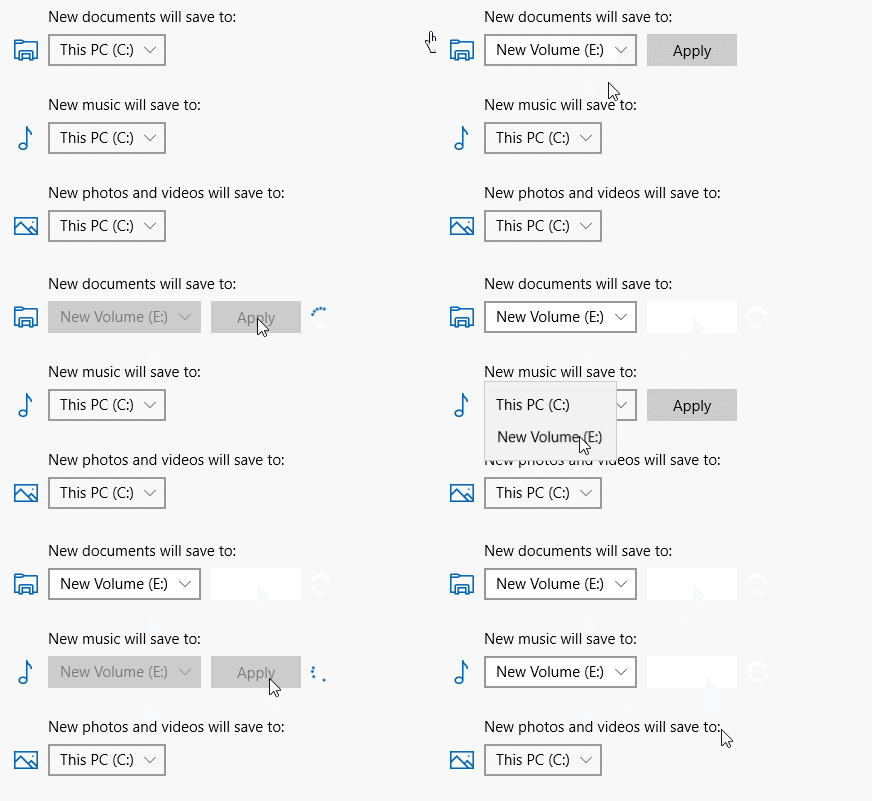
The selected storage location will be included in the respective library, becoming the new default save location.