How to Change Your Windows 10 Product Key: 5 Simple Methods

If you're looking to upgrade your Windows 10 edition or replace an invalid product key, changing your product key is a straightforward process. Windows 10 offers five easy methods to update your product key without requiring a reinstallation. In this guide, we'll walk you through each method.
- Method 1: Update Product Key via Settings
- Method 2: Change Product Key through System Properties
- Method 3: Use Slui.exe to Change Product Key
- Method 4: Update Product Key using Changepk.exe
- Method 5: Change Product Key via Command Prompt
How to Update Your Product Key in Windows 10 Settings
To change your product key, you must be signed in as an administrator.
Fix Activation Errors by Updating Your Product Key
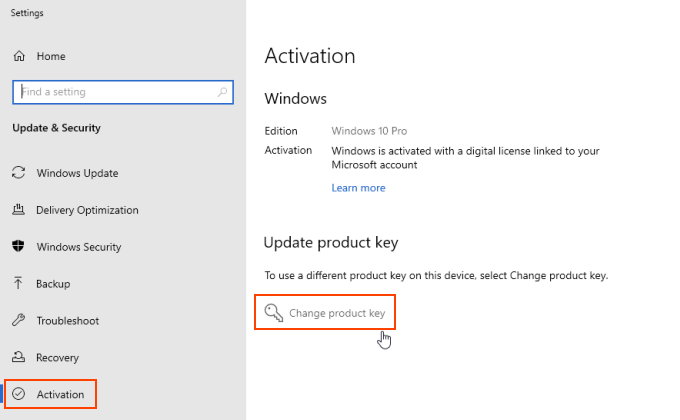
Step 1: Open the Start menu and select Settings, then click on Update & Security.
Step 2: Navigate to the Activation page and click the Change product key link under the Update product key section.
Step 3: When prompted by User Account Control, click Yes.
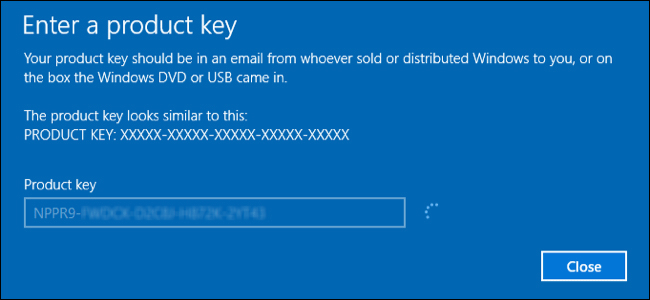
Enter your new 25-digit Windows 10 product key and click Next to activate your copy of Windows 10.
Changing Your Product Key through System Properties
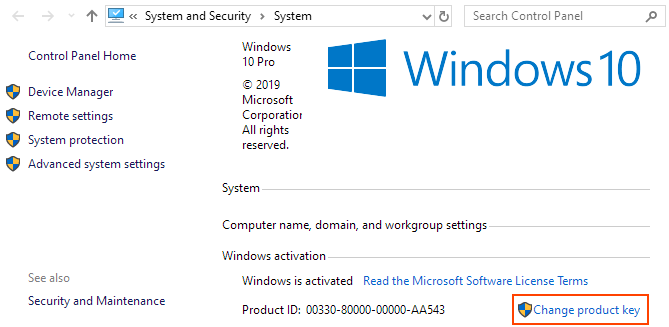
Step 1: Press Windows + Pause Break to open System Properties.
Step 2: Under the Windows activation section, click the Change product key link.
Step 3: Click Yes when User Account Control prompts you.
Step 4: Enter your new Windows 10 product key and press Enter. Windows will attempt to activate with the new key.
How to Change Your Product Key using Slui.exe
Step 1: Press Win + R to open the Run dialog.
Step 2: Type slui.exe 3 and press Enter.
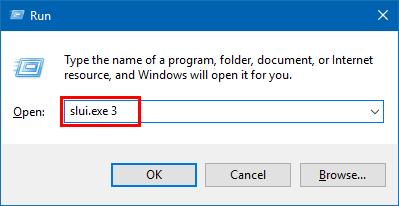
Step 3: Click Yes when prompted by User Account Control.
Step 4: Enter your new product key in the Enter a product key dialog and click Next.
Updating Your Product Key with Changepk.exe
Step 1: Open the Run dialog by pressing Win + R.
Step 2: Type changepk.exe and click OK.
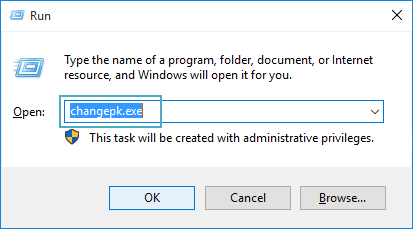
Step 3: Click Yes when User Account Control prompts you.
Step 4: Enter your 25-digit product key for the desired edition of Windows 10 and press Enter.
Step 5: When the Activate Windows screen appears, click Next.
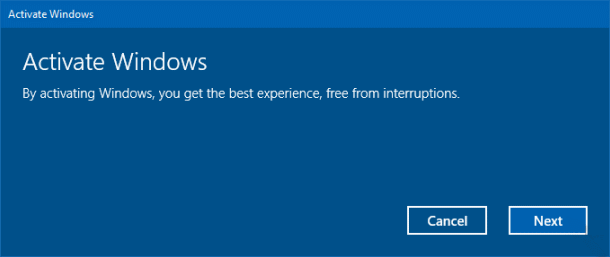
Step 6: After successful activation, click Close.
Changing Your Product Key via Command Prompt
Step 1: Open Command Prompt as administrator.
Press "Windows logo + X" and then hit A.
Step 2: Run the command slmgr.vbs /ipk {Your product key} and press Enter.
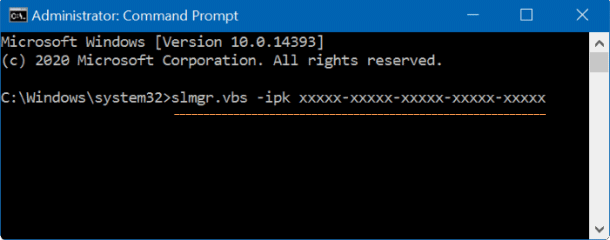
A successful key change will display the message Installed product key successfully.