How to Unblock Apps, Files, and Folders in Windows 10

Windows 10 features two built-in security measures to safeguard against unauthorized or unknown files. When accessing such files or apps, you're alerted by Windows SmartScreen or Open File – Security Warning. For trusted files, you can choose to proceed.
This guide demonstrates how to unblock files or apps blocked by Open File - Security Warning and Windows SmartScreen in Windows 10.
- Option 1: Unblock a File via Properties
- Option 2: Unblock a File in Open File – Security Warning
- Option 3: Unblock an App or File in Windows SmartScreen
How to Unblock a File in File Properties
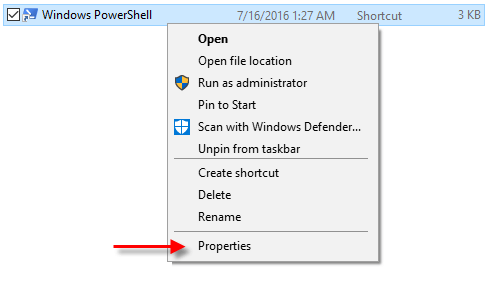
Step 1: Right-click the blocked file and select Properties.
Step 2: In the General tab, check the Unblock box.
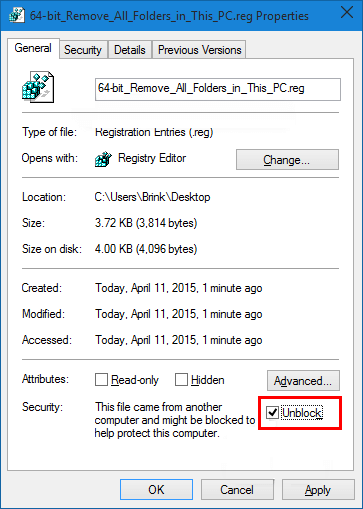
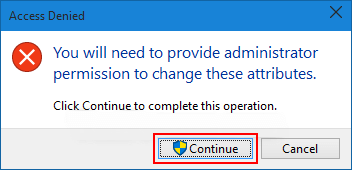
Step 3: If prompted, click Continue.
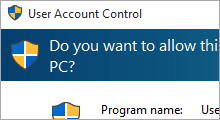
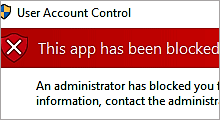
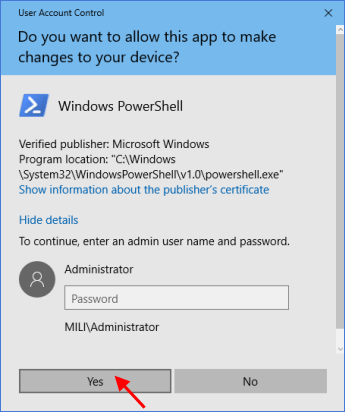
Step 4: If UAC prompts, click Yes or enter the administrator password.
How to Unblock a File in Open File – Security Warning
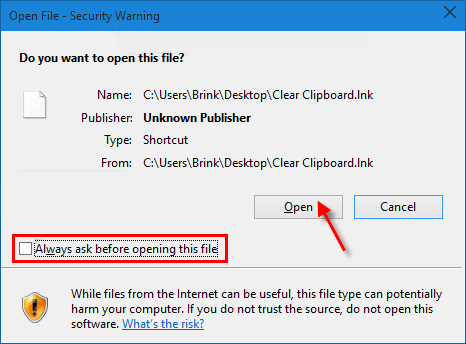
Open the blocked file to trigger the Open File – Security Warning.
In the warning, uncheck Always ask before opening this file and click Open or Run.
If UAC prompts, click Yes or enter the administrator password.
How to Unblock an App or File in Windows SmartScreen
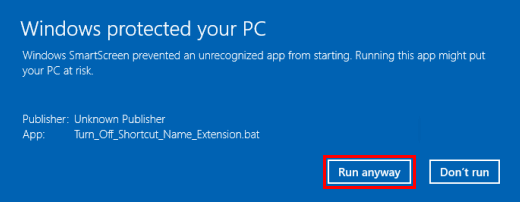
Open the blocked app/file to trigger Windows SmartScreen.
Click More info.
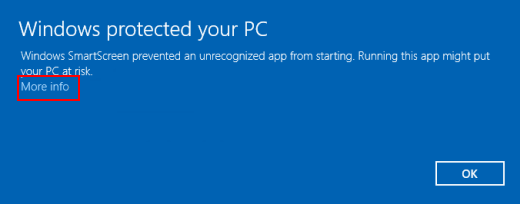
Click Run anyway.