File Explorer, formerly known as Windows Explorer (explorer.exe), is a file management process providing a graphical interface to interact with Windows items like the Start menu, taskbar, and notification area. To restart Windows Shell, use one of the methods below to quickly close and restart Windows Explorer.
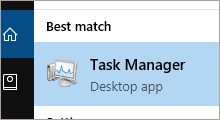
Task Manager allows you to end or restart running apps.
Step 1: Open Task Manager.
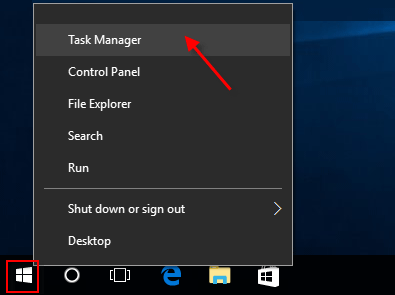
Right-click the Start button and select Task Manager from the Quick Links menu.
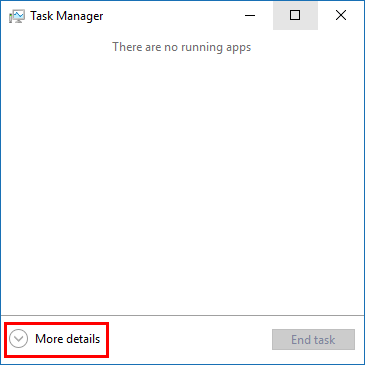
Step 2: If Task Manager opens in mini mode, click the More details button.
Step 3: Select Windows Explorer in the Processes tab and click the Restart button.
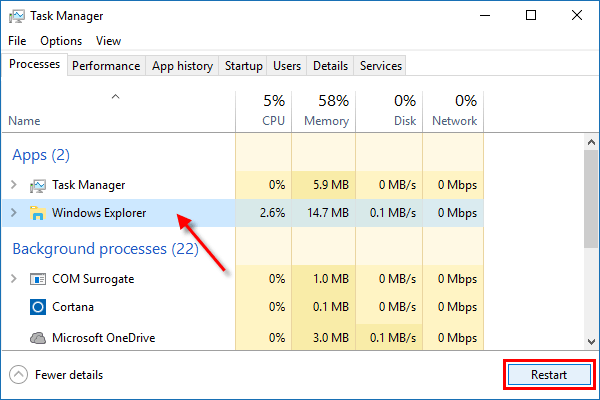
The Exit Explorer feature is a hidden option in Windows 10 that allows you to exit Windows Explorer directly without using Task Manager. Follow these steps:
Step 1: Press the Ctrl + Shift keys and right-click the Start Menu or Taskbar.
Step 2: Release the Ctrl + Shift keys and click Exit Explorer.
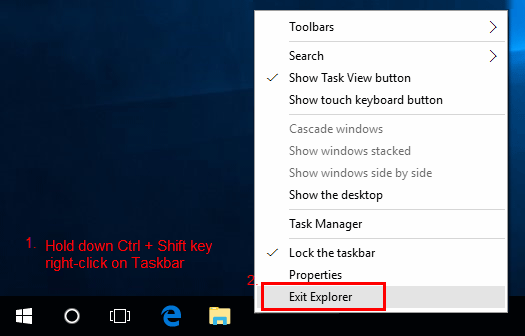
Note: After stopping the explorer.exe process, you'll be left with a blank desktop displaying only your mouse pointer. Proceed to Step 3 to restart the explorer.exe process.
Step 3: Open Task Manager by pressing Shift+Ctrl+Esc.
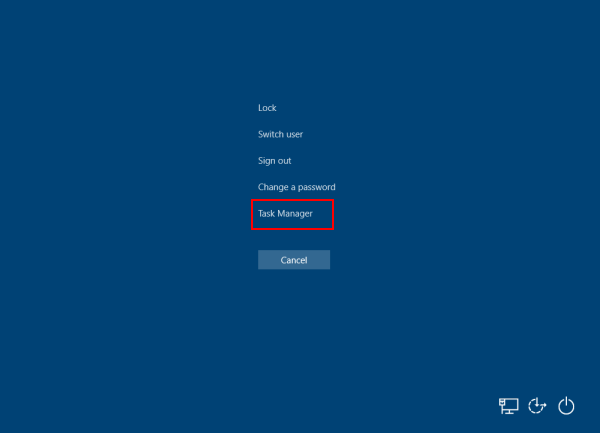
Step 4: If Task Manager opens in mini mode, click More details.
Step 5: Click File in the menu bar and select Run new task.
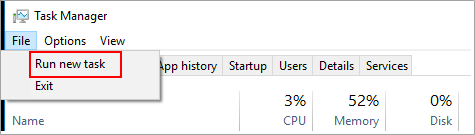
Step 6: Type explorer.exe and click OK.
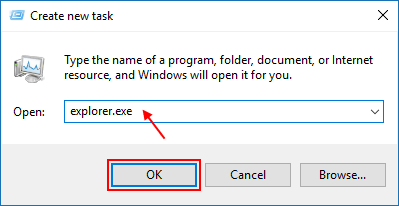
You can restart explorer.exe using Command Prompt commands.
Step 1: Open Command Prompt.
Press Win + X and click Command Prompt in the Quick Links menu.

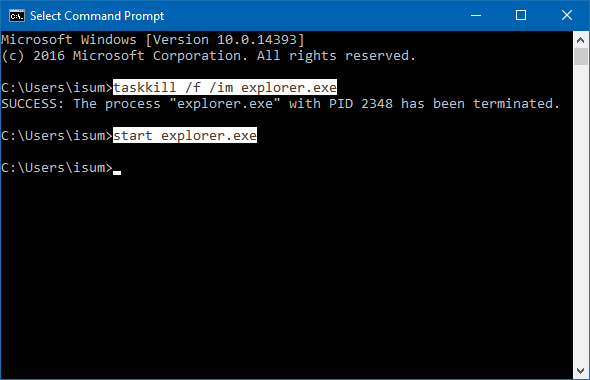
Step 2: Type taskkill /f /im explorer.exe and press Enter to stop the explorer.exe process.
Step 3: Type start explorer.exe to start the explorer.exe process.
After restarting explorer.exe, your PC should function normally.