Set Reminders to Message, Never Forget to Reply Any E-mail

If you don't have time to response an important e-mail right away, but don't want to miss to reply email before the expiration date, how to do? Here is going to show how to use flags to mark items in Outlook to set reminders.
Part 1: Add a Reminder for Yourself to Remind to Reply the E-mail
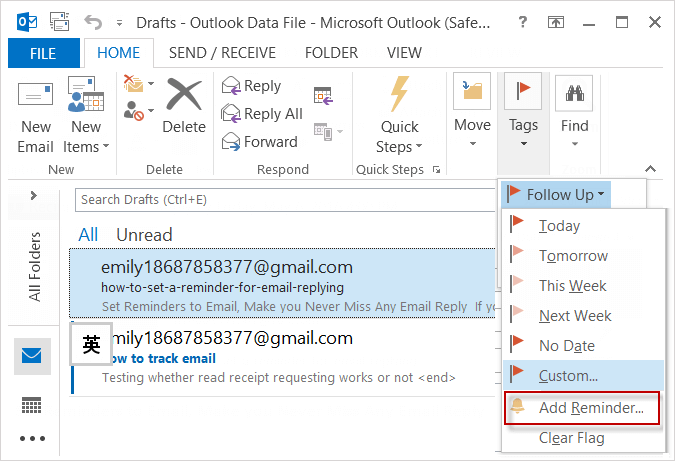
Step 1: When you open an E-mail in your inbox, click on the Home tab, in the Tags group, click Follow Up, and select to click Add Reminder.
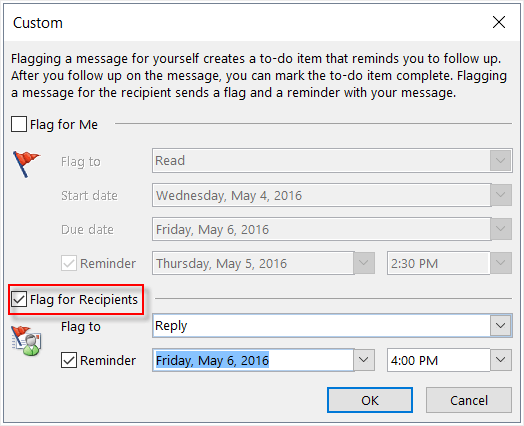
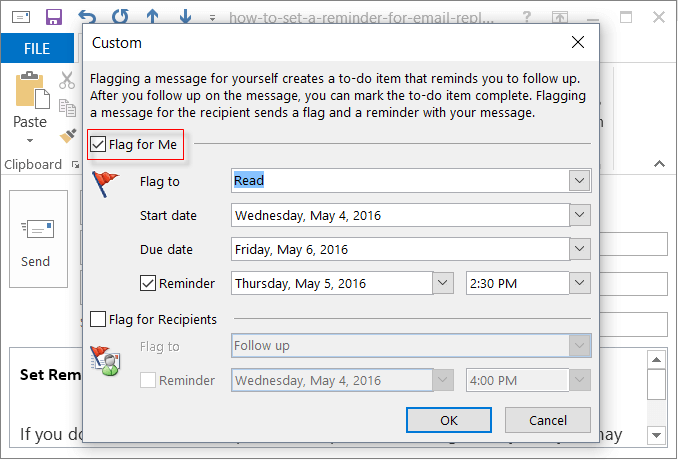
Step 2: In the popup Custom windows, check Flag for Me box, then you can change the reminder date and time.
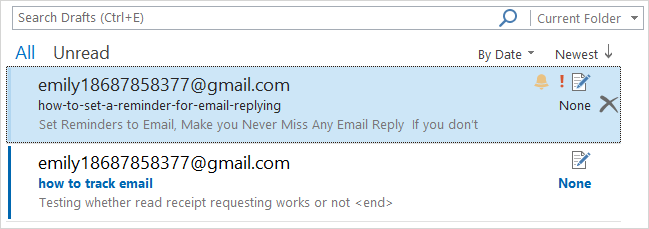
Tips: Flags are visual reminders and flagged items also appear in the To-Do Bar and Daily Task List in Calendar. The reminder also appears in the Info Bar.
Part 2: Set a Reminder for Recipients Before Sending a Message
As the last passage mentioned that you can track your e-mail and know whether the message is opened and read by others. For the urgent letter, if you want the recipients' response you at a certain date, you'd better set a flag reminder for them.
Steps to set reminders for recipients before sending messages:
Step 1: After you compose a letter, add the recipients' address right. Then go to click on the Message > Tags group, click Follow up.
Step 2: In the Flag to list, click Add a Reminder.
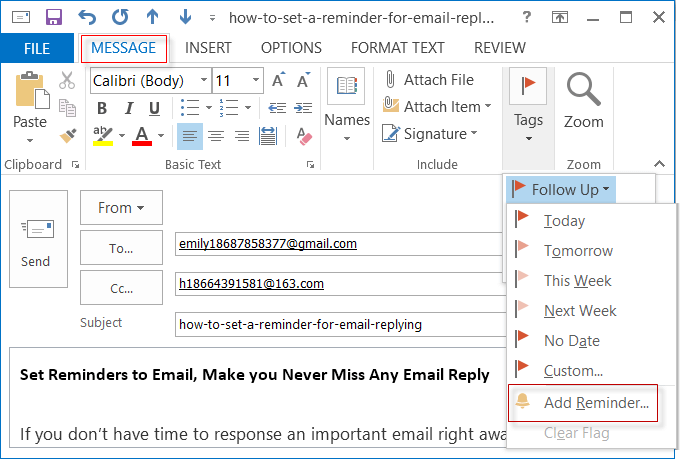
Step 3: Check Flag for Recipients box, then customize the reminder's due dates.